---
title: Add PBX to TeamMate Connector Enterprise
description: SCOPE This article outlines how to add a PBX to a TeamMate Connector enterprise. The PBX is used to register users to the phone system. This step may only be completed after the client has finished their direct routing process.…
url: "https://snap-dial.com/docs/add-pbx-to-teammate-connector-enterprise/"
updated: "2026-01-06"
category: Voice Solutions
---
# Add PBX to TeamMate Connector Enterprise
SCOPE
This article outlines how to add a PBX to a TeamMate Connector enterprise. The PBX is used to register users to the phone system. This step may only be completed after the client has finished their direct routing process.
## Configure PBX Settings
1. Log in to the TeamMate Reseller Portal and navigate to the enterprise you'd like to configure the PBX for
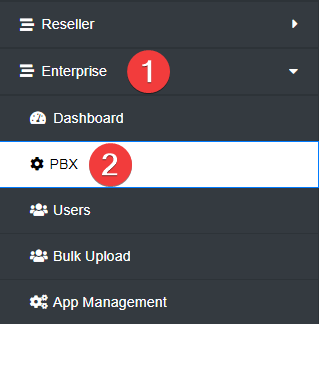
2. In the left-hand sidebar, click **Enterprise **> **PBX**
3. Complete the following fields, leaving all others default:
1. **PBX Type:** Netsapiens
2. **PBX Location: **Enter a name for this. Usually PBX
3. **PBX DNS Lookup Type**: SRV
4. **PBX SIP Domain:** Enter the full PBX domain of the client (it can only be alphanumeric)
5. **PBX SIP Domain Proxy: **Enter the outbound proxy of the PBX. Usually sbc.ucaasnetwork.com
6. **Voicemail Feature Code:** 9901
**NOTE: This may vary for Netsapiens providers**
4. Click **Save Settings**
![>
Once the PBX settings have been completed, you may advise the client to enable calling. Partners may also