
Knowing how to forward calls from your cell phone is about more than just redirecting a number—it’s about creating a communication safety net. Whether you use your iPhone or Android’s built-in settings, carrier short codes, or a business phone app, the goal is to ensure no important call ever gets lost.
This simple feature can quickly become a powerful professional tool.
Why Call Forwarding Is More Than Just a Feature
Before we jump into the "how-to," it's worth taking a moment to understand why this matters. Call forwarding has evolved from a basic convenience into a must-have for modern work, especially for small businesses, freelancers, and remote teams. When your office can be anywhere, seamless call routing is no longer optional.
This isn't just about avoiding missed calls. It's about maintaining a professional image, capturing every valuable lead, and making sure you stay connected no matter where you are. When you get this right, you transform your availability and how efficiently your business runs.
Choosing Your Forwarding Strategy
The best way to forward calls depends entirely on what you're trying to accomplish. Are you a solo professional trying to catch calls while you're on the road? Or are you a business owner building a reliable system for your entire team?
This decision tree can help you visualize the best path forward.
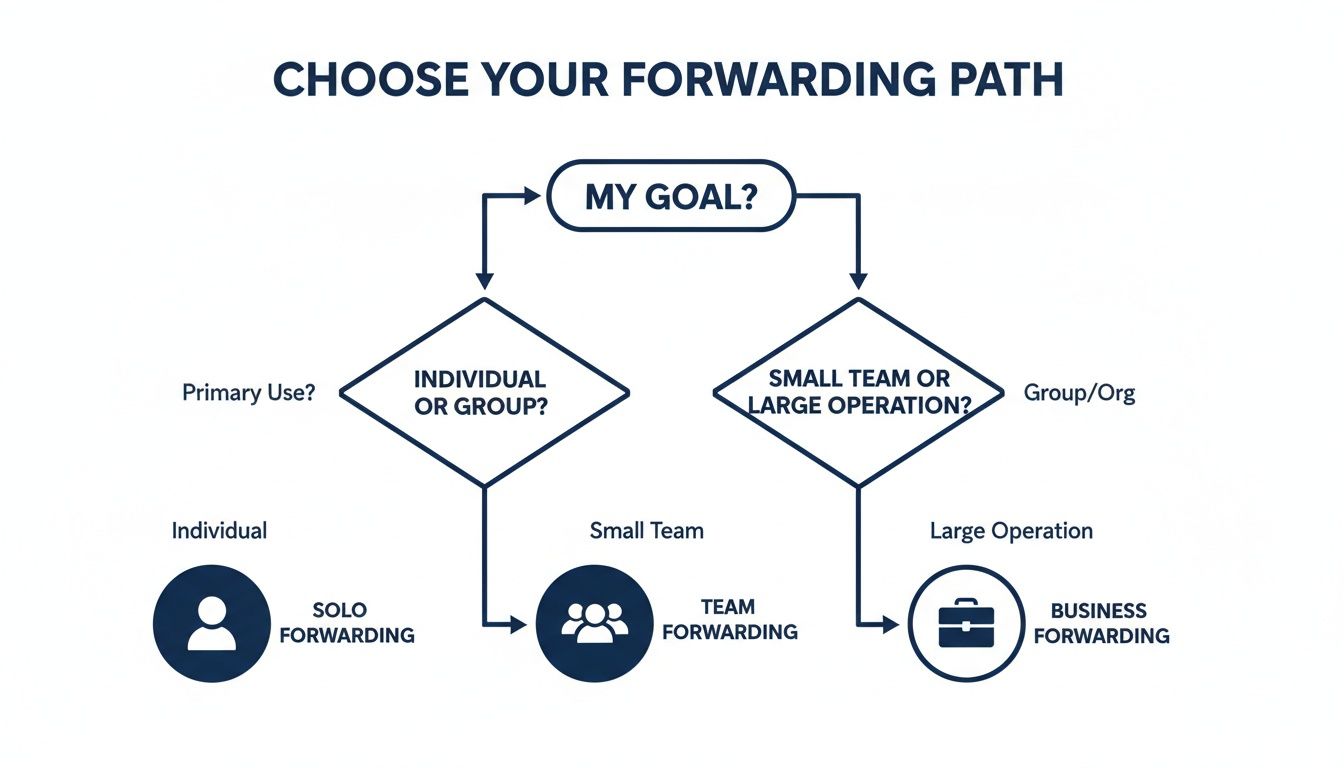
As you can see, individual users can get by just fine with simple device settings. But for businesses, a centralized system that can route calls intelligently is where the real power lies.
From Niche Add-On to Business Essential
The importance of call forwarding has grown right alongside our reliance on mobile phones. Less than two decades ago, it was a niche add-on from your carrier. Today, it's a default expectation for any business user.
Consider this: in 2005, global mobile penetration was around 34 subscriptions per 100 people. By 2023, that number had skyrocketed to over 109 per 100 people—meaning there are now more active mobile connections than people on the planet. You can discover more insights about the growth of mobile communication and its business impact to see just how essential this has become.
This history means call forwarding is no longer a “nice-to-have” feature; it is a foundational expectation. Modern business phone systems must integrate it deeply into mobile apps, auto attendants, and queue routing so employees stay reachable and customers aren't bounced between disconnected numbers.
Ultimately, knowing how to forward calls from a cell phone gives you some powerful advantages:
- Enhanced Professionalism: Present a unified business number, even when calls are answered on personal devices. This builds trust and reinforces your brand.
- Improved Responsiveness: Never miss a critical sales inquiry or client request. Forwarding ensures someone is always available, protecting your revenue and client relationships.
- Greater Flexibility: Work from anywhere without being chained to a desk. Calls follow you—not the other way around—enabling true mobility for you and your team.
Quick Guide to Call Forwarding Methods
To make things easier, here’s a quick rundown of the main methods for forwarding calls from a cell phone. This table will help you zero in on the best option for your specific needs before we dive into the step-by-step instructions.
| Forwarding Method | Best For | Where to Find It |
|---|---|---|
| Device Settings (iPhone/Android) | Solo users needing simple, unconditional forwarding to one number. | Settings > Phone > Call Forwarding (iPhone) or Phone app > Settings > Calling accounts > Call forwarding (Android). |
| Carrier Short Codes (USSD Codes) | Users who need to quickly enable/disable forwarding without digging through menus, or for setting conditional rules. | Dialing specific codes like *72 (AT&T/Verizon) or *21 (T-Mobile) directly from the phone's dial pad. |
| Business Phone App (like SnapDial) | Businesses, teams, or solo pros needing advanced routing, a separate business number, and professional features. | A dedicated mobile app from a VoIP provider like SnapDial that integrates with a cloud phone system. |
Each path offers unique benefits, from the dead-simple approach of your phone's built-in settings to the robust, feature-rich control offered by a dedicated business app. Let's get into how each one works.
Forwarding Calls Directly on Your iPhone or Android
The most direct way to get your calls rerouted is by using the settings baked right into your smartphone. Both iPhone and Android have native options to redirect incoming calls, making it the perfect starting point for anyone who needs to manage their calls better without any extra hassle.
This method is ideal for a simple, "always on" forwarding solution. For instance, a freelance photographer heading out for a week-long shoot might forward their personal cell to their studio assistant’s line. This is a classic case of unconditional call forwarding—every single call gets sent to the new number, ensuring no client inquiries are missed while they're off the grid.
Setting Up Call Forwarding on an iPhone
Apple keeps this process incredibly straightforward on iOS. Once you know where the setting is hiding, you can flip it on or off in just a few seconds.
You’ll find everything you need right inside your iPhone’s main settings menu.
- Open the Settings app on your iPhone.
- Scroll down a bit and tap on Phone.
- From there, select Call Forwarding.
- Just toggle the switch to turn it on.
- Tap on Forward To and punch in the full phone number you want your calls sent to.
Here’s exactly what that menu looks like, so you know what you're looking for.
As soon as it's active, you'll see a little phone icon with an arrow in your status bar. That's your confirmation that calls are officially being rerouted.
Navigating Call Forwarding on Android Devices
Android's setup is just as simple, but the exact path can differ a little. That’s because manufacturers like Samsung, Google, or OnePlus put their own spin on the Android interface. Still, the core settings are almost always tucked away inside the Phone app.
For most stock Android devices, like a Google Pixel, this is the typical route:
- Open up your Phone app.
- Tap the three-dot menu icon, usually in the top-right corner, and choose Settings.
- Look for Calling accounts or a similar option like Calls.
- If you have two SIMs, you'll need to choose which one you're setting up.
- Tap on Call forwarding.
This is where you'll notice Android often gives you more fine-tuned control than the iPhone’s all-or-nothing approach.
Conditional Forwarding Explained: Unlike the simple on/off switch on an iPhone, Android often lets you choose when to forward calls. This is what's known as conditional forwarding. You can set it to redirect calls only when your line is busy, when you don't answer, or when your phone is unreachable (like when it's off or has no service).
This flexibility is incredibly practical. Imagine you're a consultant who prefers to answer calls personally but needs a safety net. You could set up conditional forwarding to send calls to your virtual assistant only if you don't pick up after four rings. You get to maintain that personal touch while ensuring you never miss a potential client.
The ability to set up call forwarding directly on your device is a fantastic feature for straightforward needs, but if your situation is more complex, you'll want to look at some more advanced methods.
Using Carrier Codes for Instant Call Rerouting
Sometimes you just need to forward your calls right now, without digging through your phone's settings menu. This is where carrier codes are a lifesaver. These simple numeric commands, often called star codes or USSD codes, let you manage call forwarding directly from your phone's dialer. It's the old-school, direct-control method.
This trick is a favorite for anyone who needs to change call routing on the fly. Say you’re a contractor heading to a job site with notoriously bad reception. Before you even get in the truck, you can punch in a code to forward all incoming calls to your office landline. When you’re back in a good service area, another quick code turns it right off. Simple and effective.
Common Carrier Short Codes
While the exact codes can vary a bit between carriers like Verizon, AT&T, and T-Mobile, the most common ones for unconditional forwarding are pretty standard across the board. For example, dialing *72 followed by the 10-digit phone number is the go-to command for activating this feature.
To make it easier, here’s a quick-reference table for the codes you'll use most often.
Common Carrier Short Codes for Call Forwarding
| Action | Code (Example) | Carrier Notes |
|---|---|---|
| Activate Forwarding | *72 + Phone Number |
Dial the code, then the full 10-digit number, and hit the call button. You should hear a confirmation tone. |
| Deactivate Forwarding | *73 |
Just dial this code and press call to switch off all active call forwarding on your line. |
| Check Forwarding Status | *#21# or *#67# |
Dialing this code brings up an on-screen message confirming if forwarding is active and which number calls are going to. |
It's always smart to double-check the specific codes for your carrier, as some might use slight variations like **21* for activation. A quick search on their support site usually clears it up.
Why Use Codes Instead of Settings?
The biggest advantage of using carrier codes is pure speed. There’s no need to unlock your phone, hunt for the settings app, and tap through three or four different screens. You just pop open the dialer, type the code, and you're done. This direct access makes it an incredibly efficient way to manage how you forward calls from a cell phone.
This method is especially handy for setting up conditional forwarding. For instance, you can use a specific code to forward calls only when your line is busy (
*67) or when a call goes unanswered (*61). This gives you much more granular control than the all-or-nothing approach you find in some phone settings.
These codes are like a universal language that your carrier's network understands, completely bypassing your phone's operating system. That makes them a rock-solid tool, even on older or less common devices. While a dedicated business phone system offers far more advanced routing, a deep dive into the various star codes and their features can unlock some surprisingly powerful controls you already have. Learning just a few key codes can make managing your calls a whole lot easier.
Go Beyond Basic Forwarding with a Business Phone System
For most professionals and small businesses, the standard call forwarding features on a cell phone just don't cut it. Simply redirecting your mobile to another personal number can create a messy, unprofessional experience for callers and leave you with zero control over your business communications. This is where a dedicated business phone system provides a massive upgrade.
Instead of a simple one-to-one transfer, you can route calls into a powerful, centralized hub. This small change immediately elevates your professional image, ensuring every caller is greeted by a consistent business identity—not just another personal voicemail.
Unlocking Professional Features
When you forward calls to a system like SnapDial, you unlock a suite of features that are impossible to replicate with basic carrier forwarding. It’s a strategic move that completely transforms how you handle inbound calls.
Imagine a potential client calls your mobile number. Instead of it ringing endlessly while you're in a meeting, the call is instantly forwarded to an auto-attendant. The caller hears, "Thank you for calling. Press 1 for Sales, Press 2 for Support." That single step provides a polished, big-company feel and ensures the call gets to the right person or department immediately.
This approach gives you a few key advantages:
- Intelligent Call Routing: Send calls to a sales queue, a specific support team member, or a dedicated voicemail box based on what the caller needs.
- Separation of Work and Life: Team members can forward their work-related calls to a business app, keeping their personal number private and all business conversations logged and organized.
- Scalable Communication: As your business grows, you can easily add new team members and routing rules without having to reconfigure everyone's personal phone settings.
Maximizing Every Business Call
This advanced approach to call forwarding is now tightly linked to measurable business performance. It's not enough to simply send a call to another number; the call has to land in the right place the first time. Research on call-driven commerce shows that phone calls convert to revenue 10–15 times more than web leads, making every intelligently handled call incredibly valuable.
On top of that, caller retention rates are also about 28% higher than from web leads, reinforcing why smart businesses invest in forwarding rules that minimize missed opportunities.
This means that forwarding a call to a live agent, an auto-attendant, or a specialized queue is disproportionately more valuable than sending it to a personal voicemail. You are actively protecting revenue with every call you route correctly.
For example, a remote team member can forward their calls to the SnapDial mobile app. The system can then automatically log the call, record the conversation for quality assurance, and even push the data into your company's CRM. This creates a complete record of every client interaction, all while maintaining a clear boundary between personal and professional life.
If you're new to this concept, exploring what a cloud phone system is can provide a deeper understanding of these capabilities. Ultimately, this isn't just about forwarding calls; it's a strategy for building a more professional and efficient business.
Best Practices for a Seamless Caller Experience
Just setting up call forwarding is the easy part. The real goal is to create an experience for your callers that feels completely seamless and professional. A clunky, poorly planned forward can lead to awkward silences, endless ringing, and frustrated callers—potentially costing you business.
The first thing you should always do is test the setup yourself from an outside line. It’s a simple step, but it’s the only way to know exactly what your callers will hear. Does it connect instantly? Is there a weird delay? You won't know until you're on the other end of the line.

Choose the Right Destination
Where you point your calls is the single most important decision in this process. Simply sending one cell phone to another personal line often isn't the right move for a business. Think carefully about where each call should land to make the best impression.
- A Welcoming Auto-Attendant: Instead of forwarding directly to one person, routing calls to an auto-attendant gives your business a polished, professional front. It lets callers get themselves to the right department, which is far better than turning a single employee into a human bottleneck.
- A Well-Crafted Voicemail: If calls have to go to voicemail, make sure the greeting is professional and specific. It needs to state your business name clearly and tell the caller exactly when they can expect a call back.
- A Capable Team Member: When forwarding to another person's line, they have to be ready to answer professionally. A confused "hello?" on a personal cell phone can instantly tarnish your company's image.
Use Conditional Forwarding as a Smart Failover
Unconditional forwarding is a blunt instrument. Conditional forwarding, on the other hand, gives you a much smarter safety net. By setting your phone to forward calls only when you're busy or don't answer, you still get the first shot at picking up. This keeps things personal while ensuring no call ever falls through the cracks.
This strategy is a game-changer for business continuity. If your main line is tied up or you can't get to the phone, the call automatically bounces to a backup number or system. It prevents lost opportunities and shows your clients you have a reliable plan in place.
As businesses grow, forwarding cell phones into cloud-based phone systems has become a core strategy. With around 90% of prospects using their mobile phones to contact businesses, it's a best practice to route those calls into systems that can record and track them. Platforms like SnapDial allow companies to forward calls from employee cell phones directly into call queues or on-call rotations, all while logging every interaction for later analysis. You can learn more about how call forwarding is reshaping global business communication and the impact it's having.
Troubleshooting Common Call Forwarding Problems
Even with the best of intentions, technology likes to throw us a curveball every now and then. It’s incredibly frustrating when you set up call forwarding, expect it to just work, and then find out you’re missing important calls. When your phone isn't doing what you told it to, it's usually one of a few common culprits.
Before you dive into the weeds, try the oldest trick in the IT book: reboot your device. A quick restart can clear out temporary network hiccups or software gremlins that might be blocking your forwarding settings. If that doesn't do the trick, it’s time to investigate a little further.
When the Call Forwarding Option Is Grayed Out
This is probably the most common roadblock. You navigate to the call forwarding menu on your iPhone or Android, ready to set it up, only to find the option is completely inaccessible—just a "grayed out", unclickable line.
Nine times out of ten, this points directly to a restriction from your mobile carrier. It usually happens for one of two reasons:
- Your Plan Doesn't Support It: Some basic or prepaid mobile plans simply don't include call forwarding as a feature. The carrier hasn't enabled it for your account, so the option on your phone is disabled.
- A Carrier-Side Glitch: Sometimes, even if your plan is supposed to include it, a provisioning error on the carrier's network can accidentally block your access.
The fix is pretty straightforward: give your mobile carrier's support team a call. They can check your plan, confirm if the feature should be active, and refresh your account on their end to bring the option back to life on your device.
Calls Go Straight to Voicemail Instead of Forwarding
Here's another classic headache: you've set everything up correctly, but instead of ringing on the new number, calls just get dumped into your original cell phone's voicemail. This is almost always caused by a feature conflict.
The most likely culprit is Wi-Fi Calling. While it's a great feature for areas with poor cell service, it can sometimes get its wires crossed with carrier-level forwarding rules. The network gets confused about where to send the call and defaults to your voicemail.
Try disabling Wi-Fi Calling in your phone’s settings for a moment, then have someone place a test call. If the call forwards correctly, you've found your conflict.
You might have to choose between using Wi-Fi Calling or call forwarding. It's also worth contacting your carrier to see if they can sort out the network routing conflict on their end, but disabling the feature is the fastest way to get your calls moving again.
Carrier Star Codes Don't Work
If you're trying to use USSD codes like *72 and you're just getting an error message, there are a few things to check. First, double-check that you're using the right code for your specific carrier—they aren't all the same. Second, make sure you're dialing the full command correctly, which is usually the code immediately followed by the complete 10-digit phone number.
Still no luck? It could just be a momentary network issue. Give it a few minutes and try dialing it again. If the problem keeps happening, this is another one that needs a call to your carrier. They may have to reset the feature for your line.
Stop wrestling with carrier limitations and unreliable forwarding rules. SnapDial gives you a robust cloud-based phone system where you can manage call routing for your entire team from a simple web portal. Build intelligent call flows, set up professional auto-attendants, and ensure every call reaches the right person, every time. Learn more at https://snap-dial.com.