
Let's be honest, traditional voicemail is a relic. Dialing in, punching in a PIN, and slogging through messages one by one is a workflow killer that modern businesses just can’t afford anymore. Sending those voicemails straight to your email isn't just a neat little trick—it’s a strategic move that sharpens your team's responsiveness, solidifies your documentation, and makes collaboration a whole lot easier.
Why Forwarding Voicemails to Email Is a Game-Changer
Think about a sales rep out in the field. Instead of pulling over to dial into a clunky system, they get a new lead's voicemail delivered right to their inbox, complete with a transcript they can read in seconds. They can gauge the urgency and fire back a response before the lead even thinks about calling a competitor. This simple shift fixes the real-world delays that have plagued legacy phone systems for years.
For most businesses, getting started is simple: you just enable the feature in your VoIP phone system settings. This automatically zips an audio file and transcription over to a designated email address, turning an outdated chore into a streamlined, searchable archive you can access from anywhere.
Supercharge Responsiveness and Sales
In a cutthroat market, speed is everything. When a potential customer leaves you a message, that window to make a great first impression is incredibly small.
Having that voicemail land in an inbox empowers your team to act immediately. This multi-channel approach has a real, measurable impact. In fact, organizations see a remarkable +10–11% lift in email conversions when they follow up within minutes of a voicemail being left—a process made seamless with this kind of forwarding. You can dig into the research behind this sales strategy from Orum's research.
This is an invaluable setup for:
- Remote Teams who need to stay in the loop and share client messages without being chained to a desk phone.
- Support Departments that need to accurately document customer issues for their records or for escalation.
- Managers who want to create a central, searchable log of communications to streamline their team's workflow.
Create a Central and Accessible Archive
For most businesses, email is the unofficial system of record. When you send your voicemails there, you're building a powerful, searchable archive of every client conversation. Need to find that verbal confirmation a client gave you six months ago? Just search your inbox. It’s that simple.
A visual voicemail interface, like the one shown here, makes it easy to see all your messages at a glance and forward the ones that matter.
The ability to quickly scan, prioritize, and share these messages turns voicemail from an isolated task into a fully integrated part of your business intelligence. This is a core part of what makes the advantages of unified communications so powerful for any growing company.
Setting Up Automatic Voicemail to Email Forwarding
Automating your workflow is one of the smartest ways you can reclaim valuable time. When you set up a system to automatically forward a voicemail to email, you can stop manually checking messages and start managing them from one central place—your inbox. With a platform like SnapDial, this "set it and forget it" process is incredibly straightforward for administrators.
You can tweak these settings for individual users, whole teams, or even create custom rules that fit specific business needs. The goal here is to build a system where important messages never get missed and land in a format that's easy to act on, fast.
The business impact of this simple change is crystal clear. It transforms slow, traditional voicemail into a catalyst for faster sales cycles.
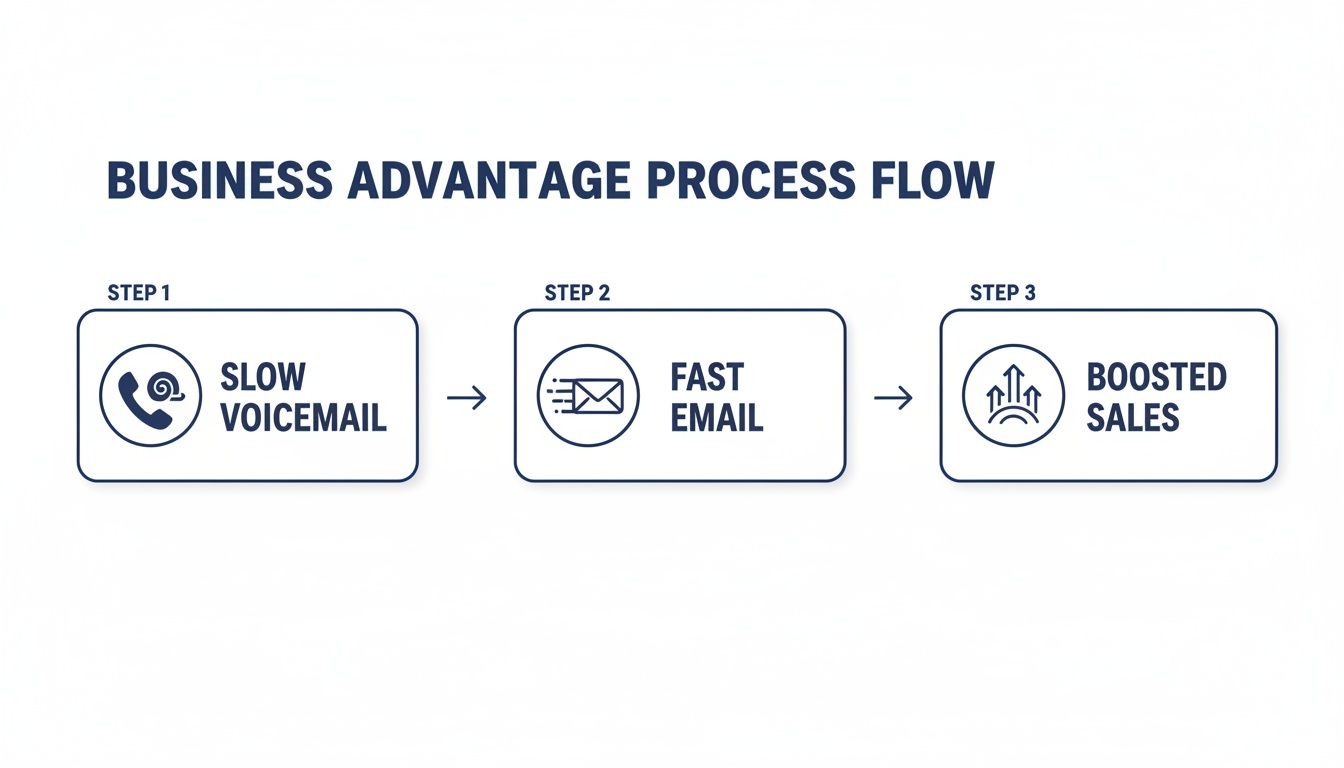
This process flow shows how converting slow voicemail into fast, accessible email directly contributes to boosting sales and responsiveness.
Navigating the Admin Portal
To get started, you’ll need to log into the SnapDial admin portal. This is the control center where you'll manage all your user and system settings. Once you're in, your first task is to find the specific user or group you want to set this up for.
Look for a section usually labeled "Users" or "Extensions." From there, you can click on an individual and dive into their personal settings. This is where you’ll find all the voicemail configuration options.
A common mistake I see is admins only setting up a notification email. Make sure you select the option to attach the full audio file and, if it's available, the transcription. A simple alert that a voicemail exists is far less useful than getting the actual message.
Configuring Voicemail Delivery Options
Inside the user's settings, find the "Voicemail" or "Messaging" tab. This is where you have several critical choices for how voicemails get handled. The core principles of setting up email forwarding for specific purposes, like going on vacation, are directly applicable here for automating your voicemail delivery.
You'll see an input field for an email address. This is where you’ll tell the system where to send all forwarded voicemails for that user. You can often add multiple addresses, which is perfect for teams.
- For Sales Teams: Route voicemails to a shared inbox like
sales@yourcompany.com. This ensures the first available rep can jump on a new lead. - For Support Staff: Send messages to
support@yourcompany.comso the entire team has visibility on customer issues, creating a documented ticket trail. - For Executives: Forward voicemails to both the executive and their assistant to guarantee nothing important gets missed and follow-up is timely.
After you've entered the email address(es), you’ll need to specify what content gets sent. You can typically choose between a simple notification, the audio file attachment (usually an MP3), a text transcription, or a combination of all three. For maximum efficiency, always choose to include both the audio file and the transcription. This gives the recipient ultimate flexibility—they can either listen on the go or quickly scan the message during a meeting. Once you hit save, the system will handle the rest automatically.
Manually Forwarding Voicemails From Any Device
Automating your voicemail delivery is a huge time-saver, but what about those one-off situations? Sometimes you need to share a single, specific message with the right person, and that’s where the flexibility of a modern phone system really shines.
With a platform like SnapDial, manually forwarding a voicemail to someone's email is incredibly simple, whether you're at your desk or on your phone. This on-the-fly capability empowers your team to act decisively on critical information the moment it comes in.

Real-World Scenarios For Manual Forwarding
The ability to share a specific message is more than just a convenience; it’s about solving everyday business challenges and opening up new ways to collaborate.
Think about these practical examples:
- Technical Support Escalation: A support agent gets a detailed voicemail from a client describing a complex software bug. Instead of trying to summarize it, they can instantly forward the original audio to an engineer’s inbox, providing perfect, unfiltered context.
- Celebrating Client Wins: A team lead receives a glowing voicemail from a happy customer praising the team's work. They can forward this message to the entire team's group email for a powerful and authentic morale boost.
- Sales Opportunity Handoff: An account executive gets a message from a prospect who mentions needing a service outside their specialty. They can forward the voicemail to a colleague in the right department, ensuring a seamless and warm handoff.
The core idea is to move crucial information to the right person with zero friction. Manual forwarding ensures context isn't lost in translation, which is vital for both internal efficiency and the customer experience.
How To Forward A Voicemail From The App
The process is designed to be completely intuitive. Inside the SnapDial mobile or web app, you just navigate to your visual voicemail list, pick the message you want to share, and tap the "Share" or "Forward" icon. From there, you can choose to send it via email, add a personal note, and send it on its way.
For a deeper dive into the app's capabilities, you can explore the official SnapDial mobile app documentation.
This feature is a game-changer in sales. Cold calling is still a powerhouse, but with 80% of calls going to voicemail, smart businesses are using every tool they can. When you pair this with multi-channel outreach like email, B2B conversions can lift by 15%. Forwarding a compelling voicemail directly to a prospect's email helps your message get the attention it deserves. You can learn more about transforming these missed calls from our friends at Trellus.ai.
When you forward a message, you'll also get a choice of audio formats. MP3 files are smaller and universally compatible, making them perfect for quick sharing. WAV files offer higher, uncompressed quality, which is better for archiving or when audio clarity is absolutely paramount.
To help you decide which method works best for your workflow, let's compare the two primary approaches to getting voicemails into your inbox.
Automatic vs. Manual Voicemail Forwarding
| Feature | Automatic Forwarding | Manual Forwarding |
|---|---|---|
| Best For | Archiving every message, ensuring nothing gets missed, and creating a searchable history. | Sharing specific, high-value voicemails with the right person for immediate action. |
| Workflow | "Set it and forget it." Every voicemail is delivered to your email without any extra steps. | A deliberate, selective action taken on a case-by-case basis. |
| Use Case Example | A manager wants a complete record of all support voicemails for quality assurance. | A salesperson forwards a hot lead's message to a specialist for a quick follow-up. |
| Primary Benefit | Comprehensive record-keeping and peace of mind. | Precision, context, and collaborative action. |
Ultimately, both methods have their place. Automatic forwarding creates a safety net, while manual forwarding gives you a scalpel for targeted communication. The best part is that with a system like SnapDial, you don't have to choose—you can use both to create a workflow that’s perfect for your team.
Using Voicemail Transcriptions to Boost Productivity
Getting a voicemail as an audio file in your inbox is a nice first step, but the real game-changer for productivity is voicemail transcription. When a text version of the message lands in your inbox right alongside the audio, it completely transforms how you manage your communications. It turns a passive listening task into an active, data-rich resource.
All of a sudden, voicemails are instantly scannable. You no longer have to stop what you're doing to listen to a two-minute message just to find out it wasn't urgent. A quick glance at the text tells you everything you need to know—whether you're in a meeting, on a noisy train, or just trying to triage your inbox.

Making Voicemails Searchable and Actionable
Honestly, the most powerful benefit of transcription is making your voicemails searchable. Think about it: your email client instantly becomes a powerful archive of every verbal confirmation, project update, and customer query you’ve ever received over the phone.
Imagine how this plays out in the real world:
- A project manager needs to confirm a deadline a client mentioned last month. Instead of digging through old audio files, they just search their inbox for the client's name and the word "deadline."
- A compliance officer has to review communications for quality control. They can quickly scan transcribed messages for keywords, saving countless hours of tedious listening.
- A sales rep wants to recall a specific detail a prospect mentioned on a call. A quick search brings up the exact conversation without any guesswork.
This simple feature drastically cuts down on errors and eliminates the painful process of re-listening and taking manual notes. For any busy professional, a good voice message transcription guide can unlock a ton of hidden value from voicemails.
Integrating Voicemail into High-ROI Workflows
As remote and hybrid teams become the norm, the need to efficiently forward a voicemail to email is more critical than ever. This simple action plugs voicemails directly into email's incredible 3600% ROI—that's a return of $36 for every $1 invested. When you consider that automated emails can generate 320% more revenue than manual ones, the efficiency gains from automating voicemail delivery into this high-performing channel are just massive.
By turning audio into text, you're doing more than just saving time—you're converting your voicemails into structured data. This data can be searched, analyzed, and woven into your other business processes, making your entire communication strategy smarter.
Of course, setting this up correctly is the key to unlocking its full potential. You can learn more about how to configure speech-to-text settings to ensure your transcriptions are accurate and delivered just the way you want them. That small configuration step is what turns a good feature into an indispensable business tool.
Taking Voicemail Security and Privacy Seriously
When you forward a voicemail to email, you’re taking a message from a secure, closed phone system and dropping it right into the much wider world of email. It's incredibly convenient, sure, but it also comes with a big responsibility to keep that information safe.
This is especially true when voicemails contain sensitive details about clients, financial data, or confidential project info. Getting your security protocols in order isn't just a box-ticking exercise; it's fundamental to maintaining trust and staying compliant.
The most basic line of defense is always strong access control. That means enforcing complex passwords for both your phone system and any connected email accounts. A weak password is like leaving the front door wide open to a vault of private client conversations.
Establish Clear Company Policies
You need a clear set of rules for handling voicemails that everyone on your team actually understands and follows. A formal policy takes the guesswork out of the equation and helps minimize human error—a factor in over 80% of data breaches.
Your internal policy should spell out exactly what to do in key situations:
- Handling Sensitive Data: Make it a hard-and-fast rule that voicemails with financial details, health information, or other sensitive data must never be forwarded to personal email addresses or outside the company.
- Recipient Verification: Train your staff to slow down and double-check the recipient's email address before manually forwarding anything. One simple typo could send a private client message to a total stranger.
- Data Retention and Deletion: Decide how long forwarded voicemails should live in your email archives. Then, create a process for securely deleting them once they’re no longer needed for business or legal reasons.
Think of your security policy as guardrails. It's not there to slow people down. It’s there to channel all that productivity in a safe direction, ensuring the convenience of voicemail-to-email doesn't accidentally become a security nightmare.
Use Secure and Encrypted Services
Not all email providers are created equal. Using a business-grade email service that encrypts messages—both in transit and while they’re sitting on a server—is non-negotiable.
Forwarding a voicemail from a secure platform like SnapDial to an unencrypted personal email account completely undoes the security measures of your phone system. This is a massive risk, especially for industries with strict compliance rules, like healthcare or finance.
The platform you use to forward a voicemail to email has to be just as secure as the platform where the message started. Make sure your team uses their official company email for all business communication. It reinforces the boundary between personal and professional data and keeps your client information properly protected.
Troubleshooting Common Voicemail Forwarding Issues
Even with a perfectly configured system, you might occasionally run into a hiccup when you forward a voicemail to email. The good news is that most issues are simple to fix on your own without needing to call for backup.
Let's walk through the most common problems and how to get them sorted out quickly. More often than not, the solution is much simpler than you think.
Why Voicemails Aren't Arriving
The most frequent complaint is straightforward: the email never shows up. Before you assume the system is broken, it’s worth running through a quick diagnostic checklist. These usual suspects account for the vast majority of delivery problems and take just a few moments to verify.
- Check Your Spam or Junk Folder: This is the number one culprit, hands down. Aggressive email filters can sometimes misidentify automated messages from a phone system. Find the email and mark it as "Not Spam" to help train your inbox for the future.
- Verify the Email Address: A simple typo in the forwarding address is an incredibly common mistake. It happens to the best of us. Double-check the user settings in your admin portal to make sure the destination email is spelled correctly.
- Confirm Your Mailbox Isn't Full: If your email account has hit its storage limit, it will simply start rejecting new messages, including voicemails.
My personal rule of thumb is to always check the spam filter first. I’ve seen countless "system failures" that were really just an overzealous email filter doing its job a little too well. It’s a five-second check that can save you a ton of frustration.
Solving Audio and Transcription Problems
Sometimes the email arrives just fine, but the content isn't quite right. The audio file might refuse to play, or the transcription could look like a jumbled mess.
For audio playback issues, first confirm the file format. Most voicemails are sent as .MP3 or .WAV files, which should be playable on any modern device without any special software. If a file won't open, try a different media player like the free VLC Media Player, which is known for handling a wider range of formats.
If the transcription is inaccurate, remember that automated systems can struggle with things like heavy background noise, strong accents, or industry-specific jargon. While the technology is constantly improving, occasional errors are perfectly normal. Listening to the attached audio file is always the quickest way to get the true context of the message. If the issues keep happening, our support team is always here to investigate further.
Got Questions? We've Got Answers
Making the switch to voicemail-to-email can feel like a big step, but it's simpler than you might think. To help you feel confident, we’ve put together straightforward answers to the questions we hear most often from businesses just like yours.
Can I Forward a Voicemail to Multiple Email Addresses?
Yes, absolutely. A modern business phone system like SnapDial lets an administrator easily set up forwarding rules that send a single voicemail to a whole group of email addresses at the same time.
This is a total game-changer for team workflows. For instance, you could route all voicemails from your main line to a shared inbox like support@yourcompany.com. That way, the entire team sees new customer issues as they come in, and the first available person can jump right on it.
What Is the Usual Audio Format for Voicemails?
Voicemails are almost always sent as either .MP3 or .WAV audio files. Each has its own strengths.
- .MP3 files are compressed, so they’re smaller and easier to download and listen to on your phone. It's the perfect format for quick, on-the-go listening.
- .WAV files are uncompressed, which means they deliver higher audio quality. This format is better when you need crystal-clear audio, like for archiving legally important messages or for compliance purposes.
Will Voicemail to Email Use a Lot of Data?
Not really. The audio files for most voicemails are surprisingly small, and the text from a transcription uses a tiny amount of data.
Unless your company gets a massive volume of exceptionally long voicemails every day, data usage from this feature is not something you'll even notice on your business internet or mobile data plans.
Ready to stop missing messages and start streamlining how your team communicates? See how SnapDial makes it easy to forward voicemails, get transcriptions, and keep your team connected from anywhere. Learn more at https://snap-dial.com.