Skip to content
Logo for SnapDial featuring a stylized “S” icon in two shades of blue to the left of the brand name “SnapDial” written in blue and dark navy text on a light background.
  • Home
  • Features
  • Our Phones
  • Resources
    • Phone Portal
    • Billing Portal
    • Knowledge Base
    • Blog
  • Frontline AI
  • Request a Quote
White SnapDial logo with a stylized S icon on the left and the word SnapDial in bold letters to the right, all on a light gray background, representing innovative Hosted VoIP Solutions for modern communication needs.
(888) 881-7495

Voice Solutions

36
  • SIP ALG: What is it and How to Disable It
  • How to Access SNAPbuilder (Office Managers)
  • Call Forwarding
  • Manage Voicemail Greetings
  • Delete Voicemail Messages (End User)
  • Delete Voicemail (Office Manager)
  • VOICEMAIL MENU (Example)
  • Configure Holiday Routing
  • User Types
  • Bulk Edit Users
  • Reset and Recycle a Single User
  • Barge, Listen In, and Whisper
  • SNAP.HD Meeting Functions
  • Configuring Site Level Defaults
  • Configure Speech To Text
  • Hot Desking / Hoteling
  • Zoiper Mobile App
  • Contact Our Support Team
  • SnapMobile
  • Manage Voicemail Greetings
  • Call Queues
  • Single Sign-On
  • Multicast Paging
  • Suspected Spoofed DIDs
  • Star Codes and Features
  • Yealink: Manual Configuration
  • Yealink: Overrides
  • Factory Reset SIP Phones
  • Numbers for Testing
  • Conference Controls
  • Choose from 10 AI Voices For Your Organization
  • Create a Phone Template via SnapBuilder
  • Does my DirectRouting User need a Microsoft License?
  • Enterprise AI Calling Security Made Easy with SnapDial’s Compliant Frontline AI Voice Agents
  • Configure Direct Routing for TeamMate Connector
  • Add PBX to TeamMate Connector Enterprise

Account Management

1
  • How to Access Billing Portal
View Categories
  • Home
  • Docs
  • Voice Solutions
  • How to Access SNAPbuilder (Office Managers)

How to Access SNAPbuilder (Office Managers)

< 1 min read

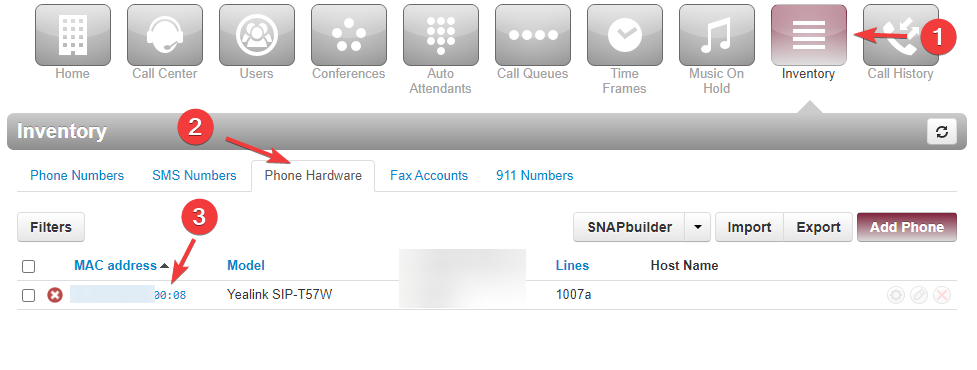
  1. Log in to the Manager Portal
  2. Click Inventory > Phone Hardware and select the MAC Address of the phone you’d like to edit
 class=

How to Access SNAPbuilder (Basic Users) #

  1. Log in to the Manager Portal
  2. Click the Phones tab > Click on the Gear icon on the right side of the phone

 class=

SNAPbuilder #

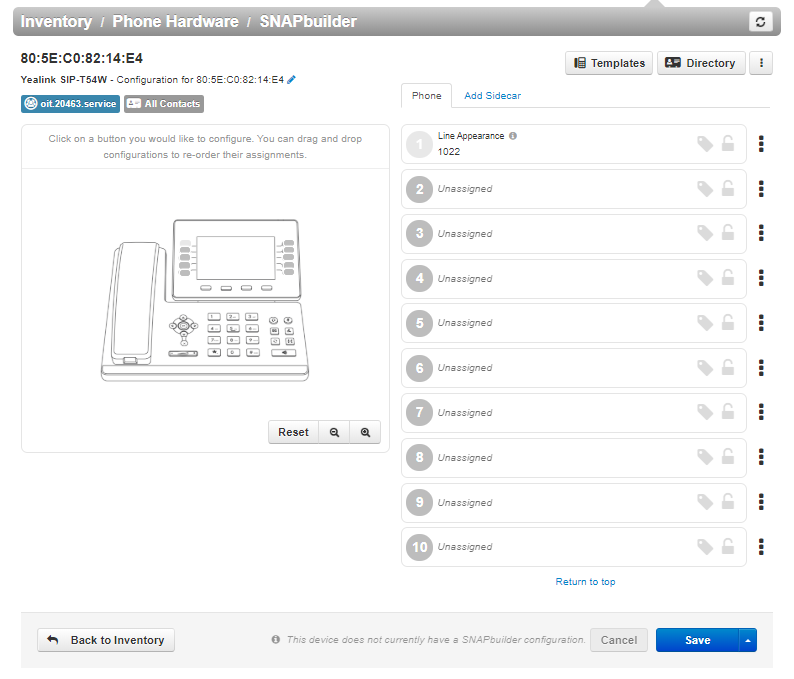
 class=

NOTE: Button 1 should always be set to your Line Appearance, do not change it as it’s by default

  • You are now on the SNAPbuilder Page. Here, you can see your phone with the MAC Address and also how many buttons you can customize based on your phone.
  • Click on any button number on the right and you will see “Select a Feature”

Line Appearance – Line registration to the device 

Shared Line Appearance – Adds a shared line that can be added to multiple devices

Users (BLF) – Allows us to see the present status of another extension, can also be used to call the extension

Call Park  – Allows you to park the active call and also use the button to retrieve the call at a later point

Speed Dial – Allows calling a specific destination either on-net or off-net 

DTMF – Sends DTMF tones. These can be interpreted to run an application. Compatible string characters include numbers, * (star) and # (hash)

Queue Toggle – Toggles the active queue status for the user. All queues will be toggled.

Timeframe Toggle – Toggles the active status of the selected timeframe

Move My Call – Switches the user’s active call to this phone from another phone

Directory Cascade

Cascade Dynamic: This will populate your BLF keys with your chosen directory settings. The list will update every time the phone updates its configuration.

Cascade Static: This will populate your BLF keys with a snapshot of your chosen directory settings. These entries will not change even if you add/remove extensions, or update names.

  • The phone should have no more than 1 Line Appearance 
  • You can also add a Custom Label to make it easier for you when you add a button

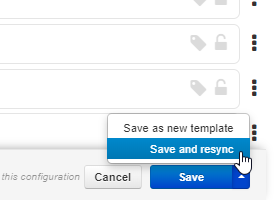
Once you have made the changes on your phone’s keys, click the Up-Arrow Key right next to the Save button and then click on Save.
 class=

Conclusion #

Your phone will restart or resync the configuration you have made and will implement the changes to the phone. If the phone is on an active call the portal will wait up to 30 minutes to pull the configuration changes. After that, it will stop trying and you will need to resync again.

Updated on December 30, 2025

What are your Feelings

  • Happy
  • Normal
  • Sad

Share This Article :

  • Facebook
  • X
  • LinkedIn
SIP ALG: What is it and How to Disable ItCall Forwarding

Powered by BetterDocs

Table of Contents
  • How to Access SNAPbuilder (Basic Users)
  • SNAPbuilder
  • Conclusion
Explore more

Let’s Get Started

Ready To Make a Real Change? Let’s Talk About the Benefits of SnapDial for your Business.

Contact Us
[email protected]
White SnapDial logo with a stylized S icon on the left and the word SnapDial in bold letters to the right, all on a light gray background, representing innovative Hosted VoIP Solutions for modern communication needs.

Discover the most robust and cohesive business phone and unified communications solution.

Quick Link
  • Home
  • Features
  • Our Phones
  • Blogs
  • Request a Quote
Support
  • Contact us
  • Privacy Policy
  • Support
Contact us
  • (888) 881-7495
  • [email protected]
© 2026 All rights Reserved.