

You can set up your business phone system, like SnapDial, to forward voicemails straight to your email. It’s a simple change that automatically sends an audio file or even a full transcript of a new message right to any inbox you choose. This instantly turns missed calls into trackable, actionable tasks that live right alongside all your other important communications, making sure no opportunity ever falls through the cracks.
Why Voicemail to Email Is a Modern Business Essential
Let's be honest, that blinking red light on a desk phone doesn't signal a welcome message—it signals a chore. In any fast-paced business, being tied to a specific device just to retrieve critical client information is a huge bottleneck. This is where forwarding your voicemails to email completely changes the game. It takes a passive, often-ignored alert and turns it into an active, manageable task right inside the central hub of your business: your email inbox.
Think about a busy sales rep who misses a call from a huge lead while they're stuck in a meeting. Traditionally, that message just sits there, unheard, until they get back to their desk. By the time they finally listen to it, that hot lead might have already called a competitor.
Now, imagine a different scenario. The moment the caller hangs up, the voicemail—complete with a text transcription—is instantly sent to a shared sales inbox. Anyone on the team can see it, gauge its urgency, and jump on it within minutes. That’s the difference between landing a deal and losing one.
The Real Cost of Missed Calls
This isn't just about making things easier; it's about capturing revenue you're probably losing right now. Most business leaders would be shocked to learn how many important calls they actually miss. Voicemail-to-email is one of the most direct ways to recover those lost opportunities.
Here's a sobering look at the numbers. Studies show that a typical business only answers about 38% of its incoming calls. When the other 62% of those calls roll to voicemail or go unanswered, the odds of connecting with a potential customer plummet. To make matters worse, only about 20% of callers will even bother to leave a message, and a huge number of those are never returned in time. When those rare, valuable messages are trapped on individual devices, the chance of a timely follow-up shrinks to almost zero. You can learn more about the impact of missed calls and you'll quickly see why this one feature is so critical.
By integrating voicemails directly into your daily email workflow, you create a searchable, archivable, and easily shareable record of every client communication. It’s a fundamental shift from a reactive process to a proactive strategy for managing leads and customer inquiries.
This simple bit of automation gives you several huge advantages right away:
- Drastically Improved Responsiveness: Messages get to you and your team instantly, no matter where you are or what device you're using.
- Effortless Organization: Voicemails can be filtered, labeled, and archived just like any other email, making follow-up a breeze.
- Smarter Team Collaboration: Forwarding messages to a shared inbox ensures the right person can act on a message immediately, even if the intended recipient is busy.
Activating Voicemail to Email in Your Phone System
Getting your phone system to forward voicemails straight to your email is one of those small changes that makes a huge difference. It’s usually a quick setup, something you can knock out in just a few minutes from your business phone portal. For managers, this is easily one of the fastest wins for boosting team efficiency. The idea is simple: find the user settings, locate the voicemail section, and tell the system exactly where to send the messages.
Most modern cloud phone systems, including SnapDial, give you a clean web portal to manage all your communications. Once you’re logged in, you’ll typically head over to a section labeled "Users," "Extensions," or maybe "Team Members." From there, you just pick the person whose settings you need to tweak. This lets you set up custom forwarding rules for each person based on what their role requires.
This whole process is designed to be seamless. A call comes in, it's missed, and within seconds, the voicemail is sitting in your inbox as a digital file you can act on.
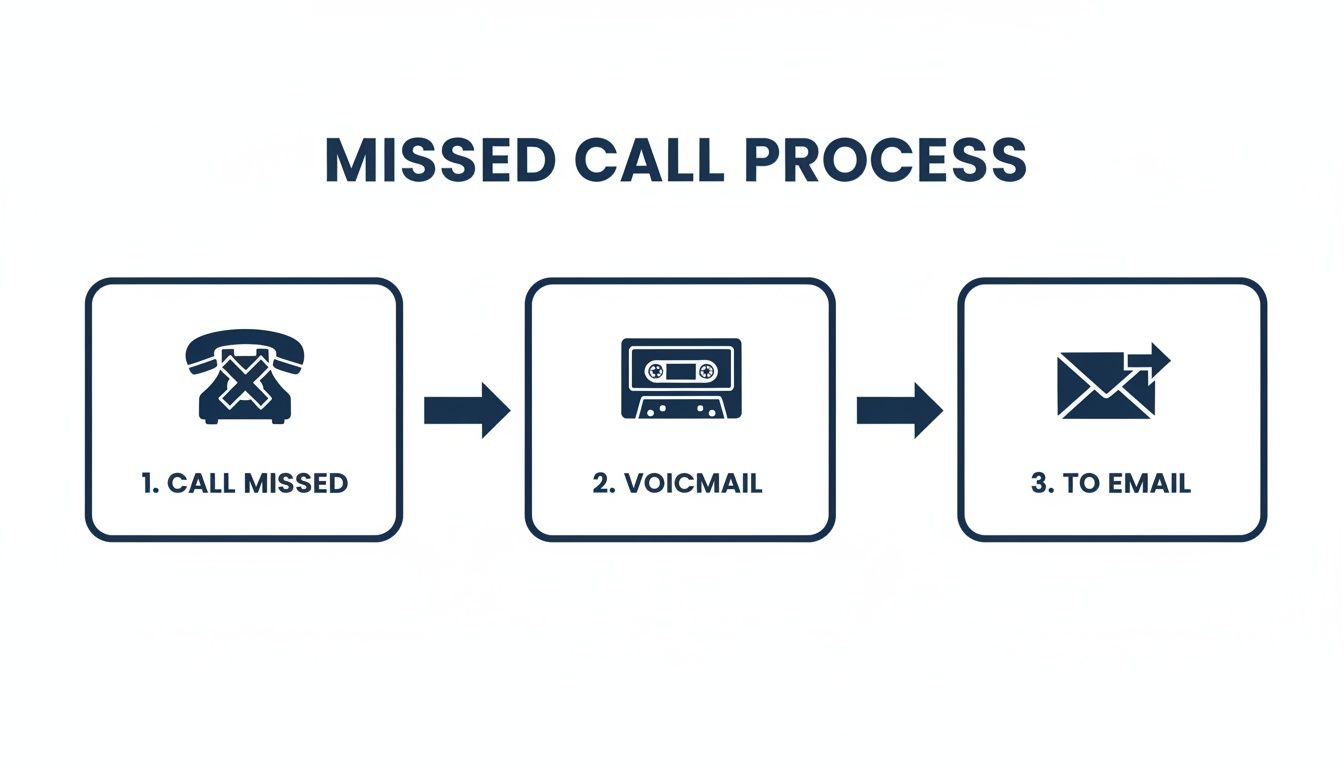
This simple automation ensures a missed call doesn't turn into a missed opportunity. It converts a voice message into a digital asset you can save, forward, and track.
Locating the Right Voicemail Settings
Once you’re inside a user's profile, look for a tab or menu item that says "Voicemail" or "Notifications." This is where the magic happens. Here, you’ll find all the controls for how voicemails are handled, giving you the power to build a much more responsive workflow for your team. If you want to explore every single option in-depth, the SnapDial voicemail menu documentation is a great resource.
You should spot a field specifically for an email address. This is the primary destination where all voicemail alerts and files for that user will land.
Pro Tip: Don't just stop at one address. Many systems let you add multiple emails separated by a comma. This is a fantastic way to create redundancy or keep a whole team in the loop.
For example, a project manager could have voicemails sent to their personal work inbox and a shared project email like [email protected]. Now, nothing gets missed.
Configuring Your Delivery Options
After you've plugged in the destination email, you'll see a few important toggles or checkboxes. These are what determine exactly what gets sent in that email, and they're key to making this feature genuinely useful.
- Attach Audio File: You’ll definitely want to turn this on. It attaches the actual voicemail recording, usually as an MP3 or WAV file, right to the email. This means you can listen to it from anywhere, on any device.
- Include Transcription: If your phone system offers voicemail transcription, it’s an absolute game-changer. This feature adds a text version of the message right in the body of the email, so you can quickly scan it for urgency without having to listen.
- Delete Message After Forwarding: Be careful with this one. While it's great for keeping the phone system's storage from filling up, it also means the email becomes the only record of that message. For most businesses, it’s safer to leave this unchecked.
The fields are usually clearly labeled, making it incredibly simple for an administrator to pop in and customize forwarding for anyone on the team. By taking a minute to configure these options thoughtfully, you turn voicemail from an isolated chore into a fully integrated part of your daily workflow.
Unlocking Your Voicemails with Transcription
Getting an audio file in your inbox is a great first step, but the real game-changer is turning on transcription. When you forward voicemail to email with a text version included, you’re not just getting a notification—you’re getting actionable data. This simple tweak creates a massive ripple effect of efficiency, supports different work styles, and makes your communications far more accessible.
Think about it. An employee is on a noisy warehouse floor or in the middle of a client meeting. Fumbling with headphones to listen to a voicemail is awkward at best, and unprofessional at worst. With a transcription, they can just glance at the message, instantly gauge its urgency, pull out a key detail like a callback number, and decide what to do next. All without making a sound.
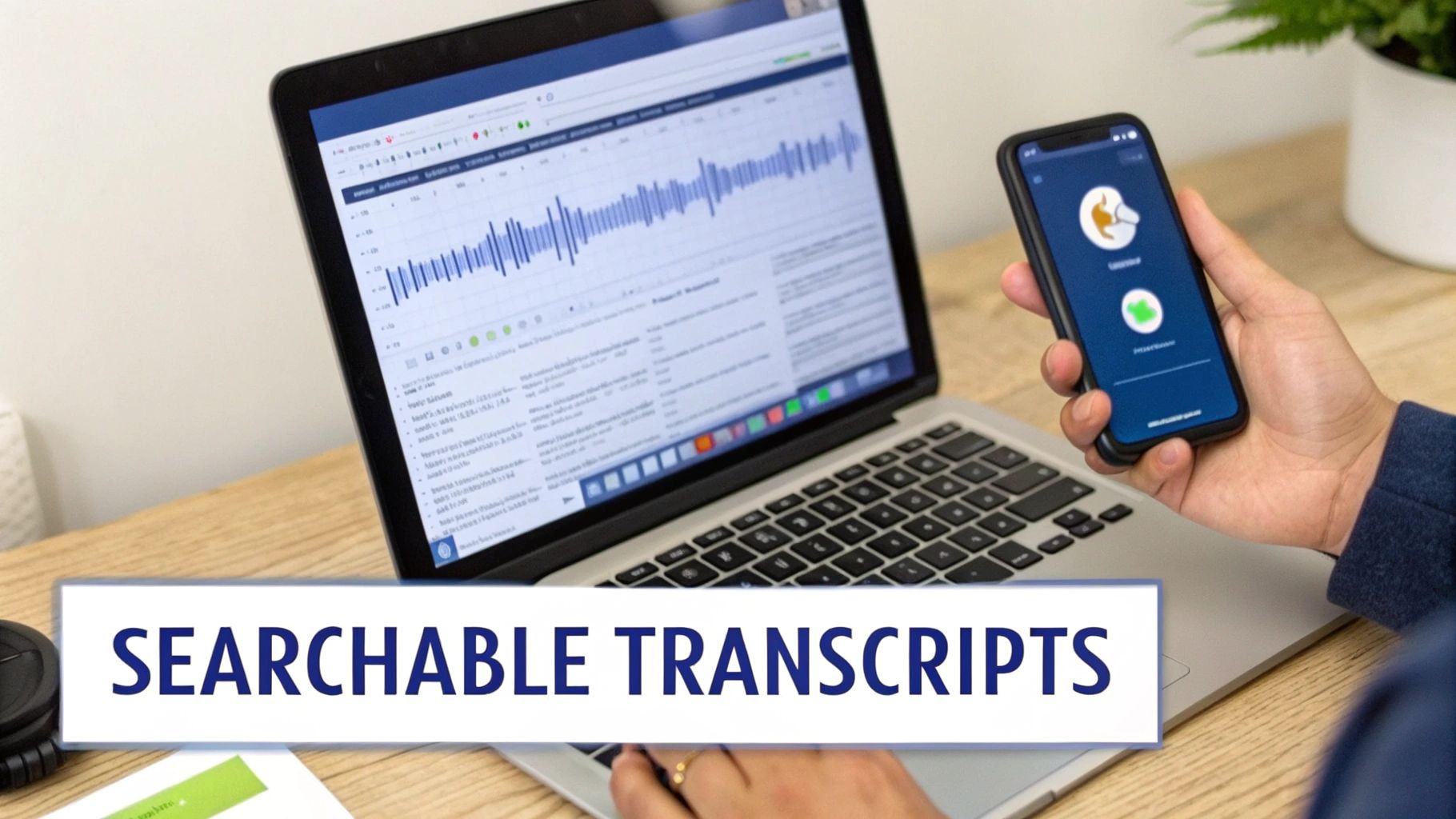
Turning Your Inbox into a Searchable Voicemail Archive
Maybe the single biggest win from voicemail transcription is how it makes your messages searchable. Your email client is already a powerful search tool you use every day. When voicemails land in your inbox as text, they instantly become part of that searchable database.
Need to find that message from a specific client six months ago? Just search their name, their company, or a keyword you remember from the conversation. This completely transforms your voicemail history from a clunky, chronological log of audio files into a valuable, queryable archive of every single interaction.
This simple shift moves voicemail from a neglected communication silo into a trackable, searchable, and shareable asset. It’s embedded directly into the digital workflow your team already uses every single day, rather than being a forgotten icon on a desk phone.
Better Accessibility and a Clear Audit Trail
Transcription is also a huge deal for accessibility and compliance. For any team members who are deaf or hard of hearing, a text version isn't just a nice-to-have; it's the only way they can get the message. This ensures every employee has equal access to critical client communications.
Beyond that, having a written record of verbal messages can be a lifesaver. It creates an easily auditable trail of conversations, which is perfect for training, quality assurance, or just clarifying the details of a past discussion. To get the most out of this, you can check out our detailed guide on how to configure speech-to-text for your system.
This approach has become the standard for modern cloud phone systems because, let's face it, email is the world’s most universal business inbox. With projections showing nearly 4.8 billion email users by 2027 and over 376 billion emails sent daily in 2024, integrating voicemail into this ecosystem is just common sense. As these email marketing stats from CodeCrew.us show, you eliminate training hurdles and boost adoption by meeting employees right where they already work.
Advanced Tips for Managing Voicemails in Your Inbox
Once you flip the switch and start getting voicemails sent to your email, you'll notice your inbox gets a lot busier. The trick is to get ahead of this new stream of messages so it doesn't just create another source of digital clutter.
Instead of letting those voicemail notifications pile up, you can use a few simple rules and filters right inside your email client to automatically sort everything the second it arrives. This small step turns your inbox from a passive dumping ground into an organized, efficient command center for all your communications. It’s all about making the feature work for you, not the other way around.
Creating Smart Filters for Voicemail
Most modern email platforms, like Gmail and Microsoft Outlook, have incredibly powerful filtering tools built right in. You can create a rule that instantly identifies incoming voicemails—usually by looking for a specific sender address (like [email protected]) or keywords in the subject line (such as "New Voicemail").
Once the filter spots a voicemail email, you can tell it exactly what to do. Here are a few practical automations I always recommend setting up:
- Move to a Dedicated Folder: This is the most common and effective move. Automatically send all voicemails to a specific folder named "Voicemails." This keeps your main inbox clean while giving you a single, organized place to review all your messages.
- Apply a Label or Category: If you're a Gmail user, applying a "Voicemail" label is a great alternative. This lets you see the messages in your main inbox but with a clear visual tag, making them easy to spot at a glance.
- Flag for Follow-Up: For teams where every voicemail is a potential lead, you can set a rule to automatically flag these messages for follow-up. This ensures they land on your to-do list so nothing important ever gets missed.
Setting up these automated rules is a one-time task that pays dividends every single day. It keeps your communications organized and ensures that critical customer messages are never lost in the shuffle of your main inbox.
The setup process is slightly different depending on your email client, but the core logic is always the same: identify the message, then tell your inbox how to handle it.
To help you get started, here's a quick side-by-side look at how to create these rules in the two most popular email clients. The goal is to create a filter that automatically organizes your incoming voicemail emails, and the steps are surprisingly similar.
Creating Voicemail Filters in Outlook vs Gmail
| Step | Instructions for Microsoft Outlook | Instructions for Gmail |
|---|---|---|
| Trigger | Right-click a voicemail email and choose Rules > Create Rule.... |
Click the Show search options icon in the search bar. |
| Condition | Set the condition based on the sender's address or words in the subject line. | In the From field, enter your phone system's sender email address. |
| Action | Select Move the item to folder... and choose or create a new folder. |
Click Create filter, then select Apply the label: and choose a new or existing label. |
As you can see, both platforms make it pretty straightforward to get your voicemails neatly organized. A few clicks now will save you a ton of manual sorting later on.
Ensuring Reliable Email Deliverability
Here’s a crucial but often overlooked step: making sure your voicemail emails actually land in your inbox. Overly aggressive spam filters can sometimes misidentify automated notifications, sending important client messages straight to your junk folder where they’ll likely be forgotten.
To prevent this, you should whitelist the email address your phone system uses to send voicemails. Whitelisting—or adding the address to a "safe senders" list—is like telling your email provider that messages from this source are always trusted and should never be marked as spam. It's a simple action that ensures you receive every single message, every single time.
Protecting Sensitive Information
When you forward voicemail to email, you're essentially moving potentially sensitive customer data—like names, phone numbers, or order details—into your email system. This means your company’s existing email security and data handling policies now apply to these voicemails, too.
It's absolutely essential to have clear guidelines for your team. For example, any voicemail containing payment information or personal health details needs to be handled with extreme care. Your policy might require that these messages are actioned immediately and then deleted from the email archive to minimize risk.
Always make sure your email provider offers strong security features, like two-factor authentication, to protect your accounts from anyone who shouldn't have access.
Weaving Voicemail into Your Business Tools

When you forward voicemail to email, you're doing a lot more than just getting a heads-up about a missed call. You’re building a powerful bridge between your phone system and the other software that keeps your business running. This simple connection can turn a passive message into an active, measurable task that actually drives results.
Instead of just being another notification to clear, each voicemail email becomes a neat little data packet. You can feed that packet right into your most important workflows. This is where the real magic happens, transforming a basic phone feature into a core part of your day-to-day operations.
Plug Voicemails Directly into Your Sales CRM
For any sales team, speed is everything. When a hot lead leaves a message, every minute you wait to follow up lowers your odds of closing the deal. By integrating your voicemail emails with your Customer Relationship Management (CRM) platform, you can create a lightning-fast response system.
Many CRMs can be set up to read incoming emails and automatically create new contacts or log activities. Picture this:
- A new prospect leaves a voicemail with their name and number.
- The email, complete with the audio file and transcription, lands in a dedicated sales inbox.
- Your CRM spots the email, automatically creates a new lead, and assigns a follow-up task to the next available rep.
This whole chain reaction can happen in minutes, completely hands-free. That missed call is no longer a forgotten sticky note on someone's monitor; it’s a structured opportunity, logged and ready for action in your central sales hub.
This hybrid voice-and-email setup transforms missed calls from potential lost revenue into structured, measurable work items. These directly impact your key performance indicators (KPIs) like response time and conversion rates.
Automate Support Tickets with Your Helpdesk
The same idea works beautifully for customer support. When a client leaves a voicemail about a problem, you want that issue logged in your ticketing system immediately. You can easily configure your helpdesk software to monitor a specific inbox, like [email protected].
As soon as a voicemail email arrives, the helpdesk automatically generates a new support ticket. The email’s subject line becomes the ticket title, and the voicemail transcription and audio file get attached right to it. This makes sure every single customer issue is logged, tracked, and assigned without anyone having to do manual data entry. You can learn more about how this kind of automation works by exploring what is a cloud phone system and its integration capabilities.
Combining voicemail with email delivery does more than just add convenience; it measurably boosts your outreach success. Research has shown that using voicemails alongside email outreach can generate a 40% better response rate than just relying on email alone. By pushing voicemails into the massive email ecosystem, companies tap into its high ROI while keeping the persuasive power of the human voice. For more insights on this, Intelemark.com has some great B2B voicemail strategies.
Common Questions About Voicemail to Email
Making the switch to a more connected communication system always brings up a few practical questions. When you start routing voicemails straight to email, you'll naturally wonder about team access, data security, and the technical nuts and bolts of it all.
Let's get ahead of those concerns. Tackling these questions upfront ensures a smooth rollout and helps everyone on your team feel confident with the new workflow from day one.
Can I Forward Voicemails to a Shared Inbox for My Team?
Absolutely. In fact, this is one of the most powerful and popular ways to use the feature, especially if you have a collaborative team. A modern phone system like SnapDial lets you easily set the destination for voicemail notifications to a group email address, like [email protected] or [email protected].
This setup is a total game-changer for departments where speed matters. It completely gets rid of the bottleneck where a crucial message is stuck on a single person's phone while they're in a meeting or out of the office. With a shared inbox, any available team member can spot the new message, figure out how urgent it is, and jump on it right away.
How Secure Is Receiving Voicemail Audio Files via Email?
That's a really smart question, especially since some messages might contain sensitive client information. Reputable VoIP providers use secure, encrypted methods to get the voicemail data from the phone system over to your email server. Once that email lands in your inbox, though, its security is really in your hands.
Your company's own email security practices become the main line of defense. We always recommend using a trusted business email provider that offers solid security features like two-factor authentication.
For voicemails with highly sensitive details, your company should have clear internal policies. This means having guidelines on how these messages are handled, who can access them, and how they should be stored or deleted from email archives to minimize any risk.
What Happens if My Email Inbox Is Full?
This is an important technical point that really shows the reliability of a cloud-based phone system. The email you get is basically a copy—a notification with the audio file or transcript attached for convenience. The original voicemail message itself remains safely stored within the phone system.
So, if your email inbox is maxed out and rejects the message, you won't lose the voicemail. It's still there. You can access it through your phone system’s web portal or even your desk phone to listen, download, and manage it. Of course, it's always good practice to keep your inbox tidy to make sure notifications keep rolling in without a hitch. This built-in redundancy gives you peace of mind, knowing a full inbox won't cost you a missed opportunity.
Ready to transform how your business communicates and make sure no lead ever gets missed? With SnapDial, you get powerful features like voicemail-to-email, transcription, and advanced call routing, all backed by our 24/7 Texas-based support. See how easy it is to upgrade your phone system by visiting https://snap-dial.com.