
You can actually send a fax right from your email. It's surprisingly straightforward: you just compose a new email, type the recipient’s fax number into the “To” field (followed by the fax service’s domain, like [email protected]), attach your document, and hit send. The cloud fax service does all the heavy lifting, converting your email into a standard fax for you.
Why Your Business Still Needs Fax and How Email Can Help
It’s easy to think of faxing as a technology that belongs in a museum, but for many industries, it’s still an essential part of doing business. In sectors like healthcare, law, and finance, the legal weight and point-to-point security of a fax are non-negotiable.
The problem has never been faxing itself. The real headache has always been the clunky hardware—the machine that eats up office space, guzzles ink, and needs someone standing by to feed it paper. This is where sending a fax by email completely changes the game.
Traditional Faxing vs Email-to-Fax at a Glance
To see just how different these two approaches are, let's put them side-by-side. This quick table highlights the major contrasts between being tied to a physical machine and the freedom of a cloud-based service.
| Feature | Traditional Fax Machine | Email-to-Fax Service |
|---|---|---|
| Hardware | Requires a dedicated machine & phone line | None; uses your existing computer or phone |
| Location | Tied to a single physical office location | Send and receive faxes from anywhere |
| Cost | High (machine, toner, paper, maintenance) | Low, predictable monthly subscription |
| Security | Low; sensitive documents left in the open | High; encrypted transmission & secure cloud storage |
| Workflow | Manual; physical scanning and sending | Integrated; send directly from your email |
As you can see, the operational differences are huge. One keeps you tethered to old technology and hidden costs, while the other folds a critical business function right into your modern workflow.
Bridging the Gap Between Tradition and Modern Work
Cloud faxing services turn your everyday email client—Gmail, Outlook, you name it—into a secure fax terminal. You get the proven reliability of faxing mixed with the convenience of digital tools. The market is definitely taking notice. The global online fax service market is projected to hit USD 5.18 billion by 2035, with cloud systems now making up nearly 68% of all fax deployments.
This shift is especially dramatic in healthcare, where fax is still the standard for 75% of all communication to ensure HIPAA compliance. It’s not just a clever workaround; it’s a smart business upgrade.
- Rock-Solid Security: Transmissions are encrypted, and documents are stored securely in the cloud. No more sensitive papers sitting on an office fax machine for anyone to see.
- Real Cost Savings: You can finally ditch the dedicated phone lines, paper, toner, and pricey machine repairs for good.
- A More Efficient Workflow: Your team can send and receive faxes right from their computers or phones, whether they're in the office, at home, or on the road.
By bringing faxing into your email, you’re not just updating an old process. You’re adopting a more flexible and secure communication tool that actually works for a modern, hybrid team.
This move is part of a bigger picture where businesses are unifying all their communication tools. Services like voice, messaging, and fax are increasingly managed through a single, powerful platform. If you're looking at how to bring your business tools together, our guide explaining what a cloud phone system is is a great place to start. Understanding how these technologies fit together is key to building a more streamlined and efficient operation.
Preparing Your Email Account for Faxing
Before you can fire off a fax straight from your email, you need to tell your cloud fax service which email addresses are allowed to send on your company’s behalf. This isn't some complex IT project. It’s a simple, one-time setup inside your provider’s online portal.
Think of it as creating a trusted list of senders. This authorization step is a crucial security check that prevents just anyone from sending a fax and charging it to your account. It ensures every fax comes from an approved team member, giving you a clean audit trail for all outgoing documents.
Managing Authorized Senders
For any business with more than a couple of employees, managing these permissions is key to staying organized and secure. Imagine a busy healthcare clinic where the front desk, billing department, and nurses all need to send faxes.
Instead of giving everyone access from a single generic email, you can authorize specific addresses for each team's function.
- [email protected] can send invoices and financial documents.
- [email protected] can handle patient registration forms.
- [email protected] can securely transmit patient records to specialists.
This approach doesn't just lock things down; it also makes it incredibly easy to see who sent what, which is a lifesaver for troubleshooting or tracking departmental usage.
Pro-Tip: Never use personal email addresses like Gmail or Yahoo for business faxing. Stick to official company email accounts. It maintains a professional image, tightens security, and creates a clear, official record of business communications.
Most modern communication platforms give you a central dashboard to manage users and their permissions for services like email-to-fax.
An interface like this is command central for controlling who can send faxes, make calls, or access other features on your account.
Configuring Your Inbox for Incoming Faxes
A true fax solution isn't a one-way street—it has to handle incoming documents, too. Your cloud fax service gives you a dedicated fax number, and you’ll configure it to forward all incoming faxes directly to one or more email addresses.
These faxes typically land in your inbox as PDF attachments, turning your everyday email client into a full-blown fax machine.
You can get pretty granular with the setup here. For example, you might route all faxes related to accounts payable straight to the finance team's group email. It's a small configuration step that creates a powerful, automated workflow. This is very similar to how you can manage other business communications, and you can learn more about how to get voicemails sent to email in our related guide.
By setting this up correctly once, you make it possible for your entire team to send fax by email and receive them back, all without ever touching a physical machine.
Sending Your First Fax From an Email Client
Once you’ve got your account set up, you’re ready for the best part: turning your everyday email client into a full-fledged fax machine. The whole process feels just like sending a regular email, but with a couple of key twists in how you address it and what you attach. It’s a beautifully simple workflow that’s surprisingly powerful.
This is exactly why cloud-based faxing has caught on so quickly. North America, for instance, is projected to hold a 38% share of the global fax services market by 2026, and it’s almost entirely because businesses are ditching old hardware for flexible platforms that plug right into their email.
Composing and Addressing Your Email Fax
To get started, just open up a new email in whatever client you use—Gmail, Outlook, it doesn’t matter. The most important piece of the puzzle is the “To” field. This is how you tell the service which fax machine to dial.
The format is always the same: [FAXNUMBER]@[yourfaxprovider.com].
So, if you wanted to send a fax to 1-800-555-1234, you’d type [email protected] into the address line. Notice there are no dashes, spaces, or parentheses. Just the raw number followed by your provider’s specific domain.
One of my favorite things about this method is how it automatically generates a professional cover sheet for you. The Subject of your email becomes the cover sheet's subject, and anything you write in the email's Body becomes the memo or notes.
This means you can draft a clean, professional-looking cover page on the fly without ever leaving your inbox. No extra software or templates needed. If you're using Gmail, this guide on how to send documents securely from your inbox offers some great additional context.
Attaching Your Documents for Transmission
The final move is to attach the files you want to send, which works exactly like attaching a file to any other email. You can attach most common document types, but a few formats are definitely better than others at ensuring a crisp, clean transmission.
- PDF (.pdf): This is the undisputed champion for faxing. PDFs lock in your formatting, so what you see on your screen is exactly what prints out on the other end. No surprises.
- Microsoft Word (.doc, .docx): Perfect for text-heavy documents like reports, letters, or contracts. They're widely supported and convert cleanly.
- Image Files (.jpg, .png, .tiff): The go-to choice for sending scanned pages, photos, signed documents, or diagrams.
Here’s a pro tip: even though most services handle various formats well, I always recommend converting your file to a PDF before attaching it. It’s a quick, simple step that completely eliminates any risk of weird formatting shifts during the faxing process. It guarantees your document arrives looking exactly as you intended.
This diagram shows the simple, one-time setup that gets you ready to start faxing from your email.
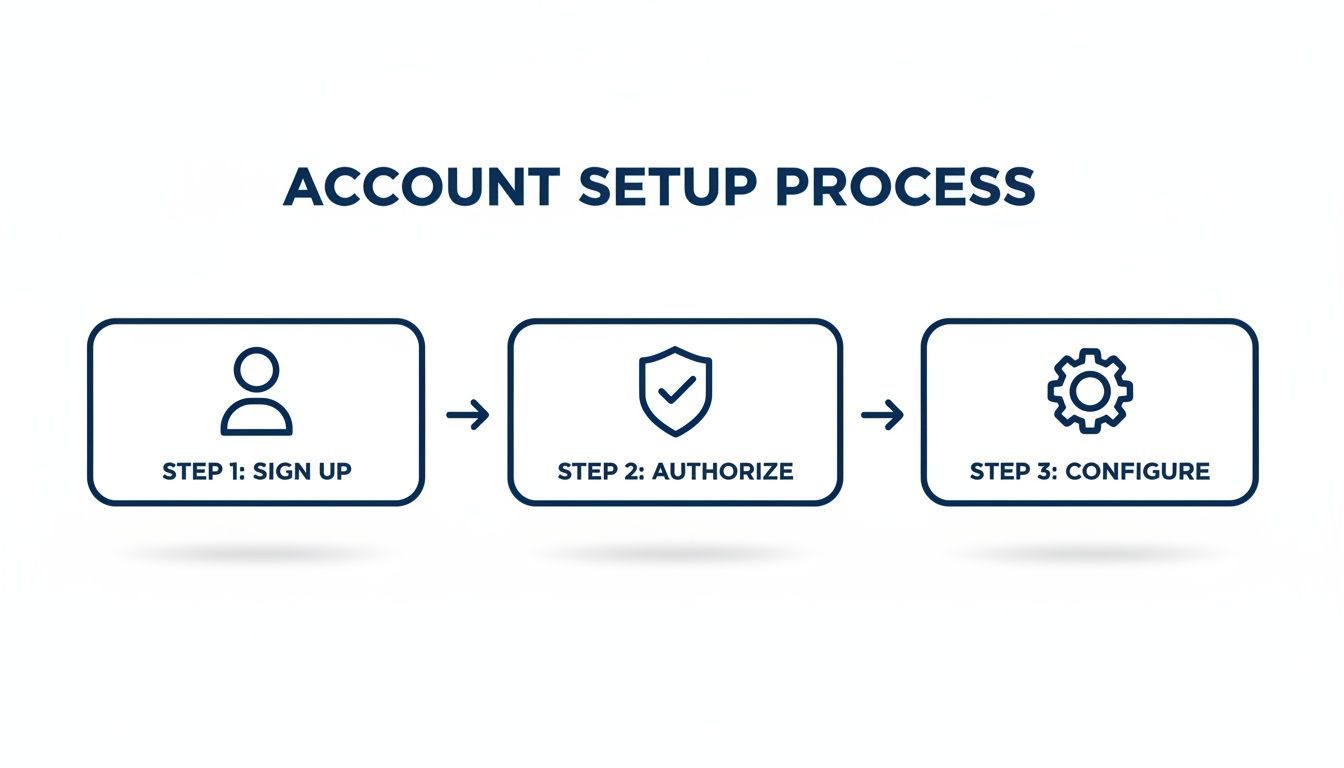
The flow is designed to be fast and painless. Once you sign up, authorize your email address, and tweak a few settings, you’ve unlocked the ability to send faxes as easily as you send an email.
Confirming Delivery and Troubleshooting Common Errors
You’ve composed your email, attached your files, and hit send. So, what happens now? One of the best parts about sending a fax through email is the clear, automated confirmation you get. You're not left wondering if your fax actually went through like you are with a traditional machine.
Within minutes, you should see a delivery receipt pop right back into your inbox. This email is your official record of the transmission, and it tells you everything you need to know.
What a Successful Confirmation Looks Like
A successful delivery receipt is your green light. It might look like a simple email, but it’s packed with crucial data that verifies the fax was sent and received.
Here’s what you should look for:
- Transmission Status: A clear "Success" or "Sent" message.
- Page Count: The total number of pages that were transmitted.
- Transmission Time: The exact date and time the fax was delivered.
- Recipient Number: The fax number you sent the document to.
This confirmation email is your proof of delivery. It's essential for legal documents, medical records, or financial contracts where having a clear audit trail is non-negotiable.
Decoding and Fixing Common Fax Errors
What happens when you get a "Failed" notification instead? Don't panic. These messages give you valuable clues to solve the problem quickly. Most modern services will even try to resend the fax automatically a few times before bothering you with a failure notice.
Let's break down the most common errors I see and how to handle them.
1. Busy Signal
This is, by far, the most frequent error. It just means the recipient's fax machine was in use when your fax tried to go through. Modern cloud fax services are built to handle this classic problem, which is a major reason the market is growing so fast. The global cloud fax market is projected to hit USD 860.5 million by 2026, largely because of smart features like collision-avoidance that prevent busy signals from causing failures. You can learn more about how this technology prevents network issues by reading about the future of the cloud fax market.
- Your Action: Do nothing, at first. Your fax service will automatically retry sending it several times. If it still fails after all the automatic attempts, wait about 15-20 minutes and then try sending it again manually.
2. No Answer
This error means the fax machine on the other end didn't pick up. This can happen for a few reasons—the machine might be turned off, completely out of paper, or just disconnected from the phone line.
- Your Action: The first step is to double-check that you have the correct fax number. If the number is right, you might need to pick up the phone and call the recipient to confirm their fax line is active and ready to receive documents.
3. Invalid Number
This one usually points to a simple typo. The number you entered doesn't connect to a working fax machine. Often, the mistake is in the email address you used to send the fax. For some deeper technical details, you can check out our guide on network protocols that affect communication.
- Your Action: Carefully look at the recipient's fax number and re-type it in the "To" field of your email. Make sure you didn't accidentally add any extra dashes, spaces, or other characters.
Pro Tips for Business and Enterprise Faxing
Once you start using email-to-fax for more than just the occasional document, its real power for business starts to show. For larger teams and entire companies, it’s not just about convenience. It’s about creating secure, compliant, and repeatable workflows.
Moving from a clunky fax machine to a cloud service isn't just a technical swap; it's a massive security upgrade. Modern services encrypt transmissions from end to end. That means your document is protected the second you hit "send" all the way to the recipient—a world away from sensitive papers sitting out in the open on a fax tray.
Mastering Security and Compliance
If you're in healthcare, finance, or any other regulated field, you know that security isn't just a feature—it's a requirement. When you send fax by email, the service becomes a secure gateway that shields sensitive information. For businesses handling protected data, implementing robust cybersecurity practices for HIPAA compliance is absolutely critical when using any email-to-fax service.
Here’s how you keep your faxing operations buttoned up:
- Encrypted Transmissions: Make sure your provider uses strong encryption for your faxes both in transit and while stored. This is your first line of defense against interception.
- Secure Cloud Storage: Faxes are kept in a protected cloud environment, not on an easily-lost local hard drive or in a filing cabinet. This gives you tight control over who sees what.
- Detailed Audit Trails: Your service's web portal is your best friend for compliance. Use it to review transmission logs, which provide a clear, undeniable record of every fax sent and received. This is gold during an audit.
Here's a crucial tip: The best provider in the world can't save you from human error. Always double-check recipient fax numbers to avoid a data breach, and enforce a policy that only authorized company email addresses can be used for business faxing.
Customizing Cover Sheets and Managing Archives
A polished, professional cover sheet makes an immediate first impression. While email-to-fax automatically pulls from your subject and body, you can easily standardize this for your whole team.
Here's a simple trick: create a pre-formatted signature in your email client that contains all your company's standard cover sheet info. Your team can just copy and paste this into the email body, fill in the recipient-specific details, and ensure every fax leaving your organization looks consistent and professional.
As your digital fax archive grows, staying organized becomes key. Most services give you a web portal to search, sort, and manage all your sent and received faxes. You need to take advantage of it.
- Organize by Department: If you have multiple teams faxing, use the portal to filter the logs by sender. This is a great way to track usage and costs.
- Tag for Projects: Some platforms let you tag or categorize faxes. Use this to group all documents related to a specific client, case, or project.
- Set Retention Policies: Dig into your provider’s settings to find automatic deletion policies. This helps you stay compliant with data retention rules without having to manually purge old files.
This centralized portal is your command center for all faxing activity, giving you a level of visibility a physical machine could never offer. It’s what empowers your remote and hybrid teams to stay productive and compliant, no matter where they’re working from.
Got Questions About Email to Fax? We’ve Got Answers.
Moving from a clunky fax machine to sending faxes right from your email is a big leap forward. But it's natural to have a few questions about how it all works in the real world. To help you feel confident about making the switch, we’ve put together straightforward answers to the questions we hear most often.
How Secure Is Sending a Fax by Email, Really?
This is a big one, and the short answer is: it’s far more secure than using a traditional fax machine. When you use a trusted cloud fax provider, you’re swapping a physical security risk for layers of digital protection.
Think about it—no more sensitive documents left sitting in an open office tray for anyone to see. Instead, the entire transmission is encrypted from your outbox all the way to the recipient's machine. Your sent and received faxes are then stored in a secure cloud environment, protected by strict access controls.
The real game-changers here are encryption and audit trails. Unlike a physical machine that leaves no trace, every single action is logged. You get a clear, permanent record of who sent what and when, which is invaluable for accountability and critical for meeting compliance standards like HIPAA.
Can I Get Faxes in My Email, Too?
Yes, absolutely. A good online fax service isn't a one-way street. You’ll get a dedicated fax number, and when someone sends a fax to that number, the service instantly converts it into a PDF file.
That PDF is then delivered straight to your email inbox just like any other message. This effectively turns your familiar email account into a complete, two-way hub for all your fax communications.
What Kind of Files Can I Attach to Send as a Fax?
Most services are incredibly flexible and support the file types you and your team already use every day. You can feel confident attaching documents like:
- PDF (.pdf)
- Microsoft Word (.doc, .docx)
- Microsoft Excel (.xls, .xlsx)
- Image Files (JPG, PNG, TIFF)
Here’s a pro tip: for the best possible results, it's always a good practice to convert your document into a PDF before you attach it. This one simple step locks in your formatting, ensuring your document looks exactly as intended on the other end, with no weird shifts or changes.
How Does the Fax Cover Sheet Get Made?
This is where the system gets really smart. The cloud fax service uses the information you already typed into your email to generate a professional cover sheet for you, automatically.
The "Subject" line of your email becomes the cover sheet's main subject or headline. Any text you write in the body of the email is then used as the note or memo. It's an elegant solution that makes creating a polished cover sheet fast and effortless, requiring zero extra steps.
Ready to stop wrestling with old hardware and start sending faxes the modern way? SnapDial integrates secure, reliable cloud faxing directly into your business communications, all managed from a single platform. Learn more about SnapDial and see how our all-in-one system can work for you.