

Sending voicemail to email is exactly what it sounds like: your phone system automatically shoots voice messages over to your email inbox, usually as an audio file and often with a handy text transcription. It’s a simple concept that completely changes how you manage missed calls, making them as easy to handle as any other email.
Why Voicemail to Email Is a Non-Negotiable Business Tool
Let's be honest, in a world where every missed call could be a missed opportunity, relying on a traditional voicemail system feels like a handicap. No one has time to dial a number, enter a PIN, and listen to messages one by one while scribbling down notes. It’s an old-school process that slows everything down.
This inefficiency gets even worse for remote or hybrid teams where people are rarely tied to a desk phone.

Streamlining Your Daily Workflow
When you send voicemails to your email, you’re not just moving a file. You’re turning a passive message into an active, actionable item that lives right inside your primary workspace—your inbox.
This single feature, usually powered by a modern cloud phone system, is a huge operational win. If you're new to the concept, you can get a clearer understanding of what is a cloud phone system in our detailed guide.
Instead of constantly interrupting your day to check a separate system, messages arrive right alongside your other business communications. This immediately unlocks a few key advantages:
- Faster Response Times: You can see and triage urgent messages instantly, without ever having to dial into a voicemail box.
- Improved Organization: File, forward, and archive important client messages just like any other email. This creates a searchable paper trail that’s easy to reference later.
- Enhanced Team Collaboration: Automatically route voicemails for a department line (like "Sales" or "Support") to a group inbox. This way, the first available person can jump on it, ensuring no lead or query goes cold.
The Reality of Modern Business Calls
The sheer volume of calls that go unanswered makes an efficient management system essential. Think about it: a staggering 97% of business calls go straight to voicemail. On a global scale, out of 13.5 billion calls made every day, a massive 10.8 billion—or 80%—end up being diverted to voicemail. The numbers alone show how critical better management tools are.
For office managers and IT leads, this is a game-changer. Centralized voicemail management prevents crucial client details from getting stuck on one person's phone, ensuring the business keeps moving even when team members are out of the office.
At the end of the day, integrating voicemail into your email workflow isn't just a nice-to-have feature. It's a strategic move to capture more opportunities, keep clients happy, and build a more responsive, organized, and efficient business.
Your First Steps to Voicemail to Email Setup in SnapDial
Getting your voicemails sent directly to your email is one of the quickest and most impactful wins you can get from your SnapDial system. We've designed the self-service portal to be incredibly straightforward, so you can turn missed calls into actionable email tasks without needing a technical background.
Let's walk through how to find and flip the switch on this feature.
First things first, you'll need to log into your SnapDial admin dashboard. This is your command center for everything related to your business phone system. Once you're in, you’re looking for the settings that control user profiles or extensions. These are typically labeled something like "Users," "Extensions," or "Phone System Settings."
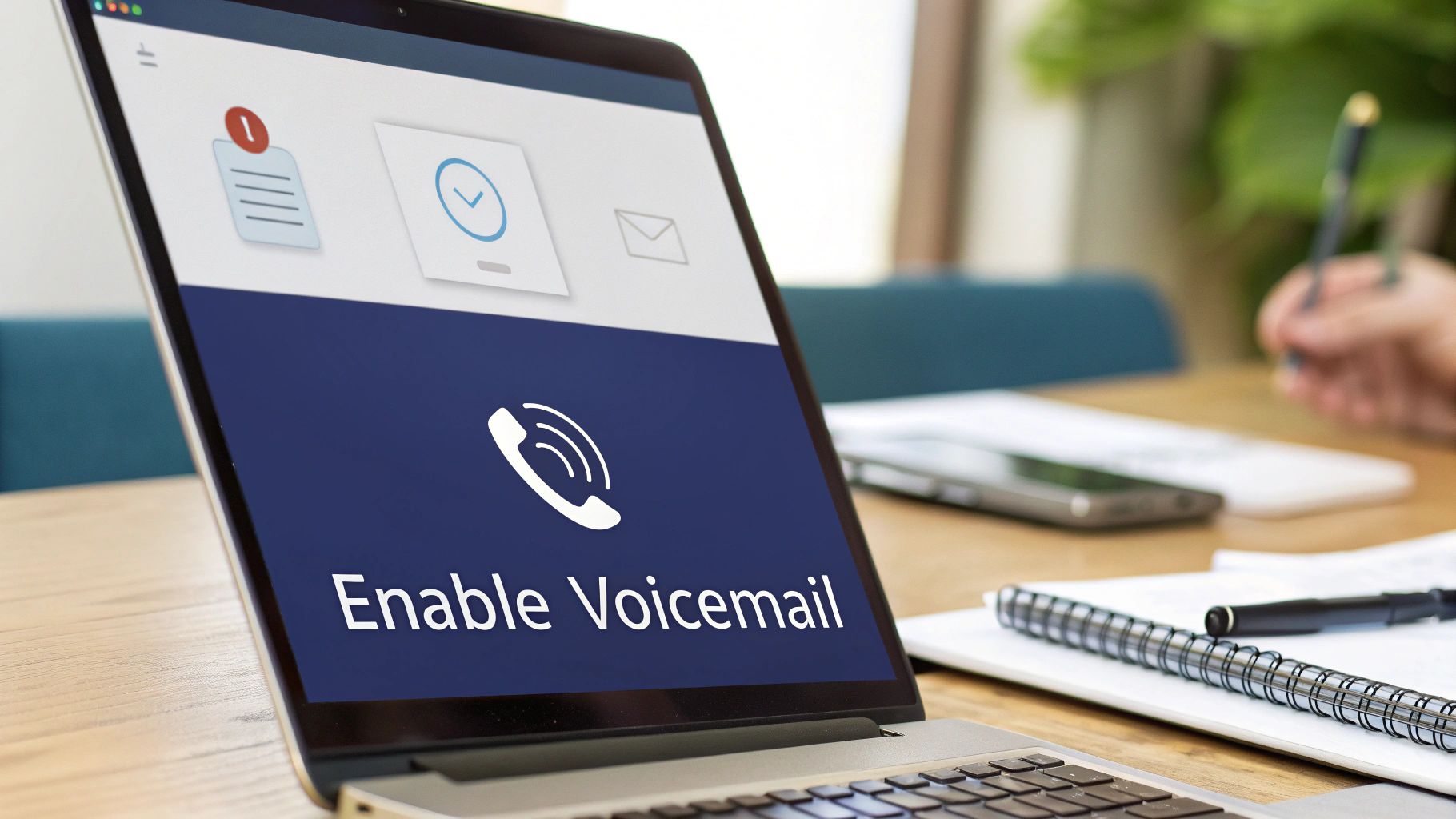
This screenshot gives you a good idea of what to expect—modern VoIP portals often use simple toggles and clear labels like "Voicemail" or "Notifications" to make setup a breeze.
Activating the Feature for Your Team
Once you've navigated to the right area, you can enable this feature for a specific person or roll it out for the entire company.
-
For a single user: Just find the team member or extension you want to set this up for. Inside their profile, you’ll find a dedicated voicemail section. Look for a clear option like a checkbox or toggle switch labeled "Enable Voicemail to Email" or "Forward Voicemails to Email."
-
For the entire company: If you want this to be the standard for everyone, look for a system-wide or "global" settings area. Making the change here is a huge time-saver; it ensures every new user you add to SnapDial will automatically have this feature activated.
Flipping that switch is the most important step. It tells the system to start the process of sending voicemail to email for the extensions you’ve chosen.
Specifying and Confirming Recipient Emails
With the feature enabled, you just need to tell SnapDial where to send the messages. You'll see a field labeled "Recipient Email Address" or something similar.
Here's where it gets really useful. You aren't limited to just a single user's email. For a sales line, you could plug in "[email protected]" and have every new lead’s message land in a shared inbox. For a support queue, using "[email protected]" gets the whole team notified at once, which can dramatically speed up response times.
After you’ve entered the email address (or addresses, if your plan allows for multiple), make sure you hit Save or Apply Changes.
To make sure it's all working correctly, the best thing to do is call the extension from another phone, leave a quick test message, and then check the inbox you designated. You should see a new email pop up in moments, complete with the audio file of your test message.
Now that you've got the foundation set, you're ready to dive into more advanced options like custom greetings. For more help with that, check out our guide on how to manage voicemail greetings to give your system a more personal touch.
Alright, once you’ve got the basic voicemail forwarding turned on, it’s time to dial in the settings so it works exactly how your team needs it to. This is where you move from a simple notification system to a genuine productivity booster. We’re talking about tweaking audio quality, getting transcripts, and setting up the emails so they’re instantly useful.
Choosing Your Audio Format: MP3 vs. WAV
First up, you'll need to decide on the audio file format. SnapDial gives you two main choices here: MP3 and WAV.
- MP3: For about 99% of businesses, this is the way to go. The files are compressed, which means they’re small, download quickly on a phone, and won't chew through your mobile data. The quality is perfectly fine for listening to a standard voice message.
- WAV: You’ll want to choose this uncompressed format only when audio fidelity is absolutely critical. Think legal or healthcare, where preserving every tiny nuance in a message for archival purposes is a must. WAV files deliver the highest possible recording quality.
Now, for the real game-changer: automated transcription.
Turning Voice into Searchable Text
Flipping the switch on transcription is a huge win. It drops a text version of the voicemail right into the body of the email.
This means you can immediately grasp the urgency and context of a message without having to find your headphones or step into a quiet room. You can see at a glance if it's a hot lead or just a quick follow-up.
Better yet, that simple text preview makes every voicemail searchable in your inbox. Over time, you build an incredible, long-term archive of client conversations you can instantly search through. To get the most out of this, the quality of the underlying technology matters. Using the best audio transcription software ensures the text you get is accurate and reliable.
If you want to get into the nitty-gritty of the tech behind this, our documentation shows you how to configure speech-to-text step by step.
Making Your Emails Easy to Triage
A thoughtfully formatted email subject line can save you and your team a shocking amount of time. Instead of the generic "New Voicemail," jump into your SnapDial settings and use dynamic fields to create something much more useful.
I always recommend a format like this: New Voicemail From: [Caller ID] – [Date] at [Time].
This structure tells you who called and when, right from your inbox view, letting you prioritize callbacks without even opening the email. It's a small change that turns your inbox into a command center.
To give you a quick summary of the settings we've covered, here’s a table that breaks down your options.
Voicemail to Email Configuration Options
| Setting | What It Does | Best For |
|---|---|---|
| Audio Format (MP3) | Delivers a small, compressed audio file. | Everyday business use, mobile access, and saving data. |
| Audio Format (WAV) | Provides a large, uncompressed, high-fidelity audio file. | Legal, healthcare, or any field needing archival-quality audio. |
| Transcription | Converts the voicemail audio to text within the email. | Quickly assessing message content and making voicemails searchable. |
| Dynamic Subject Line | Inserts caller info (ID, date, time) into the email subject. | Fast inbox triage and prioritizing callbacks efficiently. |
These settings work together to create a seamless flow of information, ensuring you never miss an important message.
Voicemail-to-email with transcription is a powerhouse for sales and customer engagement. Standard voicemails already see 65-78% listen rates—way higher than typical email opens—but sending them to email makes them even more actionable. Timing matters, too: voicemails delivered Tuesday through Thursday between 10am and 4pm tend to perform 25% better. And simply including a clear call-to-action can lift response rates by another 40%.
Using Advanced Routing to Never Miss a Message
For businesses with a lot going on, basic voicemail forwarding is just the starting line. The real magic happens when you pair this feature with SnapDial's advanced call routing and auto-attendant tools. This is where sending voicemail to email goes from a simple convenience to a core part of your business strategy.
Imagine a high-priority client calls your main support line after hours. Instead of that message getting buried in a general voicemail box until morning, you can build a rule. This rule can automatically forward that voicemail as an email directly to the on-call technician's inbox, guaranteeing a much faster response.
Building Smarter Communication Workflows
Advanced routing isn't just about sending a message from point A to point B. It's about creating intelligent, automated pathways for voicemails based on specific conditions you set. This elevates your system from a simple delivery service into a truly responsive communication network for your entire team.
Here are a few real-world strategies you can put into action right away:
- Team-Based Distribution: Route all voicemails left for a department, like "Support" or "Sales," straight to a group email address (e.g.,
[email protected]). This creates a shared queue where the first available person can grab the ticket, which boosts accountability and slashes response times. - Time-of-Day Routing: Set up rules that change how voicemails are handled after business hours or on weekends. For example, any message left after 5 PM could be sent to a manager's email for overnight review, while daytime messages go to the main queue.
- Vacation and Out-of-Office Coverage: When a key team member is out, you don't have to manually re-assign their extension. Just create a temporary rule that forwards all their voicemails to a designated backup person's email. No more missed opportunities or frustrated clients.
When you're setting this up, one of the first decisions you'll make is about the audio format. This simple flowchart breaks down the choice.
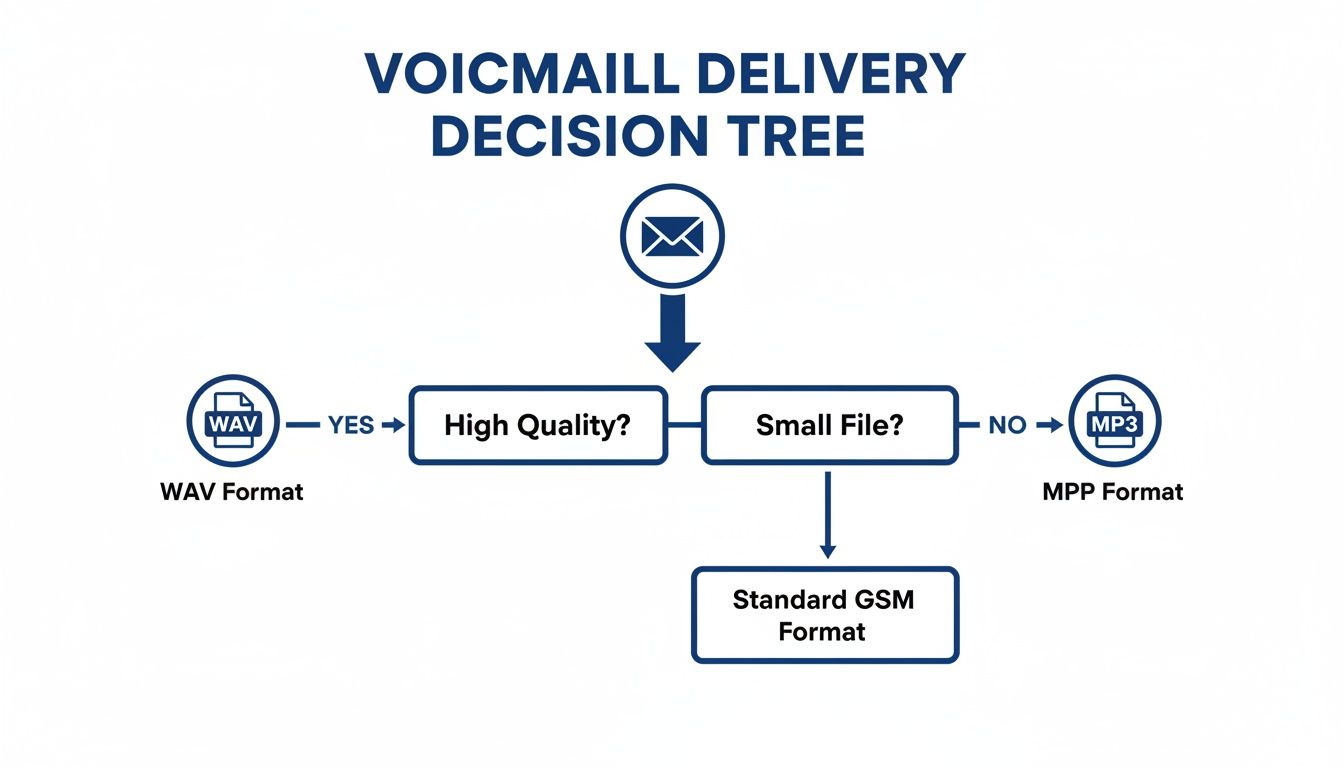
It really boils down to a classic trade-off: WAV gives you the best possible audio quality, while MP3 creates much smaller files that are perfect for quick downloads on mobile devices.
Centralizing Messages for Hybrid Teams
For mobile and hybrid teams, this level of routing control is non-negotiable. An employee working from home can get a voicemail from their desk phone extension sent directly to their laptop or smartphone. This keeps them looped in and responsive, no matter where they've set up shop for the day.
A centralized approach to voicemail routing is the enemy of information silos. When important client feedback lands in a shared inbox, it becomes a visible, trackable asset for the entire team—not just a private message stuck on one person's phone.
To really get the most out of this, you need to master your inbox, too. Setting up smart email forwarding rules within your own email client is the final piece of the puzzle. This lets you automatically sort, label, or even trigger actions based on the sender or subject line of the voicemail email.
For instance, an email generated from a VIP client's Caller ID could be automatically flagged as "High Priority" in your inbox. By combining SnapDial’s routing with your email client’s rules, you create a powerful, automated system that makes sure critical messages always get the attention they deserve. This kind of proactive management keeps your entire team in sync and communication flowing smoothly.
Troubleshooting Common Voicemail Delivery Hiccups
Even the best systems can hit a snag now and then. When you're counting on voicemail-to-email for important client messages, any delivery issue can be a real headache. The good news? Most of these problems are straightforward and can be fixed in just a few minutes without needing to call for help.
Before you assume the system is down, the very first place to check is your own email client. It's incredibly common for automated messages like these to get flagged by an overzealous spam filter.
When Voicemails Don't Show Up
Nine times out of ten, the culprit is your spam or junk folder. Seriously, check there first.
If you find the missing voicemails from SnapDial sitting in your junk mail, just mark them as "Not Spam." This one simple click does wonders—it helps teach your email provider (like Gmail or Outlook) to trust these messages and send them straight to your inbox next time.
To stop this from ever happening again, you'll want to whitelist our sending address. This tells your email service that SnapDial voicemails are VIPs.
- Add us to your contacts: Create a new contact in your email for the SnapDial notification address, which is usually something like
[email protected]. - Create a filter or rule: Dive into your email settings and create a rule that says, "Any email from
[email protected]should go directly to my inbox and be marked as important."
Taking this step ensures your email client rolls out the red carpet for every voicemail notification.
Pro Tip: Before you go any further, double-check the email address you entered in the SnapDial portal. A simple typo is one of the most common—and most overlooked—reasons for delivery failure. It’s a quick check that can save you a lot of frustration.
Dealing with Inaccurate Transcriptions
Automated transcription is a fantastic tool for getting the gist of a message quickly, but its accuracy is completely at the mercy of the audio quality. If you get a transcript that looks like gibberish, the problem is almost always with the original recording itself.
Several things can throw a transcription AI for a loop:
- A bad connection: If your caller has spotty cell service, their voice will break up, making it nearly impossible for the system to piece the words together correctly.
- Lots of background noise: A message left from a windy street corner, a loud restaurant, or a construction site is going to be a challenge for even the most advanced AI.
- Strong accents or fast talkers: While the technology is getting smarter every day, very thick accents or someone speaking a mile a minute can still lead to errors.
You can't control your caller's environment, which is why we always recommend a simple best practice: make sure the original audio file is attached to the email. This gives you the best of both worlds—the convenience of a quick text preview with the absolute reliability of the original recording to fall back on.
Your Top Voicemail to Email Questions, Answered
Even with the smoothest setup, you're bound to have a few questions about how voicemail-to-email fits into your daily workflow. Getting those answers quickly is key to making sure your team gets the most out of this feature from day one.
We've heard just about every question in the book, so we’ve gathered the most common ones right here. Think of this as your go-to cheat sheet for fine-tuning your setup and handling those one-off scenarios.
Can I Forward Voicemails to a Team Email Address?
Absolutely, and this is where SnapDial really starts to shine for collaborative teams. You can easily point voicemails from a main line, a department extension, or a call queue directly to a group email like [email protected] or [email protected].
Setting this up instantly creates a shared, visible inbox for incoming messages. It ensures the first available person can grab it and respond, which is a huge win for any customer-facing team. No more urgent messages getting stuck in one person's voicemail box while a client waits.
How Reliable Is the Voicemail Transcription?
Our transcription service uses some of the best speech-to-text AI available and is incredibly accurate for clear, well-spoken messages. It's fantastic for scanning a message and getting the gist in seconds without having to stop what you're doing to listen.
Of course, no AI is perfect. Factors like heavy background noise, a caller on a spotty cell signal, or a very thick accent can sometimes trip it up and lead to transcription errors.
This is precisely why we always recommend including the original audio file as an attachment in the email. It gives you the best of both worlds: the speed of a text preview with the 100% reliability of the actual recording.
With this dual approach, you never risk missing the real intent of a message.
Does Emailing a Voicemail Delete It from My Phone?
Nope, and this is an important detail for record-keeping. When SnapDial sends a voicemail to your email, it's simply creating a convenient copy and delivering it to your inbox.
The original message is still safely stored in two places:
- On your desk phone or mobile app in the traditional voicemail box.
- In your personal SnapDial user portal online.
This redundancy gives you multiple ways to access messages and an extra layer of backup, so you don't have to worry about accidentally deleting something important. It's all about giving you flexibility and peace of mind.
Can I Create Different Voicemail Rules for After Hours?
Yes, and this is one of the most powerful features tucked inside SnapDial's call routing engine. You can build smart, time-based rules that completely change how calls and voicemails are handled depending on your business hours, weekends, or even holidays.
For example, you could have a rule that sends all calls coming in after 5 PM to a specific after-hours voicemail box. That voicemail box can then be configured to forward its messages straight to an on-call technician's email. You can completely automate your workflow to match the way your business actually operates, not the other way around.
Ready to stop missing calls and start streamlining your communications? SnapDial makes sending voicemail to email effortless, with powerful routing, clear transcriptions, and white-glove setup. Learn how SnapDial can transform your business phone system today.