Setting up a conference call that actually works is about more than just firing off a calendar invite. It’s about building a reliable system that connects your team without the all-too-common technical headaches. A modern business phone system is designed to do just that, letting you create dedicated conference bridges with secure PINs and multiple ways to join. The goal is a seamless experience, not a frustrating one.
Why a Seamless Conference Call Setup Is a Game-Changer
We’ve all been there. Fumbling for the right dial-in number, battling a choppy connection, or waiting on that one key person who can't figure out how to join. These small frustrations add up, turning what should be a productive meeting into a source of stress and wasted time.
Bad meetings are a silent killer of productivity. When the tools fail, the whole collaborative process grinds to a halt. A clunky setup doesn't just eat up minutes; it chips away at your team's confidence in your communication tools and creates a real barrier to getting things done.
This guide tackles those core challenges head-on. For a broader look at the mechanics, you can also check out a detailed guide on how to set up conference calls which covers additional practical steps.
To understand why this matters so much, let's look at the essential stages of a conference call setup. This table gives a quick roadmap of what a reliable system should accomplish.
Key Stages of a Conference Call Setup
| Stage | Key Objective | Primary User |
|---|---|---|
| Pre-Call Configuration | Establish a secure and accessible conference bridge. | Administrator |
| Scheduling & Inviting | Share clear, simple instructions for joining the call. | Meeting Host |
| Joining the Call | Provide multiple, reliable options for participants to connect. | End User |
| In-Call Management | Ensure clear audio and provide tools like recording. | All Participants |
| Post-Call Follow-Up | Share recordings, transcripts, and action items efficiently. | Meeting Host |
Each stage is a link in the chain. If one breaks, the whole experience suffers. A modern system ensures every link is strong.
The Real Cost of Bad Meetings
The data on this is pretty startling. Meeting culture has exploded, with the number of meetings tripling in just five years. Your team now spends an average of 11.3 hours per week in meetings, and almost half of them dread the experience.
Even worse, the time wasted in unproductive meetings has doubled since 2019. That costs businesses around five hours per employee every single week.
A streamlined, reliable conference call system isn't a luxury anymore—it's absolutely essential for any business operating in today's hybrid world. The idea is to make conferencing a powerful tool, not a painful chore.
Transforming Conferencing with Modern Tech
This is exactly where a modern Cloud PBX system makes all the difference. It centralizes your calling, conferencing, and other communication tools, eliminating the pain points that come with old-school setups.
Instead of your team juggling multiple apps and confusing instructions, they get one single, cohesive platform to work from. If you're new to this idea, our article on what is a cloud phone system is a great place to start.
The right system completely transforms conferencing by:
- Simplifying Access: Giving everyone one-touch join options right from their mobile app, desk phone, or computer.
- Enhancing Security: Using unique PINs and admin controls to keep sensitive conversations protected.
- Boosting Reliability: Ensuring every call has crystal-clear audio and a stable connection that doesn't drop.
Ultimately, mastering your conference call setup is about taking back valuable time and empowering your team to focus on what really matters—collaboration and growth.
Building Your Foundation for Reliable Conference Calls
Before anyone can even think about joining a call, an administrator needs to lay the groundwork within your business phone system. Getting this administrative setup right is the bedrock of secure, easy-to-use conference calls. All this foundational work happens in your self-service portal, the central hub where you manage your company's communications.
The first move is creating dedicated conference bridges. Think of them as permanent, virtual meeting rooms. Each bridge gets its own unique dial-in number, which creates a consistent and reliable entry point for your team. This consistency is key—users aren't left hunting for new numbers before every meeting, which immediately cuts down on friction and confusion.
Once that foundation is in place, the end-user experience becomes incredibly simple.
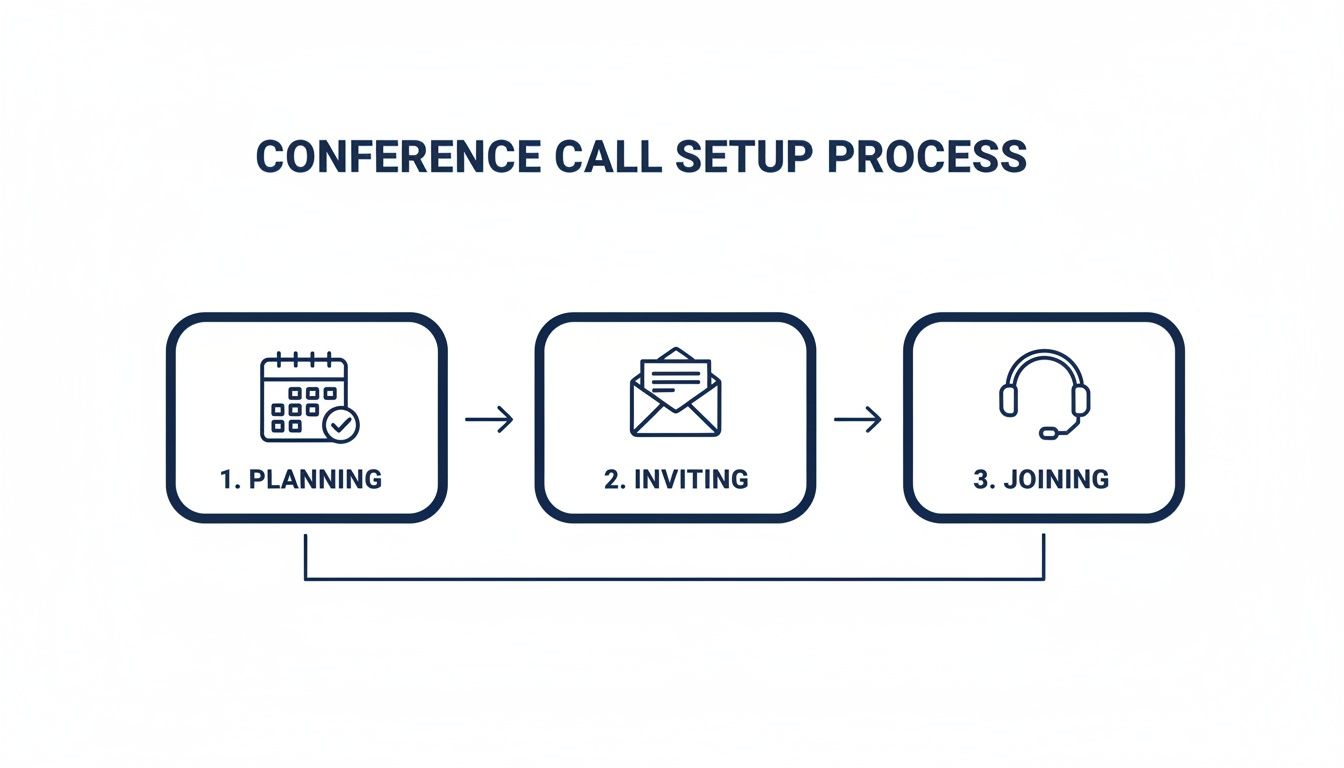
This simple flow is only possible because of the solid administrative work done upfront.
Securing Your Virtual Meeting Rooms
Security can't be an afterthought. The single most effective way to protect your conversations is by assigning unique PINs to each conference bridge. Your Cloud PBX portal should let you create two distinct types:
- Moderator PIN: This gives the meeting host control over the call, including must-have features like muting participants or starting a recording.
- Participant PIN: This is for everyone else attending. It grants them access to join the call and listen in, but not manage it.
Separating these PINs is a simple but powerful step. It stops unauthorized users from accidentally gaining host privileges. For example, you definitely wouldn't want a vendor to have the ability to manage an internal team call.
Let's look at a real-world scenario. You need a recurring, highly secure line for your executive team's weekly strategy sessions. For this, you’d create a dedicated bridge with a confidential moderator PIN known only to that leadership team. In contrast, a general-purpose bridge for departmental check-ins might have a widely known participant PIN, prioritizing easy access over strict secrecy.
This granular control is crucial. It ensures the security level always matches the sensitivity of the discussion, preventing accidental data breaches or disruptions from uninvited guests.
Managing User Permissions and Access
Beyond PINs, controlling who can initiate and manage calls is another critical layer of administration. Not everyone in your organization needs the ability to spin up new conference bridges. Through your admin portal, you can configure user permissions to define roles and responsibilities clearly.
You might grant full administrative rights to your IT manager and office administrator, allowing them to create, modify, and delete any conference bridge. Team leads, on the other hand, could be given moderator privileges just for their specific department's bridge, while general staff would only have participant access.
This tiered approach simplifies the process of setting up a conference call by making sure only trained individuals are making system-level changes. It also helps maintain a clean and organized conferencing environment, preventing the creation of dozens of unused or redundant bridges.
Of course, a stable connection is also paramount for quality calls. You can learn more about how much bandwidth you need for VoIP to ensure every call is crystal clear. By investing a little time in this initial setup, you create a reliable and secure foundation that pays dividends in every single meeting.
How to Schedule and Join Calls Like a Pro
Once all the backend administrative work is buttoned up, the real test begins: making it dead simple for your team to actually use the system. This is where a well-configured Cloud PBX goes from being a piece of technology to a genuine business asset. The goal is to make setting up a conference call so intuitive that it becomes second nature for everyone, no matter how tech-savvy they are.
This shift from clunky, complicated setups to simple, one-click connections is driving huge growth in the market. The global conference call services market was valued at around $9.4 billion in 2025 and is on track to hit $17.3 billion by 2034. That boom is happening for one simple reason: 86% of global workers are now in meetings with at least one person dialing in remotely, making this kind of reliable infrastructure an absolute must-have.

Scheduling Your Conference Call
Booking a conference call shouldn't feel any different than scheduling a regular meeting. Most modern business phone systems plug right into the calendar tools your team already uses, like Outlook or Google Calendar. When you create a new event, you just drop the dedicated dial-in number and participant PIN right into the invitation details. Easy.
And what about those "we need to talk now" moments? That's where instant conferencing comes in. Instead of having to schedule something in advance, anyone on your team can launch a conference call on the spot from their mobile app or softphone, then pull others in as needed. It’s perfect for those quick-huddle problem-solving sessions that don't need a formal calendar invite.
Exploring Every Way to Join a Call
Flexibility is everything. People work from different places and in different ways, so offering multiple, equally reliable options for joining a call isn't just nice—it's non-negotiable. Your team needs to be able to connect without a second thought, wherever they happen to be working.
Here are the most common ways your team can jump on a call:
- Dialing In from a Desk Phone: This is the classic method for a reason. An employee just dials the conference number from their IP desk phone and punches in the PIN when asked. It’s familiar, straightforward, and rock-solid reliable.
- Using the Mobile App: For anyone working remotely or on the move, the mobile app delivers a true "one-touch join" experience. Tapping the link in a calendar invite automatically launches the app and connects them to the call. No fumbling with dial-in numbers or PINs.
- Connecting via a Softphone: For team members working from a laptop, a softphone app puts a full-featured phone right on their computer. They can either click to join from their calendar or dial in using their computer's mic and speakers.
The real goal here is to make the "how do I join this call?" question completely disappear. When the process is this simple across every single device, people actually show up, and meetings start on time.
This focus on the user experience is critical, especially when you consider that nearly a third of all meetings now involve people in different time zones. To dig deeper into making sure your calls are managed professionally from start to finish, check out this guide on how to set up a conference call like a pro. When you give everyone simple tools that just work, your communication system starts working for you.
Turning Conversations Into Company Assets
Once you've got the basics of setting up a conference call down, it's time to dig into the features that can really move the needle. Modern Cloud PBX systems are loaded with tools that go way beyond just connecting a few people on a call. They're designed to solve real-world business problems and make your team more effective long after everyone hangs up.
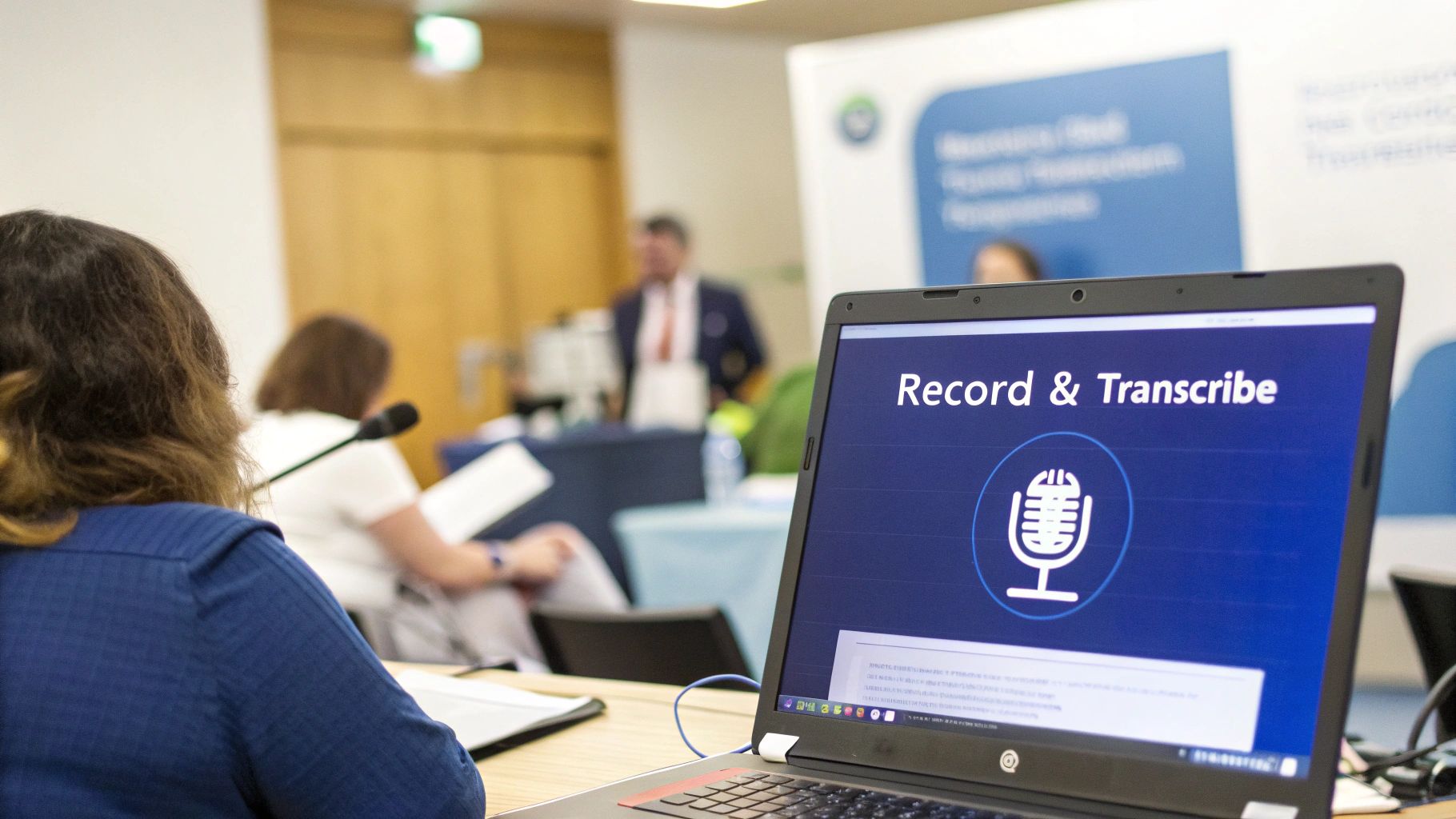
Take call recording, for instance. It's so much more than a compliance tool. Imagine you're training a new salesperson. Instead of having them awkwardly shadow live calls, you can give them a playlist of your team's greatest hits—the best pitches, the toughest objections handled flawlessly. They can learn your company's voice and style on their own time.
Suddenly, training isn't a one-on-one bottleneck. It's a scalable, on-demand resource you can use forever.
From Talk to Actionable Data
Automatic transcription takes this a massive step further. Forget about assigning someone the tedious job of typing up meeting minutes. The system creates a searchable text file of the entire conversation for you. This is a game-changer for follow-up and accountability.
Need to recall the final decision on the Q3 marketing budget? Just search the transcript for "marketing budget." No more scrubbing through an hour-long audio file. Key decisions and action items are captured perfectly, making sure nothing slips through the cracks. It’s a simple feature that saves a ton of administrative work and keeps projects on track.
Then there are the in-call management tools. Every host knows the pain of a barking dog or keyboard warrior derailing an important point. With moderator controls, you can instantly mute a single person or the whole group to keep the conversation focused. This is just one of many conference controls that put the host firmly in charge of running a smooth, productive meeting.
Essential vs. Advanced Conferencing Features
Understanding which features are standard and which are designed to boost productivity can help you make a smarter technology investment. Here's a quick breakdown to see how these tools create real business value.
| Feature | What It Does | Business Impact |
|---|---|---|
| Dial-In Number | Provides a basic phone number for participants to join a call. | Enables fundamental remote participation for anyone with a phone. |
| Call Recording | Captures the full audio of the conference call for later playback. | Creates reusable assets for training, compliance, and quality assurance. |
| Transcription | Automatically converts the call's audio into a searchable text document. | Saves time on meeting notes and makes follow-up on action items foolproof. |
| Mute Controls | Allows the host to mute and unmute individual or all participants. | Eliminates background noise and distractions, keeping the meeting on track. |
As you can see, the shift from "essential" to "advanced" is really about moving from simply enabling a conversation to actively improving its outcome and creating lasting value.
Getting the Most Out of Your Technology
These advanced features deliver the kind of tangible benefits that justify the investment in a unified communications platform. Decision-makers today are laser-focused on ROI, and they're looking for bundled solutions that offer clear value without the risk. A system like SnapDial, which integrates calling, conferencing, and even call center tools, provides a compelling return.
By using features like recording and transcription, you’re not just holding a meeting; you’re creating a valuable, reusable asset for your organization. This is how you shift from merely communicating to actively driving productivity.
Ultimately, mastering the advanced side of setting up a conference call is about using your technology to its full potential. These aren't just flashy bells and whistles; they are practical tools that solve common headaches and make every meeting more valuable.
Troubleshooting Common Conference Call Problems
Let's be honest, even the most reliable phone system can have its moments. A conference call can be humming along perfectly, and then suddenly—static, echoes, or someone can't get in. When tech hiccups threaten to derail a meeting, having a quick diagnostic checklist is a lifesaver.
Figuring these things out fast keeps your team focused on the conversation, not the technology. Most issues fall into just a few common buckets, and the fixes are often surprisingly simple. Before you hit the panic button and call support, running through these first-line checks will solve the vast majority of problems you'll run into.
Diagnosing Poor Audio Quality
Bad audio is easily the most common and disruptive issue. If you start hearing complaints about echoes, static, or choppy sound, start by hunting down the most likely culprits.
-
Echoes and Feedback: Nine times out of ten, this is caused by someone using their computer's built-in speakers and microphone at the same time. The mic picks up the sound coming from the speakers, creating that awful feedback loop. The fastest fix? Ask everyone to pop on a headset. If someone absolutely has to use a speakerphone, just ask them to move it further away from their microphone.
-
Static or Crackling: This usually points to a weak internet connection on one person's end. Have participants check their Wi-Fi signal. If they're on a cell phone, simply moving to a spot with a better signal can clear it right up.
-
Choppy or Robotic Voices: This is the classic sign of network congestion or not having enough bandwidth. The person with the issue should try closing any unnecessary apps, especially anything that eats up data like video streaming services or large file downloads.
Remember, your call's audio quality is only as strong as its weakest link. The first and most important step is always to identify which participant is the source of the problem.
Connection and Access Problems
Sometimes, the biggest challenge is just getting everyone into the call in the first place. When a user can't connect, a few simple verification steps usually do the trick.
-
Incorrect PIN or Dial-In Number: It’s a simple mistake, but it happens constantly. Have the user double-check the calendar invite to make absolutely sure they are dialing the right number and punching in the correct participant PIN.
-
Recording Playback Issues: If a recorded conference call just won't play, the problem might be the file format or the web browser. A quick fix is to try opening the recording in a different browser. You can also try downloading the file directly to your computer instead of trying to stream it from the portal.
If these initial steps don't solve the problem, then it’s time to reach out to your support partner. With a managed service like SnapDial, you can quickly escalate more complex issues and get expert help to keep things running smoothly.
Got Questions About Setting Up Conference Calls? We Have Answers
Even with the best plan, a few questions always come up when you're getting conference calls dialed in for your team. That's perfectly normal. Let's tackle some of the most common ones we hear from both admins and daily users.
Getting these details ironed out ahead of time makes everyone more confident and clears up any confusion before it starts.
How Many People Can Actually Join a Call?
This is a great question, and the answer comes down to your specific service plan. Modern Cloud PBX systems are built to be incredibly flexible, and most can handle anywhere from a handful of people to hundreds of participants on a single conference bridge.
For those big, all-hands meetings or company-wide webinars, it’s always a smart move to double-check the exact capacity of your conference bridge with your provider. A quick confirmation call or email can save you from hitting an unexpected participant limit right when the meeting is supposed to start.
What's the Best Way to Keep Conference Calls Secure?
The most effective way to lock down your conference calls is to think in layers. Relying on just one security measure, especially for sensitive conversations, leaves you vulnerable.
Your first line of defense should always be unique PINs for both the moderator and the participants. Beyond that, use your system’s admin controls to limit who can create or manage conference bridges in the first place.
Don't forget the human element. Remind your team to never share dial-in details publicly and to always join from a trusted, secure network. Features like a live participant list are also invaluable for seeing exactly who is on the line at all times.
Can I Use the Desk Phone I Already Have?
Absolutely. This is one of the biggest perks of a modern Cloud PBX system—it works with the tools you already use. You can join any conference call right from your IP desk phone by dialing the conference number and punching in the PIN when asked.
And it doesn’t stop at your desk. You can join the exact same way from a mobile app on your smartphone or a softphone on your computer. It creates a single, unified system that lets you connect from wherever you happen to be working.
Are International Dial-In Numbers an Option?
Yes, and for any business with a global footprint, this is a critical feature. Most enterprise-grade Cloud PBX providers offer international or toll-free dial-in numbers. This is a must-have if you have team members, remote workers, or clients in other countries.
This feature allows people from all over the world to join your conference call without getting hit with massive long-distance charges. When you're setting up your service, you can simply request local numbers for the countries your business operates in, making global collaboration simple and affordable.
Ready to replace your outdated phone system with a solution that makes conference calls simple and reliable? The team at SnapDial offers white-glove setup and 24/7 support to get you started without any downtime. Learn more and see how we can unify your business communications.