
A sales call starts well, then the client hears their own voice a fraction of a second later. They pause, talk over your rep, ask someone to repeat a price, and the conversation loses momentum. The same thing happens in support queues, training videos, webinars, and podcast interviews. People may not know the technical term for the problem, but they know the sound of a setup that feels unreliable.
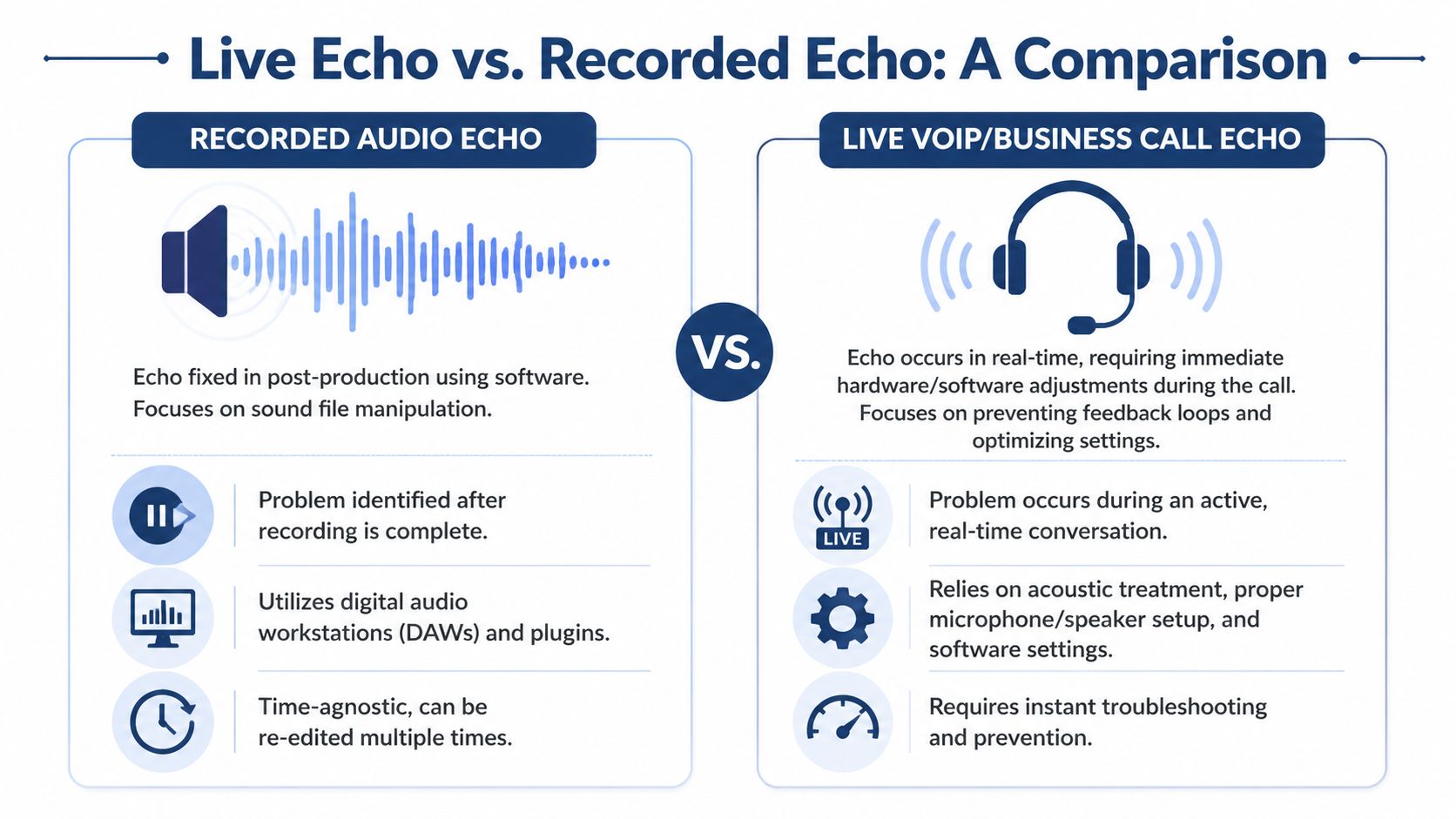
That’s why teams searching how to remove echo from audio usually have two very different problems mixed together. One is a recorded file that sounds roomy and distant. The other is live call echo happening in real time while customers, agents, or managers are still talking. Those are not the same issue, and they’re not fixed the same way.
Why Echo Can Derail Your Business Communications
Echo makes people work harder to listen. On a customer call, that friction sounds like hesitation, repetition, and confusion. On a webinar replay, it makes solid content feel amateur, even when the message is strong.
The business problem is larger than “bad sound.” Audio quality shapes trust. If your team sounds distant, reflective, or unstable, buyers notice. Marketing teams already see this in content performance. A useful benchmark comes from webinar production, where poor audio causes a 52% drop-off in webinar replays. That should get any business manager’s attention.
For live communications, the most important distinction is this: live call echo is fundamentally different from the reverb in recorded audio. Most online guides focus on post-production fixes, but real-time echo during VoIP calls, often caused by 50-150ms delays in acoustic feedback loops, requires different solutions involving hardware and system-level cancellation, as noted in this overview of live call echo behavior.
Practical rule: If the problem is happening while two people are actively speaking, think call setup and echo cancellation. If the problem lives inside a finished recording, think editing and restoration.
That distinction saves time. It also prevents the classic mistake of trying to “fix” a live support problem with editing advice meant for podcasts.
Business leaders don’t need to become audio engineers, but they do need a decision framework. If your company runs customer calls, conference rooms, remote meetings, or recorded content, audio quality belongs in the same category as responsiveness and uptime. It directly affects how clearly people understand you and how professionally the company comes across.
Teams working on broader communication improvements usually benefit from treating audio as part of the system, not a side issue. This guide to improving business communication across channels is a useful companion because echo rarely exists in isolation. It usually shows up alongside process, equipment, or platform choices.
Diagnosing the Source of Your Echo Problem
Most failed echo fixes come from solving the wrong problem. Before touching a plugin, buying a headset, or blaming the phone system, identify what kind of echo you’re hearing.

In business communications, echo often comes from acoustic feedback loops where a speaker’s voice is picked up again by a microphone after amplification through speakers. That delayed repeat is typically 50-200 milliseconds in untreated rooms, according to this echo diagnosis reference. That timing clue matters because it helps separate echo from simple background noise or a weak mic.
Three problems that sound similar
Acoustic echo is the live-call problem. Someone’s speaker output leaks into their microphone, then returns to the far end. This is common with speakerphones, laptop mics, open office setups, and conference rooms with hard surfaces.
Room reverb is the recorded-audio problem. The voice bounces around the room and gets captured with the original signal. You hear space around the voice, not just a distinct repeat.
Network echo is less common for most modern teams, but it can still show up when latency, routing, or device behavior causes odd reflections or delay-like artifacts. Managers often label all of this “echo,” even when part of the problem is transport or endpoint behavior.
A simple troubleshooting checklist
Use this before you try to remove echo from audio or escalate the issue internally.
- Ask who hears it: If one caller hears their own voice returning, the cause is often on the other participant’s side.
- Check whether it’s live or recorded: If the issue appears only on a saved file, focus on editing. If it happens during the call, focus on real-time prevention.
- Listen for timing: A short delayed repeat points toward acoustic echo. A smeared, roomy sound points toward reverb.
- Test with headphones: If the problem disappears when a user stops using speakers, you’ve likely found an acoustic loop.
- Change rooms: If the sound improves in a softer room with carpet, curtains, or furniture, room reflections are part of the issue.
- Record a local sample: Have the user record their mic without a call. If the recording already sounds roomy, the room and mic setup need attention.
If you can’t describe when the echo happens, you can’t fix it efficiently.
Fast symptom matching
| What you hear | Likely cause | Best first move |
|---|---|---|
| Your own voice repeats on a live call | Acoustic echo on the far end | Move the other user to a headset |
| Voice sounds distant and boxy in a saved recording | Room reverb | Use post-production cleanup |
| Issue appears only in certain rooms | Reflection-heavy environment | Change placement or soften the room |
| Echo fades when speaker volume drops | Speaker-to-mic bleed | Reduce playback level or separate devices |
The diagnostic phase isn’t glamorous, but it’s where time gets saved. Teams waste hours applying EQ, gates, and noise suppression to problems caused by desk speakers pointed straight at a laptop mic. Once you identify the source correctly, the fix becomes much more predictable.
Quick and Effective Echo Removal for Recorded Audio
If you already have a recorded file with echo, the goal isn’t perfection. The goal is to make speech clearer without damaging it. In practice, the best results usually come from a multi-stage workflow, not a single magic button.
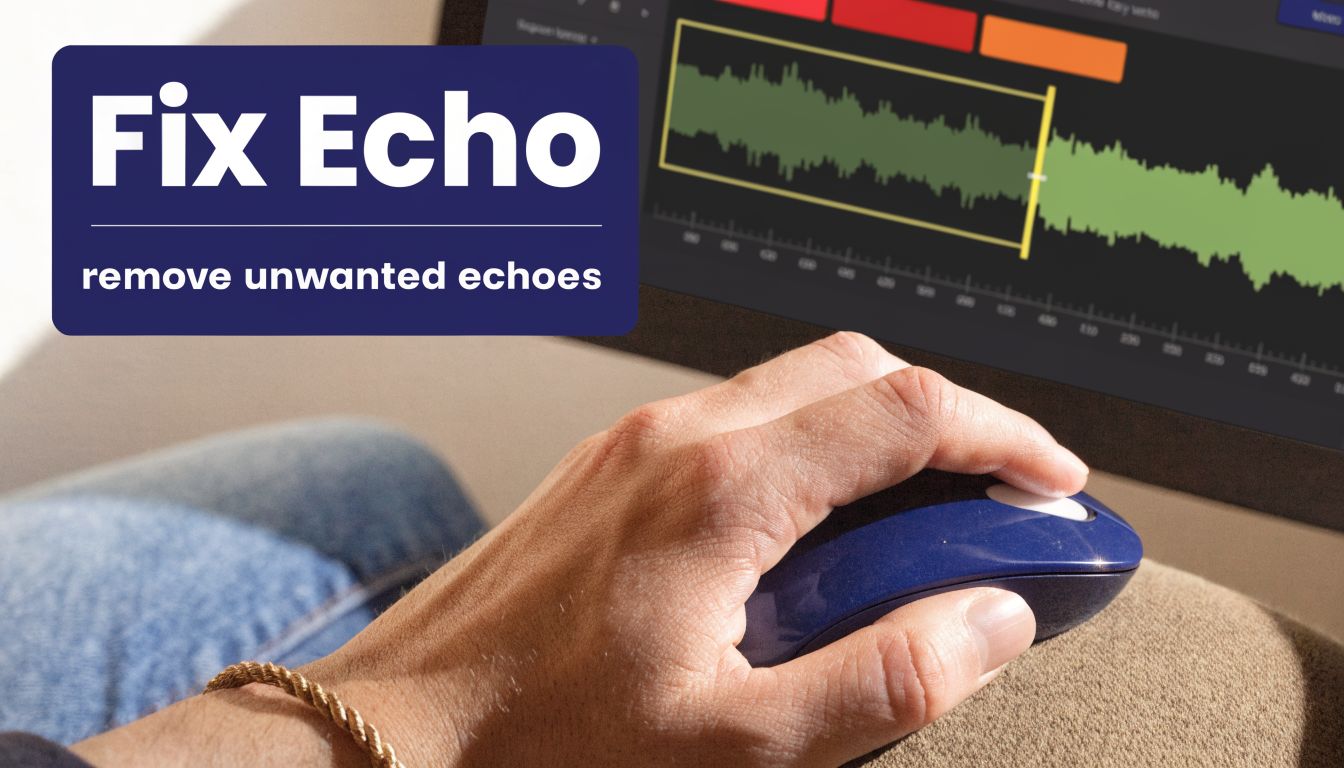
A reliable Audacity process can achieve 70-85% echo reduction, using conservative noise reduction, focused EQ in the 200-500Hz range, and a noise gate around -30dB, according to this Audacity echo removal workflow. That’s enough to rescue many webinar recordings, interviews, onboarding videos, and internal training clips.
If you archive customer calls or training sessions, it also helps to clean the audio before storing or sharing it internally. Teams managing a large library of voice files should think of cleanup as part of the workflow around business call recording practices, not as a one-off repair task.
Start with conservative noise reduction
The first move is to reduce the low-level reflections without chewing up the voice. In Audacity, select a short segment where the room tail is exposed, usually just after a phrase ends, and capture that as the profile.
Then apply Noise Reduction at 12dB. Keep it conservative. This stage works because echo tails often sit lower than the direct voice, so you can suppress part of that pattern before you shape the tone.
The trade-off is important. Push too hard and the file starts to sound grainy, metallic, or watery. Those are the digital artifacts people often create when they chase total removal.
Use EQ to target the buildup zone
Most speech echo gets ugly in the low mids. That’s why the 200-500Hz area is usually where you find the boxiness and room buildup that makes a recording sound like it was captured across the room instead of close to the mic.
A useful approach:
- Sweep for resonance: Use a narrow EQ band and listen for the “honk” or “box” sound.
- Cut selectively: Notch the problem spots instead of making a broad scoop.
- Keep the voice intact: If the speaker starts sounding thin or nasal, back off.
You’re not trying to make the room disappear. You’re trying to reduce the frequencies where the room announces itself.
Broad cuts often remove intelligibility along with the echo. Narrow, deliberate cuts usually sound more natural.
Finish with a gate or expander
Once the voice tone is under better control, clean up the spaces between phrases. A noise gate around -30dB can silence faint echo tails that linger after each sentence.
This works best on spoken-word content where there are clear pauses. It works less well on expressive dialogue, overlapping speech, or anything with quiet emotional nuance. Gates are blunt tools. They can make audio sound cleaner, but they can also make it feel chopped up if the threshold is too high.
A practical sequence looks like this:
- Capture a short echo-heavy profile
- Apply conservative Noise Reduction
- Use parametric EQ to cut resonant low mids
- Add a gate only after the voice sounds stable
- Preview on headphones before exporting
Here’s a walkthrough if you want to see a cleanup process in motion:
What works and what usually fails
The easiest way to ruin speech is to assume more processing equals more clarity. It doesn’t.
| Technique | Good use | Common mistake |
|---|---|---|
| Noise Reduction | Lowering steady room tail | Applying too much and creating swirly artifacts |
| Parametric EQ | Removing boxy resonance | Cutting too broadly and hollowing out speech |
| Noise Gate | Trimming leftover tails between phrases | Setting threshold too high and clipping natural cadence |
A few habits make a big difference:
- Work on a copy: Always keep the original file untouched.
- Preview short sections: Fix one problem phrase before processing the full recording.
- Use headphones for decisions: Laptop speakers hide low-mid buildup and subtle artifacts.
- Stop when speech becomes clear: Chasing perfection often makes the result worse.
For many business recordings, this basic chain is enough. If it isn’t, the next step is to use dedicated restoration tools that can separate direct voice from reflections more intelligently than manual EQ and gating alone.
Using Advanced Plugins for Professional Results
Free tools can take you far, especially when the source audio is decent. But there’s a point where manual cleanup becomes slow, inconsistent, and too destructive. That’s where dedicated restoration plugins earn their cost.
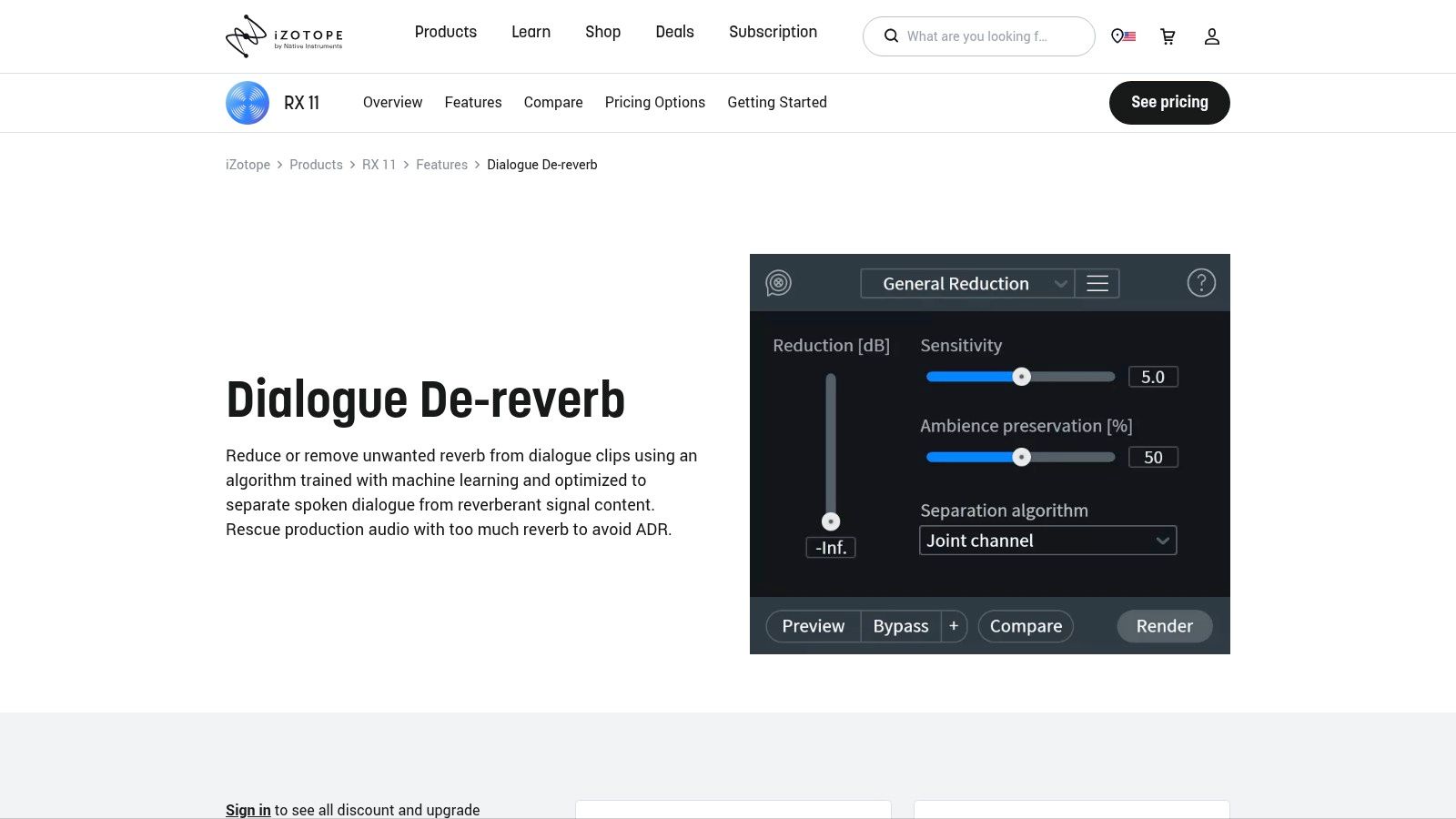
The strongest option for many voice-heavy workflows is iZotope RX Dialogue De-reverb. According to this practical demonstration of Dialogue De-reverb, it can achieve up to 90% echo removal by spectrally analyzing reverb tails and isolating the dry signal. The same source notes that cleanup time drops from hours of manual work to seconds, which is why these tools matter for teams producing content regularly.
What advanced tools do better
A plugin like RX isn’t just cutting frequencies. It’s evaluating the relationship between the direct voice and the surrounding reflections. That’s a major difference.
Manual tools ask you to guess where the room is hiding. AI-assisted de-reverb tools analyze the audio and make that distinction more directly. In plain terms, they’re better at removing the room while preserving the speaker.
When to step up from Audacity
Paid restoration tools make sense when one of these is true:
- Your team edits audio every week: Time savings start to matter more than software cost.
- The recording has strong room tone: Manual EQ can’t always separate voice from reflections cleanly.
- You need consistent output: Marketing, training, and client-facing media need repeatable quality.
- The speaker matters: Executive interviews, customer stories, and ad reads aren’t where you want obvious artifacts.
There’s also less operator skill required once the user understands restraint. That last point matters for business teams. You may not have a full-time audio editor, but you may have a marketer, producer, or enablement lead who needs good results quickly.
A practical way to use Dialogue De-reverb
For speech, the best workflow is usually simple:
- Import the file into your editor
- Find a section where the room tail is obvious
- Use the learn function if available
- Apply de-reverb gradually
- Compare processed and unprocessed speech
- Export once the voice feels closer, not sterile
The best restoration passes don’t sound “processed.” They sound like the mic moved closer to the speaker.
That’s the benchmark. If the voice becomes papery, phasey, or oddly flat, the setting is too aggressive.
Comparing your options
| Tool type | Strength | Weakness | Best for |
|---|---|---|---|
| Audacity stock tools | Free and accessible | More manual trial and error | Occasional cleanup |
| Dialogue De-reverb class tools | Faster and more precise | Paid software | Regular speech restoration |
| One-click echo plugins | Very fast | Less control on difficult material | Quick turnaround tasks |
One-click tools can be useful, especially when deadlines are tight. But they still need judgment. If the original recording is full of overlap, HVAC noise, clipping, and room reflections, no plugin turns it into a studio take. The right expectation is “significantly more usable,” not “perfectly rebuilt.”
For business teams, the investment case is usually straightforward. If staff spend hours hand-editing webinar clips, interviews, or training modules, an advanced plugin pays back in saved time and fewer revisions. The cleaner output also reduces a hidden cost: people re-recording content because the first pass sounded too amateur to publish.
Solving Echo in Live VoIP and Business Calls
Recorded-audio cleanup won’t help a customer who’s hearing themselves right now. Live echo has to be prevented or cancelled while the conversation is happening. That’s why businesses need to think about Acoustic Echo Cancellation, not just editing tools.
Real-time VoIP systems use spectral subtraction with adaptive filtering to achieve up to 90% echo return loss enhancement, according to this AEC overview for VoIP systems. The process uses the remote caller’s audio as a reference, subtracts it from the local microphone signal, and adapts every 10-20ms. In practice, that makes AEC far more effective for live conversations than simple noise gating.
Teams that want a plain-English primer on the phone system side of the problem should understand how VoIP works. Echo issues often make more sense once you see how endpoints, microphones, speakers, and call routing interact.
Why live echo needs a different mindset
On a saved file, you can stop, listen, undo, and process again. On a live business call, none of that exists. The customer is waiting. The agent is still talking. The conference room is still reflecting sound.
That changes the goal. You’re not “repairing” audio. You’re reducing the conditions that create the loop in the first place.
Three areas matter most: endpoint choice, user behavior, and call environment.
Hardware beats heroics
The fastest live-call fix is often the least glamorous one. Put the user on a proper headset.
A headset isolates playback from the microphone path. That single change removes the most common cause of acoustic echo in remote and hybrid setups. Laptop speakers, desk phones on speaker mode, and conference rooms with hot mic gain all make the cancellation job harder.
A few practical rules help:
- Use headsets for agents and sales reps: They create the cleanest separation between incoming and outgoing audio.
- Avoid loud open speakers near live mics: AEC can help, but it shouldn’t be fighting the room all by itself.
- Be careful with conference tables: Far microphones and reflective surfaces make voices sound smaller and reflections louder.
- Reduce unnecessary volume: The louder the speaker output, the greater the chance it re-enters the mic path.
User discipline still matters
Technology helps, but office behavior can undo it quickly. Teams often assume echo is purely a platform issue when it’s really a usage issue.
Common examples include two people joining the same meeting from different devices in one room, a rep toggling between headset and speaker, or someone placing a laptop mic directly in front of an external speaker. Those aren’t edge cases. They’re daily operational habits.
Mute discipline solves more call chaos than most teams realize.
A short call etiquette standard helps more than a long policy document:
- Mute when not speaking in group calls
- Don’t join the same room on multiple live microphones
- Use one primary audio device per participant
- Test speakerphone only when the room is built for it
That same pattern shows up in creator workflows too. If you’re interested in the broader role of automation and cleanup, this piece on AI in podcast production, including noise reduction is worth reading. It highlights a useful point for business teams as well: smart processing helps, but source conditions still determine how good the result can be.
What IT and operations should check
For managers responsible for call quality, the best approach is procedural. Don’t troubleshoot from assumptions. Run through the same checks every time.
| Check | What to look for | Why it matters |
|---|---|---|
| Device type | Headset, speakerphone, laptop mic | Endpoint choice often causes the loop |
| Room setup | Hard walls, glass, open tables | Reflective spaces amplify bleed |
| Speaker volume | Excessive playback level | Louder output makes re-capture more likely |
| User pattern | Multiple devices, poor mute habits | Behavior can mimic platform faults |
The right escalation order is usually:
- Move the user to a headset
- Lower speaker volume
- Change the room or seating position
- Retest the call
- Only then investigate platform or hardware configuration
That order matters because it prevents technical teams from chasing the wrong root cause. Many “system problems” disappear when the acoustic setup improves.
What doesn’t work well in live calls
A few things are routinely overestimated.
Noise gates are not real echo cancellation for active conversations. They can mute between phrases, but they don’t solve overlap well. They also don’t address the root loop.
Post-production habits don’t apply. You can’t EQ your way out of a customer hearing themselves during a support call.
Room denial is expensive. If a room is all glass, drywall, and tabletop, it will sound like it.
For live business communications, the best strategy is prevention supported by real-time cancellation. That means using devices designed for voice, setting teams up with the right habits, and treating echo as an operational issue, not just an audio nuisance.
Proactive Strategies to Prevent Echo Before You Record or Call
The cheapest echo fix is the one you never need to run. Prevention beats restoration every time because it protects both live calls and recorded content.
Most businesses don’t need to build a studio to get a major improvement. They need to reduce reflections, tighten mic technique, and stop using equipment in ways that create predictable problems.
Improve the room before you touch software
Hard, empty rooms make voices bounce. Soft, irregular rooms absorb and scatter reflections more helpfully. That’s why the same microphone can sound acceptable in one office and harsh in another.
Simple room changes usually help:
- Add soft materials: Rugs, curtains, upholstered chairs, and fabric wall elements reduce reflections.
- Break up flat surfaces: Bookshelves and mixed furnishings keep sound from bouncing evenly.
- Avoid bare glass and long tables where possible: Those surfaces reflect speech aggressively.
- Use smaller, calmer rooms for important calls: A modest office with soft furnishings often beats a large “modern” conference room.
If you want a practical visual reference for how room treatment principles work in everyday spaces, this guide to acoustic treatment for home theater is useful even outside home cinema. The same reflection basics apply to spoken voice.
Use better mic habits
The room matters, but microphone placement matters just as much. A decent mic used well usually outperforms a better mic used badly.
Try these habits:
- Get the microphone closer to the speaker: Less distance means more direct voice and less room.
- Aim the mic deliberately: Don’t let it point equally at the mouth and the room.
- Keep speakers away from microphones: Separation reduces the chance of feedback loops.
- Choose voice-focused devices when possible: Business headsets and purpose-built voice hardware usually behave better than laptop mics.
Standardize the setup
Many SMB audio problems come from inconsistency. One person uses a headset, another uses speakers, another joins from a reflective kitchen, and someone else records training videos in a conference room with no soft surfaces. The quality swings wildly because the setup changes every time.
A simple operating standard helps:
| Scenario | Best default setup |
|---|---|
| Sales or support calls | Wired or wireless headset |
| Executive video recording | Close mic in a soft room |
| Team meeting | One room system, not multiple open mics |
| Webinar narration | Quiet room, close mic, test recording first |
Good audio isn’t the result of one plugin. It’s the result of repeatable choices.
That’s the long-term ROI. Fewer support tickets about call quality, fewer re-records, and fewer customer interactions damaged by something as preventable as speaker bleed.
Frequently Asked Questions About Audio Echo
Can I remove echo from audio that’s already inside a video file
Yes. In practice, you extract or edit the audio track within your video editor or audio tool, then apply the same restoration process used for spoken-word recordings. The key question isn’t whether the file is “video” or “audio.” It’s whether the echo is baked into the recording or happening only during live playback.
What’s the difference between echo cancellation and noise suppression
Echo cancellation targets a specific feedback problem. It tries to remove the repeated version of a signal that re-enters the microphone path, especially in live calls. Noise suppression is broader. It reduces steady unwanted sounds like fan noise or room hiss, but it doesn’t reliably stop someone from hearing their own voice come back on a live conversation.
If a caller hears their own voice echoing, whose setup is usually causing it
Usually, the problem is on the other end. If your customer hears themselves, their voice is often coming out of someone else’s speaker and being picked back up by that person’s microphone. That’s why a quick test with a headset on the far end often solves the issue faster than changing anything on the caller’s side.
If your team is replacing an aging phone system or fighting recurring call-quality issues, SnapDial is worth a look. It’s built for businesses that need reliable calling, conferencing, call routing, and support without the complexity that usually comes with legacy PBX environments.