

You've just opened a new cloud PBX portal. The provider sent over a welcome email. You click into the admin panel and immediately see fields like extension, authentication ID, SIP server, transport, codec, and registration status.
That's the point where a lot of new IT managers stall.
The good news is that making a call with SIP usually isn't hard. The confusing part is the language around it. Once you know what each field means and where it belongs, the setup becomes routine. Most support tickets come from a handful of issues: wrong credentials, registering the wrong device type, bad codec choices, or network settings that block audio.
This guide walks through the practical side of getting a SIP endpoint working inside a cloud PBX environment. Not theory for theory's sake. Just the steps that matter when you need a phone to register and place a clean business call.
What It Means to Call With SIP
When admins say they want to call with SIP, they usually mean one of two things. Either they want a desk phone or softphone to connect to their cloud PBX, or they want to understand what sits underneath app-based calling.
SIP stands for Session Initiation Protocol. It was standardized by the IETF in RFC 3261 in 2002, which gave Internet calling a formal framework for establishing, modifying, and terminating voice and video sessions, as outlined in Wikipedia's overview of Session Initiation Protocol. That history matters because most modern business calling stacks still rely on SIP signaling somewhere in the chain.
SIP handles the session, not the voice
The easiest way to think about SIP is this: it's the traffic controller for the call. It tells devices how to find each other, ring, answer, transfer, and hang up. It does not carry the actual voice stream itself.
That distinction clears up a lot of confusion. If a phone says “registered,” SIP is doing its signaling job. If the phone rings but one side can't hear the other, the problem often isn't SIP registration. It's usually media flow, codec negotiation, or network traversal.
Practical rule: If signaling works but audio fails, stop retyping the password. Start checking media and network behavior.
A cloud PBX portal hides a lot of this. You create a user, assign an extension, attach a device, and the platform handles the switching logic in the background. But under the hood, that device still needs valid SIP details to announce itself and stay reachable.
Why this still matters in a cloud PBX
A lot of businesses no longer think in terms of “phone lines.” They think in terms of users, apps, routing rules, and mobile access. That's fine, but SIP still powers much of that experience. Hosted VoIP, cloud PBX, conferencing, and unified communications all depend on reliable session control.
If you want a broader grounding in how these systems fit together, this explanation of how VoIP works is useful before you start provisioning devices. And if you're comparing SIP against traditional phone connectivity, SES Computers' SIP trunking guide gives a solid plain-English overview.
Here's the practical takeaway. A SIP call in a business environment isn't some separate exotic call type. It's often just your normal office call, routed through Internet-based signaling instead of older circuit-switched methods.
Gathering Your SIP Credentials and Tools
Before you touch a phone or install a softphone, collect the right details. Most failed setups happen because admins start entering values before they know which field maps to which credential.
In a typical cloud PBX portal, the needed information sits under the user, extension, or device provisioning area. Sometimes it's split between “user settings” and “SIP device settings,” which is where people get tripped up.
The credentials you actually need
For most SIP endpoints, gather these first:
- SIP username. This is often the extension number, but not always.
- Authentication ID. Some systems use the same value as the username. Others use a separate login string.
- Password. This is the SIP secret for the device, not necessarily the admin portal password.
- SIP domain or proxy server. This is the server host the device registers to.
- Transport setting. The device may need UDP, TCP, or TLS depending on provider settings.
- Outbound proxy if required. Not every setup uses one, but if your provider lists it, enter it exactly as shown.
If the portal offers auto-provisioning for Yealink or another supported brand, use it when possible. Manual entry works, but auto-provisioning removes typo risk.
Choose the right endpoint for the job
Not every employee needs the same type of device. That decision affects setup, support load, and user satisfaction.
| Device type | Best for | Trade-off |
|---|---|---|
| IP desk phone | Front desk, shared office, reception, managers who live on calls | Stable and familiar, but tied to one physical spot |
| Desktop softphone | Hybrid staff, inside sales, support users working at a computer all day | Flexible, but depends on headset quality and local PC setup |
| Mobile softphone | Field staff, leadership, after-hours coverage | Great reachability, but sensitive to mobile network changes |
For mobile deployments, a supported app guide like this Zoiper mobile setup resource helps avoid guesswork with account type and field names.
The best device is the one that matches how the person works. Front-desk staff usually hate softphones. Traveling reps usually hate desk phones.
Check bandwidth before you scale
If you're setting up one or two users, bandwidth usually isn't the first problem. If you're moving a team, check call concurrency early. A widely cited planning rule is that each SIP trunking channel needs about 85 to 115 kbps of internet bandwidth, and a 10 Mbps link can support about 80 to 100 simultaneous calls before other traffic is considered, according to SIP.US guidance on concurrent SIP calls.
That doesn't mean your office can ignore other traffic. Streaming, VPN traffic, file sync, and guest Wi-Fi can still cause trouble long before the link looks “full” on paper.
Registering Your Devices to the Cloud PBX
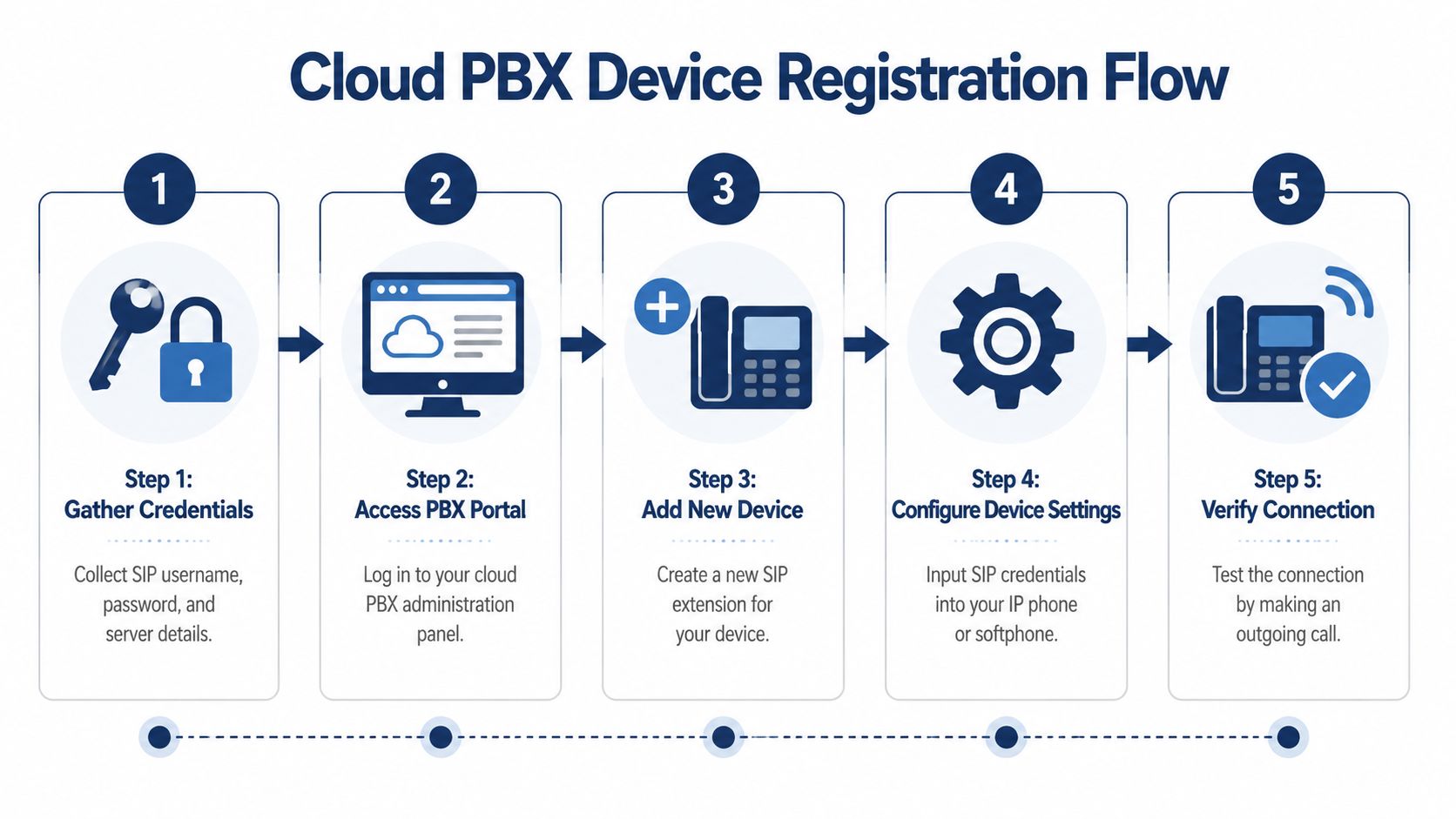
This is the moment where the PBX portal and the endpoint finally meet. Your goal isn't to make every setting perfect on the first pass. Your first goal is simpler: get the device to show Registered.
What to create in the PBX portal
Inside most cloud PBX portals, start with the user account. Assign the extension, caller ID behavior, voicemail, and any ring routing first. After that, attach a SIP device or generate SIP credentials for that extension.
Some systems label this area as:
- Devices
- Phones
- Endpoints
- SIP registrations
- User devices
If the portal asks whether this is a hard phone or softphone, choose correctly. Some providers generate different templates or firmware expectations based on that choice.
A separate overview of cloud-based VoIP phone systems can help if you're still sorting out whether each employee should get an assigned extension, a shared device, or an app-based login.
What to enter on the endpoint
On a desk phone, the account menu usually asks for some version of these fields:
- Label or display name. This is what appears on the screen.
- User name or register name. Usually the SIP username or extension.
- Authentication name or auth ID. Use the explicit auth ID if the provider gave one.
- Password. Use the SIP secret exactly as issued.
- Server host. Enter the SIP domain or registrar address.
- Outbound proxy. Only if the provider requires it.
- Transport. Match the provider recommendation.
Softphones use similar names, but they often hide advanced fields behind an “Account details” or “Manual configuration” button. Zoiper, Bria, and similar apps commonly ask for username, password, domain, and then let you expand network options after the account is added.
One practical trick: if registration fails, compare the endpoint fields against the PBX portal one by one. Don't trust memory. The difference between “user ID” and “auth ID” causes more failed registrations than most new admins expect.
If you see “registration failed” immediately, suspect credentials. If it spins and times out, suspect network reachability or a blocked transport setting.
A lot of teams moving beyond basic office calling also start thinking about routing, queues, and customer interaction workflows. For that side of the stack, innovative CCaaS strategies are worth reading because endpoint registration is only the first layer of a broader voice environment.
After the account saves, reboot the desk phone or refresh the softphone account. Then look for these signs:
- Registered or online status on the device
- Extension presence visible in the PBX portal
- Successful internal test call to another extension
- Outbound dialing works with the expected caller ID
Here's a visual walkthrough before you move to testing and optimization:
If registration succeeds, don't stop there. Make a real call. A registered device that can't pass audio or complete outbound dialing still isn't ready for users.
Dialing Rules, Codecs, and Network Settings
A registered phone proves the account is alive. It doesn't prove the phone is usable. Most quality complaints originate from this point.
Dialing rules decide what numbers actually work
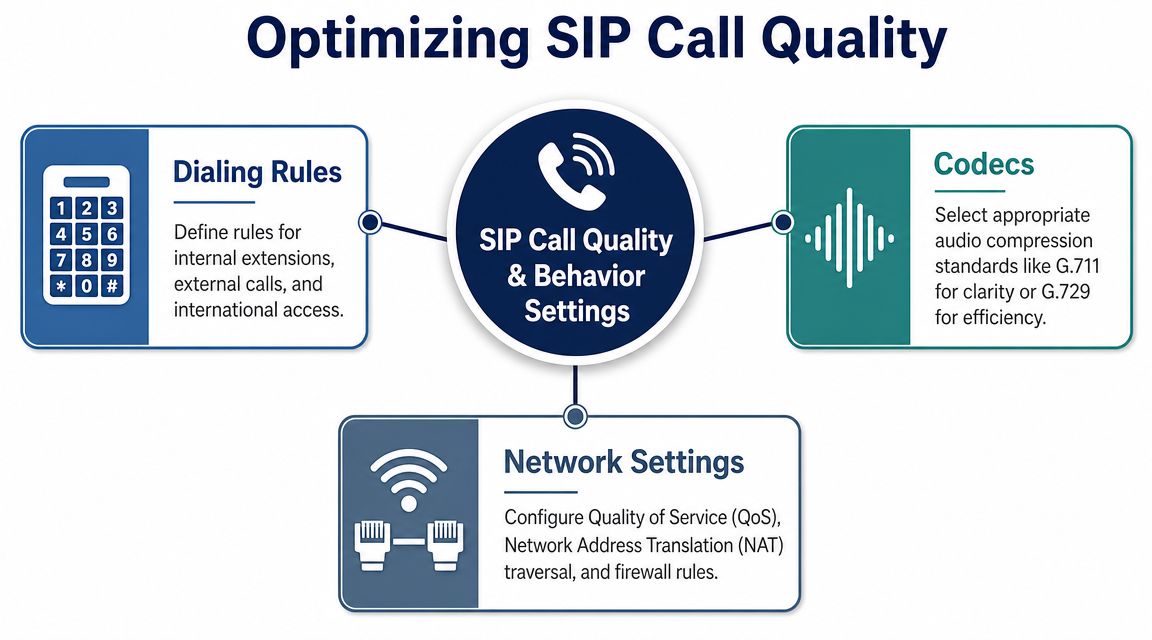
The device may register perfectly and still fail outbound calls because the dial plan is wrong. In a cloud PBX, dialing rules define what happens when users dial an extension, a local number, or an international destination.
A few examples help:
- Internal extension dialing lets users call short numbers such as 101 or 204.
- External normalization converts what the user dials into the format the carrier expects.
- Click-to-call formats often use a SIP URI such as
sip:1234@yourpbx.comfor direct extension routing.
If users report that some calls complete and others fail, compare what they dialed with the route rules in the PBX. The issue often lives there, not on the handset.
Codec choice is a quality-versus-bandwidth decision
Codecs control how voice is compressed. The common trade-off is straightforward. G.711 usually gives better call quality and uses more bandwidth. G.729 uses less bandwidth and gives up some audio quality.
A practical rule from Flowroute's guide to SIP trunk call capacity is about 80 Kbps per call with G.711, while G.729 uses about 24 Kbps per call, and 10 simultaneous G.711 calls would require roughly 800 Kbps of dedicated bandwidth.
That doesn't mean you should always choose the leaner codec. If your office has a stable connection and users care about call clarity, G.711 is often the better fit. If remote staff work in constrained environments, G.729 can keep calls standing up more reliably.
| Setting area | Better quality choice | Better efficiency choice |
|---|---|---|
| Codec | G.711 | G.729 |
| Typical use | Office LAN, strong broadband | Constrained links, variable remote connections |
| Trade-off | Higher bandwidth use | Lower bandwidth, some audio compromise |
Network settings make or break audio
One-way audio, delayed pickup, and random call drops usually come back to the network path. SIP endpoints behind office routers or home internet gear often need proper NAT handling. Depending on the platform and endpoint, that may involve built-in NAT traversal settings, keep-alives, or STUN support.
QoS matters too. When voice packets compete with bulk downloads, cloud backup, or streaming traffic, users hear the problem before the network team sees obvious saturation.
A phone can register on a messy network and still sound terrible. Registration is only the first checkpoint.
If your users work from mobile hotspots, RV setups, or other unstable environments, this guide to consistent RV internet is a good practical read on jitter and why voice quality falls apart on inconsistent links.
The cleanest approach is simple. Prioritize voice traffic, keep the codec list short, and test from the actual network where the person will work.
Securing Your SIP Calls and Connections
A working SIP phone that isn't secured is a liability. Businesses usually discover this late, after suspicious call activity, strange registration attempts, or a user asks whether outside parties could listen in.
The risk isn't abstract. Unsecured SIP traffic can expose call setup details, invite account abuse, and create openings for toll fraud. Remote users are especially exposed when they register from networks you don't control.
Turn on encryption where the platform supports it
Two settings matter most:
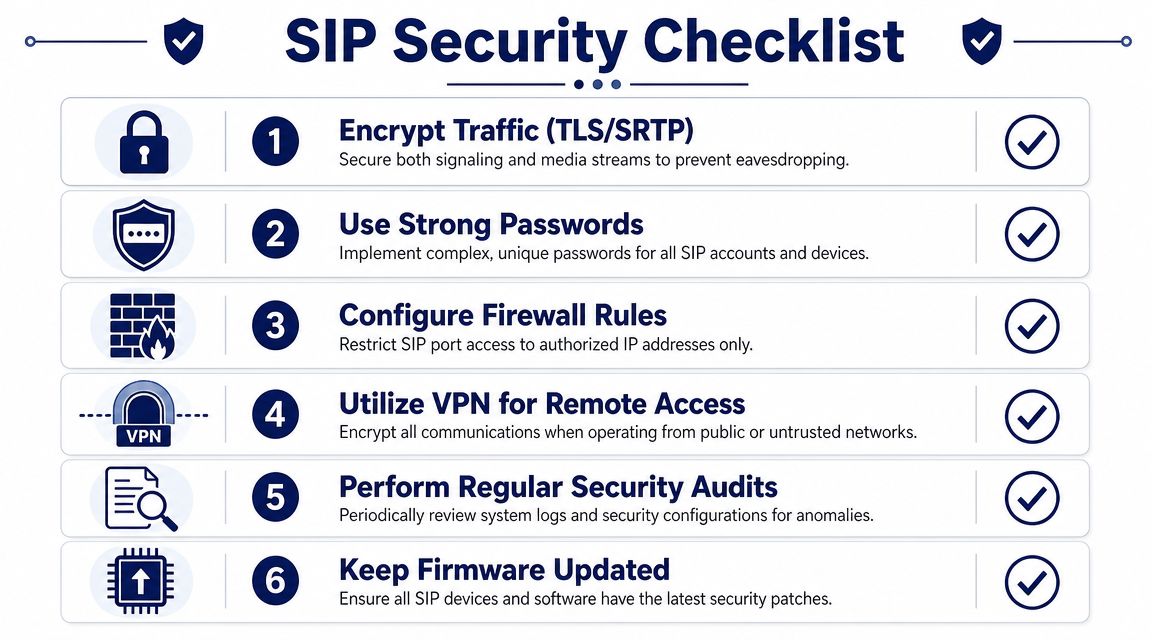
- TLS protects SIP signaling. That includes the setup messages used to register, invite, transfer, and end calls.
- SRTP protects the actual voice media stream.
If your provider and device support both, use both. On many phones, these settings sit under account transport, security, or advanced codec/media menus. On softphones, they're often tucked into the account profile under transport security.
This is not a “nice to have” for executives or remote teams. It should be standard policy unless you have a documented reason not to use it.
The rest of the security checklist
Security usually fails through small operational shortcuts, not one dramatic mistake.
- Use unique SIP passwords. Reused credentials turn one leaked login into a wider incident.
- Restrict device access. Limit who can reach administrative menus and who can reset credentials.
- Lock down firewall exposure. Only allow the traffic your deployment needs.
- Update firmware and apps. Old phone firmware causes both security and stability problems.
- Review registration behavior. Unexpected registrations or repeated failures deserve attention.
- Use VPN for sensitive remote environments when policy requires it.
Don't treat voice as separate from the rest of IT security. A phone account is still an account. It needs the same discipline as any other business access point.
A useful admin habit is to build security into provisioning. When you create a new extension, decide the transport, confirm encryption support, assign a strong secret, and document who owns the endpoint. That's faster than retrofitting a dozen phones after the fact.
Common SIP Use Cases and Troubleshooting
Once a SIP endpoint is working, the business value shows up fast. The technology itself isn't the win. The win is that people become reachable in a way that fits how they work.

Where SIP setup pays off in daily operations
A sales rep on the road can answer their office extension from a softphone instead of giving out a personal number. A front desk user can transfer calls to remote staff as if everyone were in the same building. A manager can review call recordings and voicemail from one system instead of juggling separate tools.
Other common uses include:
- CRM click-to-dial so users place calls from contact records
- Remote extension access for home and hybrid staff
- Ring groups and hunt behavior for sales or support teams
- Shared business identity so outbound calls present company caller ID
- Mobile continuity so missed office calls can follow the user
That's why admins still bother learning how to call with SIP directly. It gives them a portable, device-agnostic way to extend the phone system beyond one office.
The support issues you'll see most often
When tickets come in, they usually cluster around a few problems.
Failed to register
Start with the obvious. Recheck the SIP username, auth ID, password, server host, and transport. If those are correct, confirm the device is pointed at the right account and the extension is enabled in the PBX.
One-way audio
This usually points to NAT or firewall behavior, not bad credentials. If calls connect and only one side hears audio, inspect network traversal settings and confirm the endpoint is suitable for the user's local network.
Calls drop after answer
Look at transport mismatches, unstable internet, or idle session handling on the network path. If it happens only for remote users, test from another connection before blaming the PBX.
Can call internally but not externally
Check outbound routes, dial patterns, and permissions. The device may be fine while the PBX routing policy blocks the destination.
Poor audio quality
Compare the codec choice to the user's connection quality, then review competing traffic on that network. A good headset and stable local network often solve more “VoIP quality” complaints than endless menu changes.
When troubleshooting, isolate one layer at a time. Registration first. Then internal calling. Then external dialing. Then audio quality. Admins get into trouble when they change five settings at once and lose track of what fixed the issue.
If you're replacing an older phone system or trying to get a mixed set of desk phones and softphones working without a long trial-and-error phase, SnapDial can help. Their team handles cloud PBX setup, user provisioning, device onboarding, and ongoing support, which is useful when you want reliable business calling without turning every phone issue into a project for your IT staff.