Getting your AT&T home phone calls to ring on your cell or another line is easier than you might think. The quickest and most direct way is by using "star codes" right from your phone's keypad. No need to log in to an app or website—just pick up the phone and dial.
Think of these codes as simple commands for your phone line. For instance, if you're heading out for the day and want every call to your landline to go straight to your mobile, you'll use a specific code to make it happen instantly. It’s a simple feature that brings a bit of modern flexibility to your traditional home phone service.
Using Star Codes for Call Forwarding
The most common method is Unconditional Call Forwarding, which sends every single call to another number without your home phone ringing at all. It’s the perfect all-or-nothing solution for when you know you won't be home to answer.
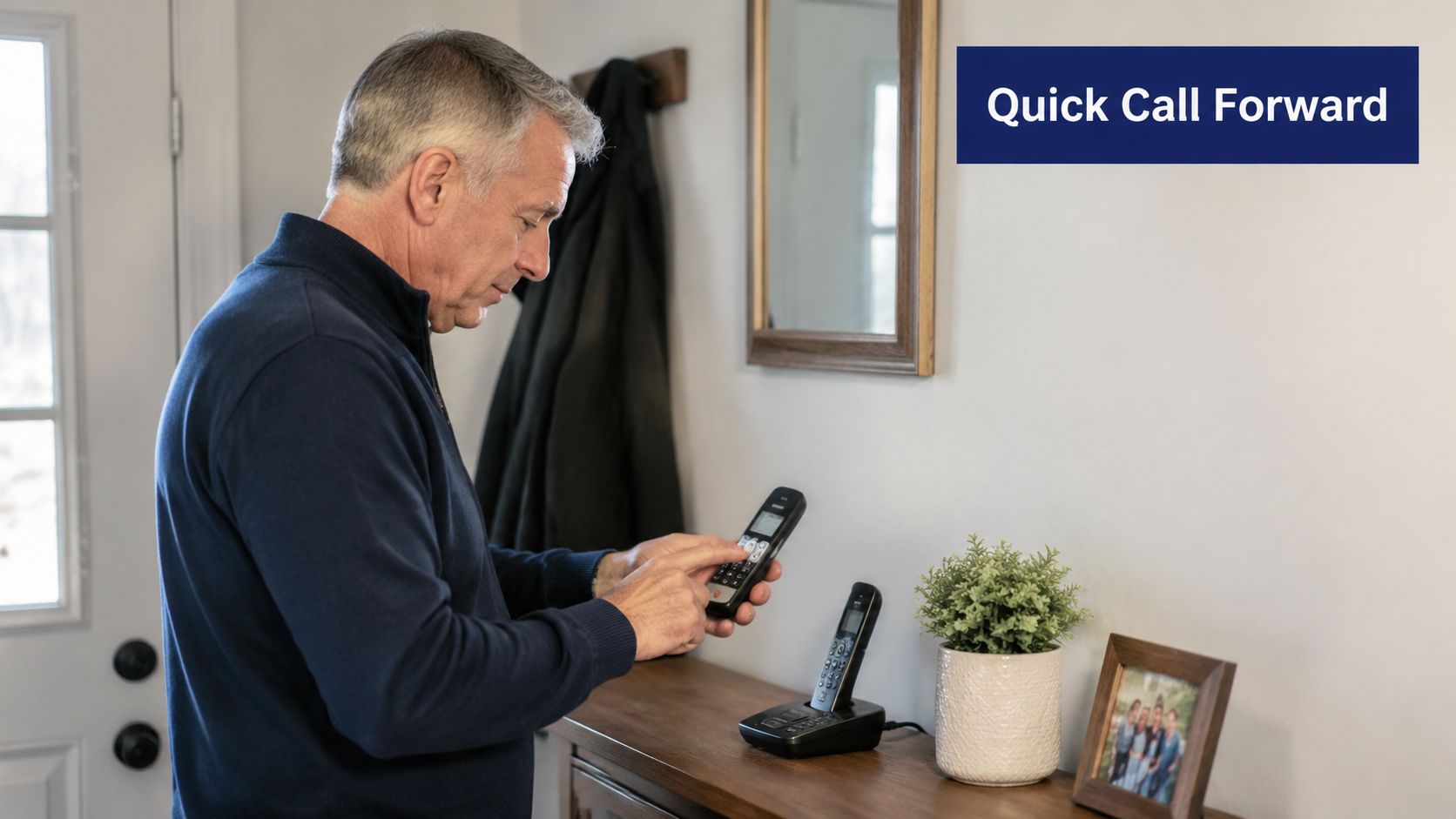
To set this up, you just dial *72 followed by the 10-digit phone number you want to forward calls to. You'll hear a confirmation tone, and you're all set. When you're ready to start receiving calls on your home phone again, simply dial *73 to turn it off.
Pro Tip: Using dial codes like
*72gives you immediate control over your calls. It’s a fast, reliable way to manage your phone line without having to deal with account logins or apps.
According to AT&T’s home phone support guides, this is the standard process for most traditional landlines and U-verse Voice customers. Some plans may even offer remote access, allowing you to manage forwarding when you're away from home.
To make things even simpler, here are the essential star codes you'll need.
AT&T Home Phone Call Forwarding Star Codes
This table summarizes the primary dial codes used to activate, deactivate, and manage call forwarding features directly from your AT&T home phone.
| Feature | Activation Code | Deactivation Code |
|---|---|---|
| Unconditional Call Forwarding | *72 + Phone Number |
*73 |
| Conditional: Busy Line | *68 + Phone Number |
*88 |
| Conditional: No Answer | *92 + Phone Number |
*93 |
Keep these codes handy—they provide a fast and straightforward way to control where your calls go. Whether you want to forward all calls or only those that come in when you’re busy or don’t answer, these simple commands put you in charge.
How to Forward Calls Right from Your Handset
While managing your account online is convenient, sometimes you just need a fast, old-school way to control your AT&T home phone call forwarding. This is where star codes come in.
Using simple codes from your keypad gives you immediate control over your calls without needing to log into a website or app. It’s a surprisingly powerful method for making quick changes on the fly.
Let's say you're heading out but waiting on an important call from a courier. You can't miss it, but you also can't stay home. This is the perfect time to use Unconditional Call Forwarding to send that call straight to your mobile. It’s a simple and effective trick to ensure you never miss a ring.
Unconditional and Conditional Forwarding Codes
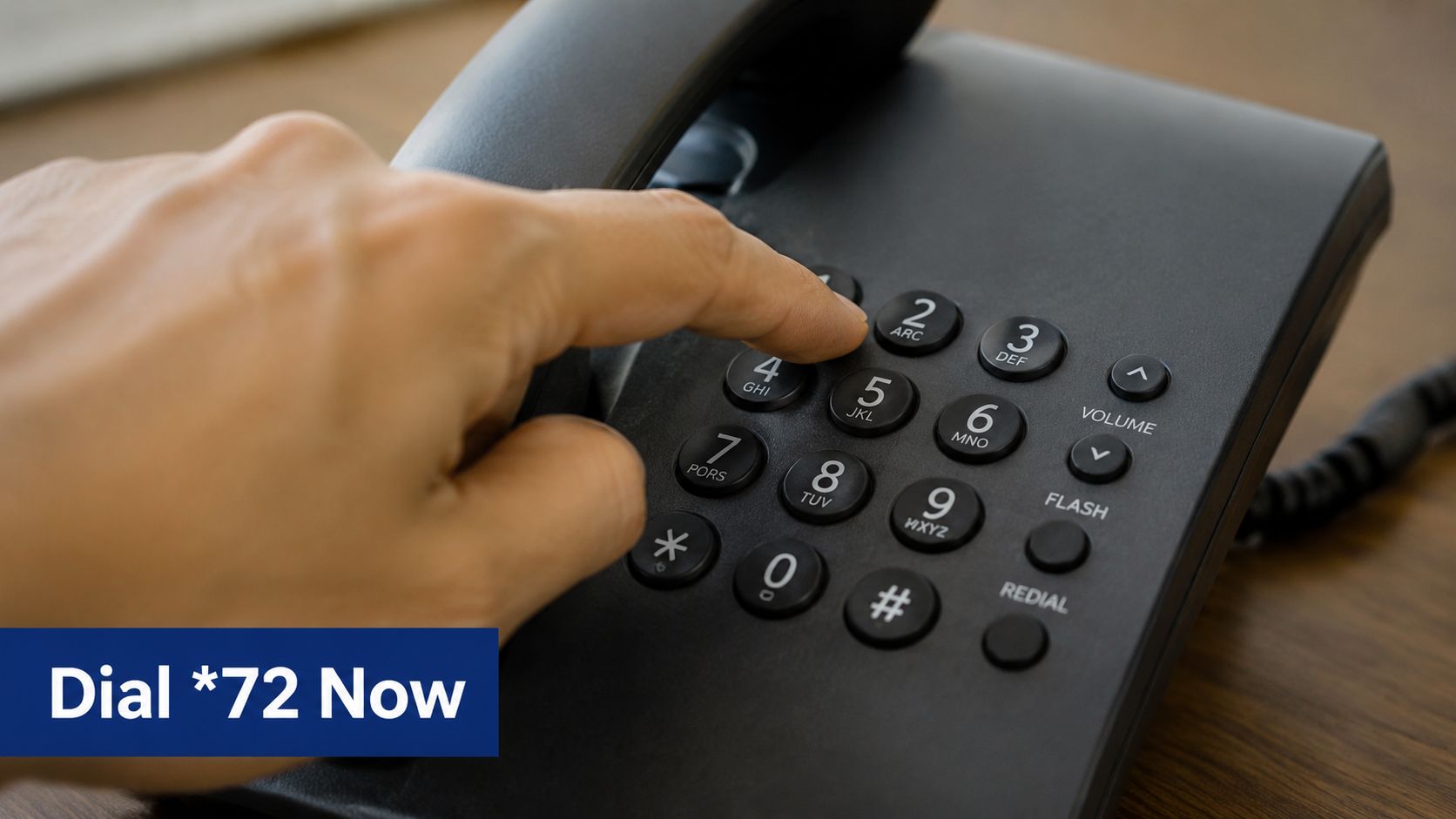
The most common code you'll use is *72 for Unconditional Call Forwarding. Just pick up your handset, listen for the dial tone, and dial *72 followed by the full 10-digit number you want your calls sent to (for example, *72-555-123-4567).
You should hear two quick confirmation tones, and then you can hang up. From that point on, all calls will skip your home phone and go directly to the number you set. To turn it off, just dial *73 and wait for the confirmation tones.
A quick heads-up: after you enter the forwarding number, your phone might try to place a call to it. If someone answers, stay on the line for just a second to lock the setting in. If no one answers or it goes to voicemail, hang up and immediately repeat the
*72sequence within two minutes. That will force the activation.
But what if you don't want to send every call away? That's where conditional forwarding gives you more granular control. AT&T has codes that give you flexibility for specific situations, like when your line is busy or you just can't get to the phone in time. You can learn more about these types of call management strategies in our guide on how to forward calls from a cell phone.
Here are the other essential codes you'll want to keep handy:
- Busy Line Forwarding: Dial
*68and then the number. This is great for sending callers to another line—or even your cell—but only when you're already on the phone. To switch it off, dial*88. - No Answer Forwarding: Dial
*92and then the number. If you don't pick up after a few rings, this feature will automatically forward the call to your designated number. To disable it, use*93.
How to Manage Call Forwarding Online via MyAT&T
While using the star codes on your handset is quick for on-the-fly changes, managing your AT&T home phone call forwarding through the online MyAT&T portal is often the smarter move. This method is perfect if you’re more of a visual person or need to tweak your settings when you're away from home. It gives you a clear dashboard where you can see all your settings at a glance, confirming that your calls are going exactly where you need them to.
Think about it: you're on vacation and suddenly realize you forgot to forward your landline. Instead of scrambling, you can just log into your MyAT&T account from a laptop or smartphone and activate forwarding to your cell phone in a few seconds. No need to hunt down a phone to dial special codes. This online access is invaluable for confirming your setup is correct or managing multiple phone lines under a single account.
Your starting point is the secure MyAT&T login page, where you can access all the details of your account.
From this portal, you get full control over all your AT&T services, including the specific voice features for your home phone.
Navigating to Your Phone Features
Once you're logged into your MyAT&T account, you'll need to find the section for your home phone service. The layout of the AT&T dashboard can change from time to time, but the path is usually pretty similar.
Start by looking for a section like My Services on your account dashboard. From there, select your Home Phone or Voice service. You should then see a link or button labeled something like Manage Voice Features, Phone Features, or Call Forwarding. Clicking this will take you right to the controls.
The online portal is your central hub for call management. You can enable or disable call forwarding, change the forwarding number, and see its current status—all without ever touching your handset. This gives you absolute peace of mind that everything is configured correctly.
From this control panel, you simply enter the 10-digit phone number you want to forward calls to and toggle the feature on. The system will confirm the change instantly, and your call forwarding on your AT&T home phone will be active immediately.
Activating Call Forwarding When You're Away from Home
It’s a classic scenario: you’re halfway to your destination and it hits you—you never forwarded the home phone. Thankfully, forgetting to set up Call Forwarding on your AT&T home phone before you walk out the door isn’t a dealbreaker. AT&T has a great feature called remote access, designed for this exact situation. It lets you control your home phone settings from any other phone, anywhere.
The way it works is pretty clever. You simply dial a special remote access number for your specific region, which AT&T provides. From there, the automated system will ask for your 10-digit home phone number and a security PIN to verify it’s you. Once you’re authenticated, you have full control over your line’s features.
Key Takeaway: Remote access is your get-out-of-jail-free card for forgotten call forwarding. Just remember to keep your PIN somewhere you can access it—without it, this feature won't work.
Using Codes Remotely
After you’ve successfully dialed in and accessed your line, you'll use the same familiar star codes to manage your forwarding. To turn on Unconditional Call Forwarding, you’ll dial 72# and then the 10-digit number you want to send calls to. When you're ready to turn it off, you just repeat the process and dial 73#.
Of course, dialing in isn't your only remote option. Managing your settings through AT&T's online portal is another excellent way to handle it, as this graphic shows.
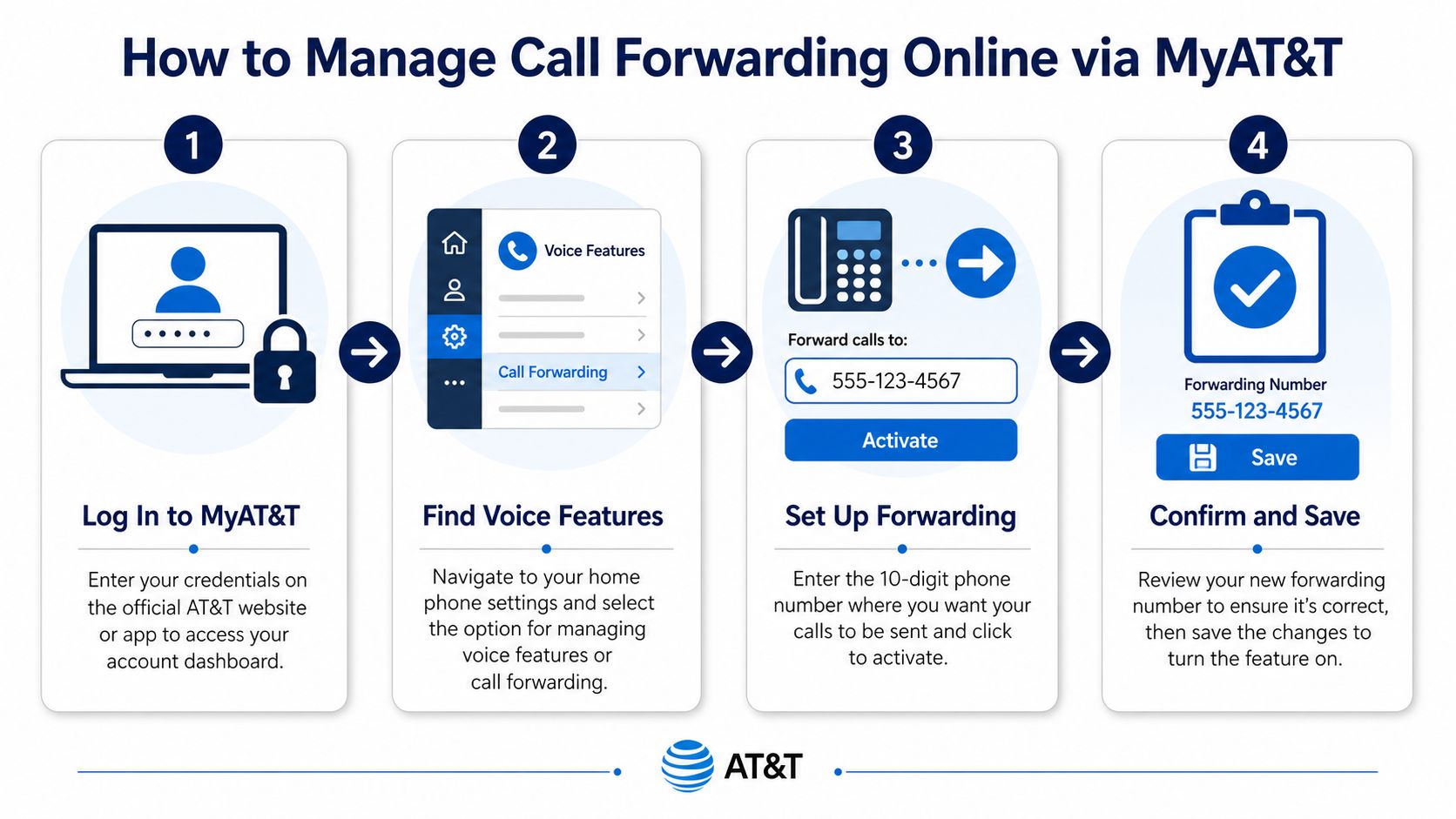
As you can see, logging into your account to change your forwarding number is just a few clicks away.
This remote capability really shows how forwarding has become a network-level function, not something tied to your physical handset. As you can see in AT&T's support page for wireless home phones, the process involves that specific access number, your home number, your PIN, and then the final 72# or 73# command. And if you're thinking about a more permanent switch away from a landline, our guide on how to transfer a landline to a cell phone is a great next read.
When Your Business Needs More Than Simple Forwarding
Basic **call forwarding on an AT&T home phone** is great for personal use. But for a growing business, it’s a temporary fix that quickly shows its cracks. At its core, the system is a simple, one-way street: it pushes every call from one line to another.What happens when multiple customers try to call you at the same time? One call gets through, but everyone else either gets a busy signal or a generic voicemail box. That single-lane highway just can't handle the traffic of a business that’s picking up steam.
This means every forwarded call you take on your cell phone ties up your entire business line. For a solopreneur just starting out, that might not be a dealbreaker. But as soon as your call volume ticks up or you hire your first employee, it becomes a major bottleneck. It can lead to missed sales and gives off the impression that your business is smaller or less professional than it actually is.
Think about this real-world scenario: you’ve forwarded your office line to your cell while you’re out meeting a client. A big customer calls, and you pick up. While you're on that important call, a hot new lead tries to reach you. They get a busy signal. Annoyed, they hang up and call your competitor. That’s the real cost of outgrowing basic call forwarding.
Signs You Have Outgrown Basic Forwarding
It’s easy to get so caught up in the day-to-day that you don't realize your phone setup is holding you back. You’ve likely outgrown a simple home phone line if you find your business needs to:
- Route calls to different people: You need sales inquiries to ring one person and support questions to go to another—without you having to manually play switchboard operator.
- Handle multiple simultaneous calls: Your business has to be able to queue callers or have multiple lines open so a potential customer never hears a busy signal.
- Present a professional image: You want an auto-attendant ("Press 1 for Sales, Press 2 for Support") to greet and direct callers, making your business feel more established and organized.
- Gather call data: You need to see your peak call times, track missed call numbers, and measure performance to make smarter decisions about staffing and marketing.
For companies grappling with these more advanced needs, looking into broader software for managing communications can offer a path forward, especially when it comes to solving telecom field execution issues.
A business phone system isn't just about making and taking calls; it's about managing the flow of communication. It turns your phone line from a simple doorbell into a full reception desk that can greet, direct, and assist every visitor professionally.
While simple forwarding is a decent starting point, a modern business phone system delivers the dynamic tools you need to support real growth. To learn more about the fundamentals, take a look at our guide on how to set up call forwarding, which breaks down the foundational concepts.
Common Questions About AT&T Call Forwarding
Even a feature as simple as AT&T's call forwarding can cause some real headaches when it doesn't work as expected. You’ve followed the steps, but calls are still ringing your home phone, or you're worried about surprise charges on your bill.
Let's walk through the most common snags we see and get you the right answers. These are the practical fixes for the issues that pop up long after you’ve read the instruction manual.
Why Isn't My Call Forwarding Working?
This is easily the number one frustration. You’ve dialed *72 and the phone number, but your calls are still coming through to your landline. What gives?
Nine times out of ten, the issue comes down to a small hiccup in the activation process. The most common mistake is hanging up too quickly. After you dial *72 and the number, you absolutely have to wait for the confirmation tones. If you hang up before you hear them, the setting simply didn't stick.
Another classic snag is a simple typo. It's easy to fat-finger a digit, so try the whole sequence again, dialing the full 10-digit number slowly and carefully.
Pro Tip: Occasionally, other active phone features can clash with call forwarding. If you have services like Call Waiting active, try temporarily disabling them to see if that resolves the conflict. When all else fails, a quick call to AT&T support can usually sort out any account-specific gremlins.
Is There a Fee for Call Forwarding?
For most AT&T home phone plans, whether it's a traditional landline or their U-verse Voice service, the basic call forwarding feature is included at no extra charge. This covers all the standard types: unconditional, busy, and no-answer.
But here’s the catch: while the feature itself is free, the calls are not. You still have to pay for the talk time.
For instance, if you forward your home phone to a number outside your local calling area, you'll be billed for long-distance charges for the duration of that forwarded call. It’s treated just as if you had picked up your home phone and dialed that number yourself.
Can I Forward Calls to an International Number?
The short answer is almost always no. AT&T’s standard call forwarding is designed to work with domestic phone numbers inside the United States. You cannot forward your AT&T home phone to an international number using the normal *72 star code.
If you try, it will almost certainly give you an error or just fail to activate. This is a built-in safeguard to protect you from racking up massive, unexpected international calling fees.
If you have a real need to get calls routed overseas, a traditional landline feature isn't the right tool for the job. You'll want to look into a more robust solution, like a VoIP business phone system, which is built for that kind of global flexibility.