

You're usually looking this up at exactly the wrong moment. A new employee can't get into voicemail. You switched phones and the old PIN no longer works. Or you suddenly realize the mailbox still uses the default code nobody remembers setting.
That's why “how to change my voicemail PIN” gets confusing fast. The steps depend on who manages your voicemail. In one office, the change happens in a cloud phone portal. On an iPhone, it may live in device settings. On another line, the carrier controls everything.
Get that part right first, and the rest is straightforward.
Why Changing Your Voicemail PIN Matters for Security
A voicemail PIN looks small, but it protects access to messages that often include call-back numbers, internal updates, customer details, and personal information. If someone gets into the mailbox, they don't need full access to your phone system to hear things they shouldn't.
That matters even more in business. Office managers and IT admins often focus on email, single sign-on, and endpoint security first. Meanwhile, voicemail sits in the background, still tied to real conversations and real account recovery paths.
Practical rule: If a voicemail box is active, its PIN should be treated like any other login credential.
Weak voicemail PINs also create support headaches. Users forget them, reuse old ones, or try obvious combinations that the system refuses. Then they assume the phone is broken when the actual issue is policy enforcement.
The other reason this trips people up is simple: there isn't one universal method. The path changes based on whether your voicemail lives in:
- A business phone platform such as a hosted VoIP or cloud PBX system
- Your phone's operating system, such as iPhone settings
- Your mobile carrier's voicemail service
If you follow the wrong set of instructions, you can waste a lot of time clicking through menus that will never show the option you need.
What works and what usually fails
The fastest approach is to identify the controlling system before touching settings. That's what experienced support teams do first.
What doesn't work is assuming every phone uses the same menu path. That's how users end up checking handset settings for a carrier mailbox, or calling carrier prompts for a company-managed extension.
When to change it
A PIN change is a good idea when you onboard a user, replace a handset, suspect someone else knows the code, or inherit an extension from a former employee. It's also smart after any account cleanup project where you're standardizing access.
If your current situation is “I just need to get this changed now,” start with the next section. That's where the confusion usually clears.
First Identify Where Your Voicemail Is Managed
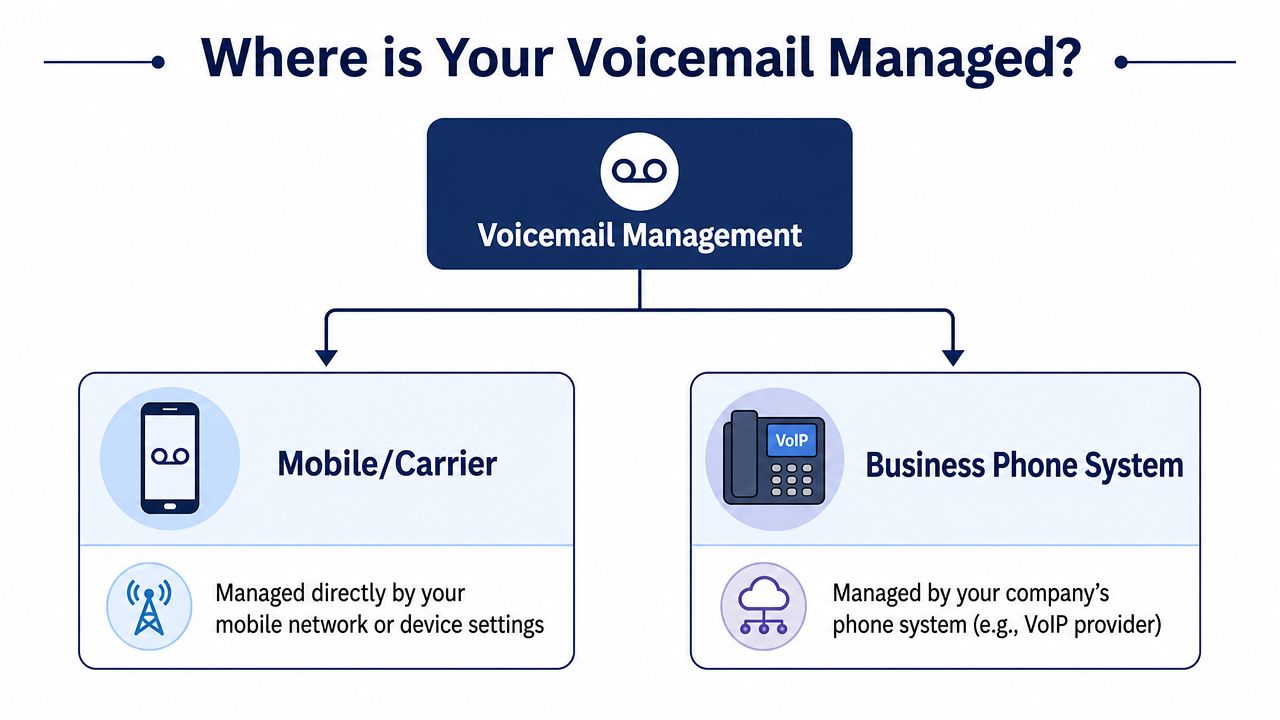
Before changing anything, figure out where the mailbox lives. This is the part most generic guides skip, and it's why they often fail.
Apple documents voicemail PIN changes in iPhone Settings, Verizon points users through carrier-based flows, and enterprise platforms such as Webex use a user hub with admin-set rules, as shown in Apple's guidance on changing voicemail greeting and settings on iPhone. That split is the whole problem. One-size-fits-all instructions don't match real deployments.
Signs your business phone system manages it
If your company uses desk phones, softphones, or a browser portal for extensions, voicemail is often part of the business phone platform.
Look for clues like these:
- You log into a work phone portal to view call history, greetings, or extension settings
- Your extension follows you across devices, including desk phone and mobile app
- An admin can reset voicemail access without contacting your cell carrier
- Your voicemail sits beside other office features like call routing, auto attendants, or recordings
If that sounds familiar, your voicemail is probably part of your company phone system, not your mobile provider. If you need help checking how your mailbox is currently reached, this quick guide on accessing voicemail can help you identify the path you're using.
Signs your phone or carrier manages it
If you use a personal mobile line for voicemail, the handset or carrier usually controls the PIN.
A quick comparison helps:
| Situation | Most likely manager | Typical clue |
|---|---|---|
| iPhone with visual voicemail options in Settings | Phone OS | Voicemail settings appear under Phone |
| Mobile line from Verizon or another carrier | Carrier | Reset prompts come from the carrier |
| Work extension with portal login and admin policies | Business phone system | PIN rules are managed centrally |
If your company gave you a mobile app for work calling, don't assume the iPhone or Android voicemail menu applies. Many business calling apps route voicemail through the company platform instead.
A fast decision test
Ask yourself these three questions:
- Do I use an extension or a personal mobile number for this mailbox?
- Can my office admin manage my calling features in a portal?
- When I check messages, am I entering a business phone menu or my carrier's voicemail system?
Once you know the owner of the mailbox, the instructions become much more predictable.
Change Your PIN in a Business Phone System Like SnapDial
In business phone systems, there are usually two working paths. You either reset the PIN in an authenticated web portal, or you change it from the voicemail menu on the phone itself.
Cox Business describes this split clearly: its MyAccount portal can reset a forgotten PIN without the old PIN, while a phone-based change requires the current PIN first, as noted in Cox Business guidance on changing your voice mail PIN. That pattern shows up across many hosted voice platforms.

Portal reset when you know the PIN or forgot it
For most office environments, the portal is the better first try. It's cleaner, easier to confirm, and often available even when you don't remember the current code.
Use this workflow:
- Sign in to your company phone portal or user dashboard.
- Open the calling or voicemail settings area.
- Look for a control labeled voicemail PIN, reset PIN, or security.
- Enter the new PIN and confirm it.
- Save the change, then test access from your phone.
If your company phone platform also has a mobile app, the same option may appear under account settings or voicemail preferences. The names vary, but the pattern is usually similar.
Phone menu change when you already know the old PIN
This route is common on desk phones and legacy-style voicemail prompts. It works well when the user is already signed in mentally, knows the current PIN, and just needs a quick change.
A typical flow looks like this:
- Call voicemail from your extension and sign in
- Open personal or setup options from the audio menu
- Choose the change password or change PIN option
- Enter the current PIN if prompted
- Set and confirm the new PIN
This method is fine for routine updates. It's slower when the user is locked out, because phone-menu changes usually depend on the current code.
Portal reset is usually the least frustrating option for office managers because it avoids guessing old credentials and gives you a visible confirmation step.
What office admins should watch for
When a user says, “I can't change my voicemail PIN,” the issue is usually one of these:
- They're in the wrong system and trying to use carrier instructions for a business mailbox
- They forgot the current PIN and need a reset, not a change
- The new PIN violates policy, so the save action fails without a clear explanation
- Voicemail isn't enabled on that extension yet
If your system supports phone-based voicemail features, it also helps to review the voicemail menu options so you can tell users exactly what they should hear after dialing in.
Update Your PIN on an iPhone or Android Device
If your voicemail isn't tied to a business phone system, the next step is figuring out whether your device handles it directly or whether your carrier does.
On iPhone
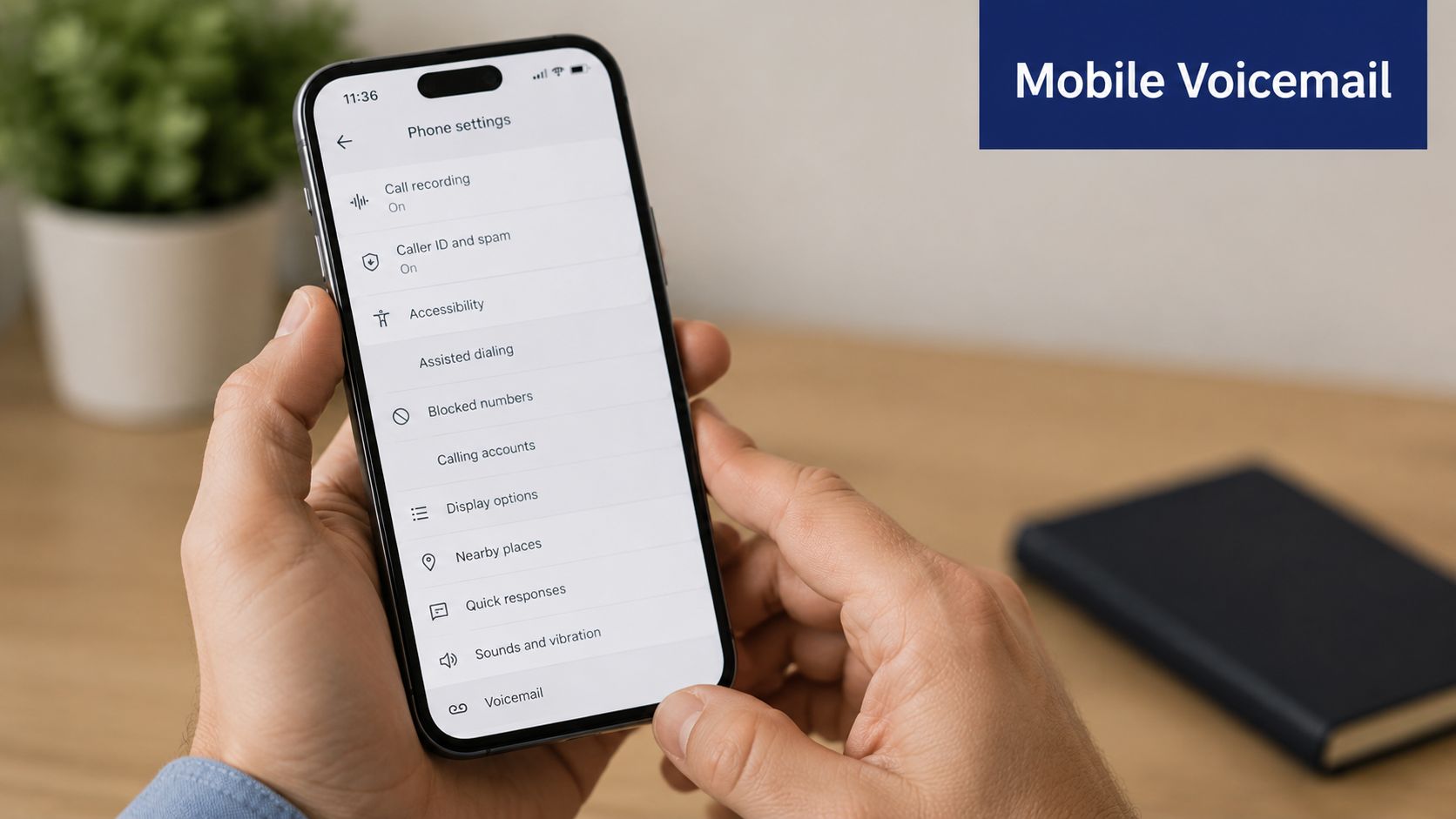
On iPhone, voicemail settings may be available under the Phone settings area rather than through a dial-in menu. That's why iPhone users sometimes get stuck following generic carrier instructions that don't match what they see on screen.
A practical approach is:
- Open Settings
- Tap Phone
- Look for voicemail-related options
- Follow the prompts to change the PIN if your carrier and setup support it there
If you don't see the option, that usually means the carrier still controls the mailbox flow behind the scenes. In that case, you'll need to call voicemail or use the carrier's account tools instead of relying only on the handset menu.
On Android and other carrier-managed setups
Android experiences vary more because manufacturers and carriers customize the phone app. In many cases, the reliable method is still the old-school one: call into voicemail and follow the prompts.
Traditional systems often use keypad navigation. Rensselaer Polytechnic Institute documents one example: 4 for Setup Options, 3 for Personal Settings, and 1 for Change Password, with a 15 minute wait after lockout before trying again in its guide to changing or resetting your voicemail password.
That means the general process is:
- Dial your voicemail service.
- Enter the current PIN if prompted.
- Open setup or personal settings.
- Choose the PIN or password change option.
- Enter and confirm the new code.
If you're helping users who manage multiple phone-linked systems from one device, such as access control apps and telecom features, it's worth seeing how other mobile-first tools handle secure access. This overview of smartphone-controlled gate entry is a useful example of how modern mobile workflows still depend on clear ownership of the credential path.
A quick walkthrough can also help if the menu wording on your phone is vague:
What usually goes wrong on mobile
Users often hit one of three problems:
- They don't know the current PIN, so the phone menu won't let them proceed
- They're locked out temporarily after too many failed attempts
- They expect the phone settings app to control voicemail, but the carrier does
If you're unsure whether your mobile line is business-managed or carrier-managed, go back to the identification step first. That saves more time than repeated trial and error.
Create a Voicemail PIN That Is Actually Secure
Changing the PIN is only half the job. If the new one is obvious, you haven't fixed much.
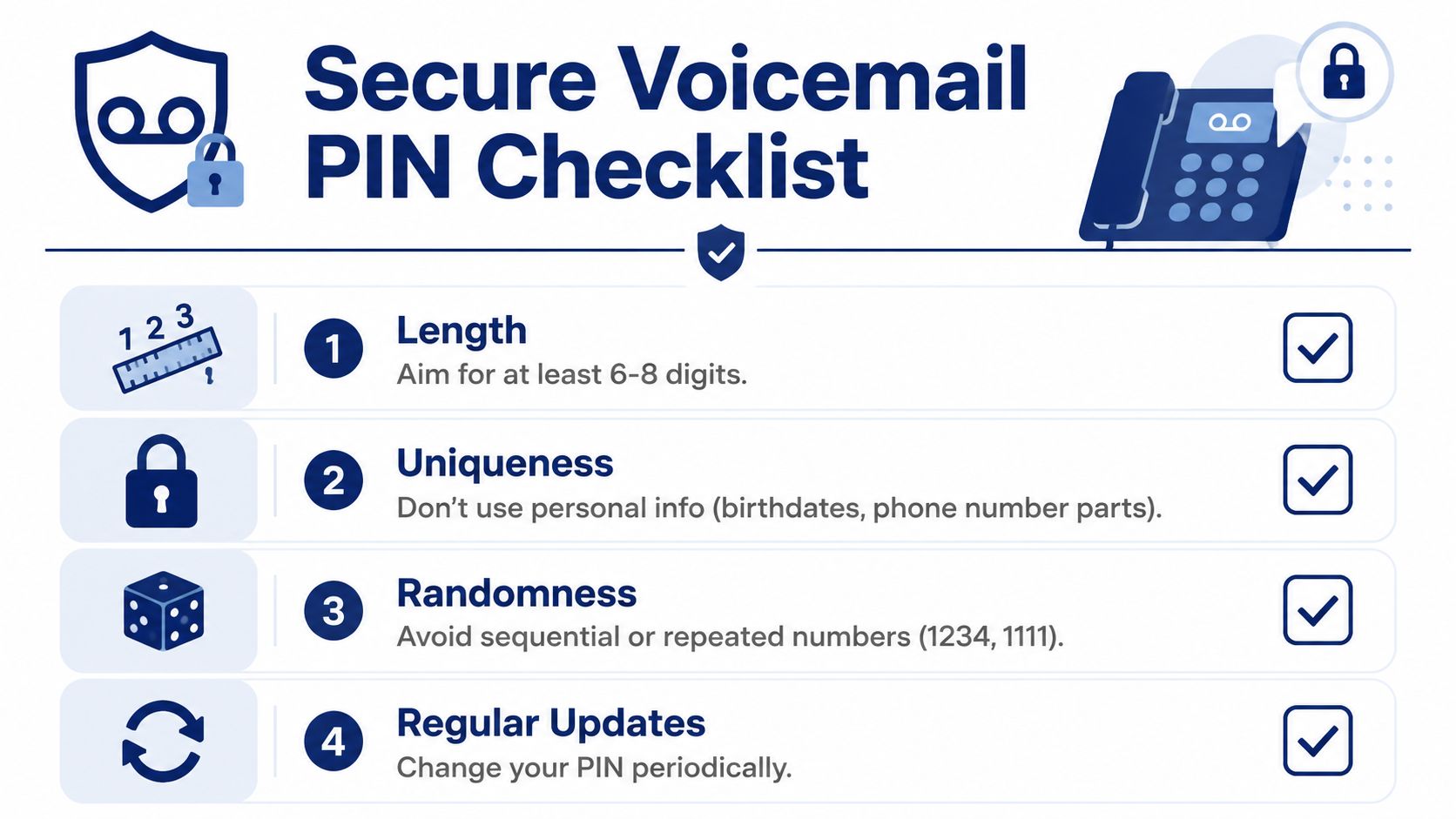
Weak choices still show up everywhere: birthdays, street numbers, repeated digits, or simple sequences. Those are easy to remember, but they're also the first things people try when a mailbox matters.
Enterprise systems set a better standard. Webex requires a voicemail PIN to be 6 to 30 digits long and blocks repeated patterns, phone-number fragments, reverse-order matches, more than three repeated digits, and reuse of the last 10 PINs, according to Webex help on setting or resetting your voicemail PIN. Even if your own system is less strict, that's a smart benchmark.
A better way to choose one
Use a PIN that you can remember without tying it to public or obvious personal details.
Good habits include:
- Use enough length so the code isn't trivial
- Skip patterns like 1234, 4321, or repeating pairs
- Avoid phone-related numbers such as your extension or pieces of your mobile number
- Don't recycle old PINs just because they're familiar
A strong voicemail PIN should feel slightly inconvenient to guess, but not difficult for the owner to use.
If you're tightening credential habits more broadly, this guide to effective password management is a good companion read because voicemail security tends to break down for the same reasons other logins do.
For teams using a unified access model, centralizing identity also reduces credential sprawl. A unified login approach makes it easier to manage access consistently instead of leaving voicemail as a forgotten side credential.
Voicemail PIN Troubleshooting and FAQs
I forgot my current voicemail PIN. What now
Don't keep guessing. In most environments, the right move is a reset, not a change. If your system has a user portal, sign in there and look for a reset option. If the mailbox is company-managed, your admin may also be able to trigger the reset for you.
Why won't the system accept my new PIN
The new PIN may violate a security rule even if it seems reasonable. Common blockers include repeated digits, number patterns, or using part of your phone number or extension. If the form rejects the code, stop trying slight variations of the same idea and choose something less predictable.
I'm locked out. Should I keep trying
No. Some systems temporarily block retry attempts after multiple failures. If that happens, wait for the lockout period to expire or use the reset path instead. Repeated guesses usually just extend the problem.
Can an administrator reset a user's voicemail PIN
Yes, in many business phone systems that's standard. Admins typically do it from the user management portal, then ask the user to sign in and set a new PIN. This is one reason business-managed voicemail is often easier to support than carrier-managed voicemail.
Why do generic instructions never match my screen
Because voicemail may be managed by the phone, the carrier, or the business phone platform. If the steps don't line up with what you're seeing, you're probably in the wrong system.
If your team wants a business phone setup that makes voicemail, user administration, and PIN resets easier to manage, SnapDial is worth a look. It gives office managers and IT teams a cloud-based phone system with self-service controls, mobile-ready access, and support when users get stuck.