
You're on the phone with a customer when a second caller hears a busy signal, a colleague waves for a transfer, and someone working from home misses the call entirely because it only rang a desk in the office. That's usually not a staffing problem. It's a line design problem. A multi line phone setup fixes who can answer, on which device, under which number, and what happens when that person can't pick up.
What a Multi-Line Phone Means in Practice
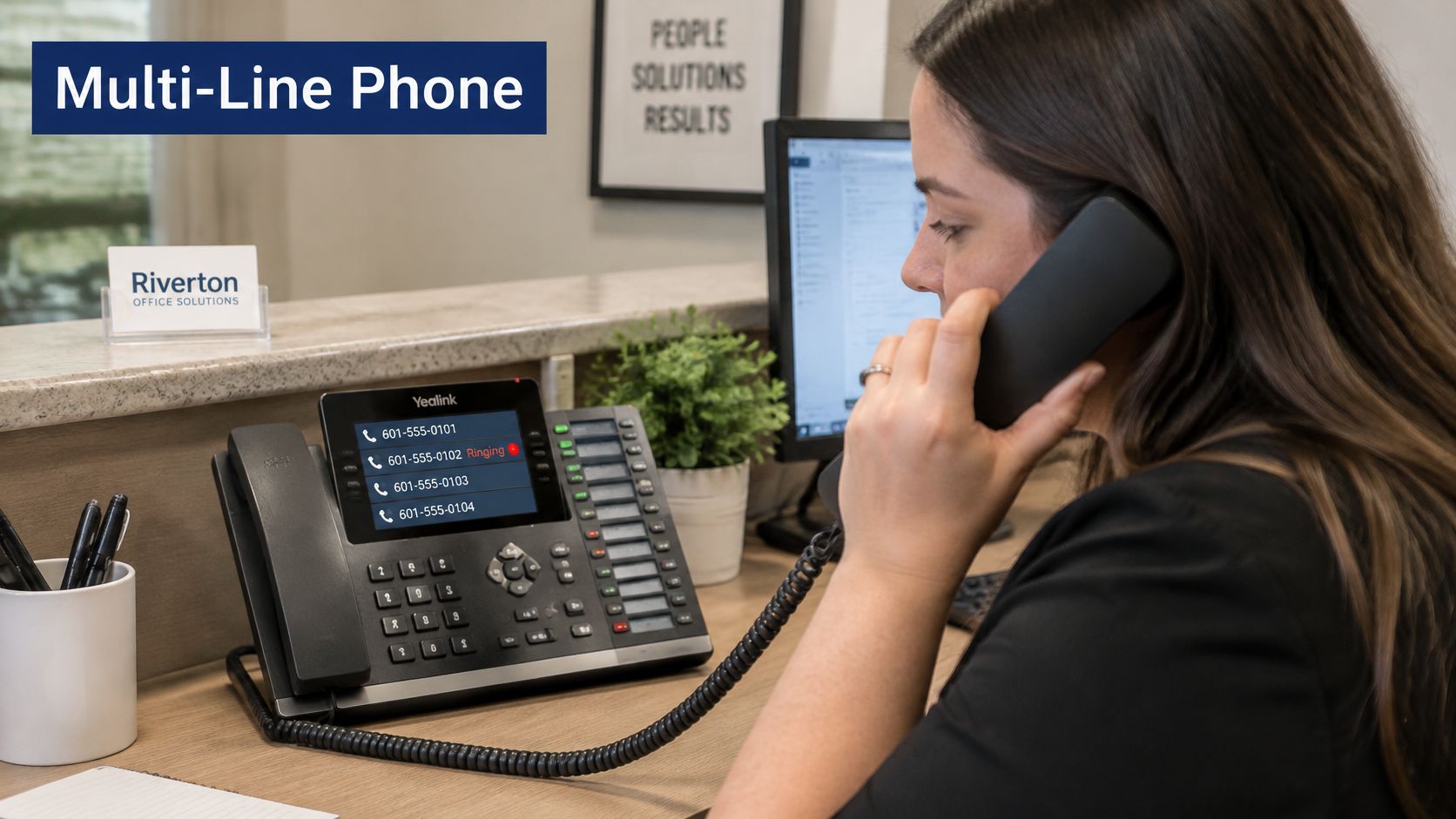
A receptionist answers a call on the first line key. While she's speaking, a second key flashes, a third stays idle, and she can place caller one on hold, greet caller two, then return without either person hearing the other's conversation. Each key shows its own status light and represents a separate line, so she can see at a glance what's ringing, what's active, and what's waiting.
In plain terms, a multi-line phone is a device that holds several lines at once.
The model behind it is older than the handset. Early telephone exchanges and private branch exchanges (PBXs) let many extensions share outside connections instead of giving every employee an independent line, a history traced in the Bell System history. That shared access idea still defines business calling today, even when the switchboard has become software.
The picture below shows the familiar desk version of that idea, one person coordinating several lines from a single device.
Single-line, multi-line desk and hosted multi-line compared
| Feature | Single-line phone | Multi-line desk phone | Hosted multi-line system |
|---|---|---|---|
| Lines per user | One | Several line keys on one handset | Any number, assigned in software |
| Line source | One trunk or analog line | Several trunks or SIP accounts | Cloud service that issues numbers |
| Who manages it | Carrier or local provider | Office admin or IT, on site | Admin through a web portal, provider-supported |
| Best fit | One-person office or home | Shared desks and small offices | Multi-location and remote teams |
Read the table by asking two questions. First, how many calls must one person handle at the same time? If the answer is one, a single line may be enough. Second, do several people need to share one public number? If yes, you need a system that can present that number on many devices, not just a handset with extra keys.
Decision rule: If one person needs more than one line, or several people share one number, you need a multi-line setup.
That second condition catches many teams off guard. They buy phones with many buttons but never decide who owns the main number, who covers it at lunch, or where it rings after hours. The hardware works. The routing doesn't.
How Multi-Line Calling Works Behind the Scenes
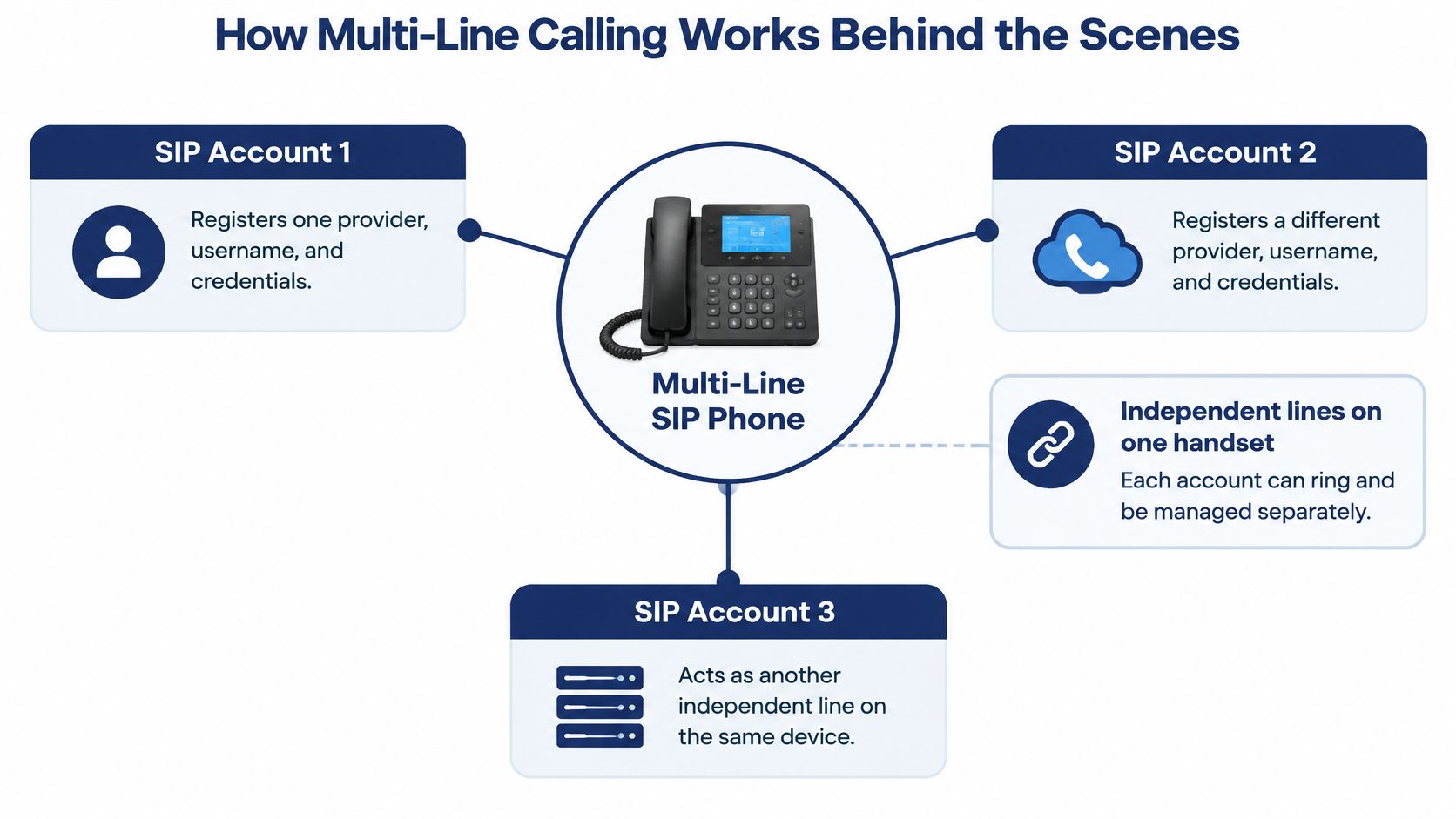
A modern multi-line SIP phone isn't just a handset with extra buttons. It can register multiple SIP accounts simultaneously, potentially with different registrars, service providers, usernames, and credentials, as described in RFC 4504. Each account acts as an independent logical endpoint on the same physical device.
That distinction matters during setup. Every line needs its own authentication, caller identity, voicemail association, and registration status. If you provision three lines but all three share one caller ID and one voicemail box, you don't have three manageable lines. You have one identity wearing three labels.
The diagram below maps that relationship, one device holding three separately registered accounts.
Why per-line state matters
Per-line call waiting is where this becomes visible. While you're on a call on line 1, a second call arriving on line 2 should alert you on that line, and you should be able to enable or disable that indicator per line. A receptionist can then tell whether the waiting call is her personal extension, a sales queue, or an overflow line without answering just to find out.
Say line 1 is the main number, line 2 is a sales queue, and line 3 is an overflow line for a second location. Each rings with its own key and label. She answers the main number with the company greeting, treats the sales queue as time-sensitive, and knows an overflow call means the other office didn't pick up. Same device, three different handling rules.
Where hosted VoIP changes the model
In a hosted system, that logic doesn't live in a cabinet in the back office. The phone system runs in the provider's cloud, handsets and apps connect over the internet, and extensions, numbers, and routing are defined in software. If you're weighing that architecture, a cloud PBX system shows how those pieces fit together without on-site switching hardware.
The video below walks through the basic call handling your team will use daily once those lines are live.
Don't accept a phone purely because it has enough buttons. A device that collapses signaling or call-waiting state across lines isn't functionally a true multi-line endpoint, even if it looks like one. You'll test simultaneous registration, line-specific caller ID, and hold and retrieve behavior during deployment, because that's when this difference stops being theoretical.
Core Features and the Benefits They Deliver
Start with the missed-call pattern you have, not the longest feature list. The table below connects each common hosted feature to what it does and why a team would care.
Core multi-line features and what they do for teams
| Feature | What it does | Benefit for the team |
|---|---|---|
| Auto attendant | Greets callers and routes them by menu choice | Fewer transfers to the wrong person |
| Mobile routing | Sends office calls to a personal or mobile number | Staff reachable without giving out a personal number |
| Shared and personal lines | Gives each person a line and some teams a shared line | One public number with clear ownership |
| Visual voicemail | Shows voicemail in a list with transcription | Faster follow-up without listening to every message |
| Call recording | Saves calls for review, subject to consent rules | Coaching and dispute resolution |
| Call queues | Holds callers with wait-time announcements | Fewer abandoned calls during peaks |
Three of these solve most small-team problems. An auto attendant fixes the pattern where every caller lands on reception and gets transferred twice. It greets the caller, offers menu choices, and sends sales to sales and support to support on the first try. Keep the menu short. Callers who hear nine options stop listening at option three.
Mobile routing fixes the empty-desk problem. A field technician answers office calls through an app or forwarded number, and the caller sees the business number, not the technician's personal mobile. For teams that also need help when nobody can answer at all, call handling for busy service teams is worth reviewing as a coverage option alongside your own routing rules.
Visual voicemail fixes slow follow-up. Instead of dialing into a mailbox and listening in order, staff see a list, read a transcription, and call back the urgent customer first. That's a practical gain when one shared mailbox serves a whole department and nobody knows who already returned a message.
Features that need a real owner
- Shared and personal lines: Assign a named owner to every shared line, or voicemails sit unclaimed because everyone assumes someone else checked.
- Call recording: Turn it on only with clear consent notices and a named supervisor who reviews calls for coaching or disputes.
- Call queues: Use them for genuine peaks, with wait-time announcements, not as a substitute for staffing the phones.
- Web portal: Give one or two admins access to manage users, routing, and call logs, so changes don't wait on a support ticket.
A feature counts only if your team will use it every week. Before you compare providers, write down the three features that solve your most frequent missed-call problem.
Choosing a Multi-Line Setup for Your Team
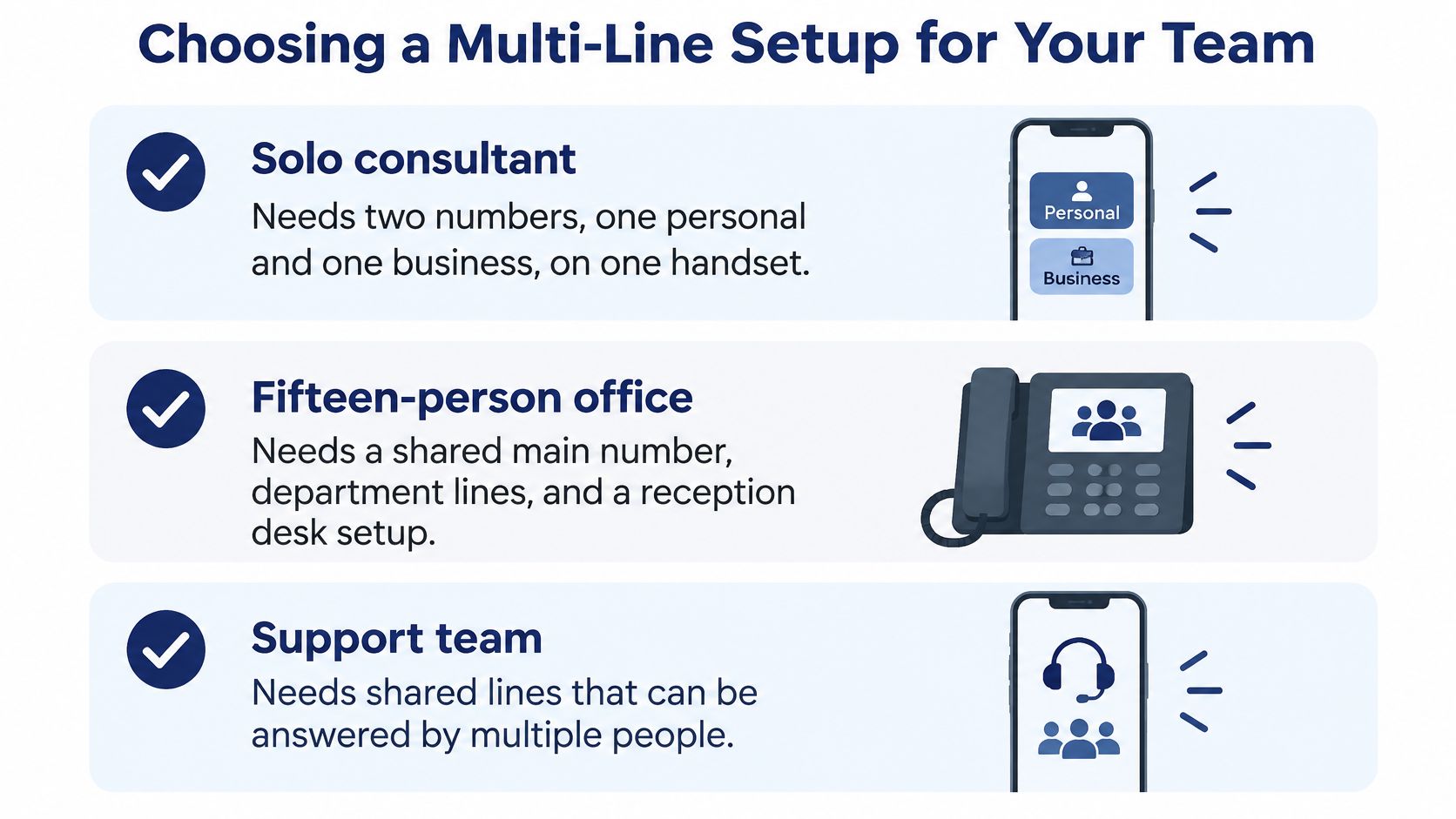
Say you're a solo consultant. You need a personal number for family and suppliers and a business number for clients, both reachable on one handset, with business calls going to voicemail after hours while personal calls still ring. That's a two-line problem, and it's mostly about caller identity.
Now say you run a fifteen-person office. You need a shared main number, department lines for sales and service, and a reception desk that sees every ring. Your problem isn't the number of lines. It's coverage, who answers first, who backs them up, and who sees a call waiting too long.
A three-location firm with remote staff has a third problem. It needs one number plan that reaches desk phones, laptops, and mobiles, moves calls between offices without asking the caller to redial, and keeps working when someone leaves. That's a governance problem.
The infographic below summarizes these three starting points before you turn them into decisions.
Turn your scenario into a checklist
- Simultaneous lines: How many lines does each person need at once, at peak, not on an average Tuesday?
- Outbound identity: Does the caller see the main number or the employee's direct number, and is that choice consistent?
- Fallback chain: When the primary person is unavailable, does the call ring a colleague, then a mobile, then voicemail, in that order?
- Location movement: Can staff transfer a call to another office or a remote worker as easily as to the next desk?
- Audit trail: Can managers review abandoned and transferred calls to find where callers give up?
- Departure handover: When an employee leaves, who inherits the number, the voicemail, and any open call-backs?
That last set of questions matters more than it used to. Recent SMB research in the RingCentral state of hybrid work ebook found that 3 in 5 organizations are at least partially remote, while 33% of employees report using phone calls and texts more frequently. The same research notes 83% of SMB respondents consider messaging, voice calling, and video meetings in one application ideal.
So the best setup may need fewer physical lines and better routing. Decide the routing model first, who answers what, in what order, under which number. Then count the phones.
Choosing Yealink Phones for Each Desk Role
Hardware should follow the desk role, not the other way round. A receptionist juggling a main number, two department lines, and an overflow line needs visible line status more than she needs a large touchscreen. A warehouse corner phone needs simple keys and durability more than either.
Yealink form-factors by desk role
| Desk role | Yealink tier to consider | What to verify | Why it matters |
|---|---|---|---|
| Reception and front desk | Mid-range with large display | Line-key count and visible line status | Staff see which line is ringing at a glance |
| Sales and support agents | Mid-range desk model | Line keys for queues and personal lines | Multiple lines without switching devices |
| Managers and executives | Executive touch model | Directory, screen size and expansion options | Quick access to contacts and call history |
| Meeting rooms | Video-capable model | Camera, microphone pickup and HD voice | Consistent calls with remote participants |
| Warehouse or shared corner | Entry-level model | Line count per datasheet and simple keys | Low cost for occasional use |
Yealink's range runs from entry models for low-volume desks, through mid-range models with more line keys and clearer displays, to executive touch models for managers who live in directories and call history, plus video-capable devices for meeting rooms. We supply a curated range of Yealink IP phones across these tiers, so you can pick a tier for each role and source the matching models from one place. If you're comparing handsets across brands first, this guide to the best VoIP phones helps you sort the tiers before you commit.
The check most buyers skip
Count the lines each desk must see, then verify the exact line-key count on the Yealink datasheet for the model you're considering. Don't rely on a product photo or a salesperson's summary. A reception phone that shows four lines when the desk needs six will still produce missed calls, they'll just be better-looking missed calls.
Work through these checks for each role:
- Line keys: Enough visible keys for every line, queue, and shared appearance that desk must monitor, with room for one future line.
- Screen size: Large enough to read line labels and caller names at arm's length, especially at reception.
- Expansion options: A sidecar or expansion module path for desks that may monitor more extensions later.
- HD voice support: Clear audio for agents and managers who spend hours on calls, so names and numbers don't need repeating.
- Mounting: Desk stand or wall mount that fits the actual space, which matters in warehouses and shared corners.
Name a reference model for each tier only after its datasheet confirms the features that desk needs. Tier first, model second.
That order protects your budget too. You'll stop buying executive touchscreens for occasional-use corners and entry phones for your busiest desk.
How to Deploy Multi-Line Phones Without Missed Calls
Deployment fails in predictable places, unmapped devices, shared lines with no owner, and emergency settings nobody tested. Work through these steps in order, because each one supplies information the next one needs.
The process below gives you the overall shape before you start assigning anything.
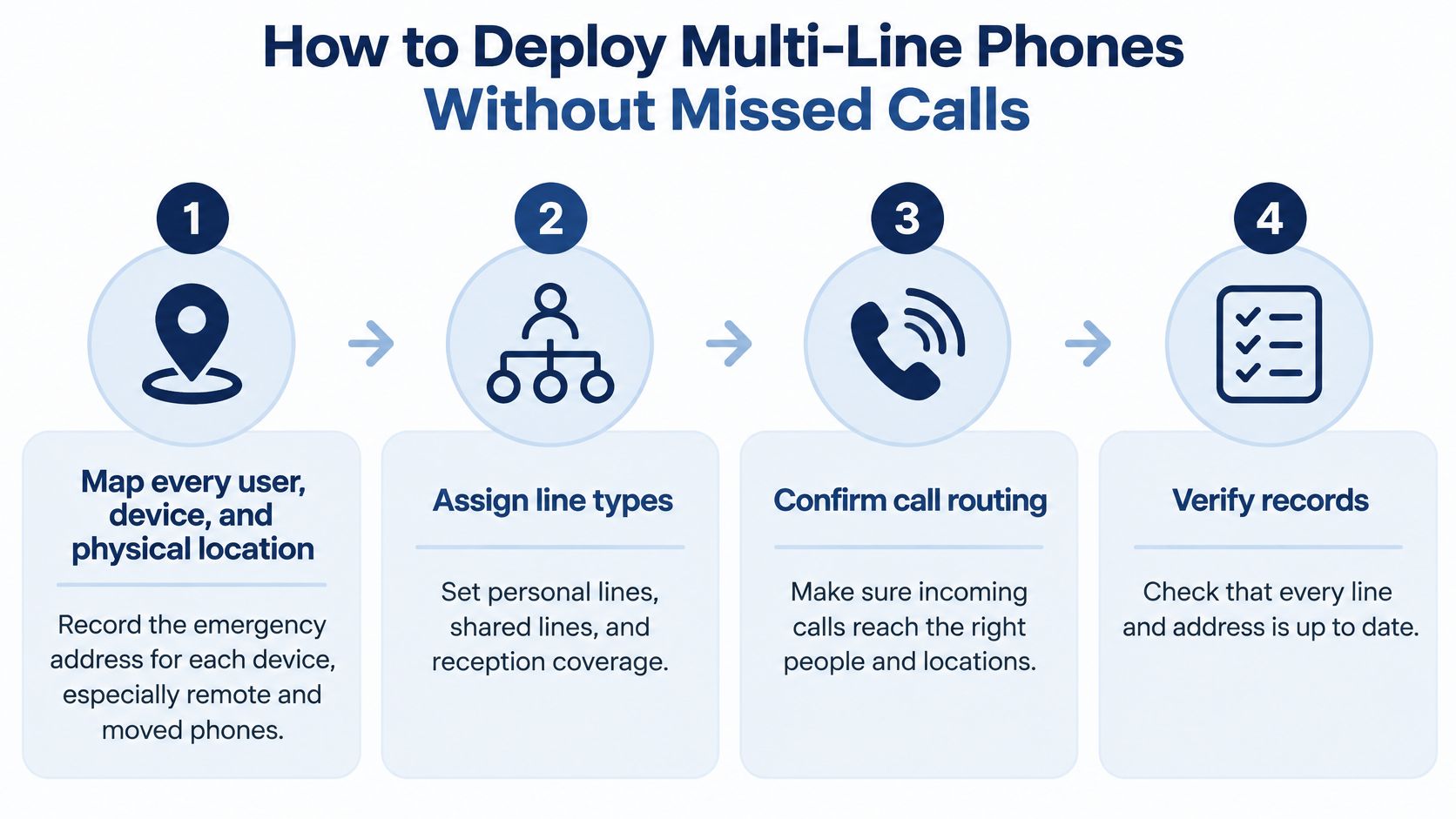
- Map every user, device, and physical location. Record the emergency address for each device, including softphones and remote phones. Remote and moved devices need their own records, because a phone that moved to a home office no longer sits at the address on file.
- Assign line types. Separate personal lines, shared department lines, and queue lines, and name an owner for each shared line. This prevents the common outcome where a department line rings everywhere and belongs to no one.
- Provision each line separately. Confirm registration, caller ID, and voicemail owner line by line. A phone can show as registered overall while one line on it fails without notice.
- Build routing with ring order, a fallback chain, and an overflow rule. Decide who rings first, who rings next, and where the call goes when everyone's busy. A practical guide to small business call routing can help you sketch that order before you configure it. For shops that can't staff phones around the clock, 24/7 reception for small HVAC shops illustrates how after-hours coverage can sit behind your overflow rule instead of sending callers straight to voicemail.
- Test emergency calling from every endpoint class. Verify direct dialing with no access prefix, the on-site notification, callback number transmission, and location accuracy. Repeat the location check after any move or remote-work relocation.
- Pilot with one team for a week. Count missed calls and transfers, and ask that team where they hesitated. Fix ring order and labels now, while only one team is affected.
- Train users, then roll out. Cover line keys, mobile routing, and voicemail in one short session per role. Reception needs transfer practice, agents need queue practice, and remote staff need app practice.
Why step 5 isn't optional
The FCC multi-line telephone system 911 requirements state that users must be able to dial 911 directly without an access prefix such as 9, and the system must generate a contemporaneous notification to a central on-site or off-site location when technically feasible, without delaying the emergency call. The same requirements emphasize dispatchable location, such as street address, floor, and room, so responders can find the caller.
Treat emergency routing as a living record, not a one-time PBX setting. Every move, new hire, and remote relocation can make a previously correct record wrong.
Fix Common Line Problems and Confirm Your Setup
A receptionist presses line 2 and hears silence. The handset is fine. Nearly every post-launch fault is a short symptom, a cause buried in the routing record, and a fix you can make in the admin portal. Work this list before you conclude the system is broken.
- Line registered but never rings: routing doesn't point to it. Check the ring group and number assignment for that line.
- Callers see the wrong number: outbound identity is set at the wrong level. Correct the per-line caller ID setting.
- Main number lands on a personal extension: ring order is wrong. Reorder the ring group so shared coverage rings first.
- Missed calls after hours: no overflow rule exists. Add an after-hours greeting, schedule, or overflow destination.
- Voicemail doesn't reach the owner: the message sits in a shared box. Check the voicemail association per line.
- Transcripts are wrong: audio quality is poor or names are unusual. Check call audio and keep the original recording for verification.
Design for people, not just reachability
More channels don't automatically help. A five-country survey summarized in the Mitel and Techaisle hybrid work foundation paper found that 78% of employees believe better communication and collaboration tools help them do their jobs. The same paper reports employees using more than 10 workplace apps report communication issues at 54% versus 34% for those using fewer than five apps.
So consolidate deliberately. Use a keyboard-friendly admin view so admins who don't use a mouse can still manage lines. Set call-recording consent notices, define quiet hours and notification limits so mobile routing doesn't follow staff into their evenings, and offer text or email alternatives for people who can't use voice or have weak connectivity. A small team often does better with clear ring groups and shared voicemail than with a contact-center stack nobody maintains.
Setup and troubleshooting can be handled for you end to end, including configuration and replacement of an existing VoIP phone system, at no cost. Support runs around the clock from a Texas center, by phone at (888) 881-7495 and by email at help@snap-dial.com.
Finish with one confirmation pass. Rerun your feature checklist, repeat the 911 acceptance test from deployment, then make a live test call to every line, queue, and overflow destination. If each call rings where your plan says it should, with the right caller ID and the right voicemail owner, your setup is confirmed.
Replacing a patchwork of desk lines and personal mobiles with one governed number plan is the goal here. Visit SnapDial to map your lines, routing, and desk roles and to have setup handled from start to finish, so calls stop falling between locations.