

You're probably in one of two spots right now. Either you already have Yealink phones on desks and people are asking for wireless headsets, or you're replacing an older phone system and want to avoid buying a pile of accessories that don't integrate well.
That's where most headset advice falls short. It talks about comfort, sound, and battery, but skips the parts that create support tickets: which connection type fits your phone, whether remote answer will work, and when a simple headset turns into an EHS adapter project.
If you're choosing a headset for Yealink phone deployments, the best option usually isn't the one with the longest feature list. It's the one that matches how that employee works, and how much setup complexity your team is willing to carry.
Understanding Your Headset Connection Options
A Yealink phone can support a headset in several ways, but the wrong connection choice creates the same support problems over and over. Headset audio works, yet the user cannot answer calls from the headset. A wireless model pairs, then drops connection in a busy office. A phone has a USB port, but not the right support for the headset your team already bought.
Connection type decides how much setup, reliability, and call control you get. On Yealink deployments, that usually matters more than logo, padding, or battery claims.
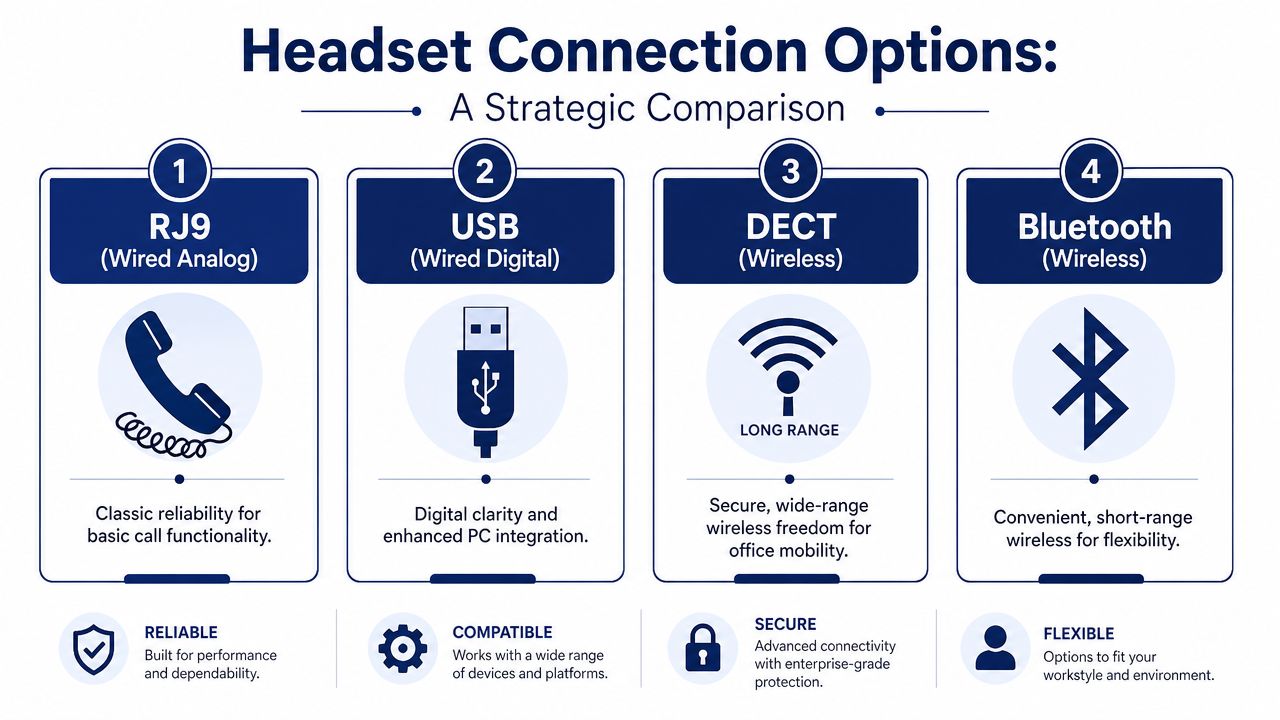
What each connection type is good at
| Connection type | Best fit | Strength | Common limitation |
|---|---|---|---|
| RJ9 wired analog | Front desk, low-mobility desks | Simple and dependable | Usually limited call control |
| USB wired digital | PC-heavy users, supported Yealink desk phones | Easier integration on compatible models | Only works where USB headset support exists |
| DECT wireless | Sales, support, operations staff moving around the office | Better range and more stable office use | Base station setup and compatibility still need checking |
| Bluetooth wireless | Hybrid users switching between mobile and desk workflows | Flexible multi-device use | Pairing, range, and desk-phone support can be less predictable |
RJ9 still earns its place. For a receptionist or shared-area phone where nobody needs remote answer, it is often the cheapest path and the one with the fewest surprises. The trade-off is limited intelligence between phone and headset. Users usually get audio, but not the richer call control people expect from newer wireless systems.
USB is often the cleanest option on supported Yealink models. If the phone supports USB audio devices properly, setup is usually straightforward and day-to-day use is simpler for the employee. The gotcha is model support. A rear USB port does not automatically mean every USB headset feature will work, and remote answer behavior can vary by phone and headset combination.
DECT is usually the safer wireless choice for desk-phone users in an office. It is built for headset traffic, handles distance better than Bluetooth, and tends to behave more consistently in workplaces with lots of nearby devices. Headsets Direct's Yealink compatibility guidance is useful for checking which Yealink-friendly wireless options are positioned for desk-phone use.
The setup detail many guides skip is EHS, or Electronic Hook Switch support. If a user wants to answer and end calls away from the desk, the headset base and phone often need an EHS connection, and some Yealink phones require a specific adapter to make that work. Without it, the headset may carry audio perfectly but still fail the basic test users care about: pressing the headset button to pick up a ringing call.
That is why model verification comes first. Check the Yealink phone model, confirm the headset connection type, then confirm whether remote call control needs an EHS adapter, native USB support, or neither.
DECT versus Bluetooth in the office
Buying errors commonly take place.
Bluetooth works well for one person who wants a single headset for a laptop, mobile phone, and occasional desk-phone use. It is flexible, and for hybrid staff that flexibility can outweigh the downsides. However, Bluetooth is often where friction first appears, especially in open offices with many wireless devices, shared docking stations, and users who expect instant pairing across multiple endpoints.
DECT fits a different job. It is better for staff who spend hours on calls from the same desk but need freedom to stand up, walk to a printer, or speak to a coworker without dropping audio quality. In SMB offices, I usually steer call-heavy teams toward DECT first and Bluetooth second unless mobile-first use is the priority.
If your team is trying to reuse existing wireless headsets with desk phones, review your telephone Bluetooth adapter options for business phones before assuming the phone supports native Bluetooth the way a laptop does.
Consumer headset comparisons can still help with comfort and microphone style. A guide on choosing the right gaming headset gives useful context on fit, battery habits, and wireless trade-offs. Just do not use gaming features as a shortcut for business compatibility. Yealink call control, base station support, and EHS behavior matter more.
How to Choose the Right Headset for Your Business
Most businesses don't need one perfect headset. They need the right headset for each role.
A receptionist, a support rep, a sales manager, and a hybrid executive won't use the same gear the same way. If you standardize without thinking about job function, you usually overspend on some seats and underserve the people who take the most calls.
Start with the work environment
Ask where the user sits and what the background sounds like.
In a quiet private office, a basic wired headset may be enough. In an open floorplan, shared front office, or support pod, microphone performance matters more. Yealink wireless headset coverage has emphasized Acoustic Shield Technology for blocking background noise, and a business-focused review reports talk time ranging from 8 to 35 hours, with quick-charging options across the lineup in its review of Yealink wireless headsets at Carolina Digital Phone.
That battery spread matters because not every “wireless headset” fits the same shift. For a light office user, lower-end talk time may be fine. For a rep who lives on the phone, longer endurance reduces mid-day charging problems.
Build a headset profile by role
Here's a practical way to choose a headset for Yealink phone users across a small or mid-sized business:
Desk-bound admin staff
Usually do well with a wired option. Lower cost, less training, fewer moving parts.Sales and support users
Need reliable microphone performance and all-day wear comfort. Wireless often pays off here because they answer frequently and may need to move between desk, printer, and coworker stations.Hybrid staff
Often benefit from Bluetooth or multi-device designs because they switch between desk phone, laptop, and mobile phone during the same day.Managers and executives
Usually care less about lowest cost and more about smooth switching, cleaner audio, and fewer disruptions.
A good headset policy isn't “everyone gets wireless.” It's “high-call users get the least friction.”
Don't ignore comfort and buying path
A headset that sounds good for ten minutes can still be the wrong headset for a full day. Over-the-head, convertible, and lighter one-ear designs all solve different comfort problems.
You also don't need to lock yourself into one manufacturer before you define your needs. It can help to browse a mixed catalog of business models before narrowing down. A broad selection like shop quality headsets gives you a useful market view of wired, wireless, mono, and stereo options without assuming one style fits every role.
The simplest buying test is this: if the user misses headset button control, poor fit, or weak wireless range after day one, it was the wrong choice, even if the spec sheet looked great.
Connecting and Configuring Your Yealink Headset
Most headset installs fail for simple reasons. The headset is physically connected, but the phone isn't configured to use the right path, or the buyer expected remote answer without the hardware that makes it possible.
That's why setup should start with the interface, not the menu.
Wired and USB setups
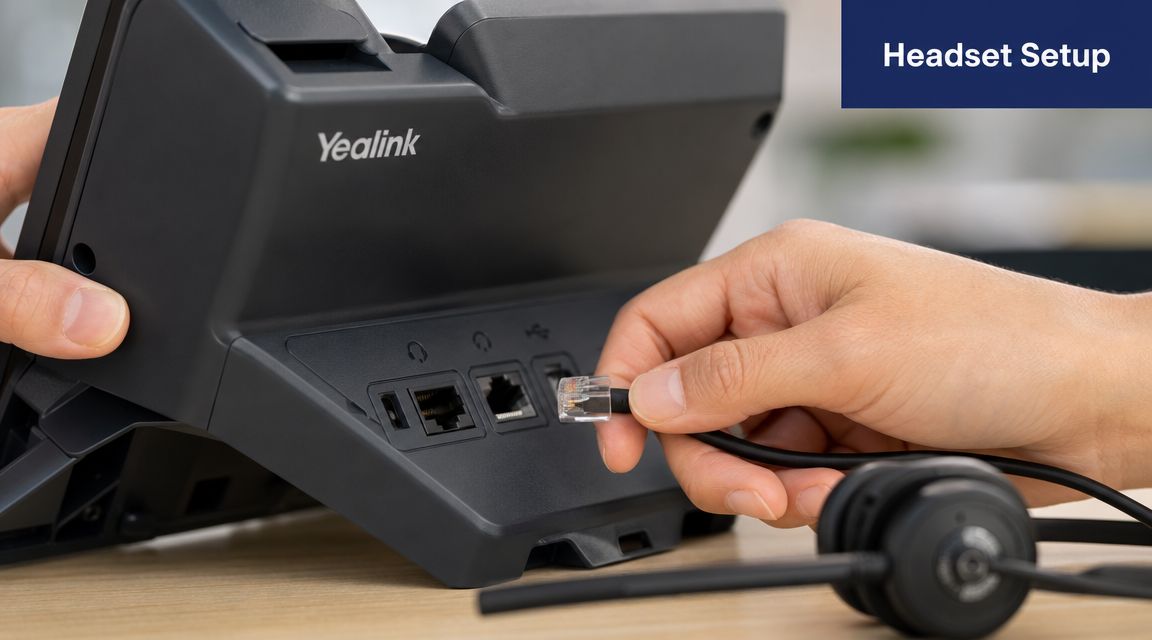
For a wired analog headset, connect it to the correct headset port, then confirm the phone is set to use headset audio when the headset key is pressed. This sounds obvious, but a lot of “no audio” calls come down to the user still routing through the handset or speakerphone.
For USB headsets, plug them into a supported USB port on the Yealink phone and check whether the phone recognizes the device. On compatible models, USB is often one of the cleaner paths because it reduces extra accessories and avoids pairing issues.
If you're managing these settings at scale or need a reference for phone-side setup, it helps to keep Yealink provisioning details and menu references in one place. A good starting point is this Yealink manual configuration guide.
The EHS adapter mistake that wastes the most time
This is the part too many buying guides gloss over. Plugging in audio is not the same as getting call control.
Independent setup guidance notes that USB and Bluetooth headsets can usually answer calls directly, but RJ11 or cordless-style headsets need an EHS adapter for remote control. EMAK specifically states that Yealink T4-series phones need an EHS36 and T5-series phones need an EHS40 for headset button control, in its Yealink headset setup instructions.
That means the checklist is:
Audio only needed
Basic wired connection may be enough.Answer and hang up from the headset button
Verify the phone series and whether an EHS adapter is required.Wireless with desk-phone integration
Confirm not just pairing, but call-control compatibility.
If remote answer is a requirement, treat EHS verification as mandatory before purchase approval.
Wireless pairing and phone behavior
Bluetooth setup usually involves pairing steps on the phone and sometimes extra confirmation on the headset. That's manageable for one desk, but it becomes tedious across a larger office.
DECT systems are usually more straightforward once the base is cabled correctly. The phone sees the base, and users work from the headset through that station rather than through repeated wireless pairing.
For a visual walkthrough of Yealink headset setup and desk-phone behavior, this video is worth keeping handy for technicians and office admins:
The practical lesson is simple. Test one full workstation first, including answer, mute, hang up, and audio routing. Then roll out the rest.
Top Headset Recommendations for Yealink Users in 2026
The best recommendations aren't based on hype. They come from matching headset style to the user's day.
Yealink's own portfolio has expanded well beyond a single default choice. Its official headset lineup includes Bluetooth models like BH76 and BH72, plus business-focused WH series options, which shows headset support is now a core part of the Yealink ecosystem rather than a side category, according to the company's headsets and speakerphones overview. For buyers, the more important detail is practical: some Yealink wireless headsets support remote answering and hanging up directly with compatible Yealink phones, while other brands may need an EHS cable or lifter.
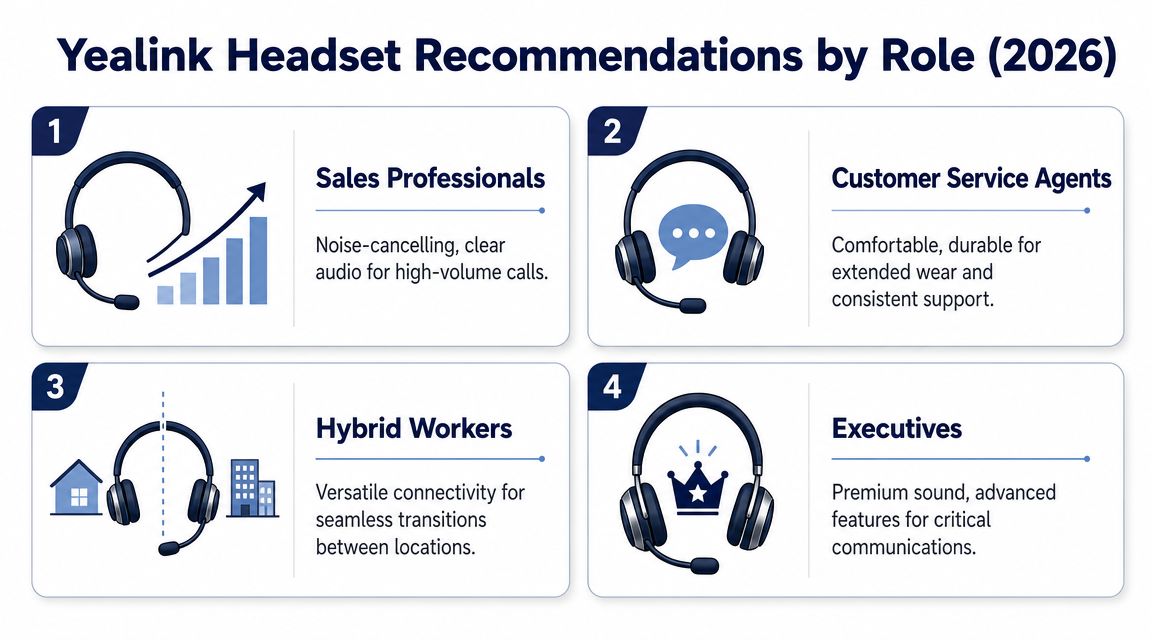
Best fits by role
Sales professionals
For sales reps who stay active around the office, a Yealink WH series DECT headset is usually the strongest fit. The main advantage isn't just mobility. It's cleaner desk-phone integration and fewer user complaints about dropped range inside the office.
If the rep spends most of the day on the phone, prioritize call control and comfort over cosmetic design.
Customer service agents
Support agents usually need the most predictable setup. A wired USB headset or a well-supported DECT base often works better than trying to make Bluetooth do everything.
For this group, I'd value:
- Stable audio path
- Consistent mute behavior
- Easy replacement process
- Minimal pairing steps
That usually beats a more flexible headset that creates more tickets.
Hybrid workers
BH76 and BH72 style Bluetooth options make the most sense for people who split time between laptop, mobile, and desk-phone workflows and care about convenience more than maximum office roaming range.
Hybrid staff often ask for one headset to do every job. Sometimes that's realistic. Sometimes it creates compromise. If desk-phone call control matters every day, test the integration first instead of assuming “Bluetooth compatible” means fully integrated.
The right hybrid headset saves bag space and switching time. The wrong one creates daily friction across three devices.
Executives and managers
Executives usually want a headset that feels simple. They don't care about the accessory chain, and they shouldn't have to.
For that reason, I usually lean toward Yealink-branded models with native ecosystem alignment when the executive uses a Yealink desk phone regularly. If a headset can handle direct call answer and hang-up on a compatible phone without extra parts, that reduces the odds that an executive calls IT five minutes before a meeting.
What I'd avoid
I'd avoid buying one “premium” Bluetooth headset for every employee and expecting equal results across every Yealink model. That's where standardization goes wrong.
I'd also avoid choosing third-party wireless headsets before checking whether your users need:
- remote answer
- native desk-phone control
- mobile pairing
- office roaming
For many SMBs, the best headset for Yealink phone deployments is the one that removes accessories and guesswork, not the one with the flashiest box.
Troubleshooting Common Yealink Headset Issues
A Yealink headset rollout usually goes wrong in a predictable way. Users get audio on day one, then call control fails, Bluetooth drops in a busy office, or someone finds out too late that their phone needs an EHS adapter for remote answer.
Start with the symptom, then work backward from the connection method. USB, RJ9, Bluetooth, and DECT fail in different ways. If you treat them as the same, you waste time swapping good hardware.
No audio in the headset
Likely cause
The phone is still sending audio to the handset or speakerphone, the headset is connected to the wrong port, or that Yealink model does not support the headset type in use.
What to do
- Press the headset key and confirm the phone is in headset mode.
- Check the port. On Yealink phones, a headset plugged into the wrong physical connection is more common than a bad headset.
- Match the headset type to the phone before replacing anything. A USB headset may work on one Yealink model and not another if the phone lacks the right USB support.
- Test with a known-good call so you can separate a routing problem from a headset failure.
Headset button won't answer or end calls
Likely cause
Audio works, but call control does not. In practice, this usually points to a missing EHS adapter, an unsupported Bluetooth setup, or a base station that is paired but not integrated for hook control.
This is one of the gotchas generic headset guides miss. Users hear dial tone and assume the setup is complete. It is not complete if they still have to press the desk phone to answer every call.
What to do
- Check whether that Yealink phone and headset combination needs an EHS adapter for remote answer and hang-up.
- Answer once from the phone itself, then test answer and end from the headset button.
- Review the headset base settings if you are using DECT. A paired base is not always a fully configured base.
- Do not replace the headset first. Missing call-control hardware is a common cause, especially on mixed-model deployments.
Echo or poor call quality
Likely cause
Mic position is off, volume is set too high, the user is working in a reflective or noisy room, or the wireless method does not fit the environment.
Bluetooth and DECT matter here. In a quiet hybrid setup, Bluetooth can be fine. In a denser office with multiple desks and more RF activity, DECT usually gives more stable desk-phone performance and fewer complaints about range and consistency.
What to do
- Lower receive and transmit volume before changing hardware.
- Set the microphone correctly. Too far away causes weak pickup. Too close can add harshness and breath noise.
- Check whether the user is bouncing between speakerphone and headset during calls, which often creates echo complaints that are primarily room-audio problems.
- Work through a structured guide to remove echo from audio if the issue keeps showing up across calls.
- Test in the actual workspace, not just at one desk in IT. Wireless issues often appear only after the headset goes back into the office where it will be used.
Firmware is also part of troubleshooting. If the phone was updated but the headset base was not, strange behavior is normal.
The cleanest way to avoid support tickets is to test one full setup per user group before buying in volume. Front desk, manager, and hybrid staff often need different headset behavior, even if they all use Yealink phones.
If you're replacing an older phone system or trying to standardize Yealink phones and headsets across a growing team, SnapDial can help you sort out the compatibility side before you buy the wrong mix of phones, bases, adapters, and headsets. That's often the difference between a clean rollout and weeks of avoidable support work.