

A missed call in a business setting feels different from a missed call on a personal cell. The phone doesn't ring, nobody notices until later, and then the questions start. Was the caller sent to voicemail? Did the auto-attendant misroute the call? Is the desk phone dead, or is the problem somewhere deeper in the PBX or network?
That uncertainty is what makes this issue expensive. In a workplace where many people already prefer text over voice, the calls that still come in tend to matter more. When 26% of 18 to 24-year-olds actively ignore calls, according to Sky's research on call decline, the customers who do place a call often have a specific need they want handled now. If your system fails at that moment, you don't get a second chance automatically.
That Sinking Feeling When the Phone Stays Silent
The pattern is usually the same. Front desk staff says it's oddly quiet. A sales rep checks the call log and finds missed inbound calls that never rang on their phone. A manager calls the main number from a mobile and hears the greeting, but the intended extension stays silent.
That moment creates the worst kind of troubleshooting pressure. Everyone wants the one magic fix. Most of the time, there isn't one. The fastest path is a disciplined check from the user's desk outward. Start with the device. Then inspect routing. Then look at the network path. Only after that should you assume the carrier or provider is at fault.
Practical rule: If only one user is affected, start local. If a ring group, main line, or queue is affected, start in the portal.
Generic advice from consumer phone articles doesn't help much here. Business VoIP failures are rarely just "turn the ringer up" and move on. They can come from a desk phone in DND, a softphone using the wrong audio device, an extension that lost registration, or a firewall that is allowing some traffic but not enough for reliable signaling.
There is one nearby symptom worth separating early. Sometimes the phone doesn't ring because the call is being diverted before ring even starts. If that's what you're seeing, this guide on troubleshooting calls to voicemail is useful alongside the workflow below.
What makes this issue frustrating
A silent phone can mean two very different things:
| Scenario | What it usually means |
|---|---|
| One user reports no ringing | Device, app, headset, or user status issue |
| Multiple users miss calls | Routing, registration, queue, or network issue |
The trade-off is speed versus certainty. You can jump straight into advanced diagnostics, but that wastes time if the handset is in DND. You can also stay too long on user checks and miss a broader routing failure. Good troubleshooting keeps moving. Eliminate the obvious, then escalate the scope.
Start at the Source User and Device Checks
When a phone doesn't ring, the first job is to prove whether the user endpoint is capable of ringing at all. That means the desk phone, the softphone, or the mobile app in front of the employee. Don't open firewall settings yet. Touch the device first.
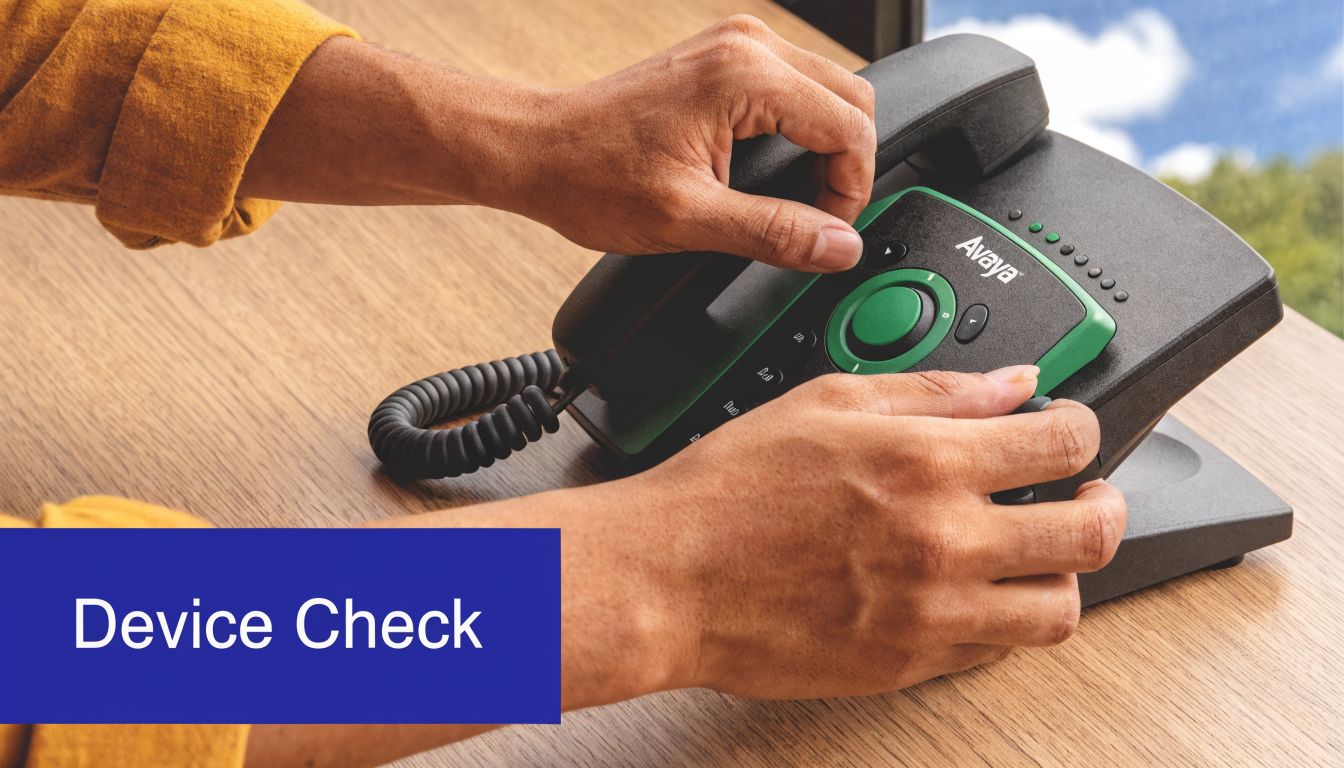
Check the physical phone before anything else
On Yealink handsets and similar business phones, the most common local causes are simple:
- DND is enabled: Look for a visible Do Not Disturb icon or softkey. If you need a quick reference on what that mode changes, this breakdown of what DND means on a phone is worth keeping handy.
- Ringer volume is too low or muted: Adjust volume while the phone is idle, not while you're on an active call.
- Headset mode is active: Some users leave the phone pointed to a connected headset or EHS device and assume the desk set will still ring audibly.
- Handset or cable issue: A loose cable won't always stop registration, but it can create misleading symptoms.
- Screen shows registration trouble: If the phone display looks unusual, note the exact wording before rebooting anything.
A fast test helps. Call the extension internally from another extension. Then call the main number and try to reach that same user through the normal inbound path. If internal rings but external does not, stop blaming the handset. Move to routing.
If the device rings on an internal test call, the phone hardware is usually not the problem.
Softphone and mobile app checks that get missed
Remote and hybrid users often swear the phone never rang when the app was technically available the whole time. The failure is usually in notifications or audio routing.
Check these in the user app:
Notification permissions
On desktop and mobile, the app needs permission to alert when minimized or locked.App-specific DND or status
Users may be marked unavailable in the app even while signed in.Audio output path
Bluetooth earbuds, dock speakers, or a monitor with audio can steal the ring tone.Background behavior
Battery saving features on mobile devices can suppress background VoIP behavior.
This short walkthrough is useful when you're checking the basics with a user at their desk:
What works and what usually doesn't
A few practical observations from support work:
- A reboot helps when the app is stale. It does not fix bad call routing.
- Re-seating cables helps when a desk move happened recently. It does not explain why only inbound DID calls fail.
- Toggling DND solves a surprising number of tickets. It does not explain queue-level failures.
If you've tested internal and external paths, confirmed the user isn't in DND, and verified the app or handset should alert normally, move on. At that point, the problem is often in the call path, not the endpoint.
Check Call Routing in Your SnapDial Portal
Once the device checks out, the next place to look is the control plane. In hosted VoIP, a phone doesn't ring very often because the call never gets to that user in the way you think it does. It gets intercepted, forwarded, dropped by a bad rule, or pointed to an extension that isn't properly registered.
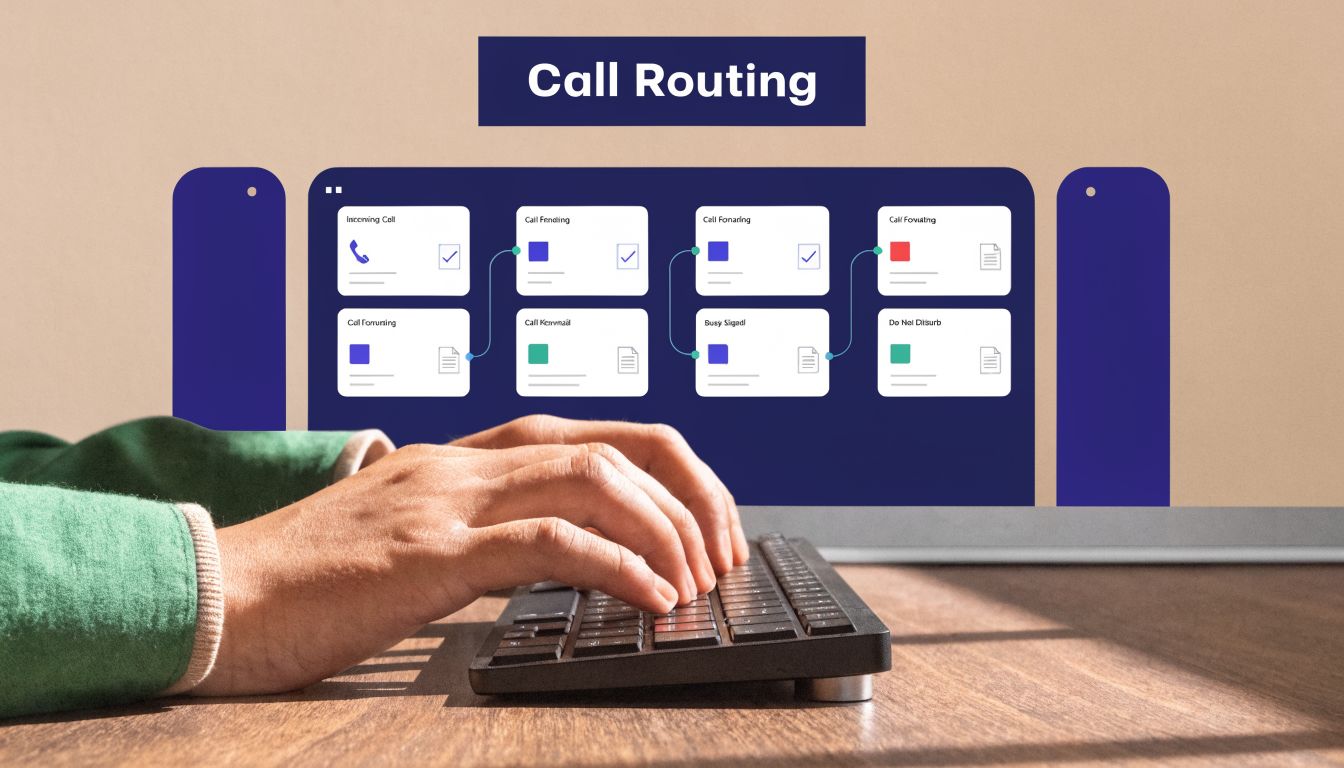
A useful rule here is simple: trust the call path, not memory. Admins often remember how the number "should" be routed. The portal shows how it is routed right now.
Start with extension registration
In hosted VoIP systems, a phone not ringing often comes from misconfigured call routing or SIP registration failures, and a step-by-step process that starts with registration in the self-service portal can resolve up to 70% of these issues by correcting NAT or firewall blocks and wrong call flow rules.
If the extension is not registered, the system may still accept inbound calls to the business number but fail to present them correctly to the intended endpoint. Check the extension status first. If it is unregistered, note whether the problem affects one device or multiple devices tied to that user.
Audit the call flow, not just the user
A lot of no-ring tickets come from changes that made sense at the time:
- a new DID was added for a salesperson
- the receptionist changed lunch routing
- someone enabled Find Me/Follow Me during travel
- a holiday or after-hours rule stayed active longer than intended
Understanding what call routing is matters for this situation. A call may be behaving exactly as configured, just not as expected.
Use a quick trace approach:
| Check | What to confirm |
|---|---|
| Main number | Does it still point to the correct auto-attendant or ring group |
| DID mapping | Is the direct number assigned to the right user or group |
| User forwarding | Is Find Me/Follow Me diverting the call elsewhere |
| Schedule logic | Are open hours, lunch, or holiday rules overriding normal ringing |
A common real-world pattern
A company adds a second location and updates inbound rules. Main calls still work. Direct-dial calls to two employees stop ringing. The phones are online. Internal extension-to-extension calls work. The root cause turns out to be a DID mapping error in the inbound rule set, not a handset problem.
Check the exact number the caller dialed. "The phone doesn't ring" often means "the wrong destination received the call."
That is why test calls need to match the actual scenario. If customers dial the published main line, test that path. If they dial a direct number from a website or email signature, test that direct number. Internal test calls are useful, but they don't prove the full inbound route.
If the portal shows the extension is healthy and the routing rule is correct, then the next suspect is the path between the platform and your local network.
Untangle Potential Network and Firewall Issues
Many teams lose momentum at this stage. The phones look powered on. The portal looks correct. Calls still don't ring. At that point, the network deserves a hard look.
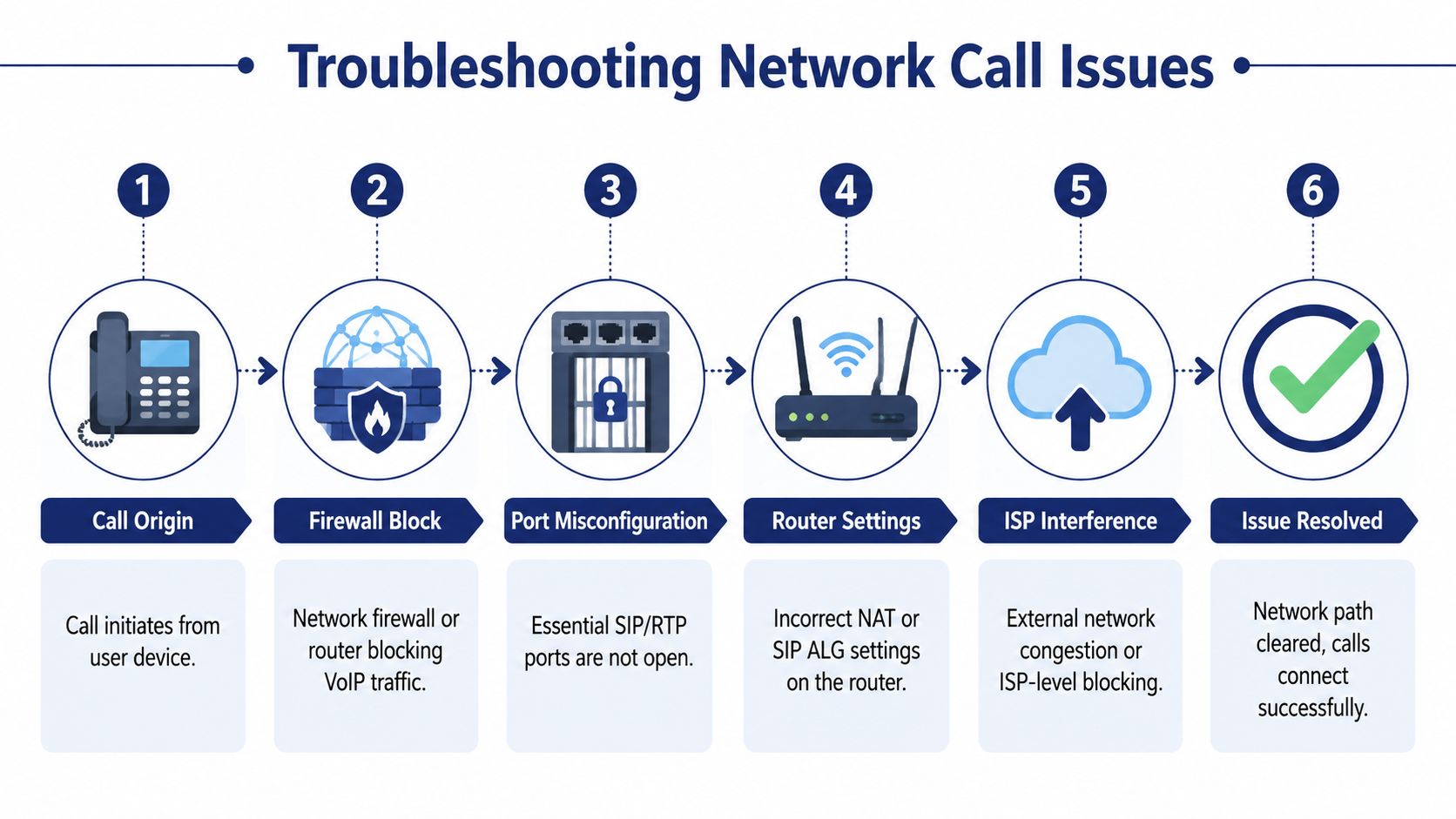
VoIP depends on signaling and media crossing the network cleanly. If your firewall, router, or edge security tools interfere with that flow, users get unreliable symptoms. Sometimes the phone registers but doesn't ring. Sometimes it rings intermittently. Sometimes one office works and another one doesn't.
The network issues that show up most often
One verified pattern is worth paying attention to. A 2025 VoIP industry report notes that 28% of SMB VoIP deployments experience intermittent ringing because of firewall blocks on essential UDP ports such as 5060/5061, and proper NAT traversal resolves 65% of those cases without hardware changes, as summarized in this VoIP ringing issue report.
That aligns with what administrators see in the field. The phone can appear alive while the signaling path is only partially functional.
What to ask your network team to verify
Use plain language with your network admin or MSP. Ask for these checks:
- SIP ALG status: Many routers advertise SIP ALG as helpful. In practice, it often breaks call signaling or rewrites traffic badly.
- Firewall policy: Confirm the firewall isn't blocking required voice traffic or treating it as suspicious.
- NAT behavior: Bad NAT handling can cause registrations to expire or inbound signaling to miss the endpoint.
- Consistency across sites: Multi-location businesses may have one clean office and one office with a problematic edge device.
If your team needs a practical reference, this guide on SIP ALG and how to disable it is one of the few pieces of documentation I recommend sharing directly with the person who manages the firewall.
Network security tools can protect the business and still break voice. Secure isn't the same as VoIP-friendly.
A useful trade-off to understand
Aggressive filtering can make sense on a cloud platform, especially if you're trying to block malicious traffic on cloud platforms. The trade-off is that voice signaling is sensitive to inspection and rewriting. Rules that are harmless for web traffic can be disruptive for hosted telephony.
What usually works is targeted cleanup, not broad changes. Disable problematic SIP helpers. Verify the firewall policy. Re-test from a known extension. Compare one working site to one failing site. What doesn't work is random rebooting across routers, switches, and phones without documenting which change affected the result.
If a network fix restores ringing, keep a record of the exact setting. These cases often come back after firmware updates or firewall replacements.
Diagnose Call Center Queue and Agent Status
Queue environments create their own version of the phone doesn't ring problem. The call reaches the business. The IVR plays. The customer waits. An available agent insists nothing ever came in. That usually means the queue logic and the agent state are out of sync.
In call center environments, 18% of no-ring issues are tied to agent status mis-sync or auto-logout settings. One common pitfall is an agent being logged out after inactivity, which a supervisor can often fix immediately with a bulk re-login from the dashboard.
What supervisors should check first
Open the live queue view and look for a mismatch between queue activity and agent availability. You are looking for signs such as:
- Calls entering the queue without distribution
- Agents shown as unavailable when they believe they are ready
- Unexpected wrap-up or pause states
- Agents logged out after idle time
This isn't the same as general call routing. The main number may be fine. The auto-attendant may be fine. The failure happens at the point where the queue decides who should ring next.
A quick queue triage method
Use this order:
Check whether calls are entering the queue
If they are not, the issue is earlier in the call path.Confirm at least one agent is eligible
Logged in is not always the same as available.Review recent agent state changes
A long wrap-up timer or forced pause can make a queue look staffed when it isn't.Test with one known-good agent
Temporarily narrow the problem instead of testing the entire team at once.
A queue can fail quietly. Customers hear progress. Managers see activity. Agents hear nothing.
Where teams get stuck
Supervisors often focus on the customer side because that's what is visible first. They listen to the greeting, the hold music, and the wait-time announcements. Those pieces matter, but they can hide the actual fault. The queue may be answering properly while agent distribution is broken.
Another trap is assuming an agent app is healthy because it worked earlier in the day. In practice, state sync can drift after inactivity, network changes, or a laptop sleep cycle. If one bulk re-login restores ringing, you likely found the issue faster than any deeper network test would have.
If queue behavior still looks wrong after you verify agent state, then it is time to gather logs and escalate with specifics.
When to Escalate to SnapDial Support
Escalation works best when it is precise. "My phone isn't working" slows everyone down. "A call from this number to this DID at this exact time entered the IVR and never rang extension 101" gets results much faster.
The web portal gives you the evidence you need. Pull one or two failed examples, not ten vague stories. Look for the caller's number, the number they dialed, the time of the call, and what the call log says happened next. If there is a queue involved, note whether the call entered the queue and whether any agent state looked unusual.
What to collect before you call
Bring these details to support:
- The exact time of a failed call
- The caller ID or at least the last digits
- The number the caller dialed
- The intended destination
- Whether internal test calls work
- Whether one user, one queue, or the whole site is affected
- Any recent changes to phones, routing, firewall, or ISP equipment
That turns support from a blind search into a targeted investigation. It also helps the engineer decide whether to inspect registration history, call routing, queue events, or edge-network behavior first.
When self-service has gone far enough
There is a point where more local testing stops being productive. Escalate when:
| Situation | Best move |
|---|---|
| Device checks passed but external inbound still fails | Send support a failed call example |
| Multiple users or one full site are affected | Treat it as a system or network issue |
| Queue calls enter but agents never ring | Include queue name and agent state details |
| Ringing is intermittent across locations | Note which location works and which does not |
A good support case is short and concrete. It names one failed call, one expected result, and one actual result. That gives the engineer something they can trace instead of something they have to reinterpret.
The fastest ticket is usually the one with a timestamp and a reproducible path.
If your provider offers around-the-clock help, use it. VoIP issues don't wait for office hours, and silent failures are the ones you want resolved before the next call is missed.
If your team is tired of chasing down silent phones, queue issues, and routing mistakes, SnapDial gives businesses a managed cloud PBX with white-glove setup, a self-service portal, mobile-ready calling, call center tools, and 24/7 Texas support that can help when a phone doesn't ring.