
Your office manager is working from home. Your sales rep is on a laptop in a coworking space. A customer calls the main number and expects a normal business conversation, not a scramble to find who can answer from which device. That's why people search for how to call someone from a computer. They're not looking for a novelty. They're trying to make communication easier without looking amateurish.
For most SMBs, the right answer depends on how often your team makes calls, how much professionalism matters, and how much downtime you can tolerate. A browser tab may be enough for occasional outreach. Zoom or Teams may be good enough if you already live inside those platforms. If calling is a core part of sales, support, scheduling, or operations, a dedicated business phone system usually makes more sense.
Why Calling from Your Computer Is a Business Superpower
A lot of small businesses still treat desktop calling like an optional add-on. That's outdated. If your team already works from laptops, web apps, and cloud systems, voice should live there too.
Phone calling is still one of the most normal business behaviors in the world. A 2026 estimate from SellCell says people make about 13.5 billion phone calls every day worldwide, and the average person makes or receives around eight calls per day. In the U.S., SellCell says 386.11 million mobile phone subscriptions translate to about 3.1 billion calls per day (SellCell daily call estimates). That matters because it confirms something many owners already know from experience. Customers still pick up the phone when they need clarity, urgency, or reassurance.
What changes when calling moves to the computer
When your team can call from a laptop or desktop, a few business problems get easier fast:
- Remote work becomes normal: Staff can answer and place business calls without being tied to a desk phone in one building.
- Handoffs get cleaner: Sales, support, and admin teams can work from shared contacts, call histories, and centralized numbers.
- Training gets simpler: New employees learn one workspace instead of juggling a desk set, a cell phone, and a separate app.
- Oversight improves: Managers can organize calling as part of operations instead of treating it like scattered personal phone activity.
Practical rule: If customers call your business expecting a real answer, computer-based calling should be treated as core infrastructure, not a side feature.
Where SMB owners usually get this wrong
The common mistake is choosing a method based only on what's free or familiar. That works for a solo owner making a few calls a week. It falls apart once calls need to be routed, logged, transferred, monitored, or recovered when someone's setup fails.
The better question isn't “Can I call someone from computer?” Of course you can. The better question is, “Which method fits the way my business communicates?”
That decision starts with your setup.
Getting Your Gear and Software Ready for Calling
A rushed setup shows up on the first customer call. The caller hears echo, your rep repeats every third sentence, and a simple conversation starts to feel unprofessional. Before you decide which calling method to use, make sure the setup can support it.
Internet connection
Call quality usually fails at the network first. Software gets blamed, but weak Wi-Fi, congestion, and unstable upload speeds cause most of the choppy audio, delay, and dropped words that frustrate customers.
For light internal use, standard home or office broadband may be enough. For sales, support, intake, or any role that speaks to customers all day, test the actual environment your team will use. A wired desk in a quiet office will deliver more consistent calls than shared Wi-Fi in a busy workspace.
Use these checks before rolling computer calling out to staff:
- Prefer Ethernet where you can: Wired connections remove a lot of Wi-Fi inconsistency.
- Reduce competing traffic: Backups, large file uploads, cloud sync, and streaming can hurt voice quality during busy hours.
- Test real working conditions: A network that seems fine at 7 a.m. may struggle once the whole office is online.
- Match the setup to call volume: One owner making a few calls has different requirements than a five-person team handling customers all day.
Audio hardware
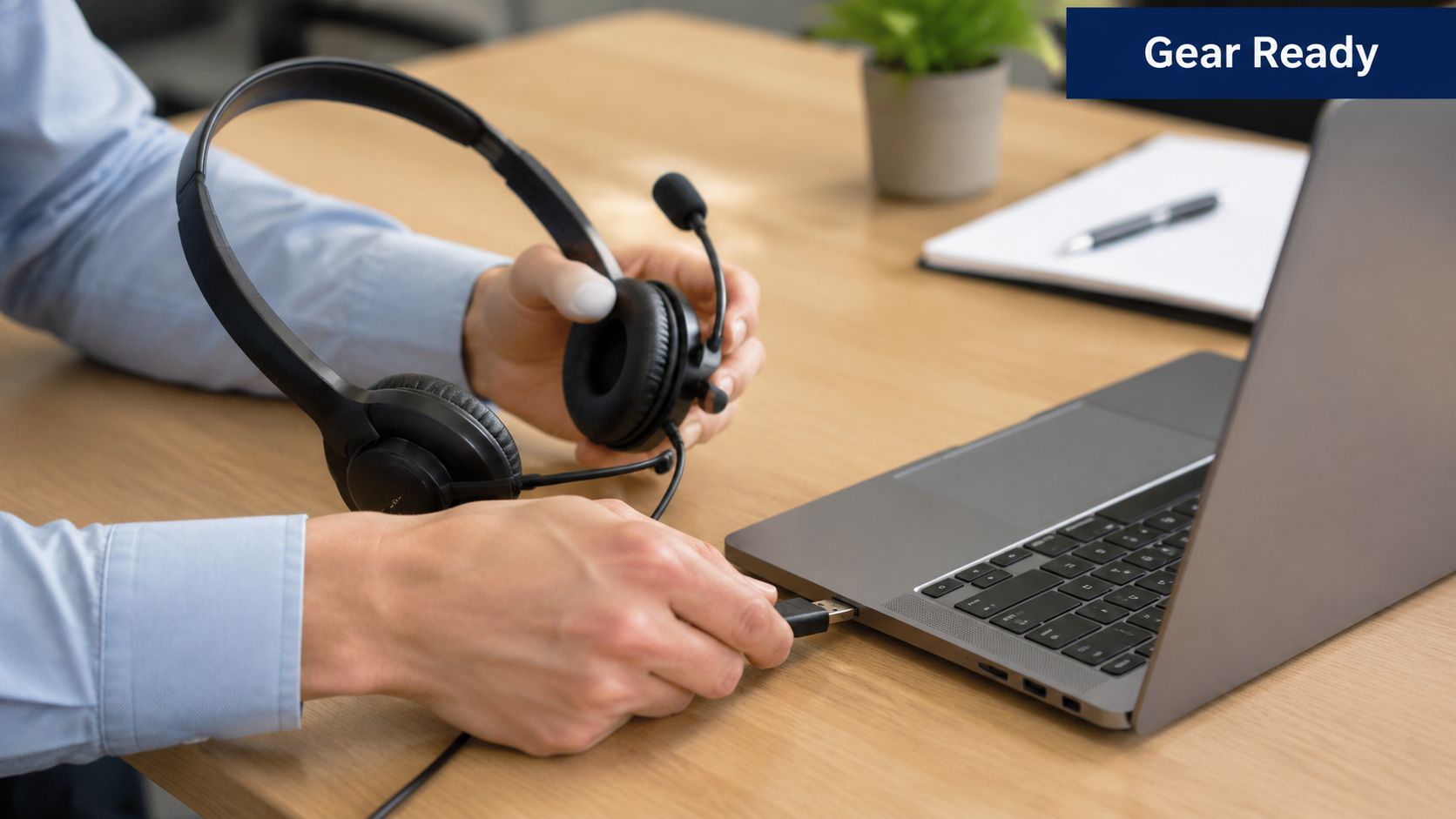
Hardware is where many SMBs either save money wisely or create recurring headaches. A laptop mic is acceptable for the occasional internal call. It is a poor standard for customer conversations, front-desk coverage, or any call tied to revenue.
A USB headset is usually the safest default. It is simple to deploy, easy to replace, and more predictable across different computers. Bluetooth can sound fine, but it introduces more things to manage, including battery life, pairing issues, and staff accidentally routing audio to the wrong device.
Here is the practical trade-off:
| Setup | Works for | Main downside |
|---|---|---|
| Laptop mic and speakers | Rare personal or internal calls | Echo, room noise, inconsistent volume |
| Basic USB headset | Most SMB users | Limited comfort for long call days |
| Better noise-reducing headset | Sales, support, reception, multi-hour use | Higher upfront cost, but worth it |
If your team books appointments, handles intake, or follows up with patients, calling can quickly expand into repeatable workflows. In healthcare and service businesses, it also helps to see how teams automate patient calls so staff are not manually handling every reminder and follow-up.
Software types
The right software depends on how your business uses the phone. Speed matters for a solo owner. Control matters more once multiple employees share responsibility for answering, transferring, and tracking calls.
There are three practical categories:
- Web apps are the fastest to start. They suit light calling and simple workflows.
- Communication suites like Zoom and Teams make sense if your staff already lives inside those platforms.
- Dedicated softphone and VoIP tools fit businesses that need calling to work like a real phone system, not just an add-on. This overview of a softphone for VoIP gives a useful picture of what that option looks like.
The decision here is less about features on a checklist and more about operational fit. If calls are occasional, keep it simple. If calls need to be logged, routed, transferred, or managed across a team, choose software built for that job.
This short walkthrough shows the kind of basic setup typically needed before the first call:
A polished call starts before anyone dials. Stable internet and decent audio gear do more for professionalism than switching apps three times.
The Free and Fast Method Web Browser Calling
If you need to call someone from computer right now and don't want to install much, browser calling is the quickest route. Open the web app, sign in, choose a contact or enter a number, and place the call.
Google Voice documents the basic requirements clearly. You need a supported browser, which includes Chrome, Firefox, Edge, and Safari, plus a microphone and internet connection. It also notes that international dialing requires the country code, and emergency calls aren't supported from the web app (Google Voice desktop calling requirements).
When browser calling works well
This is the best fit for simplicity. It's useful when:
- You need speed: No desk phone. Minimal setup.
- You make occasional calls: Maybe you're a solo operator, consultant, or founder calling vendors and contacts.
- You want a lightweight workflow: A tab in the browser is easier than provisioning full phone hardware.
For some owners, that's enough. There's nothing wrong with using the simplest tool that matches the job.
A practical overview of that category is this guide to calling from a browser on your computer, especially if you're comparing convenience against business control.
Where it starts to feel small
Browser calling becomes limiting once voice stops being occasional and starts becoming operational.
Here's where SMBs hit the wall:
- Personal feel: If calls come from a generic or lightly managed setup, the experience may not feel like a real business phone operation.
- Limited call handling: Routing, shared ownership, and structured team workflows are usually thin compared with a purpose-built system.
- Support gaps: When a tab freezes, a browser permission breaks, or audio devices switch unexpectedly, there's often nobody accountable for fixing your workflow.
- Weak resilience: If the browser crashes or the laptop audio path fails, recovery can be clumsy.
Browser calling is great for one person making a quick call. It's much less convincing when three employees need a shared calling process that customers can rely on.
My advice for SMB owners
Use browser calling if the business need is light and the stakes are low. Don't build your front desk, sales queue, or support operation on it unless you've tested the trade-offs and accepted them.
It solves access. It doesn't solve management.
Using Communication Apps like Zoom and Teams
A lot of businesses land here first because they already pay for Zoom or Microsoft tools. That logic is sound. If your team lives in one app all day, adding phone capability can feel efficient.
Microsoft's Phone Link documentation and Zoom's desktop workflow both show how mainstream computer-based calling has become. In Zoom's case, the flow is straightforward: sign in, connect to the internet, open the phone tab, enter a number or contact, and click the call icon. The business pressure behind that simplicity is real. One 2025 industry summary says 77% of customers expect to reach someone right away, 60% define “immediate” as within 10 minutes, and the average call center handles roughly 4,400 calls each month (Microsoft support context on PC calling and response expectations).
The main advantage
The strongest case for Zoom or Teams calling is workflow consolidation. Staff don't have to jump between as many tools. Contacts, chats, meetings, and calls can sit in one environment.
That matters when:
| Best fit | Why it helps |
|---|---|
| Internal-first teams | Staff already live in the app all day |
| Hybrid companies | Employees can call from the same place they message and meet |
| Light external calling | Simplicity may matter more than deep phone features |
If your phone needs are modest, convenience can outweigh the missing extras.
Where convenience stops being enough
I usually tell owners to be careful here. Communication apps are often excellent collaboration tools. That doesn't automatically make them excellent business phone systems.
The common limitations show up in day-to-day operations:
- Call routing may be basic: Fine for simple teams, less ideal for departments, overflow, or structured call paths.
- Voice can feel secondary: The app was often adopted for meetings and messaging first, with telephony layered on later.
- Admin depth may vary: Permissions, reporting, recordings, and queue behavior may not match what a call-heavy business needs.
- Scaling can get messy: As more departments depend on voice, the “good enough” phone add-on can become a patchwork.
If phone calls generate revenue, resolve urgent issues, or protect customer retention, treat voice as a primary system choice, not a convenient checkbox inside another app.
A practical way to decide
Choose Zoom or Teams calling when your business values ecosystem simplicity more than phone sophistication. That's often fine for internal-heavy operations, professional services firms, and smaller teams with moderate call volume.
Choose something more purpose-built when the phone line is your front door.
The Pro-Grade Choice A VoIP Business Phone System
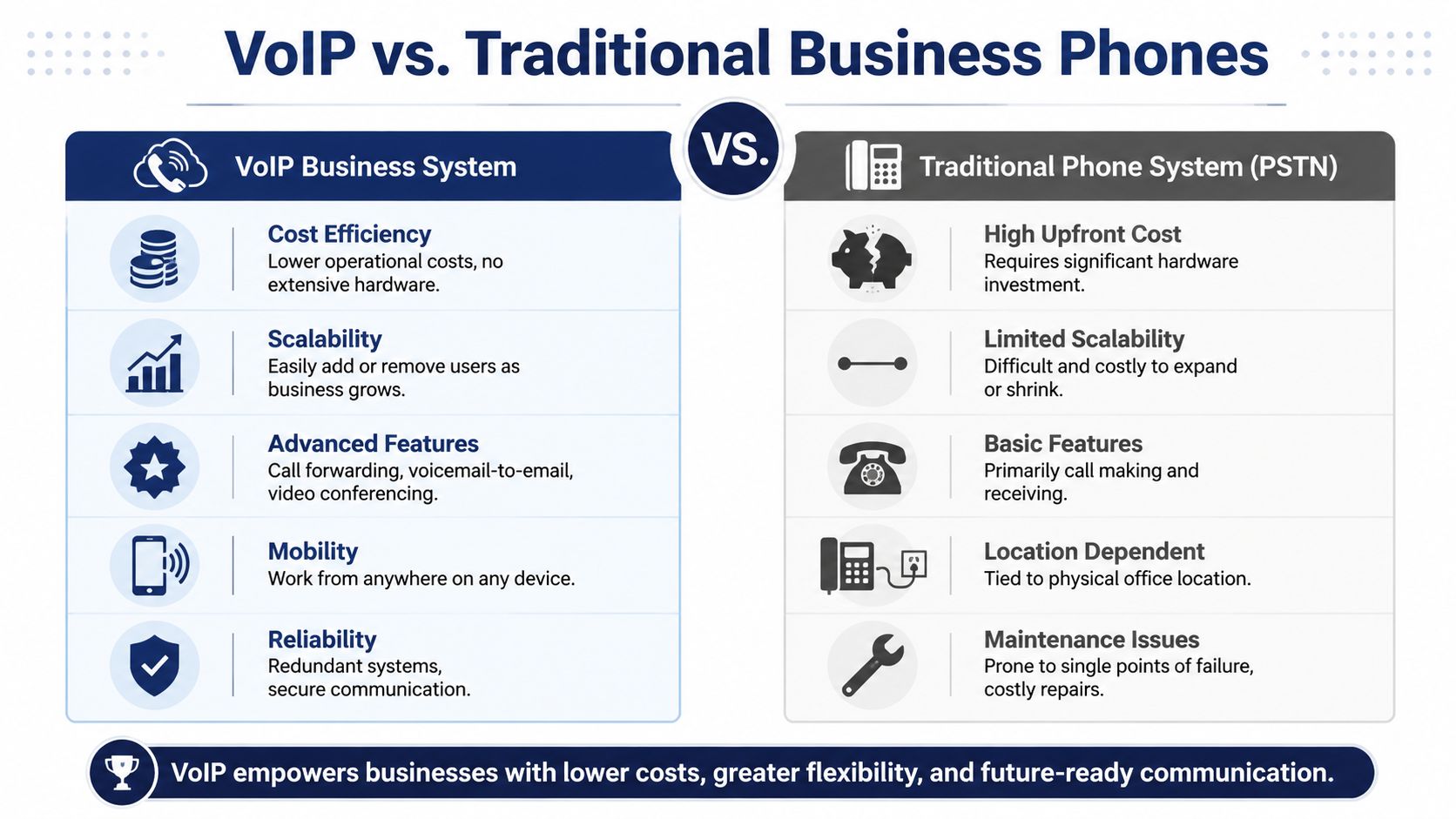
If calling is central to how your business sells, supports, schedules, or dispatches, a dedicated VoIP phone system is usually the cleanest long-term answer. With such a system, computer calling stops being a workaround and becomes a business process.
A proper cloud phone system gives employees desktop and laptop calling, but it also organizes the rest of the operation around that capability. You're not just placing calls. You're assigning numbers, routing traffic, controlling after-hours behavior, handling transfers, managing voicemail, and keeping teams reachable across locations.
Why this method usually wins for growing SMBs
The strongest reason is control. Browser tools and communication apps can help individuals make calls. A VoIP system helps the business manage calling as a shared service.
That means you can set up a more professional experience:
- A real business number: Customers see a consistent business identity.
- Auto-attendant and routing: Calls go to the right person or department instead of bouncing around manually.
- Mobile and desktop access: Staff can work from office, home, or the road without exposing personal numbers.
- Shared visibility: Admins can manage call logs, voicemail, recordings, and routing rules in one place.
- Scalability: Adding users is usually far easier than expanding a traditional setup.
The cost case is stronger than many owners expect
One vendor article on browser-based business VoIP reports 40-60% cost savings versus traditional phone systems and says setup can take only minutes, while also warning that results depend on stable internet, proper audio device selection, and browser compatibility (PBX industry article on VoIP cost savings and setup trade-offs). I'd treat the exact savings range as directional, not universal, because every business has different contracts and hardware history. But the general point is sound. Cloud telephony usually removes a lot of the cost and friction tied to old phone infrastructure.
What works well in practice
In the field, the best VoIP deployments share a few traits:
- They fit the call flow. A medical office, a law firm, and a field service company need different routing logic.
- They support multiple devices. Desktop calling is great, but users still need mobile access when they leave the laptop.
- They're administered centrally. One person should be able to make changes without calling three vendors.
- They're designed for failure recovery. If one endpoint fails, the business still answers the call.
For owners evaluating vendors, it helps to understand business phone system features in business terms, not just technical terms. The right checklist isn't “Does it make calls?” They all do. The right checklist is “Can it route calls correctly, support remote staff, and keep us from missing opportunities?”
The honest trade-offs
A dedicated system isn't the lightest option. It takes more planning than opening a browser tab. Someone has to think through number strategy, call flows, user roles, and device choices.
But that planning is exactly why it works better.
If your business depends on inbound calls or organized outbound work, this is the method I'd recommend most often. It gives you the professionalism of a real business phone environment with the flexibility of computer-based calling.
Ensuring Crystal-Clear Calls Every Time
A customer does not care whether the problem is your browser, your headset, or your Wi-Fi. They hear choppy audio, ask you to repeat yourself, and start questioning how organized your business is.
That is why call quality deserves the same attention as the calling method itself. A free browser call can be fine for occasional use. A sales team, support desk, or front office needs a setup that holds up under daily use.
Fix the common quality issues first
Poor audio usually comes from a short list of avoidable problems. Check them in this order:
- Start with the headset: Make sure the correct microphone and speaker are selected inside the app, not just in the operating system.
- Check the room: Hard walls, open laptop speakers, and background noise create echo and make voices harder to understand.
- Test the connection: If calls break up in one room or at one desk, the network is the likely problem.
- Review permissions: Browser and desktop apps often lose microphone access after updates or security changes.
Teams also underrate call discipline. Bad mic placement, Slack pings in the background, and people taking calls from kitchens or cars all reduce call quality. If your staff spend time on video too, these tips for professional online meetings also apply to voice calls.
Know what the failure looks like
The right recovery plan depends on the method you chose earlier in this article.
| Method | Most common failure | Recovery difficulty |
|---|---|---|
| Browser calling | Tab issue, permission problem, or wrong audio device | Moderate |
| Communication app | App settings, account mix-ups, or device switching errors | Moderate |
| Dedicated VoIP setup | Usually a local network or endpoint issue, but rerouting is often simpler | Lower if configured well |
This matters more than many SMB owners expect. A browser-based option is fast to start, but it can be harder for staff to troubleshoot under pressure. A business VoIP system takes more planning up front, yet it usually gives you cleaner failover options, better admin control, and fewer missed calls when something goes wrong.
A useful benchmark is simple. Judge the system by how fast a user can recover after audio fails, not just by how clear it sounds on a good day.
A key challenge is cross-device continuity when a computer call path fails. Reliable unified communications systems blend desktop, browser, and mobile controls so employees remain reachable if a computer's network or audio fails (RingCentral discussion of cross-device continuity and unified communications).
Build a fallback plan
Every SMB should set one up.
- Primary path: Desktop or laptop softphone with a proper USB or Bluetooth headset
- Secondary path: Mobile app tied to the same business number or user identity
- Escalation path: Routing rules for missed calls, after-hours calls, and staff absence
Before rolling this out to a team, review your expected call load against a bandwidth planning guide for VoIP. Capacity problems usually show up after adoption, when more people are on calls at the same time.
The businesses that sound professional are rarely the ones with the most features. They are the ones that remove the weak points before customers hear them.
If you're ready to move from improvised laptop calling to a reliable business setup, SnapDial is worth a look. It gives SMBs a cloud phone system built for desktop, mobile, routing, reporting, and managed rollout support, so your team can call from anywhere without sacrificing professionalism.