

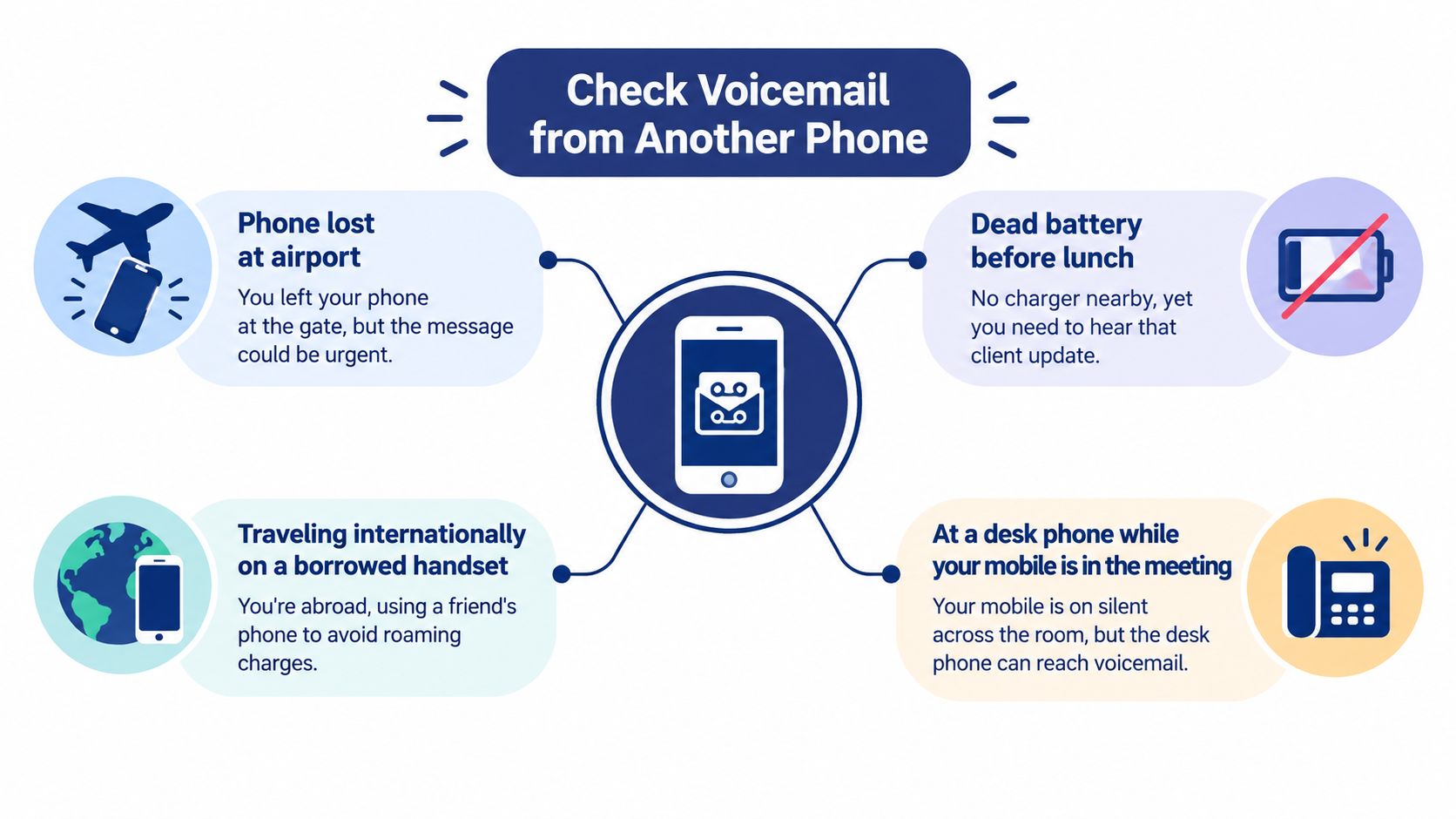
Your phone is at the airport, the battery died before lunch, or you're standing beside a desk phone while an urgent message is waiting on your mobile. You can still check voicemail from another phone, but the right method depends on where the mailbox lives. A carrier voicemail box, a visual voicemail app, a cloud PBX inbox, and a hosted VoIP extension don't share the same login or key sequence.
The familiar advice to dial your own number and press a key is only one route. Remote voicemail access has existed as a standard telecom feature since the mid-1980s, originally helping people retrieve messages when coverage was poor, batteries failed, or they were traveling abroad. The history and traditional workflow are documented here.
Why You Might Need to Check Voicemail From a Different Phone
The situation usually tells you which path to use. If your handset is lost but your personal mobile number still works, carrier remote dialing is the quickest option. If you have a replacement or secondary smartphone and your organization uses visual voicemail, the app may be more convenient, provided you can complete its sign-in checks. If the message belongs to a business line, the mailbox may sit inside a cloud PBX portal rather than on a mobile carrier at all.
A fourth path applies to hosted VoIP and IP-PBX systems. You may call an auto-attendant, enter an extension, authenticate with a mailbox PIN, and use the system's voice menu. That process is different from accessing a personal cell mailbox, especially when the mailbox belongs to sales, support, or a hunt group.
Identify the mailbox before dialing
Ask three questions:
- Who hosts the voicemail? Your cellular carrier, a smartphone app, or your company's phone provider?
- Do you know the authentication? A carrier PIN, an extension PIN, an app password, or an organization-managed sign-in?
- Is the mailbox personal or shared? A personal mailbox normally follows one number or user account. A shared mailbox may require permissions from an administrator.
A borrowed phone can place the call, but it doesn't automatically prove that you're authorized to hear the messages. The authentication step is what separates legitimate remote access from an open mailbox.
Practical rule: Don't start by guessing keys. First determine whether you're calling a mobile number, a business DID, an auto-attendant, or a web-based voicemail service.
Using Carrier Remote Access Codes and PINs
If the mailbox belongs to a traditional mobile carrier, a borrowed phone can usually reach it through the spoken menu. The basic sequence is:
- Dial your own mobile number from the other phone.
- Wait for your voicemail greeting to begin.
- Interrupt the greeting with the carrier's access key.
- Enter your voicemail PIN when prompted.
- Use the spoken menu to replay, save, delete, or move through messages.
The interruption key depends on the carrier and mailbox configuration. A residential phone guide documents the same call-in pattern, dialing the number, interrupting the greeting, and entering a PIN. A published residential phone guide describes the call-in retrieval process.
Carrier behavior varies
| Carrier | Interrupt key | Remote access default | Notes |
|---|---|---|---|
| AT&T | * |
Often available through the greeting | Press the key while the greeting is playing, then enter the PIN. |
| Verizon | * or #, depending on the mailbox setup |
May require call-in listening to be enabled | If one key fails, check the line's carrier instructions instead of repeatedly guessing. |
| T-Mobile | # |
Account and voicemail settings can control availability | The pound key is commonly used to interrupt the greeting. |
| Other carriers | * or # |
Varies by plan and configuration | The key and activation requirement can differ across networks. |
Use the table as a starting point, not as a substitute for current carrier instructions. Some systems require remote listening to be enabled before the greeting will accept an access key. Verizon's support guidance describes both that setting and the variation between access keys. This carrier support explanation covers the remote-listening setting and key variation.
A forgotten PIN requires an account check or an official reset. Avoid testing common defaults, because predictable or unchanged voicemail PINs can expose messages to anyone who reaches the mailbox. The documented history of default voicemail PINs explains the risk of leaving one unchanged. The documented history of default voicemail PINs explains why leaving one unchanged is risky. For a controlled reset, follow this guide to changing a voicemail PIN.
Carrier dial-in normally provides audio playback rather than a transcription screen. You will hear the greeting, prompts, and messages in sequence. A separate visual voicemail or voicemail-to-text service is needed for app-style browsing.
Retrieving Voicemail Through Cloud PBX Portals and Mobile Apps
A dead handset does not block access to a cloud PBX mailbox if the account is available elsewhere. Sign in through the provider's web console or mobile app, then open the mailbox assigned to your user, extension, queue, or department. The phone number alone does not grant access.
From a browser, use this sequence:
- Open the provider's official sign-in page.
- Authenticate with your work account.
- Complete MFA or the organization's single sign-on process.
- Select Messages, Voicemail, or the matching inbox.
- Play the recording, read its transcription, or download the audio if your permissions allow it.
RingCentral, Zoom Phone, Microsoft Teams, 8×8, GoTo Connect, and Dialpad use different labels and menu layouts. The operating principle remains the same: the browser becomes the alternate device. Access fails when the lost handset was the only method for approving MFA, so arrange a backup authenticator or ask an administrator to restore account access.
Apps work, but borrowed devices add friction
A replacement handset or temporary phone can run the provider's official app. Install it, sign in, complete the push or SMS verification challenge, and open the voicemail inbox. Sign out afterward, remove the account from the borrowed device, and delete downloaded recordings.
Shared mailboxes and hunt-group queues introduce a separate permission issue. A receptionist and a remote sales representative may need the same queue messages, while a manager may need permission to review or export recordings. The PBX assigns those rights. Knowing the company's phone number does not provide mailbox access.
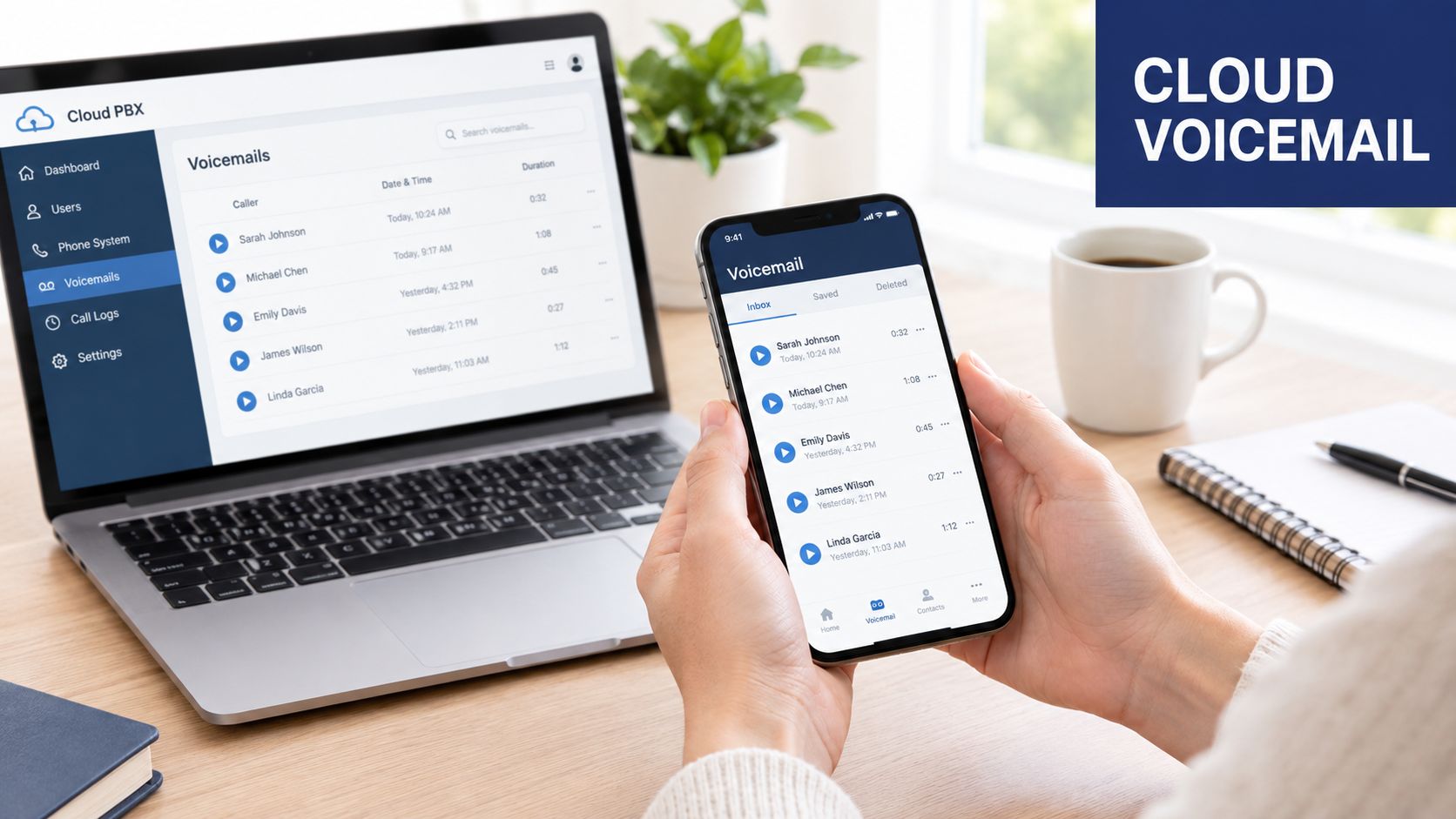
Access check: If the portal opens but the shared inbox is missing, the fault is probably authorization rather than message delivery. Ask the administrator to verify the user seat, mailbox permission, and queue membership.
Cloud PBX platforms often place voicemail-to-text beside the original recording, which speeds up message triage. Transcription accuracy and download rights follow the provider's rules and the organization's account policy. For instructions that cover alternate mailbox access, follow this voicemail access guide.
Accessing Business Mailboxes on a Hosted VoIP System
A shared sales mailbox may hold urgent messages while the assigned employee is offline. An outside caller can usually reach it through the company's main number, direct inward dial number, or administrator-configured mailbox route. The caller then enters the mailbox extension and its PIN. The borrowed phone has no role in authentication.
Use this sequence:
- Call the main number or mailbox access number. The auto-attendant may answer first.
- Choose voicemail access. The system may announce an option or require a configured feature code.
- Enter the extension or mailbox ID. This selects the business mailbox.
- Enter the mailbox PIN. Use the PIN assigned to that extension or shared mailbox.
- Follow the voice menu. Replay, save, delete, or transfer messages according to the prompts.
RingCentral, 3CX, Asterisk, and other hosted PBX systems do not share one remote-access procedure. RingCentral and 3CX administrators must enable remote mailbox access before outside callers can reach the login prompt. Asterisk installations may expose a custom feature code or dial-in number, depending on the dial plan.
| Provider or platform | Default remote dial number | Authentication | Menu options |
|---|---|---|---|
| RingCentral | Provider or administrator-defined access route | Extension or user credentials, often with a PIN | Replay, save, delete, and mailbox management vary by configuration |
| 3CX | System administrator-defined voicemail access route | Extension and voicemail PIN | Message playback and mailbox actions depend on the dial plan |
| Asterisk | Custom feature code or dial-in number | Extension and mailbox PIN | *98 or another configured code may open voicemail access |
| Other hosted PBX systems | DID, pilot number, or auto-attendant | Mailbox ID, extension, and PIN | The administrator-defined menu controls available actions |
Shared department mailboxes require clear permission management. A sales or support mailbox may have several authorized listeners, but each person should use an identifiable account or PIN when the platform supports individual access. When an employee leaves, revoke that user's permission and rotate shared credentials. A familiar extension does not prove that the caller should hear the messages.
Administrators should also test the route from an outside number after changing the dial plan. Confirm that the call reaches the intended mailbox, that the PIN prompt appears, and that playback and deletion permissions match the user's role. For organizations replacing a legacy PBX, see how solution boosters helped with telecom implementation work. The operational test is simple: identify who accessed the mailbox, remove access promptly, and keep the queue usable during hybrid work.
Common Problems and How to Fix Them
Remote retrieval tends to fail at the boundaries between carrier settings, forwarding behavior, and authentication. The call may connect perfectly while the mailbox rejects the key, refuses the PIN, or loops back to the greeting.
| Symptom | Likely cause | Fix |
|---|---|---|
| The greeting continues after you press a key | Wrong interruption key for the carrier | Try the documented carrier key during the greeting, then confirm the account instructions. |
| The call immediately reaches another greeting | Call forwarding or a forwarding loop | Temporarily review unconditional or busy forwarding settings, then test again. |
| The PIN is rejected | Unknown, default, or recently changed PIN | Reset it through the carrier or administrator's official recovery process. |
| No voicemail menu appears | Voicemail isn't provisioned on the line | Ask the carrier to confirm activation, especially after a new SIM or number port. |
| Remote listening works on one phone but not another | Call-to-listen access is disabled or restricted | Enable the feature in the account settings or request carrier support. |
| The system blocks further attempts | Too many failed PIN entries | Stop guessing and wait for the provider's recovery process or contact support. |
| The home number can't be reached abroad | Roaming, dialing, or international routing issue | Use the carrier's published access number, Wi-Fi calling, or the account portal. |
A known-good test isolates the fault quickly. Call the voicemail line from a phone that can reliably reach the carrier, use the documented visual voicemail or dial-in code, and note whether the system accepts the call, recognizes the mailbox, and prompts for a PIN. That separates a line or provisioning problem from a borrowed-phone routing problem.
Troubleshooting order: Verify reachability first, mailbox activation second, the interruption key third, and the PIN last. Repeatedly entering credentials before confirming the earlier steps can trigger a lockout.
Ported numbers and newly activated lines deserve extra scrutiny. The number may receive calls while voicemail remains unconfigured, or the carrier may have retained an old forwarding rule. If every attempt returns to the greeting, ask support to inspect call forwarding and voicemail provisioning rather than changing the PIN again.
Security Best Practices for Remote Voicemail Access
A borrowed phone creates several ways to expose a voicemail PIN. Someone can watch the keypad, hear the digits over your shoulder, recover saved input, or impersonate carrier support. Older default PIN practices also make predictable credentials risky.
Replace the default immediately with a unique code within the provider's supported length. Avoid birthdays, phone-number fragments, repeated digits, and patterns such as 1234 or 0000. Never reuse a banking or email password. If your carrier lets calls from your own line bypass PIN entry, turn that option off when remote listening or account-takeover risk outweighs convenience.
Protect business access separately
Cloud PBX access needs its own controls. Enable MFA, follow the company's SSO policy on every secondary device, and limit administrative or remote access to approved networks where the platform supports that setting. Review audit activity for unusual sign-ins, and remove a former employee's permissions as soon as the role ends.
CISA recommends inventorying remote-access software, limiting exposure, enforcing MFA, monitoring for unauthorized use, and disabling access paths the organization does not need. Its remote-access security guidance treats remote connectivity as an entry point requiring active control. NIST's telework guidance similarly emphasizes strong authentication, access control, and device hardening.
Use a borrowed phone only when no safer portal or app is available. Shield the keypad from nearby observers, and do not save downloaded voicemail on a shared handset. A caller can spoof a support menu or make a believable request for your code. End the call, then contact the carrier or PBX provider through its published support channel, not a number supplied in a suspicious voicemail.
Quick Reference Checklist for Any Situation
Use this decision rule: if your own phone has service, use visual voicemail; if it's unavailable, dial your number and use the carrier's interruption key; if your business uses a cloud PBX, use the portal or app; if you're at a hosted VoIP desk phone, use the administrator's feature code or voicemail access route.
| Situation | Best access method |
|---|---|
| Lost or dead mobile phone | Call your mobile number from another phone and use the carrier PIN flow. |
| Traveling abroad | Use the carrier's published remote number or a cloud portal when the home number is difficult to reach. |
| Shared business mailbox | Sign in to the cloud PBX portal or app with administrator-granted permissions. |
| Hosted VoIP desk phone | Dial the configured feature code, often *98, or follow the system's mailbox prompt. |
| No voicemail set up | Contact the carrier or PBX administrator to provision the mailbox first. |
Before you attempt access, verify three prerequisites:
- Mailbox status: Confirm that voicemail is active on the number or extension.
- Authentication: Have the current PIN, password, or MFA method ready.
- Remote permission: Check that call-to-listen or portal access is enabled for the account.
If your business uses email delivery as a backup, forward voicemail to email so an unavailable handset doesn't become the only place messages exist. Keep shared mailbox permissions current, and remove access from borrowed devices after retrieval.
SnapDial provides cloud PBX access through a web portal and mobile apps, with visual voicemail transcription, voicemail-to-email support, call routing, and centralized management for business users. Visit SnapDial to review a phone system that lets authorized teams retrieve and manage voicemail without depending on one physical handset.