

A customer starts reading an order number, and the audio turns robotic halfway through. Your team repeats the question, talks over the reply, and blames the phone system. Meanwhile, the internet speed test looks fine.
If you're working out how to improve VoIP call quality, don't start by ordering a faster connection. Start by identifying which path, which direction, and which time of day produces bad audio. That tells you whether to fix an office queue, a wireless connection, a remote user's route, or a problem beyond your network.
Targets That Separate Clear Calls From Choppy Ones
| Metric | Good target | What a bad value sounds like |
|---|---|---|
| One-way latency | 150 ms or less | Talk-over and awkward pauses |
| Jitter | Under 30 ms average | Uneven, clipped or stuttering speech |
| Packet loss | 1% or less | Robotic audio and missing words |
| MOS, on a 1 to 5 scale | About 4.0 or higher | Noticeable degradation that users describe as bad audio |
These working targets match Motadata's VoIP monitoring guidance: one-way latency no greater than 150 ms, average jitter below roughly 30 ms, packet loss at or below 1%, and an alert when estimated MOS falls below approximately 4.0 on its 1 to 5 scale.
Treat these as troubleshooting boundaries, not permission to ignore a complaint because a dashboard is green. A call can meet an average target while suffering brief bursts of poor delivery.
Match the metric to the conversation
Latency is travel time. When it's excessive, callers leave awkward gaps, assume the other person has finished, and then speak together. Don't mistake a ping tool's round-trip measurement for one-way voice delay, particularly when outbound and return routes differ.
Jitter is variation in packet arrival time, not a slow connection. Speech needs a steady playback rhythm. Uneven arrivals can leave the receiving phone without the next piece of speech when it needs it, producing clipped syllables or stuttering audio.
Packet loss means voice data fails to arrive. The listener may hear missing words, distortion, or robotic speech. A short concentrated burst can be more disruptive than scattered losses, so inspect the timeline rather than only the call's final average.
Use MOS as a summary, not a diagnosis
Mean Opinion Score, or MOS, describes perceived speech quality. In monitoring systems, an estimated MOS typically summarizes impairments using a model that considers network behavior and codec assumptions. It isn't a separate packet-delivery mechanism, and different tools don't necessarily calculate it identically.
A low MOS tells you which calls deserve attention. Latency, jitter, loss, and endpoint details help explain why those calls sounded poor.
Practical rule: Keep the underlying measurements beside the quality score. A score alone won't tell you which setting to change.
Record each metric during a busy hour and again during a quiet hour. Keep the tool, destination, and endpoint consistent, and save peak values or short-interval samples alongside averages so congestion spikes don't disappear into a healthy-looking summary.
Why a Faster Internet Plan Often Fails to Help
Bandwidth isn't the same as call quality. A throughput test can show plenty of download capacity while an upload queue delays every outgoing voice packet.
The mismatch is easy to recognize:
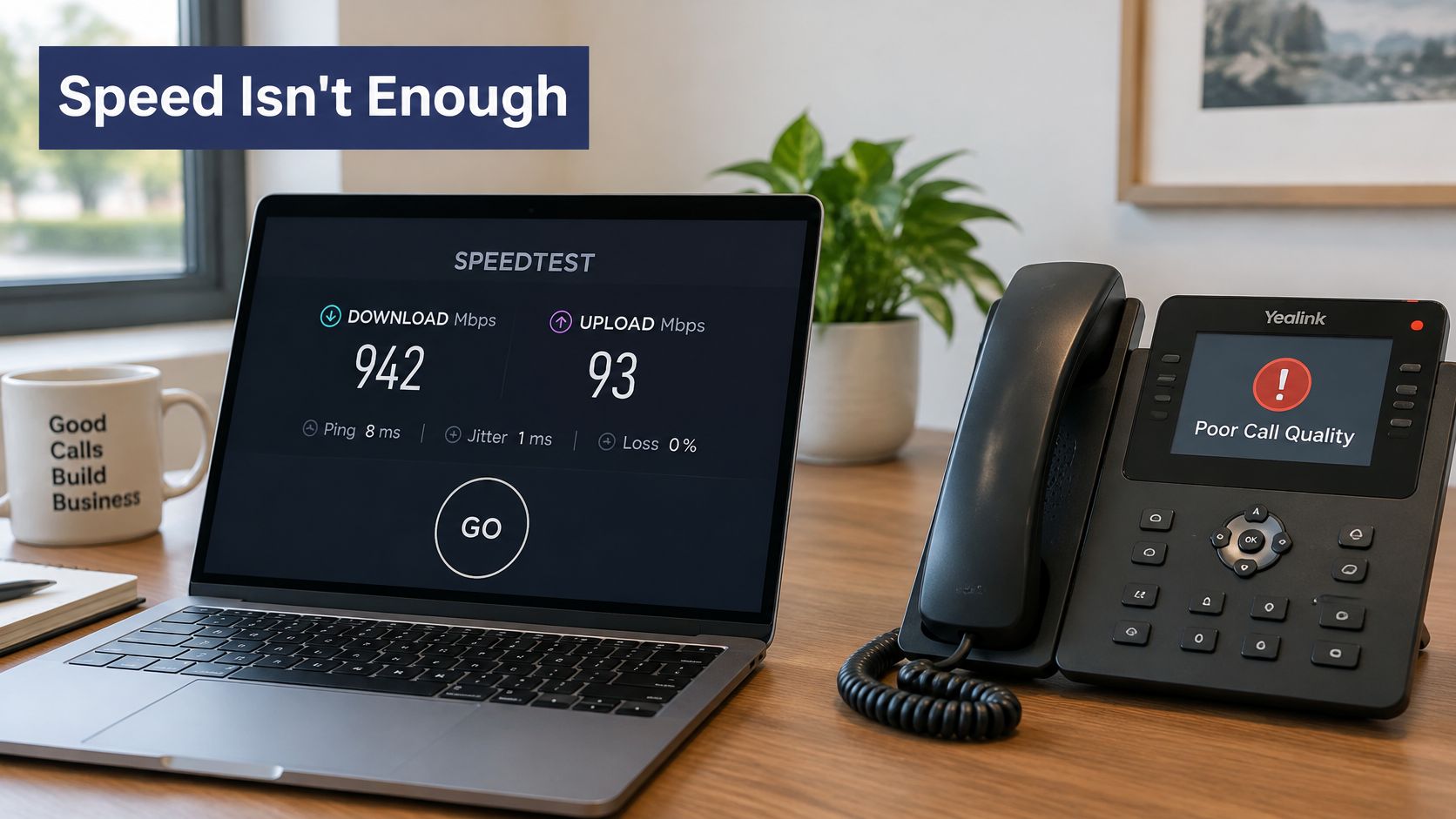
The FCC's broadband guidance describes fixed-broadband measurements with median latency ranging from 9.5 to 36 milliseconds, with DSL generally slower than cable and fiber. Latency also reflects distance, network design, transmission technology, and congestion, not download speed alone.
Say a cloud backup fills the office's available upstream capacity. Customers hear broken outgoing speech, but employees may still hear incoming audio clearly. Buying more download capacity doesn't address that directional bottleneck.
Make the upgrade earn its cost
Use a controlled comparison before changing service:
- Compare idle and busy periods. Check whether quality deteriorates when uploads or video meetings begin.
- Compare Ethernet and Wi-Fi. If wired calls stay clear, investigate wireless delivery before replacing the access circuit.
- Inspect upload utilization. Look for sustained saturation that coincides with poor outgoing audio.
- Identify the failing segment. Escalate with timestamps and affected call directions, not just a screenshot of a speed test.
For an initial browser-based check, you can assess your internet calling quality using BubblyPhone's tool. Pair that snapshot with actual call reports and a review of VoIP bandwidth requirements, rather than treating any single test as proof.
Use the video as supplementary context while evaluating your connection:
More capacity helps when a well-managed link still experiences sustained upload saturation. A faster plan is justified by that measurement, not by choppy audio alone.
How to Fix the Network Path in Seven Steps
Work through network changes in order and save the result after each one. Changing wireless settings, codec preferences, and router queues together makes it difficult to identify which change helped.
The FCC's fixed-broadband measurement report identifies 1% packet loss as a commonly accepted point of significant degradation for highly interactive applications such as VoIP. Aim for consistently clean delivery rather than operating at the edge of an acceptable average.
Use a repeatable troubleshooting process:
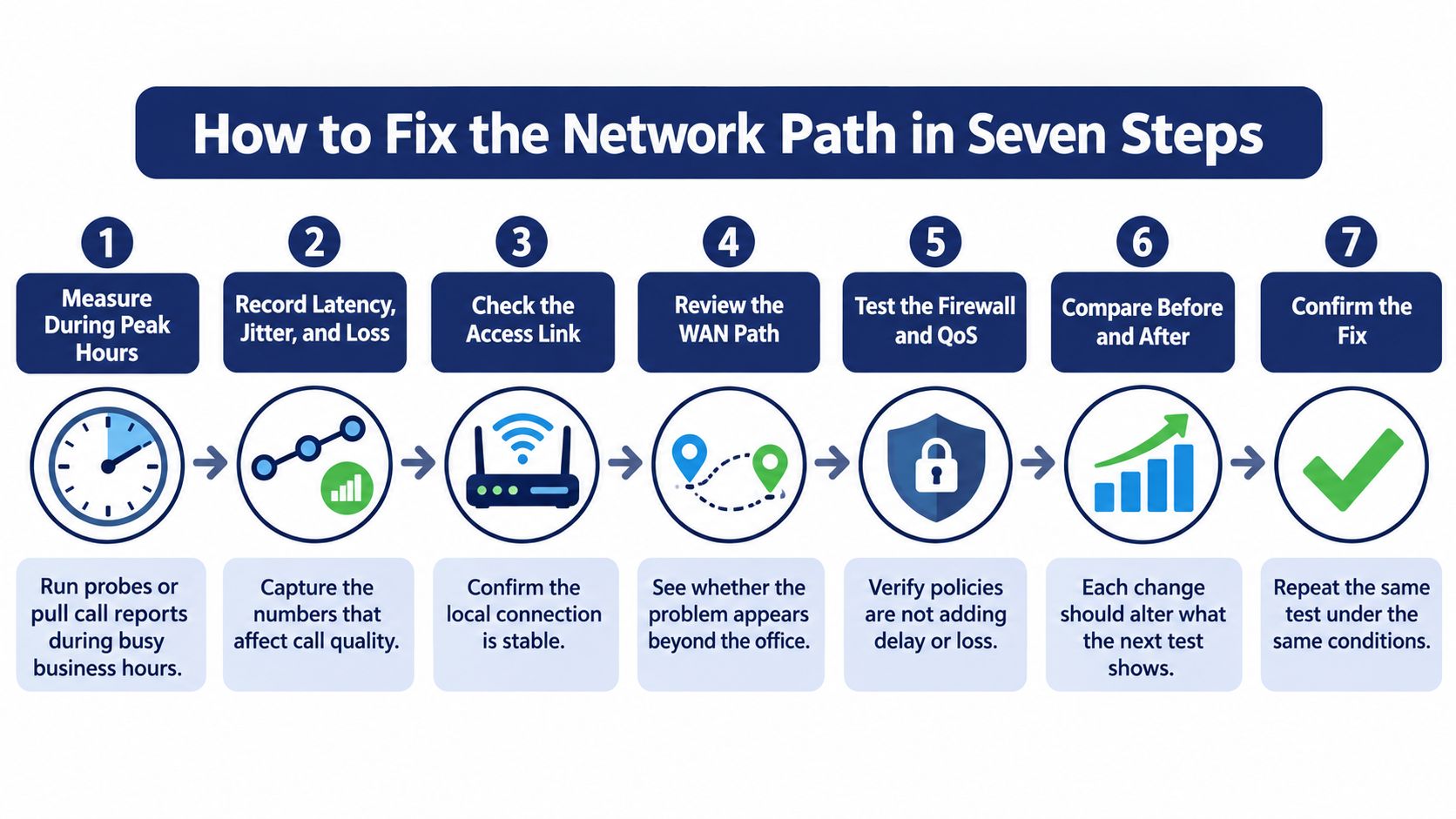
Apply changes in a controlled order
Measure during peak business hours. Run representative UDP voice probes or pull call reports for each office and remote-user group, recording delay, jitter, loss, and estimated MOS; the common mistake is testing an empty network before employees arrive.
Compare sites against your quality targets, label the worst-performing path, and note whether inbound or outbound audio fails. Don't combine every location into a company-wide average, because a healthy headquarters can conceal an impaired branch.
Move desk phones to wired Ethernet. Compare the same phone and destination before and after the move; don't declare Wi-Fi responsible without checking whether the wired call improves.
Put phones on a voice VLAN, mark RTP media with DSCP EF, and trust those markings only on controlled switch ports. The mistake here is assuming a separate VLAN automatically prioritizes traffic, when switches and routers still need matching queue policies.
Configure strict-priority or low-latency queuing at the WAN edge, with upstream capacity reserved for peak concurrent calls. Don't reserve only the codec payload rate, because packet headers and other transport overhead also consume link capacity.
Schedule or cap backups, large uploads, and bulk transfers so they don't monopolize the business-hours queue. Avoid relying on voice priority alone while leaving uncontrolled background traffic to overload another bottleneck.
Repeat the probes under realistic load, including video meetings and file transfers, and compare results against the unchanged baseline test. Don't accept an idle retest as confirmation that a busy-hour fault is fixed.
Cisco's IP SLA methodology provides a practical way to generate representative UDP voice traffic and estimate quality on supported equipment. Keep probe endpoints and traffic characteristics consistent so before-and-after comparisons remain meaningful.
Don't stop at the office router
A clean LAN doesn't prove the complete call path is healthy. Media may pass through a firewall, an access carrier, internet transit, a cloud region, and the far-end network before reaching the listener.
Compare local and external observations, and use call timestamps to correlate them. Router interface drops can support a diagnosis, but the absence of those drops doesn't clear a carrier link or remote-user connection.
If timing variation is the main failure, use this explanation of network jitter to distinguish inconsistent arrivals from consistently high delay. Those problems require different fixes.
Prioritizing voice changes who waits in a queue. It doesn't create bandwidth or control every queue across the internet.
For a legacy PBX replacement, run these checks before cutover. Your completed record should show each site, its affected direction, the change made, and a passing busy-hour retest, rather than leaving the new phone system to inherit an undocumented access-link problem.
Codec, Jitter Buffer and Handset Settings That Matter
| Codec | Typical bitrate | Best use | Trade-off |
|---|---|---|---|
| G.711 | Fixed-rate voice payload | Reliable LAN and adequately provisioned WAN links | Requires more capacity than heavily compressed alternatives |
| G.729 | Low fixed-rate voice payload | Constrained WAN links carrying concurrent calls | Compression can reduce fidelity; check implementation and licensing requirements |
| G.722 | Fixed-rate wideband voice payload | HD voice with compatible handsets | Requires compatible devices and PBX support |
| Opus | Adaptive bitrate | Variable networks, including Wi-Fi and mobile | Capacity planning needs headroom for adaptation |
| iLBC | Mode-selected fixed bitrate | Impaired links where resilience matters | Narrowband speech rather than wideband fidelity |
A codec switch can improve one call and degrade another. Change one setting at a time, and compare the candidate against your production configuration using the same endpoint and route.
Don't select a codec solely because its payload is smaller. Account for packet overhead, concurrent calls, endpoint processing, negotiated codec support, and any transcoding between systems.
Choose for the site, not the codec name
G.711 is a straightforward baseline when capacity is available. G.729 is a candidate for constrained links, but reducing bandwidth doesn't excuse leaving congestion unmanaged.
G.722 can deliver more natural wideband speech when the call's devices and system support it. It won't repair missing packets, and a wideband handset doesn't guarantee a wideband path to every destination.
Opus offers bitrate adaptation, which makes it useful to evaluate on changing connections. Verify that the actual phone, app, and calling platform negotiate it rather than assuming support from a feature label.
In a 2024 University of Cuenca study, iLBC-13.33 produced the best measured voice-quality result among eight codecs across 64 real calls spanning WLAN, internet, and mobile-data scenarios. That's a reason to test codec behavior on your own paths, not a universal recommendation to replace every existing codec.
Tune buffering after the network
A jitter buffer briefly holds arriving audio to smooth uneven timing. Increasing it can conceal short bursts of variation, but the listener pays for that smoothing with additional conversational delay.
It can't restore packets that never arrive or make audio useful after its playback deadline. Fix the impaired segment before using buffer size to compensate for it.
Keep endpoint changes equally controlled:
- Voice activity detection. Test whether silence suppression clips the beginning of speech before enabling it broadly.
- Packet-loss concealment. Compare intelligibility, not just whether gaps sound less obvious.
- Handset and headset settings. Keep microphone gain, audio processing, and the physical device unchanged during codec comparisons.
Use both measurements and listening tests. A technically improved delivery pattern isn't enough if the selected configuration makes customer names or order details harder to understand.
Keep the codec that wins the site's A/B comparison, and record its configuration alongside the call metrics. Don't assume the best setting for an Ethernet-connected office is also best for mobile staff.
Diagnosing Wi-Fi, Mobile and Remote Call Problems
An employee makes clear calls at home but hears garbled audio in a coworking space. That pattern doesn't establish a system-wide outage. It points toward the changed access network or route.
Ask whether the issue follows the person, follows the device, stays at the site, or appears only with a particular destination. Swap one variable at a time so the comparison means something.
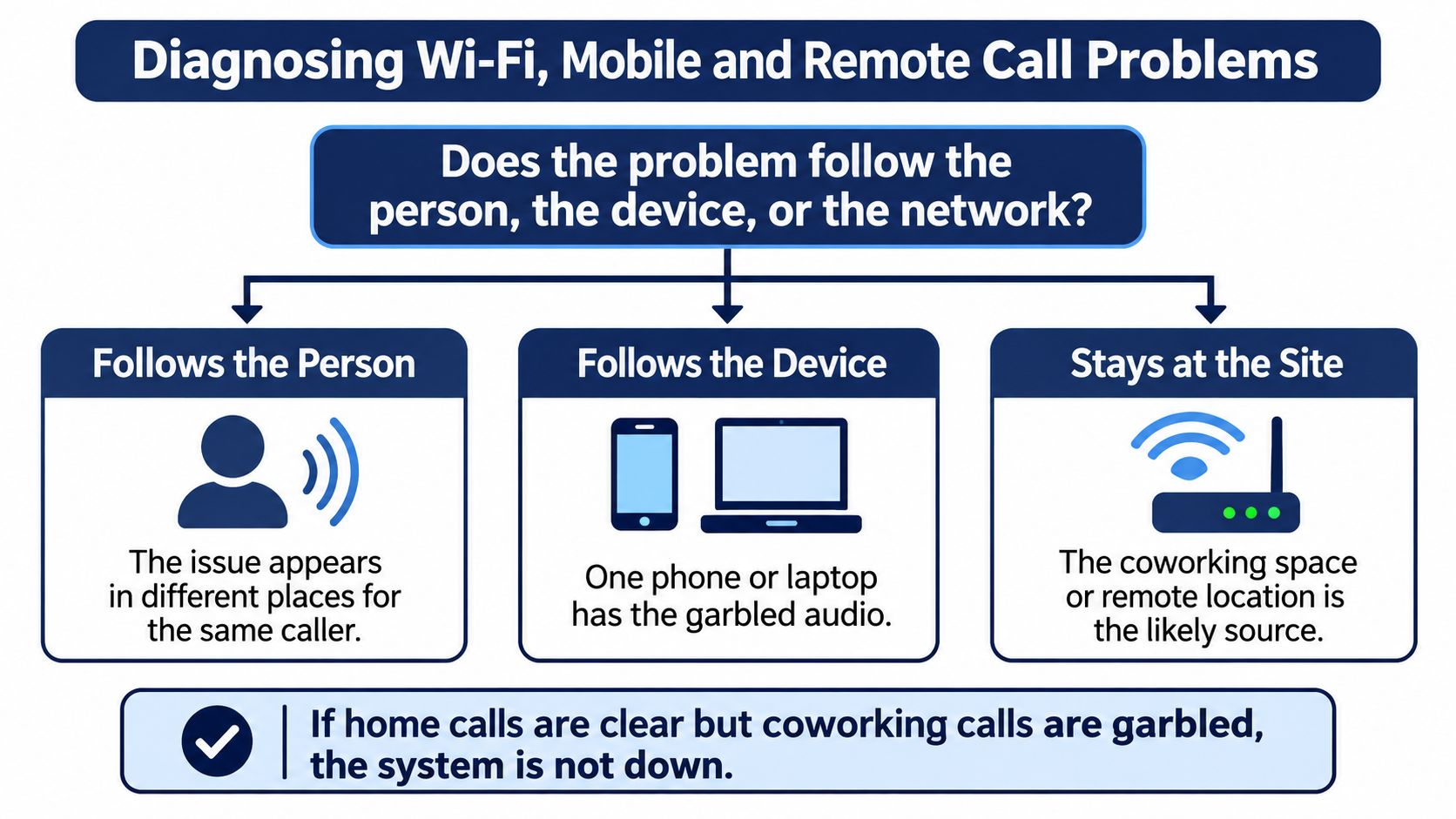
Check the actual working location
- Measure where the handset is used. A survey beside the access point won't describe conditions at a desk behind walls or inside a meeting room.
- Review channel utilization and client behavior. Use a supported higher-frequency band where practical, and investigate roaming or power-saving events that interrupt active media.
- Compare wired and wireless calls from the same desk. Keep the device, destination, and workload consistent to isolate the access link.
- Compare cellular data with shared Wi-Fi. Coverage bars don't establish stable packet delivery.
- Review remote-user equipment and routes. Try a wired headset, move closer to the access point, and test an approved alternative to a competing VPN route.
For managed wireless environments, Purple's WiFi survey workflows for MSPs provide useful context for investigating coverage and channel conditions instead of guessing from signal bars.
Coverage isn't a packet-quality guarantee. Ofcom's 2025 Connected Nations report defines mobile voice coverage using at least a 98% probability of successfully completing a 90-second call on the specified mobile networks. That measure doesn't establish the jitter or loss an internet-based call will experience.
Match the symptom to the first useful test
| Symptom | Likely cause | Fix |
|---|---|---|
| Robotic audio only on Wi-Fi | Weak signal or busy channel | Move closer, select a suitable supported band, or run Ethernet |
| Choppy calls during video meetings | Upload saturation from video | Prioritize voice and cap competing video uploads |
| Clear at home, broken in coworking | Shared Wi-Fi or congested public path | Compare mobile data or wired access; separately test a wired headset |
| Talk-over pauses for remote users | Long route or VPN detour | Test approved split tunneling or a nearer service route |
| One-way audio | NAT or firewall blocking media | Check RTP rules and review SIP ALG against platform requirements |
| Audio drops after roaming | Access-point handoff | Inspect roaming events and tune client and access-point behavior |
A wired headset can isolate an audio-device fault, but it won't bypass congested Wi-Fi. Likewise, don't disable firewall protection to solve one-way audio. Change the specific media-handling rule and verify the result.
Our SnapDial app lets users answer office calls from anywhere and make outgoing calls from a cell phone that appear to come from the office. It can support a mobile workflow, but the selected data path still determines packet delivery.
Segment monitoring by location, access network, device, and time of day. Provider-wide averages won't explain why one employee's hotel connection fails while the rest of the team sounds clear.
Start a Two-Week Call Quality Baseline
Use a two-week baseline to capture normal and degraded conditions, not as a guarantee that every intermittent fault will appear. Assign an owner, and document the production codec, handset, and buffer settings so the results can be reproduced.
Record the whole call path: LAN, wireless or VPN access, firewall, WAN, SIP service, and far-end network. Without that context, support teams may compare unrelated calls and miss the segment that is failing.
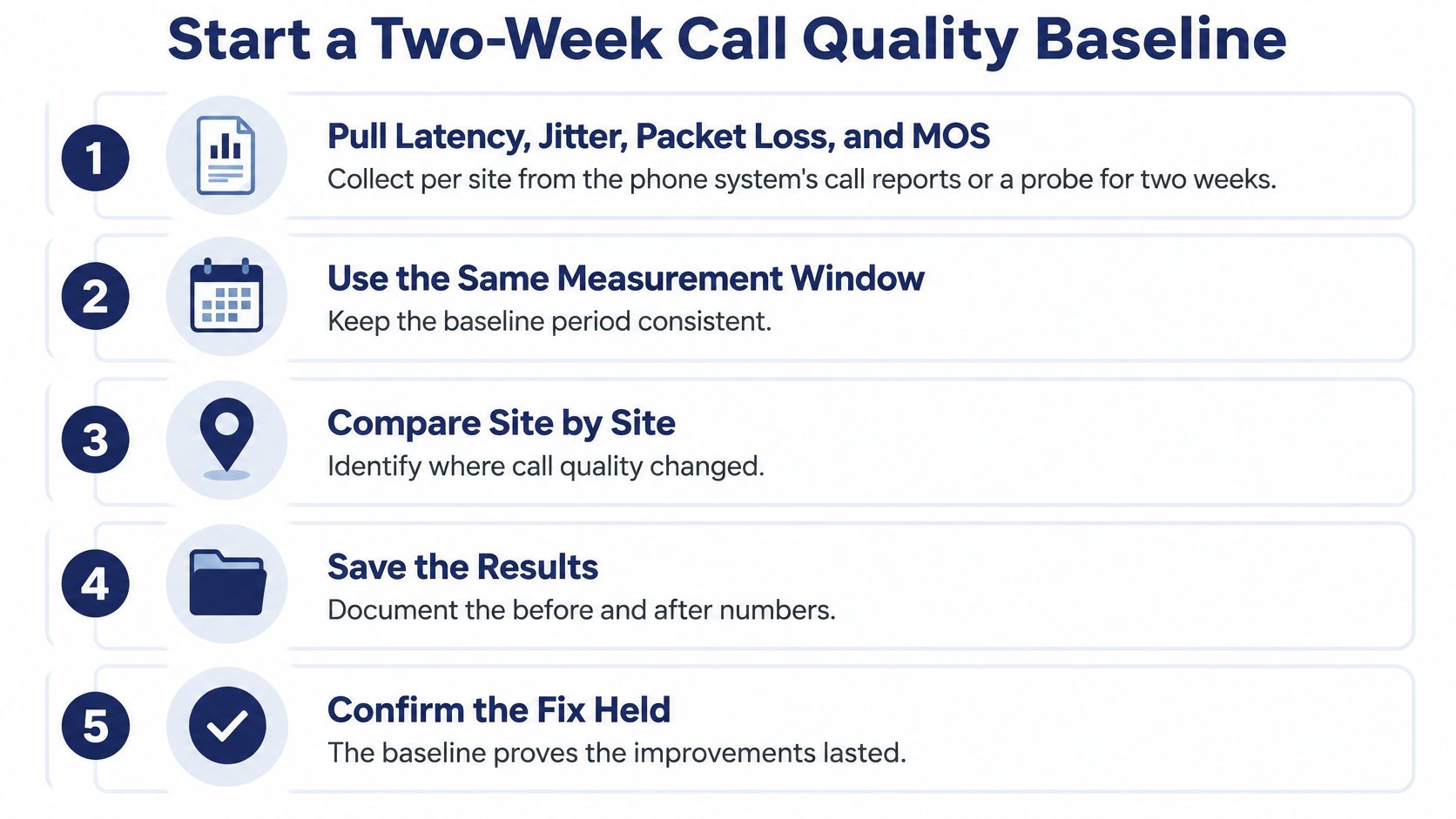
Build a record someone else can reproduce
Collect per-site measurements. Export latency, jitter, packet loss, and estimated MOS from call reports or a supported probe. Record how each measurement was obtained.
Capture a repeatable sample of calls during both busy and quiet periods. Store quality measurements with call records so failures can be compared by device, carrier, user, and time of day. Cisco's voice-quality troubleshooting guidance supports preserving those measurements with call records for investigation.
Configure actionable alerts. Use your accepted quality boundaries, group related events, and route notifications to the person who can inspect the affected network. Avoid sending every fluctuation to the whole office.
Add investigation fields to each incident: affected direction, site, user, endpoint, destination, carrier, active workload, and configuration revision. Include the time zone with each timestamp and the location for each endpoint.
Fix the worst segment first and rerun the same workload. Keep the original result, the configuration change, and the retest together, including changes that did not help.
Set a recurring review and repeat the assessment after adding a site, changing carriers, or introducing a traffic-heavy collaboration tool. Update the baseline when the network changes so old results do not stand in for current conditions.
Use a consistent call quality monitoring workflow so office administrators and technical staff interpret the same evidence. Keep one-way delay and round-trip delay in separate fields, and label missing measurements rather than filling gaps with assumptions.
Escalate with evidence, not a replacement guess
If the measured media path remains clean but the PBX fails under load, investigate the system itself. Check resource utilization, endpoint behavior, call processing, and configuration before approving a bandwidth upgrade.
Preserve the network evidence when considering a replacement. SnapDial's techs handle setup, configuration, and replacement of a business's existing VoIP phone system from start to finish, at no cost to the customer.
The useful outcome is a record that shows which location failed under which workload, what change addressed the impaired segment, and whether the repeated test passed. Keep it with your configuration documentation.
A fix counts only when the same busy-hour test passes again at the same site.
SnapDial offers hosted cloud VoIP, with its techs handling setup, configuration, and replacement of an existing VoIP system from start to finish at no cost to the customer. Bring site measurements and busy-hour call examples when you visit SnapDial to request a quote or schedule a call, so the discussion starts with the failing path rather than a guess about bandwidth.