

Your Outlook inbox probably feels like a relay race you never signed up for. You open an email, then hop to Teams for a meeting link, then into a CRM, then back to your calendar, then into a project board, then into a phone system to follow up on a missed call. The right add ins for outlook cut that drift down fast, because the work stays attached to the message instead of scattering across tabs.
That matters more in 2026 because Outlook add-ins are no longer just tiny convenience tools. Microsoft's own Viva Insights add-in can surface read statistics for sent email, including open counts, average reading time, and document open rates from OneDrive for Business or SharePoint, and it can track open rates for all sent emails rather than only the one currently open Microsoft Viva Insights in Outlook. Outlook add-ins are also contextual, which means they activate when you're composing, reading, or working with calendar items, not as always-on background tools Microsoft Outlook add-ins overview. That design is a strength when you want focused workflows, but it also means you need to choose tools that match the way your team works.
1. Microsoft Teams Meeting Add-In for Outlook
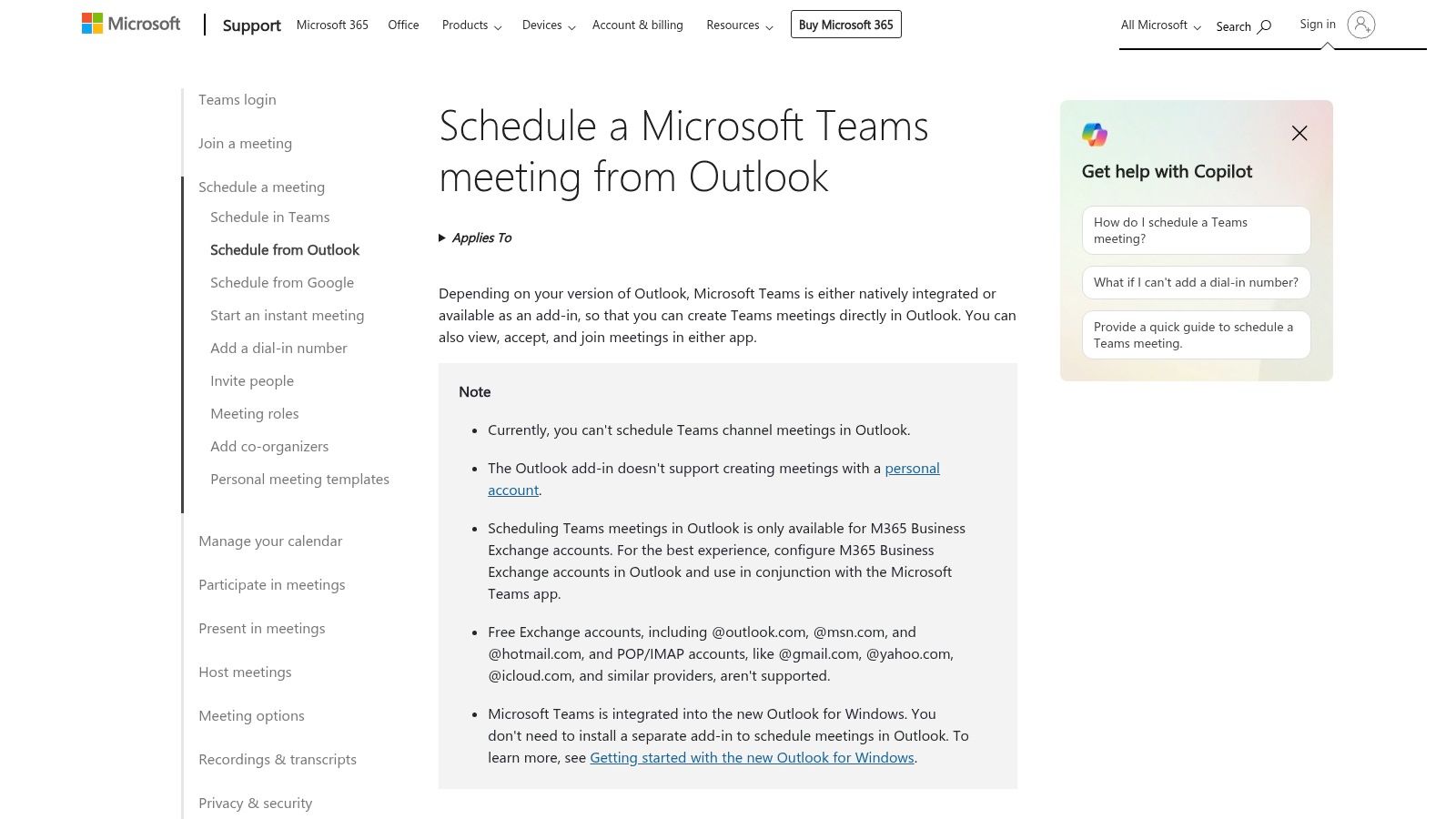
The Microsoft Teams Meeting add-in is the safest choice for organizations already living inside Microsoft 365. It puts meeting creation where people already schedule work, and it automatically inserts Teams join details into calendar invites. For teams that want fewer moving parts, that native fit is the point.
Why it wins in Microsoft-heavy environments
Microsoft says users can schedule Teams meetings from Outlook across desktop, web, and Mac, and the add-in works with Microsoft 365 authentication and admin controls Microsoft Teams meeting from Outlook. That makes rollout straightforward in workplaces that already manage identity through Microsoft.
The real advantage is not the button, it's the governance. If your meeting stack is already standardized on Microsoft, you keep scheduling, identity, and policy in one ecosystem.
The trade-off is simple. If a user is on a Microsoft Store Outlook install for Windows, this add-in is not supported there, and some teams still need troubleshooting before the button appears. In practice, that means IT should validate the client mix before assuming the rollout is done.
2. Zoom for Outlook
Zoom for Outlook fits companies that run email and calendaring in Outlook but want Zoom to handle the meeting itself. Users can schedule, join, and manage Zoom meetings without leaving the Outlook ribbon, which keeps calendar work inside the tool people already use. In hybrid teams, that reduces one more handoff between scheduling and the call.
The rollout path is relatively clean because Zoom supports admin deployment for Microsoft 365 tenants Zoom for Outlook support. Zoom also treats this integration as the preferred option over older plugins, which matters if you are removing legacy add-ins and want a single supported path.
Where it fits and where it doesn't
A strong fit is a team that standardizes on Zoom for external meetings while still using Microsoft 365 as the calendar system. In that setup, Outlook becomes the scheduling layer and Zoom stays the meeting engine. Customer-facing teams usually feel the benefit first, because the invite flow stays close to the calendar instead of forcing them into a separate conferencing app.
The practical trade-off is account control. The add-in depends on the connected Zoom account, so what users can do in Outlook still follows the limits of that account and its plan settings. For a closer look at how video conferencing fits into a business communications stack, that distinction matters. It also means IT and operations should verify account entitlements before treating the add-in as a full replacement for manual scheduling.
3. Google Meet Add-In for Outlook
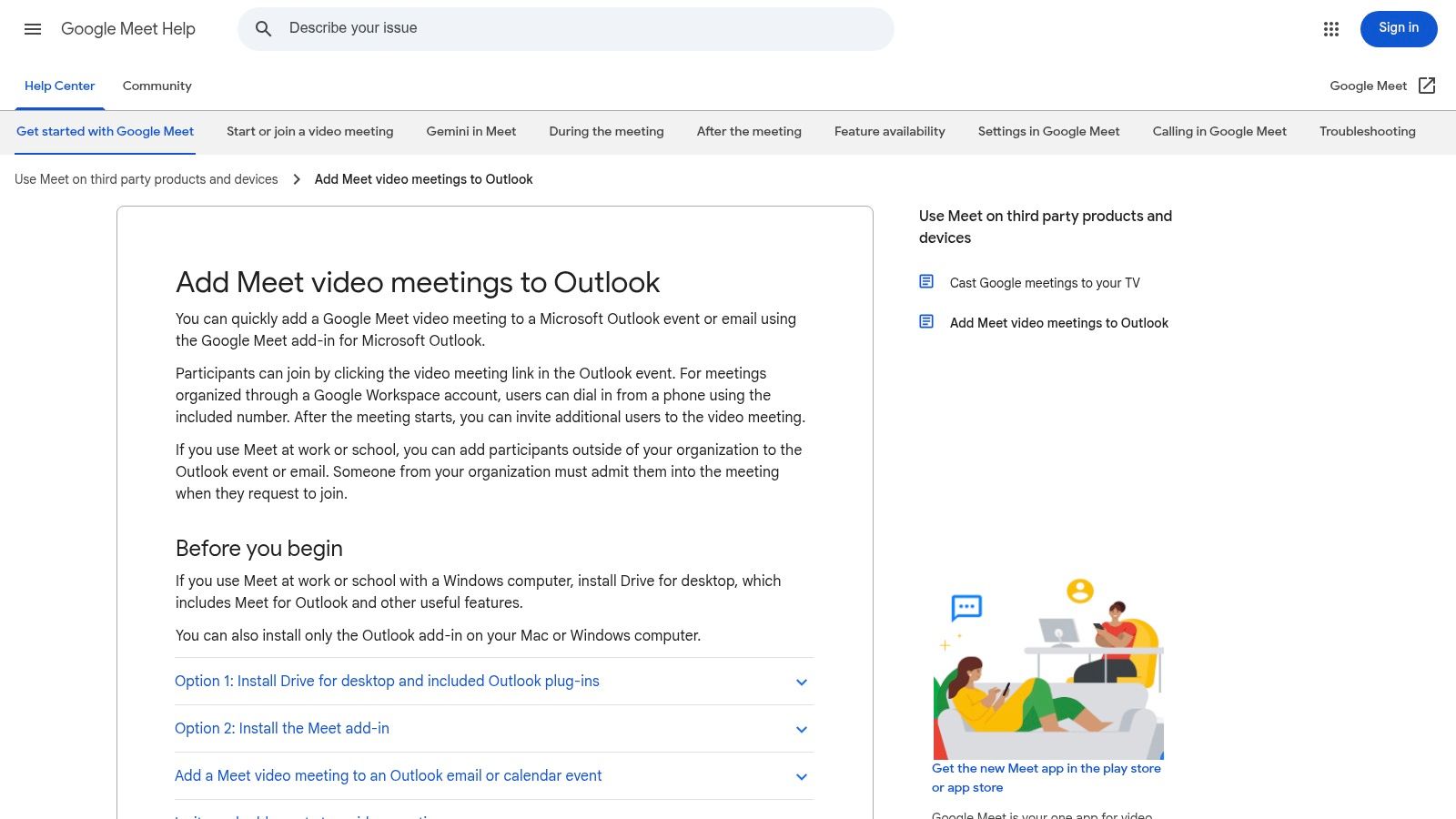
Google Meet for Outlook is the right choice when your business runs Microsoft 365 mail but Google Meet is the preferred conference layer. That cross-ecosystem setup is more common than many IT teams admit, especially in partner-heavy environments. The add-in keeps users from having to copy meeting links manually or switch to another app just to create the invite.
Best use cases
Google says the add-in works in Outlook desktop and Outlook on the web Google Meet add-in support. That gives mixed Microsoft and Google environments a practical bridge without forcing users to duplicate calendars or manually manage links.
- Mixed-environment scheduling: Ideal when Outlook is the inbox, but Meet is the preferred room.
- Guest familiarity: External attendees see a Meet link and join flow they already know.
- Lower admin friction: Users can stay in Outlook while still honoring Google Workspace meeting policy.
The trade-off is consistency. In a tightly governed Google Workspace tenant, behavior can depend on policy settings, and the experience may vary a bit across Outlook clients. That makes it more of an interoperability tool than a universal standard.
4. Cisco Webex Scheduler for Outlook
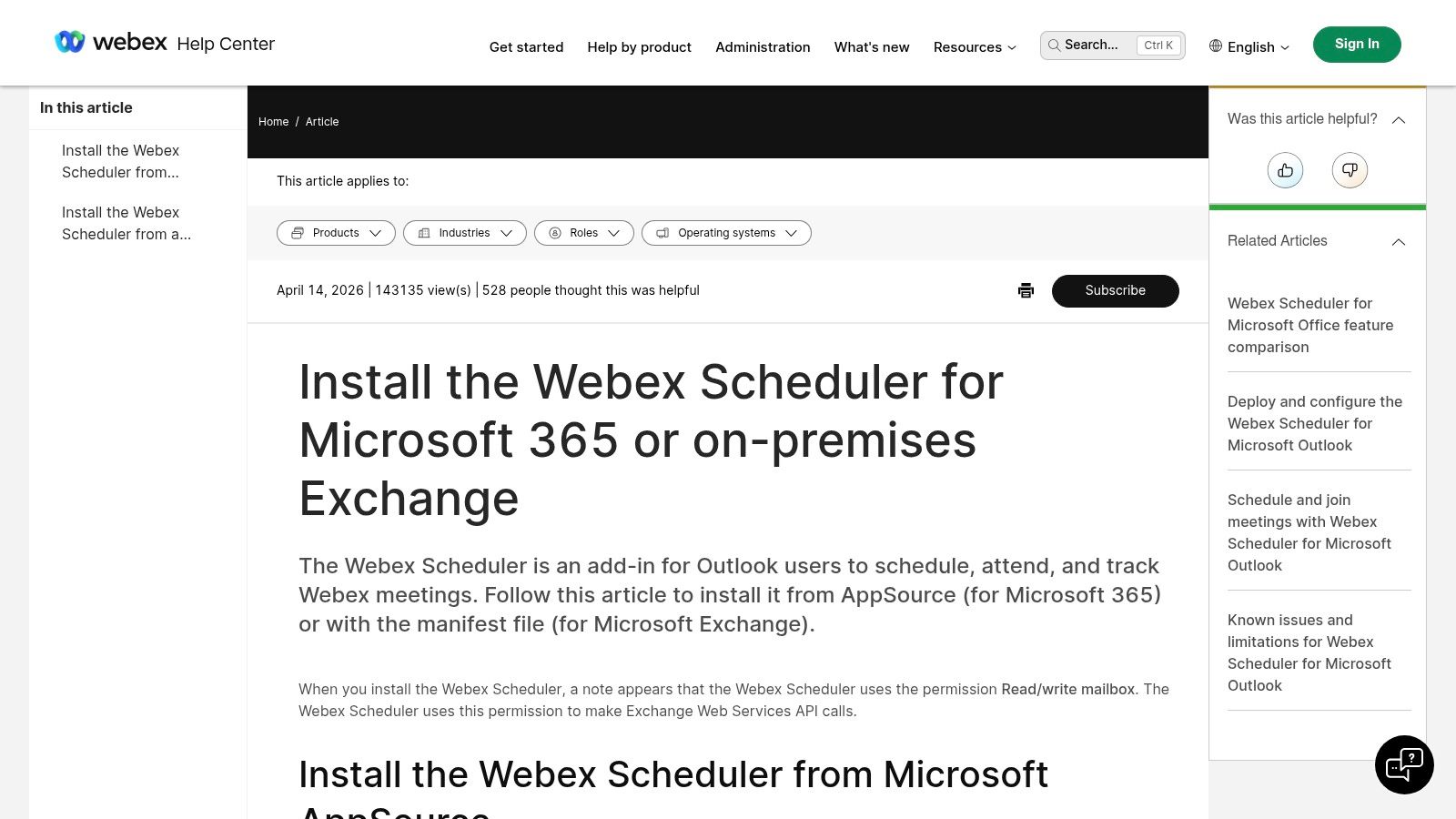
Cisco Webex Scheduler is the enterprise option when compliance, SSO, and a mixed Microsoft environment matter more than convenience alone. It lets users schedule and manage Webex meetings from Outlook and supports Microsoft 365 and many on-premises Exchange scenarios Webex Scheduler for Microsoft 365 or Exchange. That makes it a sensible fit for larger organizations that still have legacy infrastructure in play.
Why admins like it
The main advantage is deployment flexibility. Cisco supports installation through Microsoft 365 and, for on-premises Exchange, through a manifest-based approach instead of a simple consumer-style install. That matters because enterprise scheduling tools often live or die by how well they fit the admin model.
If your calendar stack still touches on-premises Exchange, choose the add-in that matches your deployment reality, not the one with the prettiest store listing.
The downside is that setup can feel more involved than a cloud-only plug-in. This is not the one to hand to a small team that wants a quick self-install and no admin touch. It works best when IT already owns the conferencing standard and wants Outlook to expose it cleanly.
5. Calendly for Outlook
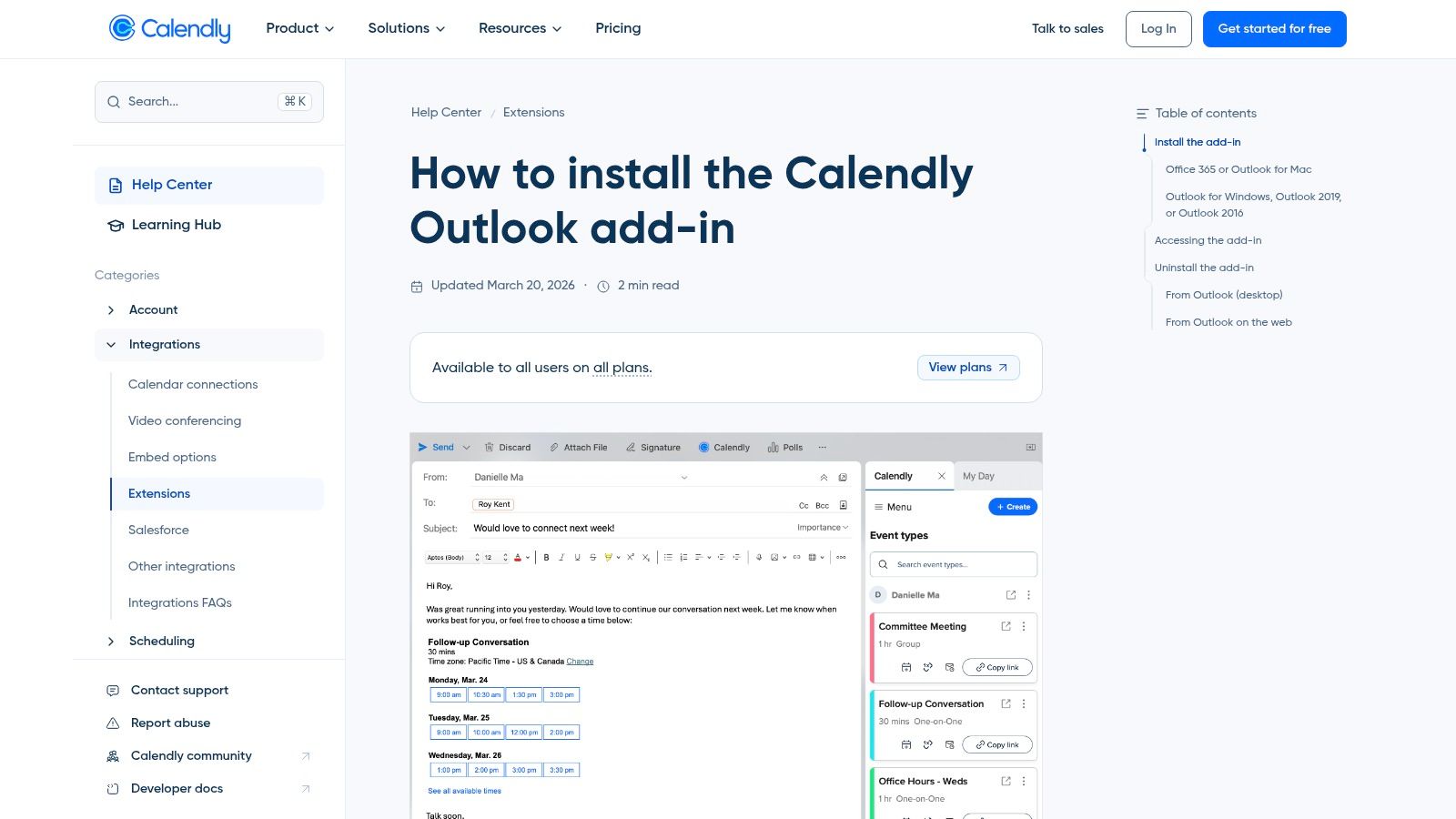
Calendly for Outlook is built for one job, reducing scheduling friction. It lets users insert availability, proposed times, or scheduling links directly from Outlook instead of bouncing prospects and coworkers through a chain of “what time works?” emails. In business terms, it removes a chunk of low-value coordination work that clogs inboxes.
Practical scheduling impact
Calendly's own setup guidance says the add-in works with Outlook and can be installed by individuals or centrally deployed Calendly Outlook add-in setup. That makes it useful both for solo users who need speed and for teams that want a common scheduling standard.
The obvious upside is fewer scheduling loops. Sales reps, recruiters, consultants, and customer success teams tend to feel that improvement fastest because they spend so much time nudging calendars back and forth. The limitation is that some Outlook builds, including Microsoft Store-based installs, don't support the desktop plug-in, so client compatibility still needs checking.
6. DocuSign for Outlook
DocuSign for Outlook belongs in the category of workflow tools, not just convenience tools. It lets users send documents for signature from an email, route recipients, and track envelope status without leaving Outlook. That keeps contracting and approval work closer to the message thread, which is where most of it starts anyway.

When it pays off
The Microsoft 365 angle matters here. DocuSign's integration is designed for that ecosystem, so teams already using Outlook for customer or vendor communication can move from “please sign this” to an actual signature workflow without rekeying steps DocuSign Microsoft integrations. For legal, procurement, and operations teams, that's often enough to justify the add-in.
The trade-off is licensing. Full functionality depends on a DocuSign eSignature license, and advanced capabilities vary by plan. So this is not a lightweight inbox utility, it's a governed business workflow tool that happens to live in Outlook.
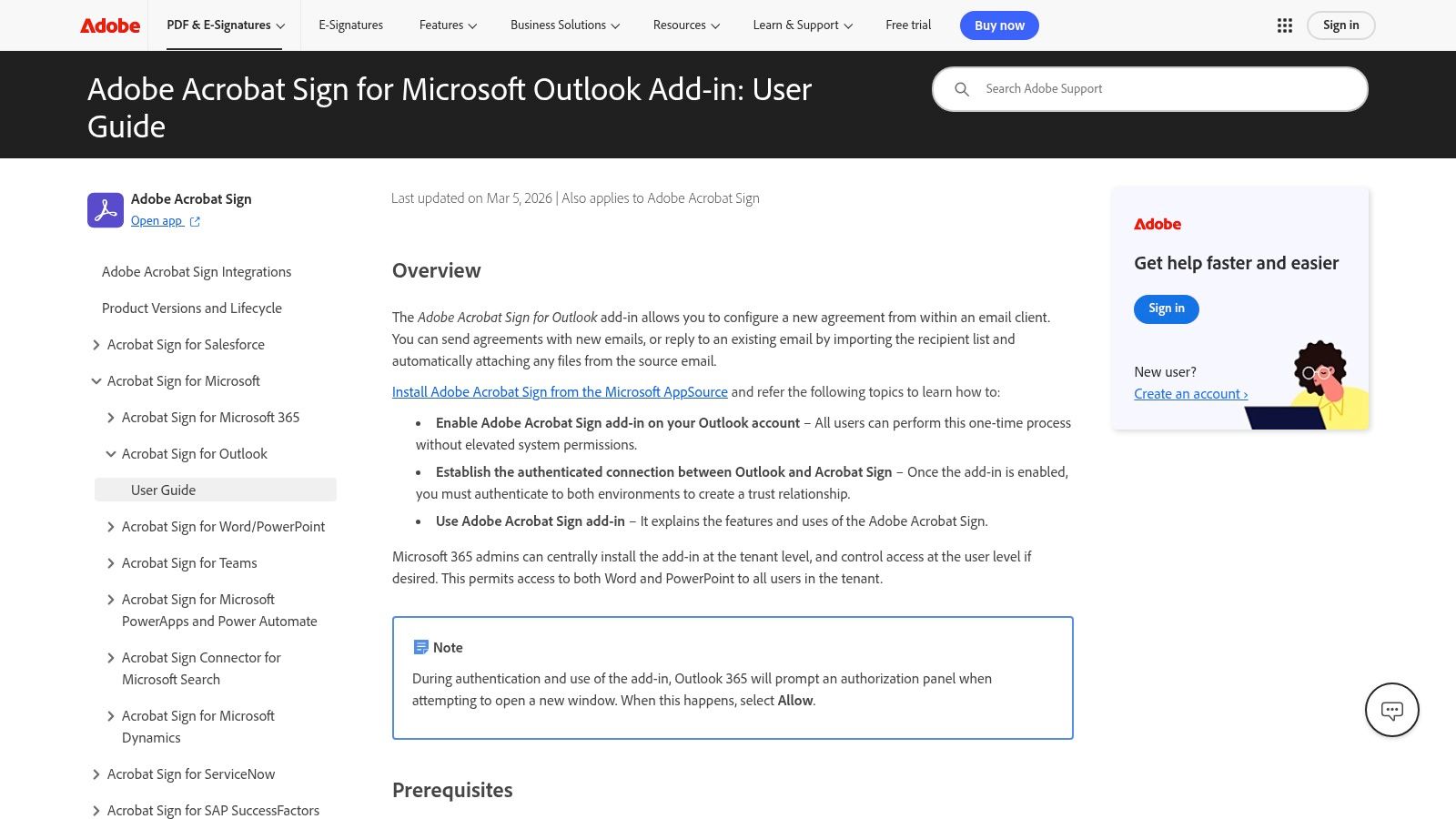
7. Adobe Acrobat Sign for Outlook
Adobe Acrobat Sign for Outlook is the stronger pick when your organization wants signature workflows with broad Microsoft 365 integration and formal governance controls. It supports sending documents for signature directly from the Outlook ribbon and tracks agreement status across Microsoft 365 apps Adobe Acrobat Sign Outlook add-in. For teams with compliance pressure, that visibility matters.
Stronger for governance-heavy teams
Adobe positions this as a Microsoft-preferred e-signature partner, which makes it feel more natural in enterprise Microsoft environments than a generic signature plug-in. It also supports many file types, including PDF, Word, and Excel, so users do not need to keep converting files before sending them out.
The trade-off is configuration overhead. Business and Enterprise licensing is required, and some admin setup may be needed for controls and policies. If your team wants a simple sign-and-send layer without broader agreement governance, the heavier feature set may be more than you need.
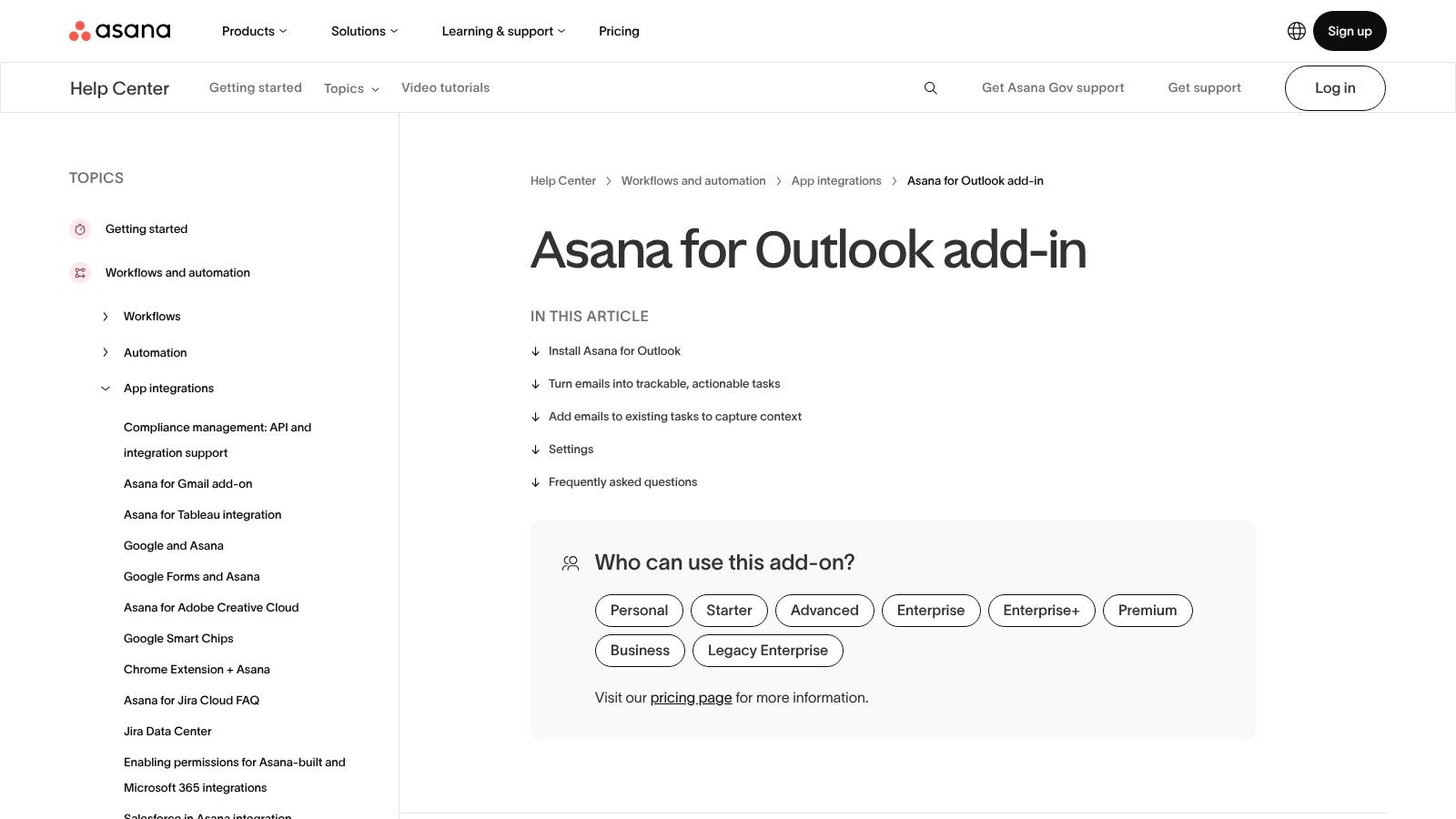
8. Asana for Outlook
Asana for Outlook solves a classic problem, email arrives as work, but no one turns it into a tracked task. The add-in lets users create and assign Asana tasks from an email, then attach the message and files to that task. That keeps request-based work from disappearing into inbox piles.
Where it shines in operations
This is especially useful for support, operations, marketing, and client services teams that triage requests through Outlook but manage delivery in Asana. Instead of forwarding a thread and hoping someone remembers it, users can create the task at the moment the email is read Asana for Outlook add-in. That's the kind of mundane move that clears real bottlenecks.
For teams building out a broader communications stack, connecting email workflows with CRM and VoIP integration is often the next step after task management. The main limitation here is that it works best when the team already runs on Asana, because the add-in is not a standalone task manager. It still depends on your Asana account, and some tenants may need admin approval before users can install it.
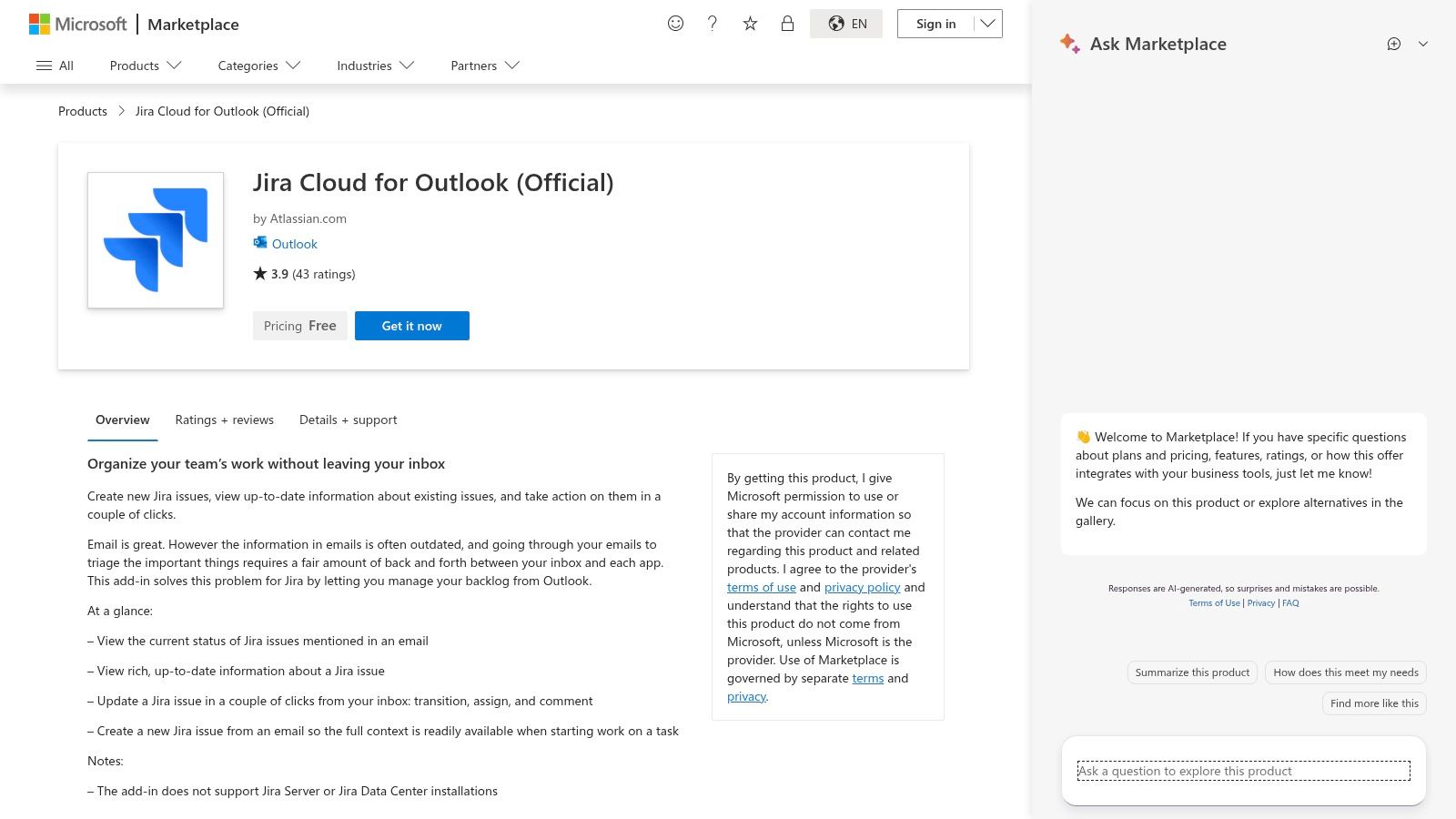
9. Jira Cloud for Outlook Official
The official Jira Cloud for Outlook add-in is the right fit for engineering, product, and technical operations teams that need to turn email into tracked work. It lets users create or update Jira Cloud issues from Outlook and attach email context directly to those issues Jira Cloud for Outlook on AppSource. That reduces the friction of moving a bug report or incident thread into the delivery system.
Best for triage-heavy teams
The value here is traceability. If a customer report arrives in email, the add-in lets the team preserve the original message while creating the Jira issue that drives work. That keeps triage cleaner and reduces the risk of losing context between inbox and backlog.
The limitation is scope. This is for Jira Cloud, not Jira Server or Data Center, so it is not a universal Atlassian answer. It also depends on Atlassian permissions and access models, which means rollout should be planned alongside the Jira admin setup, not as a casual user install.
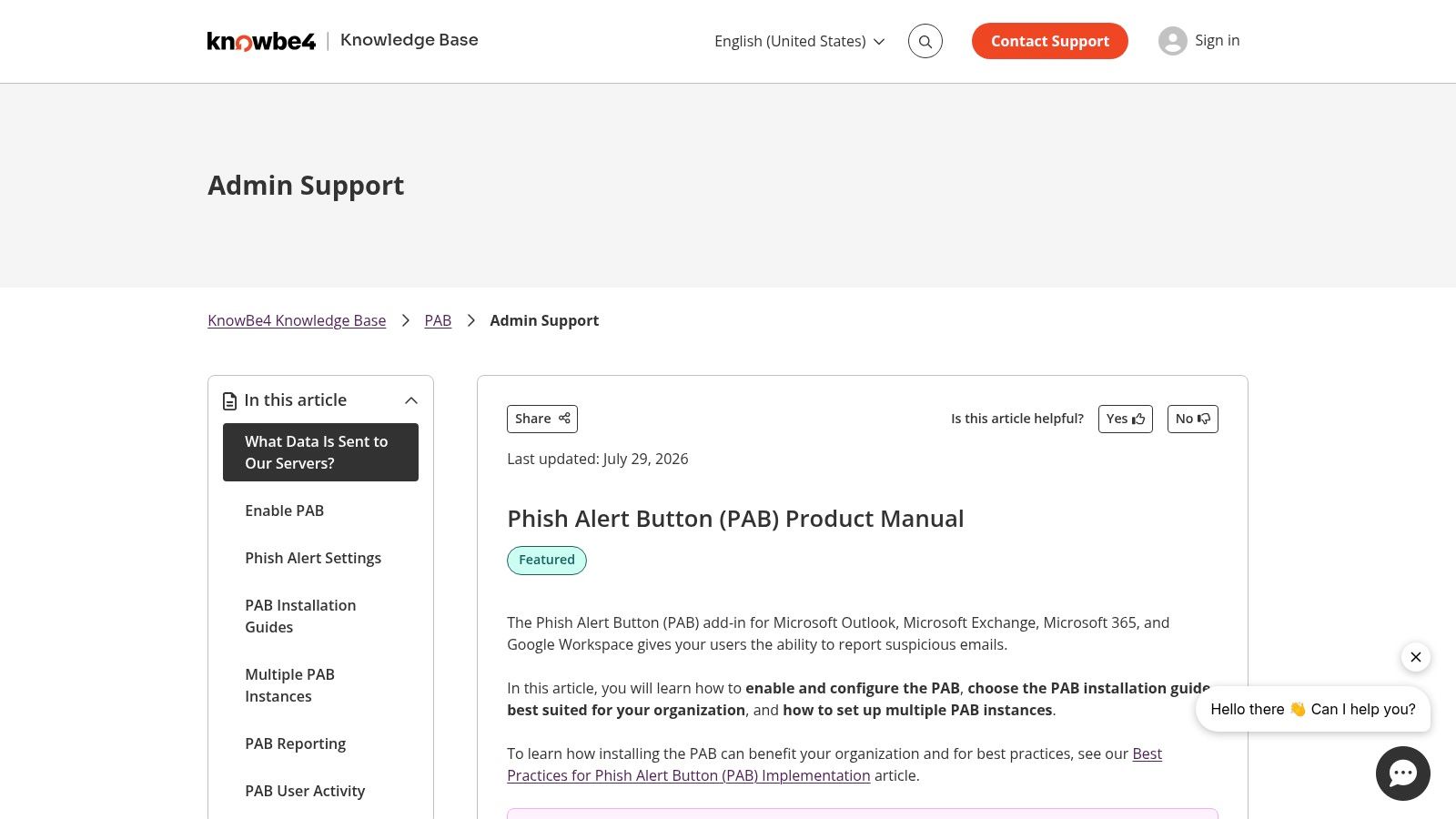
10. KnowBe4 Phish Alert Button
KnowBe4 Phish Alert Button is one of the most useful add ins for outlook for teams that care about security as much as response time. It gives users a one-click way to report suspicious emails to IT or security from inside Outlook, which creates a consistent path for phishing reports to reach the right queue KnowBe4 Phish Alert Button manual. That consistency matters because security teams can only triage quickly when reports arrive in a predictable format.
Why this belongs in the core stack
Microsoft explains that Outlook add-ins are contextual and active while users are composing or reading messages, which is exactly where a reporting button needs to live Microsoft Outlook add-ins overview. A tool like PAB fits that model well because it appears at the moment a user is deciding whether an email is safe, suspicious, or worth escalating.
Security add-ins work best when the reporting path is shorter than the temptation to ignore a suspicious message.
There is also a governance side to this decision. Microsoft documents how Outlook add-ins are installed, managed, and troubleshot, and that makes admin review, permission control, and deployment policy part of the security design, not just the rollout checklist Microsoft Outlook add-ins usage and troubleshooting. Organizations should treat that control layer seriously because add-ins operate inside the mail client and can affect what users see and send. Security teams that already review business calling workflows may also want a closer look at caller ID authentication, since caller trust and email trust are often handled by the same broader communications policy.
Top 10 Outlook Add-ins: Feature & Integration Comparison
| Add-in / Purpose | Core Features | UX / Reliability (★) | Value & Price (💰) | Target Audience (👥) | Unique Strength (✨/🏆) |
|---|---|---|---|---|---|
| Microsoft Teams Meeting add-in for Outlook | One‑click Teams links, auto join info, cross‑client support, admin controls | ★★★★★, native, stable | 💰 Included with Microsoft 365 | 👥 M365 orgs, enterprises | ✨ Native Teams+Outlook experience, 🏆 unified auth |
| Zoom for Outlook | Insert Zoom details, schedule/join, admin deployment | ★★★★☆, reliable, account limits apply | 💰 Free add‑in; Zoom plan limits apply | 👥 Zoom users, SMBs & enterprises | ✨ Easy AppSource rollout; preferred Zoom integration |
| Google Meet add-in for Outlook | Insert Meet links into Outlook, cross‑ecosystem scheduling | ★★★★☆, good for mixed environments | 💰 Included with Google Workspace | 👥 Mixed Google/Microsoft environments | ✨ Smooth Meet scheduling inside Outlook |
| Cisco Webex Scheduler for Outlook | Add Webex invites, admin/XML manifest, supports on‑prem Exchange | ★★★★☆, enterprise‑grade, more complex setup | 💰 Requires Webex licenses | 👥 Large enterprises, SSO/on‑prem Exchange | 🏆 SSO & on‑prem Exchange support; enterprise controls |
| Calendly for Outlook | Insert scheduling links, real‑time free/busy checks, quick setup | ★★★★☆, easy UX, occasional Outlook quirks | 💰 Free tier; paid for advanced features | 👥 Sales, customer‑facing teams, schedulers | ✨ Eliminates scheduling back‑and‑forth; lightweight |
| DocuSign for Outlook | Send for signature, templates, track envelope status | ★★★★☆, trusted, audited | 💰 Requires DocuSign eSignature license | 👥 Legal, sales, procurement | 🏆 Widely adopted e‑signature with M365 integration |
| Adobe Acrobat Sign for Outlook | Send/sign workflows, supports many file types, tracking | ★★★★☆, strong compliance features | 💰 Paid (Business/Enterprise tiers) | 👥 Enterprises needing compliance & governance | 🏆 Microsoft‑preferred e‑sign partner; governance |
| Asana for Outlook | Convert emails to tasks, attach email content, assign work | ★★★★☆, improves workflow visibility | 💰 Free & paid Asana plans | 👥 Ops, PMs, teams handling email requests | ✨ Turns email into actionable tasks to prevent loss |
| Jira Cloud for Outlook (Official) | Create/update Jira Cloud issues, attach emails to issues | ★★★★☆, effective for engineering workflows | 💰 Requires Jira Cloud access | 👥 Engineering, product, ops teams | ✨ Direct email → Jira issue linkage for triage |
| KnowBe4 Phish Alert Button (PAB) | One‑click phishing reports, multiple deployment options | ★★★★☆, boosts security reporting | 💰 Requires KnowBe4 subscription | 👥 IT/Sec teams and all end‑users | 🏆 Standardizes phishing reporting; SOC integration |
Building Your Integrated Outlook Workspace
The best add ins for outlook are the ones that remove a repeat decision from your day. Teams add-ins reduce meeting friction, Zoom and Webex keep conferencing aligned with company policy, Calendly cuts scheduling loops, DocuSign and Adobe Acrobat Sign move approvals forward, Asana and Jira turn email into tracked work, and KnowBe4 gives security teams a clean reporting path. Microsoft also makes it clear that Outlook add-ins are contextual and measurable, with usage analytics that can track enabled, active, returning, and first-time users, so these tools are not just conveniences, they're part of a managed productivity system Microsoft Outlook add-ins overview.
The smartest rollout strategy is narrow at the start. Pick one pain point, usually scheduling, task capture, or security reporting, then deploy one add-in that owns that problem and measure whether people use it. Microsoft's migration guidance for the new Outlook projects adoption at 20% in year 1, 50% in year 2, and 80% by year 3 within a composite organization, which means many teams will need to support both classic and new Outlook during the transition New Outlook projected total economic impact. That's another reason to prefer add-ins with clear web support and a clean admin story.
Security and compatibility should stay part of the decision, not an afterthought. Microsoft says VSTO and COM add-ins must be migrated to Outlook web add-ins to keep working in the new Outlook on Windows, while web add-ins are the path to cross-platform support on Windows, Mac, mobile, and web Microsoft Outlook add-ins documentation. If your current stack depends on legacy desktop behavior, test that before promising a smooth switch. If Outlook sync problems are already slowing people down, it's worth fixing the underlying calendar flow first with Outlook calendar sync help.
If your team also treats voice as part of the same workflow, not a separate island, SnapDial fits naturally. It gives businesses a cloud phone system that supports calling, conferencing, call routing, voicemail, and reporting in one platform, which makes it a practical companion to an Outlook-centered workspace. Start with the add-in that removes your biggest bottleneck, then visit SnapDial to see how a unified business phone system can sit beside Outlook instead of competing with it.