
You need yesterday's sales call because a customer remembers a different price than your salesperson does. The call appears in the history, but there's no obvious recording. Before you widen everyone's permissions or ask the employee to search their phone, establish where the audio should live, whether it was captured, and whether you're allowed to use it.
Why a Call History Entry Doesn't Mean a Recording Exists
A call-history entry confirms an interaction, not that audio was captured or saved. Check whether recording was enabled and identify where the file should be stored. Searching again by customer name won't resolve a storage or access problem.
Start with how the employee made the call, not which handset was on the desk. They may have called through the business phone system, used a softphone's local recording control, or recorded a cellular call with the phone's native app. Each method has a different retrieval path, and not every recording appears in the company portal.
Establish the recording's owner
For a disputed sales call, ask which application the salesperson used and which business number was involved. Then identify the likely capture source:
- Device-native capture: Check the phone's recording history, rather than starting in the company's cloud dashboard.
- Soft-client capture: Confirm whether the application saved audio locally or started recording through the business system.
- Cloud PBX capture: Search the organization's portal using the call's routing details and an account with the right access.
These categories point to different storage locations. An employee saying they pressed Record identifies a lead to investigate, but doesn't confirm that a file was saved or where it went.
Practical rule: Identify the system that captured the audio before troubleshooting the system where you expected to find it.
Record the approximate time, calling number, answering user, and any transfer or queue involvement. Those identifiers help narrow the search without collecting the customer's full account history.
Treat how to check call recording as both a retrieval task and a compliance checkpoint: find the file, verify that it contains the expected call, confirm authorized access, and check whether it can legally be used. Finding an audio file does not, by itself, establish that it is suitable to share or rely on.
Locating Recordings in the SnapDial Portal
Open the web portal under your own authorized account and find the area containing call history or recordings. Use the visible call list and filter controls rather than relying on a memorized menu position. Labels and available controls can differ with your account's permissions.
Use the portal screenshot as an orientation aid, not proof that every account will expose identical controls.
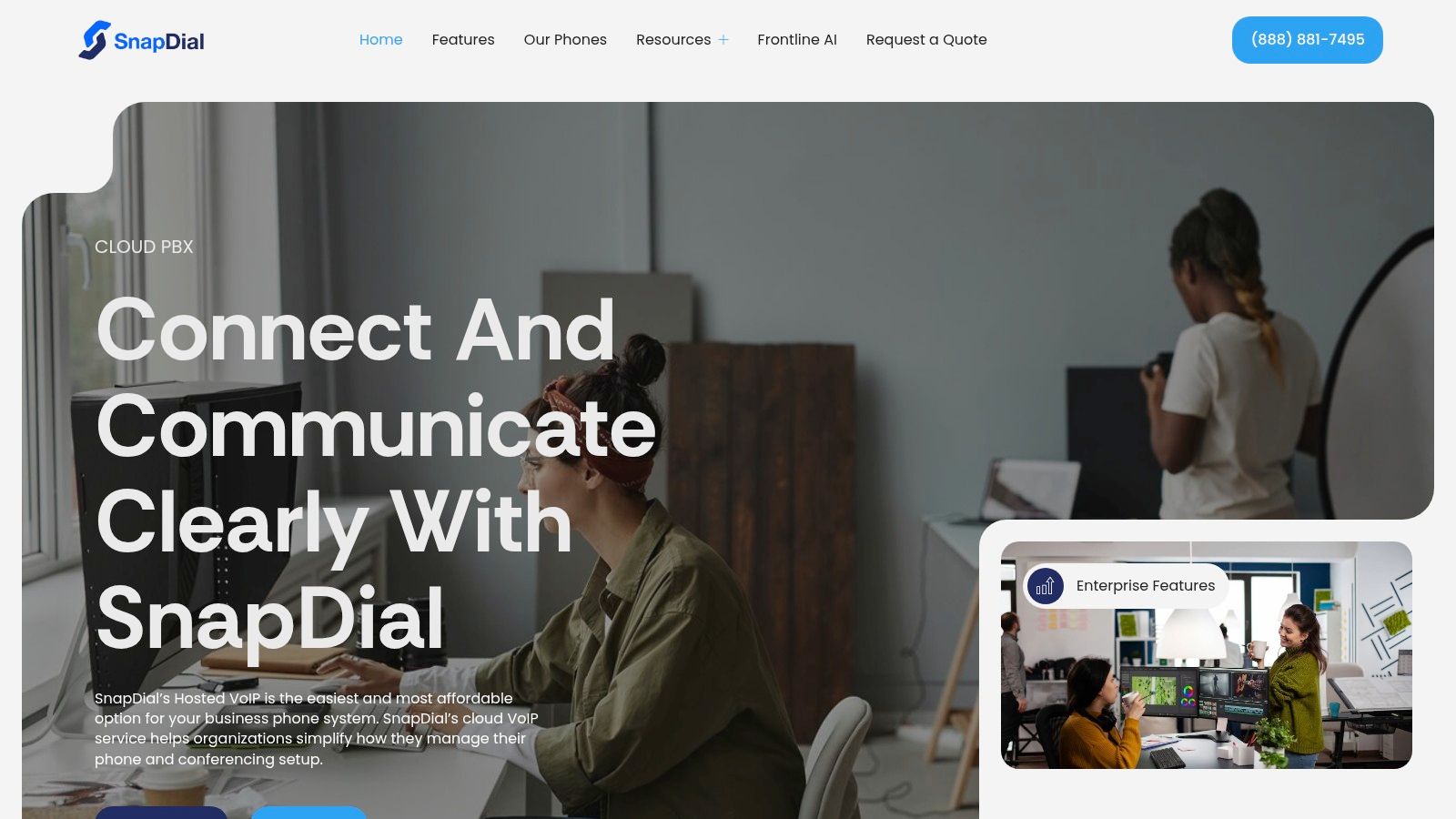
Start in the broader call log when you're unsure whether audio exists. The publisher's call log and history overview is a useful starting point for understanding that search area. A recordings-only view is useful once you've established that the call should have produced a file, but it's a poor starting point for investigating absent audio.
Narrow the list without hiding the call
Set the date range around the reported conversation, then search by the customer's phone number. Check the displayed time against the employee's recollection before adding more filters. A tightly filtered empty result isn't proof that the call is missing.
- User or extension: Select the person who handled the conversation, but broaden the scope if someone else initially answered it.
- Direction: Separate inbound from outbound traffic when the same customer had several interactions.
- Queue and routing: Use the available queue, call-type, or disposition controls to distinguish a queued call from a direct extension call.
For a transfer, investigate related call entries rather than assuming the final agent's row contains everything. Keep the search broad enough to identify the original interaction and subsequent handling. If a supervisor and an administrator get different results, investigate visibility before treating the discrepancy as data loss.
Before substantive review, check the consent evidence. Federal law generally permits recording with one participant's consent, while California Penal Code § 632 generally requires all-party consent for confidential communications, so verify that the appropriate notice or consent was captured before the substantive conversation began, using the Justia survey of recording laws as a legal starting point.
For a call involving an unfamiliar virtual number, AI Video Detector on Google Voice tracing offers related background to consult during identity investigation. Keep that inquiry separate from recording retrieval: identifying a calling service doesn't establish permission to access or distribute its audio.
Playing, Clipping, and Downloading a Call
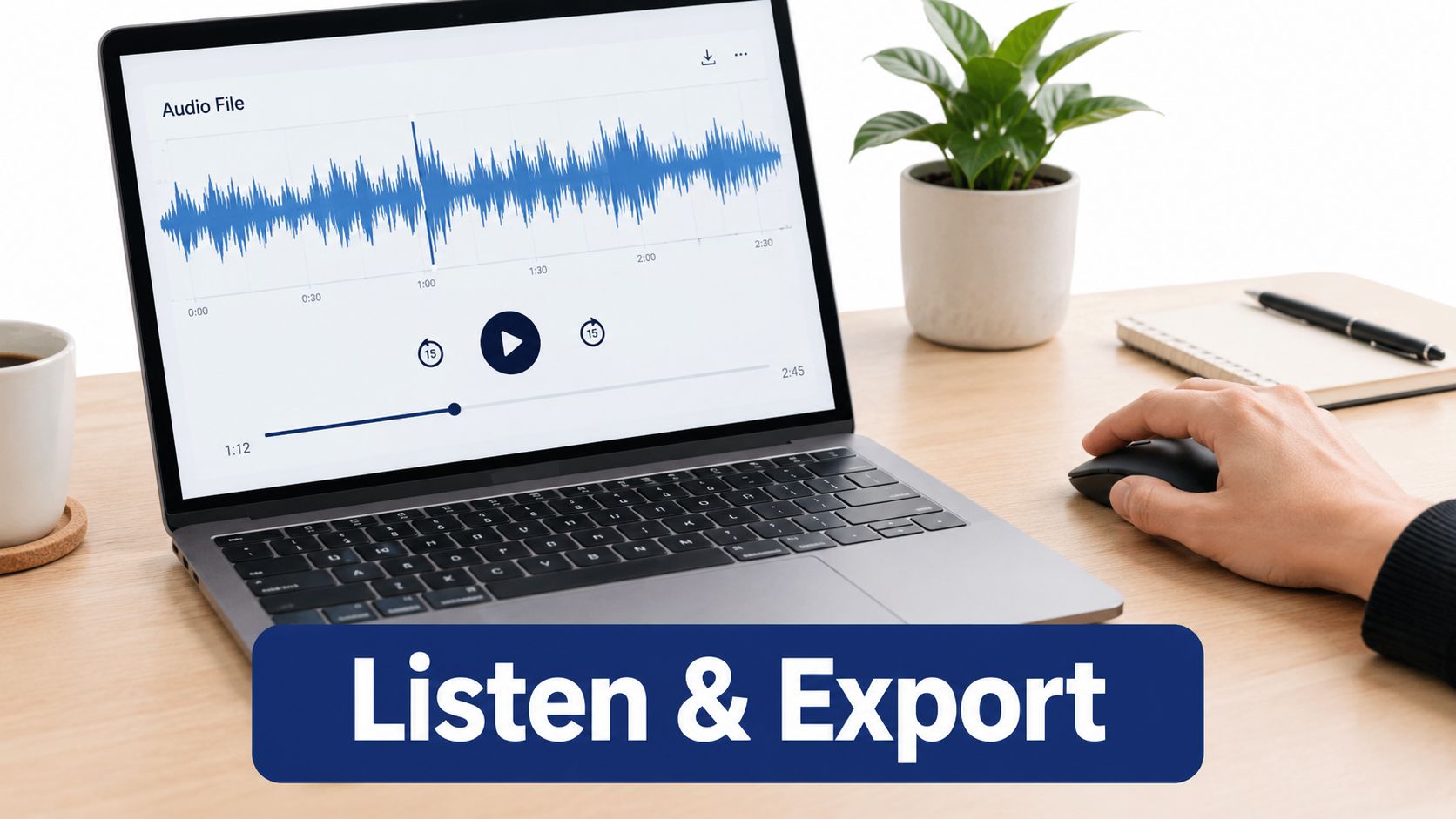
Open the recording detail and compare its identifying information with the call you intended to retrieve. Confirm the timestamp, duration, and associated user before pressing Play. Reviewing the wrong conversation is easy when a customer called several times about the same issue.
Keep the call details visible while reviewing or exporting audio.
Validate before extracting an excerpt
Listen at the beginning, middle, and end, including any transfer boundary. Check that both speakers remain intelligible and that the opening isn't clipped. For a controlled test, compare the recording with a known conversation and inspect missing speakers, silence, echo, distortion, and downloaded playback, following the practical checks described in Cyara's voice-quality testing guide.
Use the timeline, or waveform if your player provides one, to locate the relevant passage. If clip selection is available, include enough surrounding conversation to preserve meaning. Don't turn a qualified statement into an apparently unconditional promise by cutting off the sentence before it.
A clip should reduce listening time, not remove context or create a new permission boundary.
If the portal lacks clipping, use an approved audio editor on an authorized export. Preserve the original separately and label the excerpt as an edited derivative. For an evidentiary workflow, record the original file's cryptographic hash and verify it after movement.
Choose the export method deliberately
Use the formats offered, such as MP3 or WAV, rather than assuming a particular format or download size. Check the resulting file properties and storage requirements. A browser download suits a specific retrieval; consider an API-driven export only if the provider supports it and you can control credentials, destination access, and export logging.
This embedded video is available for supplementary viewing.
Test the exported file on an independent device before relying on it. For internal review, prefer an authenticated portal reference over an email attachment, and check access using the recipient's role rather than your administrator session. Verify any quote against the audio before copying it into a follow-up email.
Who Can See What and How to Set It Right
A salesperson reports that their calls have disappeared, but an administrator can find them. Don't immediately grant company-wide access. Compare the user's assigned extension, department scope, recording privileges, and ownership of the call that's missing from their view.
Role and scope solve different problems. A role determines what someone may do; scope determines which records they may do it to. Use the following as a suggested least-privilege design, not a claim about default settings in every portal.
Common Recording Access Roles in a Cloud PBX
| Role | Visible Recordings | Can Play | Can Download | Can Delete |
|---|---|---|---|---|
| System administrator | Company scope when authorized | Yes | By policy | Restricted by policy and holds |
| Department supervisor | Assigned department or queue | Yes | Only if needed | Normally restricted |
| Individual agent | Own authorized calls | Yes | Normally restricted | Normally restricted |
| Temporary reviewer | Specifically approved records | Yes | Separately approved | No |
The important distinction is between playback, export, and deletion. Someone who needs to coach an agent doesn't automatically need a reusable copy of every customer conversation. Likewise, an administrator who maintains routing doesn't necessarily need unrestricted content access.
Fix the scope before expanding the role
For the salesperson's complaint, compare an affected call with one they can already see. Check whether the missing interaction belongs to a shared queue, another answering extension, or a different department. Correct the assignment or approved scope, then retest as the user.
For temporary review, use record-specific access if available. Otherwise, establish the narrowest approved alternative, document who authorized it, and schedule revocation. Don't lend an administrator login to a team lead.
An audit record should connect the recording identifier with the user, action, and timestamp. Check playback, download, deletion, and retention activity rather than recording only that someone logged into the portal.
Retention is a separate control: certain securities-related customer communications have a 3-year retention period, with the first 2 years accessible, while SEC Rule 17a-4 periods range from 3 to 6 years depending on record type, as described in the CallSphere compliance and retention guide. These aren't universal retention periods for every business; determine the applicable policy and verify that legal holds override ordinary deletion.
Checking Whether the Recording Is Legally Usable
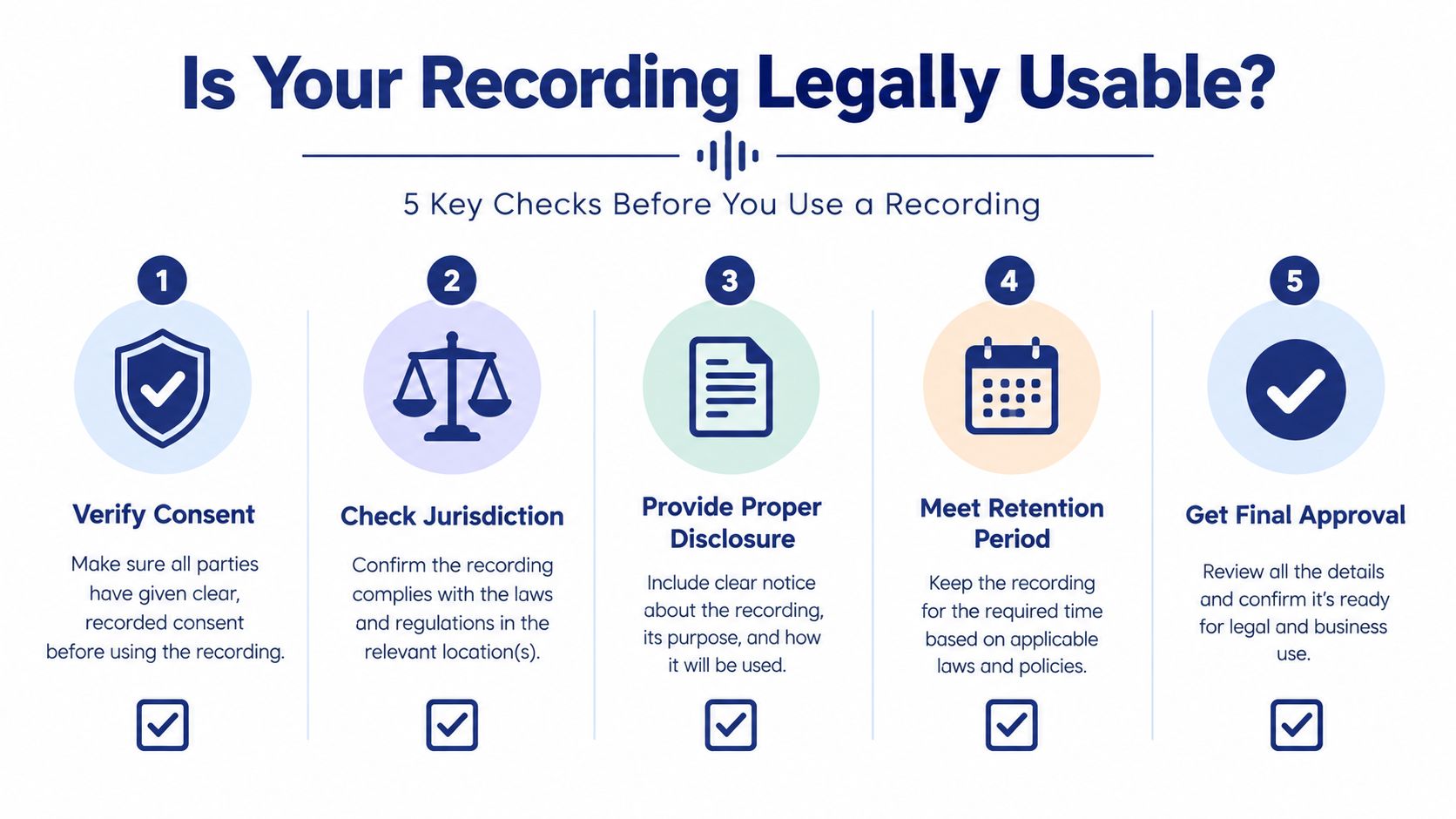
An available recording can still be unsafe to use. A working player doesn't establish that the organization obtained appropriate consent, collected the conversation for an authorized purpose, or may now send it to an outside recipient. Treat those as approval questions, not playback settings.
Use this checklist when deciding whether a retrieved file can move beyond restricted review.
Audit the workflow behind the file
Map the caller, agent, and storage jurisdictions before selecting the disclosure process. For multi-state operations, use the strictest applicable consent rule as a conservative operational approach or obtain legal approval for jurisdiction-specific scripts, consistent with Verint's call-recording compliance guidance. Don't assume a generic announcement or beep resolves every jurisdiction's requirements.
Preserve the script version and configuration that applied when the call occurred. Today's corrected announcement doesn't prove that yesterday's call followed it. Inspect how the process handles outbound disclosures, new conference participants, transfers, and any opt-out.
- Purpose and recipients: Confirm that the intended review or sharing fits the approved recording purpose.
- Sensitive content: Identify payment or identity information that requires restricted handling or redaction.
- Lifecycle status: Check whether the file should remain retained, is subject to a hold, or needs a controlled deletion decision.
Use the publisher's call-recording compliance overview to frame implementation questions for your administrator and legal adviser. Keep the legal decision with the appropriate reviewer rather than asking support staff to declare a recording admissible.
Escalate exceptions before sharing
A missing notice on a confidential California call deserves escalation under the consent standard established earlier. An expired policy window is also a governance exception, but don't assume it automatically makes the audio inadmissible or authorizes immediate deletion. Legal holds and the reason for preservation matter.
Approval checkpoint: Uncertain consent means restricted handling and escalation, not another download.
Keep a record of the issue, affected call, configuration evidence, and reviewer's decision. If someone declines recording, provide an approved unrecorded route where required. Recording every interaction isn't a substitute for designing a compliant capture process.
Diagnosing Missing or Silent Recordings
Start by classifying the failure: no call entry, no attached recording, or unusable audio. Each points to a different investigation. Don't change routing and permissions simultaneously, because you'll lose the ability to identify what fixed the problem.
Use the flowchart to keep the investigation focused.
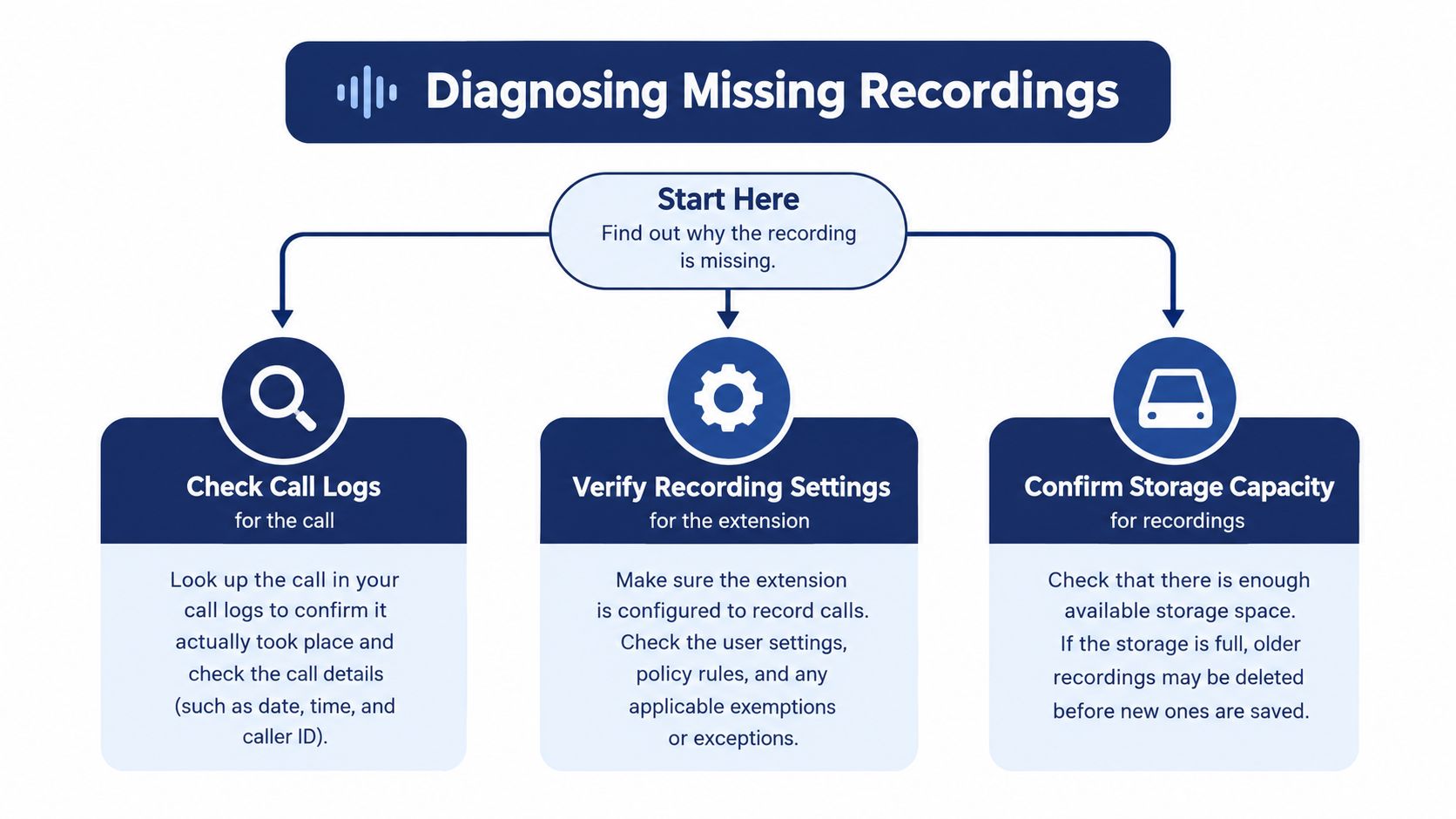
Follow the affected call route
- No call entry: Recheck the calling application, business number, date, and search scope. Next, establish whether the interaction passed through the cloud system at all.
- Inbound entry without audio: Inspect the answering extension and route's recording configuration. Next, place an authorized test through that same route.
- Outbound entry without audio: Check the originating user's recording setting and actual dialing method. Next, reproduce the outbound path.
- Transfer or queue callback failure: Trace the related call entries and inspect where capture stops or changes. Next, test the handoff or callback rather than a direct extension call.
- Mobile-app discrepancy: Confirm the account and service used, then check synchronization and administrator visibility. Next, compare the app's history with the portal entry.
For device-native audio, Google's Phone app directs users to Home or History, the caller, then the recording, as explained in Google's call-recording help. On iPhone, check the Notes app's Call Recordings folder for native recordings and transcripts. Don't assume finding a transcript means you've located the audio.
Separate silence from storage failure
If a file exists but is silent, reproduce the affected route with a known speech sample and check both speakers. Use the independent-playback validation described earlier to separate capture problems from player problems.
If no file appears, check processing or synchronization status, retention, permissions, and any storage warning. Give support the call identifier, route, expected behavior, and test result, without distributing sensitive audio unnecessarily.
Your Weekly Call Recording Health Check
Make the review repeatable instead of waiting for a dispute. Rotate through the routes your team uses, including transfers, queues, and mobile calling.
- Capture: Run controlled tests after configuration changes and spot-check recent audio.
- Access: Have an authorized non-admin verify playback, then review export privileges.
- Governance: Confirm retention and hold status, and preserve evidence of failed disclosures.
- Follow-through: Assign each exception an owner and retest after the fix.
Fold the results into call-center quality monitoring so operational failures receive attention alongside coaching needs. Healthcare teams evaluating adjacent workflows can also compare EMR-integrated telehealth tools through TOOLii, while assessing recording permissions separately.
The existence of a recording is the first checkpoint, not the last.
Keep a restricted checklist showing the affected call, failure, owner, and resolution. That gives the next administrator something more useful than a message saying the recording seems fine.
SnapDial offers a cloud business phone system with call recording, a self-service management portal, and end-to-end setup support. Visit SnapDial to discuss your calling routes, recording access requirements, and how to verify the workflow before your team needs a call for a dispute or review.