

“Restart your phone” is the most common advice for visual voicemail problems, and often the least useful place to start. A capable phone can still show no messages if the carrier hasn't enabled the service, the account isn't eligible, or the mailbox hasn't been configured correctly. Treat visual voicemail setup as a deployment, not a toggle: the device, carrier or phone platform, mailbox, and app all have to work together.
Why Visual Voicemail Setup Is Harder Than It Looks
Visual voicemail became mainstream with the first iPhone, released on June 29, 2007. Instead of dialing into a mailbox and navigating messages in sequence with keypad commands, users could see a graphical inbox with caller details, message timing, and length, then choose a recording to play or delete. The history of visual voicemail and its iPhone-era design explains why the feature changed voicemail from a listening queue into something users could triage at a glance.
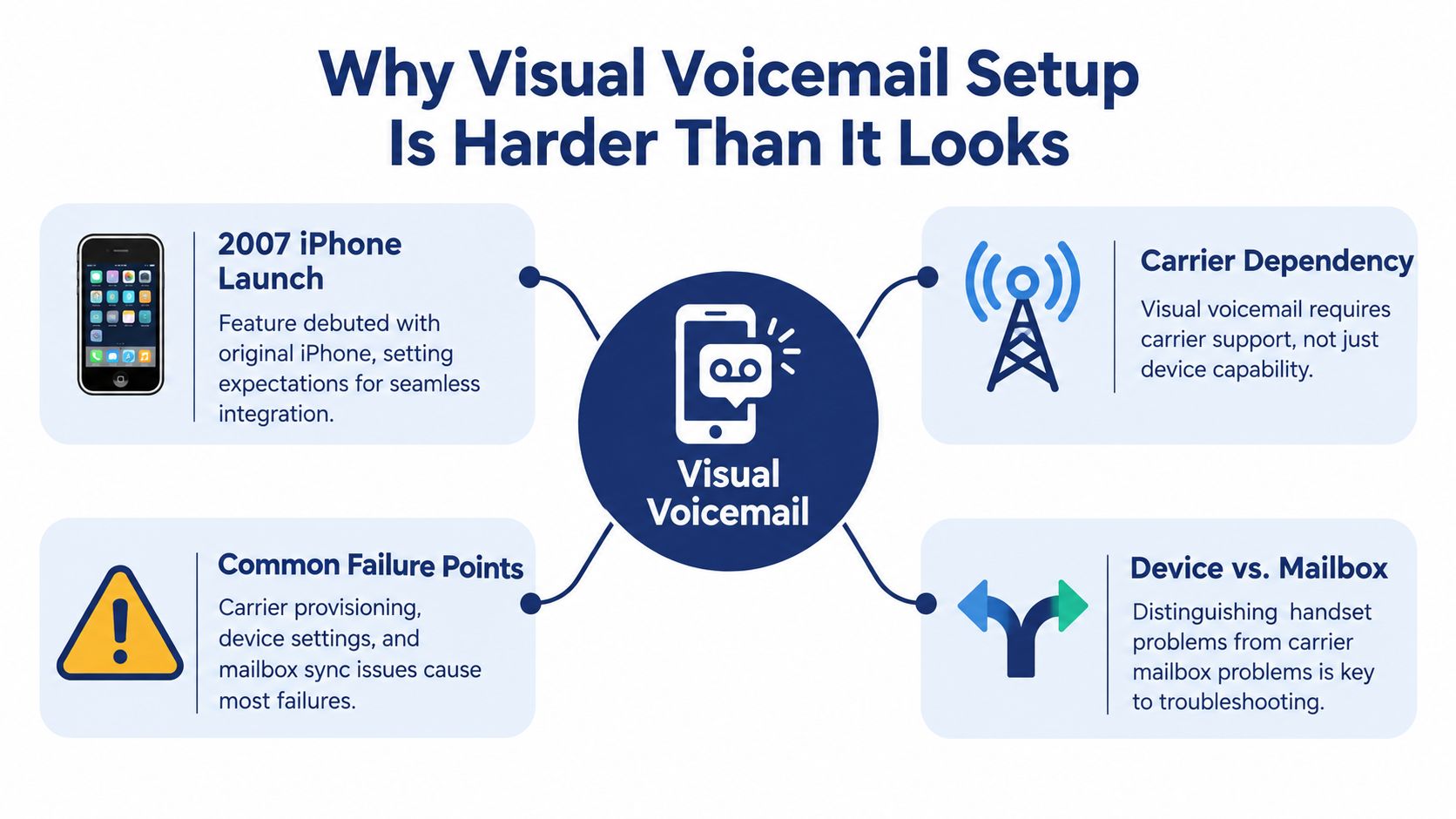
That convenient inbox depends on more than the phone's interface. A compatible handset needs an eligible carrier plan or cloud-phone account, an activated voicemail mailbox, and a working connection between the service platform and the client app. On a business system, the setup may also involve user permissions, routing rules, transcription, and a choice between individual and shared inboxes. If any of those pieces is missing, callers may still reach a conventional mailbox while the user sees no visual message list.
The useful distinction is that the Phone app displays the service; it doesn't necessarily provide the service. Carriers must provision visual voicemail and supply the message information the app needs. Business phone platforms have their own account entitlements and portal settings. This is why a missing setup option or an empty inbox often points to an account or service issue rather than a user tapping the wrong place.
Practical rule: Confirm who hosts the mailbox and whether the account is entitled to visual access before troubleshooting the handset.
That's the central idea behind understanding what visual voicemail is: it's a workflow that combines a mailbox with a way to view and manage its messages. The right setup checklist starts with service eligibility and provisioning, then moves to the device and the tests that prove the whole path works.
Setting Up Visual Voicemail on iPhone
An iPhone can present voicemail as a selectable list, but the carrier has to support and provision the service first. Before beginning, confirm that visual voicemail is included for the line and that the mailbox is active. Apple describes visual voicemail as a message list and notes that carrier voicemail can be stored in iCloud for synchronization across Apple devices. Apple's iPhone voicemail guidance is useful for checking the device-side flow, but it can't substitute for confirming account eligibility with the carrier.
Complete the mailbox setup
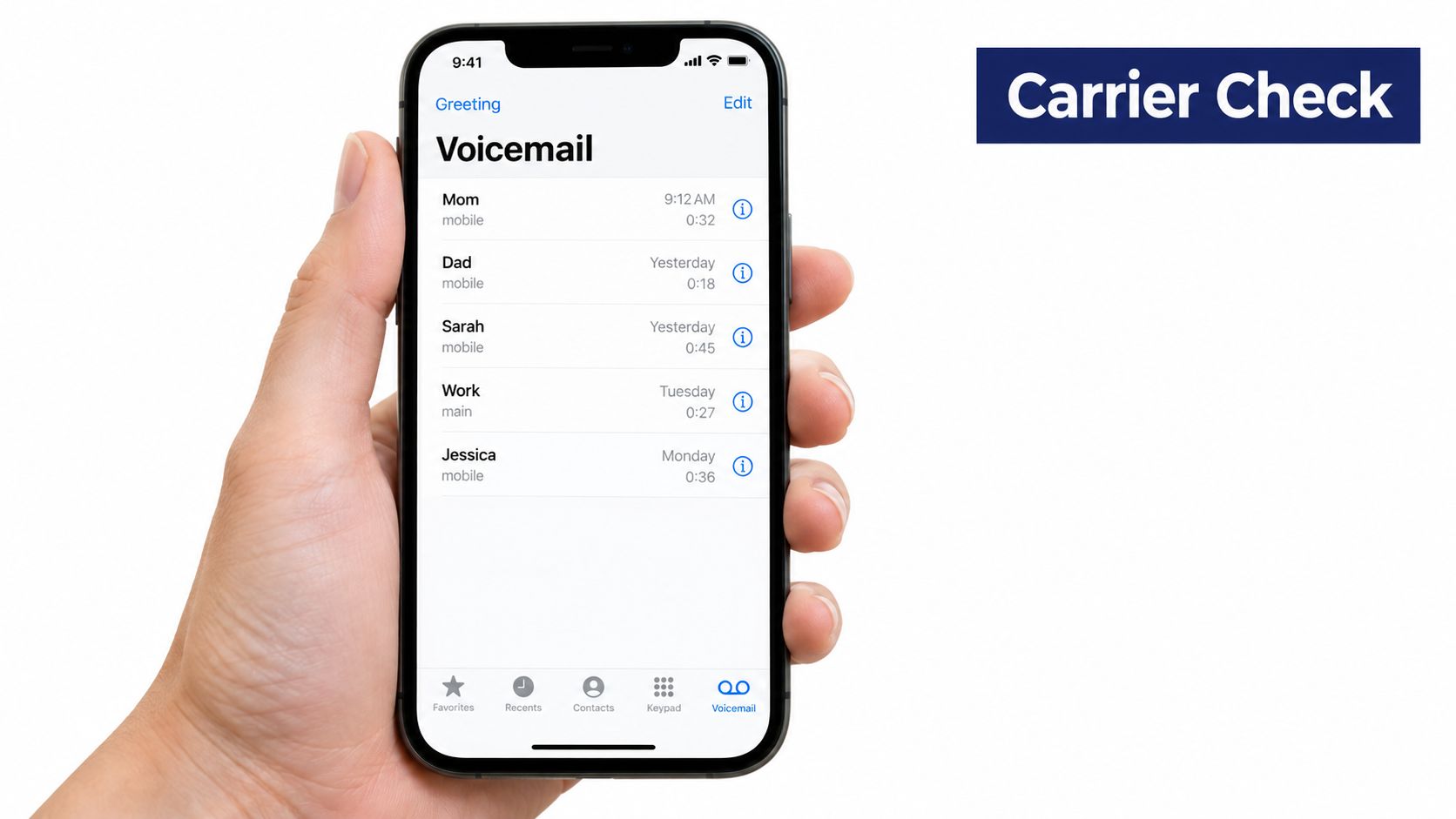
Open the Phone app and select Voicemail. If the setup prompt appears, create a voicemail password and choose either the default greeting or a custom one. If the Voicemail tab only offers a dial-in route, or the setup option is missing, don't keep hunting through local settings. Ask the carrier to confirm that visual voicemail is enabled on the line and that the mailbox is provisioned.
Once the greeting is saved, test from an external number. Let the call roll to voicemail, leave a message, and then check the iPhone. Confirm that the recording appears in the visual inbox, plays, and can be deleted. Also check that the unread badge clears and that the expected notification arrives. A message showing up is only one part of the test; playback, deletion, and notification can fail independently.
Here's a walkthrough of the phone-side experience:
Decide whether messages should sync
If employees use more than one Apple device, decide whether voicemail should be stored in iCloud for synchronization. Enable that only after the organization has checked its retention and access policies. Syncing can make messages easier to reach, but it also affects where message data is available, so it belongs in the deployment decision, not as an automatic convenience setting.
The common IT mistake is to treat setup as local to the iPhone. The second is to test only whether a caller can leave a message. Complete the full acceptance test, and if visual access still fails, ask the carrier to check service activation or reset the voicemail provisioning before reinstalling apps or changing unrelated settings.
Setting Up Visual Voicemail on Android and Pixel
Android setup works best as a two-path test. First confirm that the Phone app is configured to reach the right mailbox. Then check whether the carrier account provides visual voicemail. This separates a handset setting problem from a carrier entitlement problem, which can otherwise look identical to the user.
Check the Phone app and access number
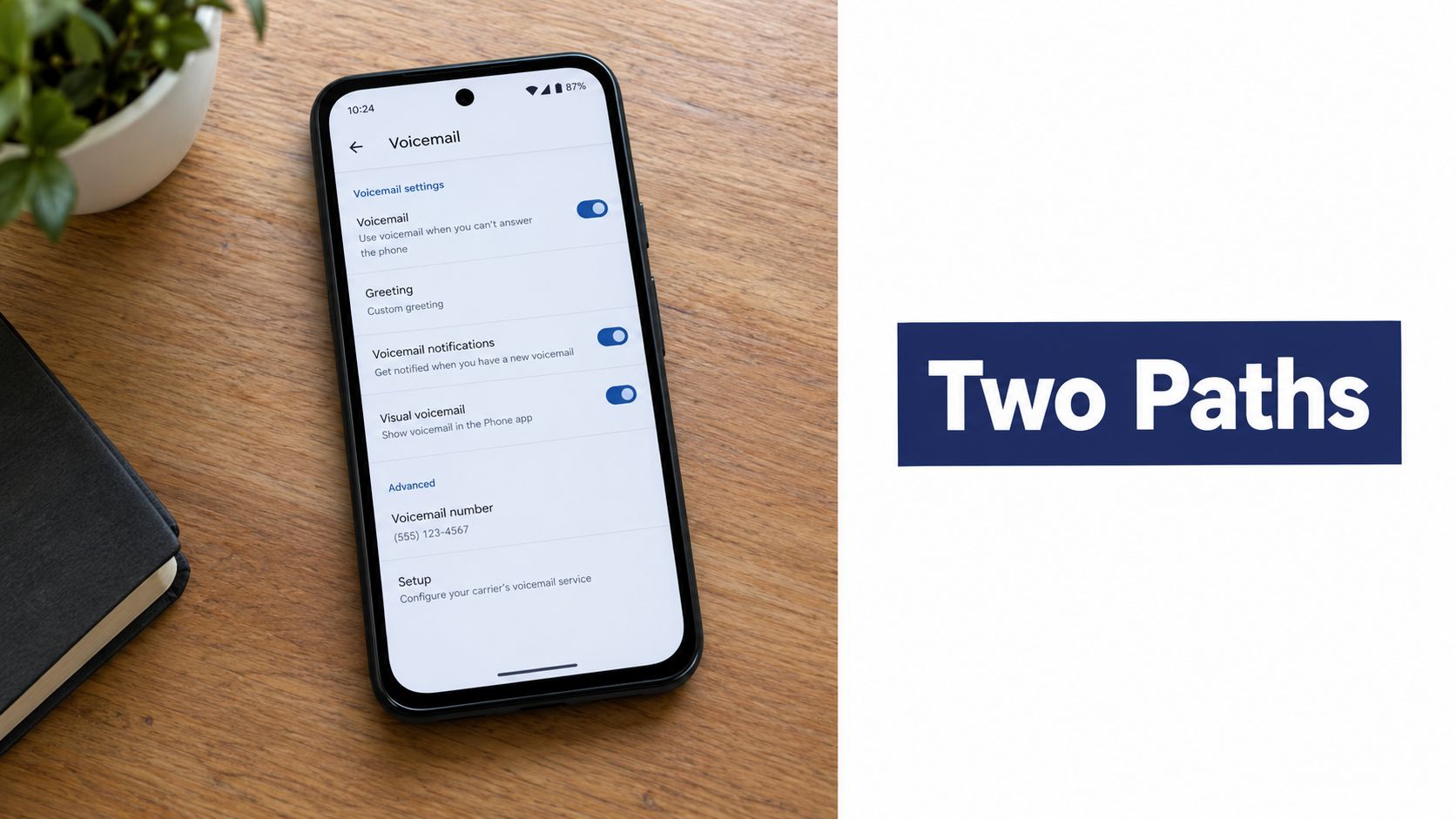
In the Phone app, open Settings, select Voicemail, and turn on Visual voicemail. Under Advanced settings, check the voicemail number. If the field is blank or shows the wrong number, verify the correct mailbox access number with the carrier and update it. A toggle can appear enabled while the app still can't reach the mailbox if that number is incorrect.
Next, press and hold 1 in the dialer and follow the carrier's prompts to complete voicemail setup, including the PIN and greeting. This fallback route tests whether the underlying mailbox works even if the visual inbox isn't available. If the voicemail icon doesn't appear after the settings are correct, restart the device and check again.
Isolate the service from the interface
Call the line from another phone and leave a test message. If visual voicemail still doesn't display it, call the mailbox directly using the dialer. If direct access works but the visual inbox doesn't, the basic mailbox is functioning and the issue may be the visual-voicemail entitlement, app connection, or carrier provisioning. If direct access also fails, the mailbox itself needs attention.
Google's documentation makes an important distinction: transcription depends on both the provider and the device, and supported combinations vary. Google's Phone app voicemail instructions cover the setup and troubleshooting path, but they don't make transcription a universal Android capability. Admins should verify support for the actual provider and handset combination before promising text transcripts to users.
Choosing Between Native and Transcription-Enabled Visual Voicemail
Native visual voicemail and transcription-enabled voicemail solve related but different problems. Native service gives users a selectable list of audio recordings in a supported phone app. Transcription-enabled service adds readable text, delivered through an app, portal, email, or another connected channel. The choice affects both the end-user experience and what an administrator must configure.
A nine-month market-research program surveyed 6,500 North American wireless subscribers, and 70% said they valued being able to read messages discreetly. That finding came from research on a transcription-oriented service, so it's a historical signal about discreet message access, not a universal measure of every visual-voicemail user. The SpinVox market research report helps explain why transcription can be a practical workflow feature for people who can't play audio in a meeting or shared workspace.
| Capability | Native Visual Voicemail | Transcription-Enabled Voicemail |
|---|---|---|
| Message access | View a list of carrier-provided audio messages in a supported app | View messages and, where supported, their text transcripts |
| Listening | Select a recording for playback | Play the recording, with text available as an additional way to review it |
| Discreet review | Requires listening, which may not suit every setting | Read the message without playing audio, subject to transcription availability |
| Search and delivery | Primarily organized around the audio inbox | May support text delivery through an app, portal, email, or synchronized channel |
| Setup focus | Carrier support, mailbox activation, and app compatibility | Those requirements, plus transcription entitlement, supported devices, and delivery rules |
For an SMB, readable messages can help a distributed team triage calls, refer to message details, or pass information into a customer-service workflow. Searchability and integrations depend on the platform, so confirm what it supports rather than assuming that a transcript automatically becomes a searchable or CRM-linked record. Compare those requirements with the organization's need for audio-only access using voicemail transcription software.
The decision should determine what gets licensed and tested. A native inbox needs a working carrier connection and reliable audio controls. A transcription workflow also needs verified provider and device support, the right delivery channel, and checks that the transcript reaches the intended user or team.
Configuring Visual Voicemail Through a Business Web Portal
In a cloud phone system, the admin portal is often where voicemail becomes a business workflow rather than a handset feature. Before inviting staff to install a mobile app, confirm that each user has the appropriate license and voicemail service. Then decide who owns each mailbox, where unanswered calls should go, and whether messages should be delivered to email or transcribed.
Set the account and routing rules first
Start with user accounts and permissions. Choose an individual inbox when messages belong to one person, or a shared inbox when several staff members need access to calls for a department or location. Configure the call flow so unanswered calls reach the intended mailbox, then enable voicemail-to-email or transcription if the platform and account support those features.
Next, provision the mobile app and web-portal access for the people who need them. Check that users can sign in and see only the mailboxes they're authorized to access. If the organization uses a central queue or reception workflow, test how missed calls are routed before rolling out the feature across a team. Guidance on accessing voicemail can help users understand their available access paths.
Test the actual user journey
Don't stop when the portal shows that voicemail is enabled. Place an external test call, let it reach voicemail, and leave a message. Then confirm that the recording and, if configured, its transcription appear in the right inbox and that any expected email copy arrives.
Test playback from both the desktop portal and mobile app. Delete the message from one client, then confirm the change appears in the other. Finally, verify that storage and retention behave according to the organization's settings. These checks catch routing and synchronization gaps before employees depend on the system.
SnapDial is one cloud-phone option that provides visual voicemail through email, a mobile app, or online access, with transcription and a self-service portal for managing users, routing, and voicemail. Those platform settings are where an administrator enables the workflow; a modern phone alone can't turn on shared inbox access or configure voicemail-to-email. Provision the service first, then verify it from the user's devices.
Troubleshooting Visual Voicemail When It Does Not Work
When visual voicemail breaks, a restart may be worth trying, but it shouldn't be the whole troubleshooting plan. First identify the device operating system and carrier or cloud-phone provider. Then check whether the account is eligible for visual voicemail and whether the mailbox and service are provisioned. This narrows the problem before anyone reinstalls an app or changes phone settings at random.
Follow the failure path
- Confirm the account: Ask the carrier or system administrator to verify plan eligibility, visual-voicemail entitlement, and mailbox activation.
- Separate network paths: Test using cellular data, then compare with Wi-Fi or supported Wi-Fi Calling. Some carrier visual-voicemail apps require mobile data and may not work over Wi-Fi, as Freedom Mobile's visual voicemail guidance describes.
- Check recent account changes: If the issue began after number porting, a SIM or eSIM replacement, roaming, or a plan change, ask the provider to recheck provisioning and account settings.
- Escalate deliberately: If the mailbox works by direct dial but not in the visual inbox, request a carrier-side visual-voicemail reset. If direct mailbox access fails too, have the provider check the mailbox itself.
Eligibility can depend on an active subscription, compatible carrier settings, completed traditional voicemail setup, network access, and configuration such as VoLTE or 4G/5G. Those requirements vary by provider and country. For a mixed-carrier business, document the supported combinations instead of expecting one phone-side procedure to work for every employee.
Practical rule: When the handset can't display messages, test whether the mailbox works independently before changing the app.
For a business rollout, list each user's provider, device, mailbox type, and required delivery options, then test the full path before staff rely on it. SnapDial provides cloud-phone voicemail with transcription, mobile and portal access, and voicemail configuration as part of its managed setup. Visit SnapDial to discuss how those capabilities could fit your team's calling and voicemail workflow.