
Your new phones are still in the box, the analog handset is still on the reception desk, and a remote teammate just missed a client because the front desk had no way to send the call to a phone app. That is the week most offices feel when they replace a traditional system. A Yealink desk phone isn't a louder version of the old set. It joins your network, signs in to a calling account, and only then can ring a desk, a mobile app, or someone working from home. Before you plug anything in, it helps to know which part does which job, which model fits which role, and which settings you'll own after the first call connects.
What a Yealink Desk Phone Is and Where It Fits
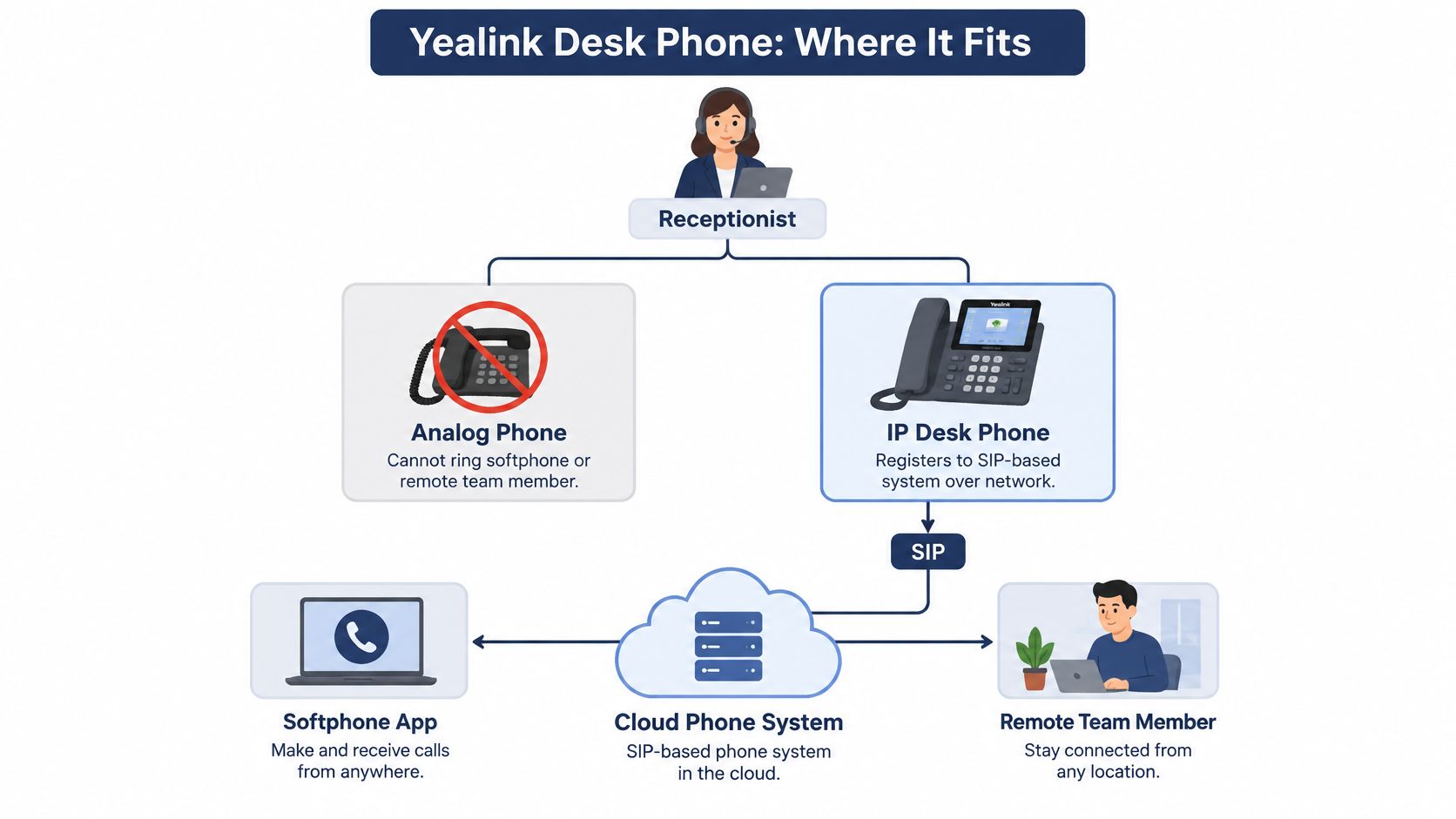
Say your receptionist picks up a call for a colleague who is at a client site. The analog phone on the desk can only ring another jack in the same building. It can't reach a softphone app, and it can't reach that remote teammate. A Yealink desk phone fixes that gap by acting as an IP phone. It registers to a SIP-based phone system over the office network instead of a telephone wall jack.
Hold three pieces in mind.
- Handset and screen: What the person touches, including the keypad and the display.
- Network connection: Usually Ethernet, often with Power over Ethernet, so the phone gets data and power from one cable.
- Calling account: The login on the phone platform that decides where calls go, including transfers, voicemail, and apps.
The phone is the front door. The network is the hallway. The cloud platform is the reception desk that routes every call.
Open SIP desk phones spread quickly while offices swapped proprietary PBX handsets for standards-based endpoints. Frost & Sullivan reported that Yealink's open SIP desktop-phone shipments grew at a compound annual growth rate of 24.7% from 2014 through 2017, and in 2017 the company shipped more than 2.9 million open SIP desktop phones, placing it first globally in that category.
Open SIP matters for a small office because the same phone can register to several compatible hosted or on-premises systems. You aren't locked to one manufacturer's PBX.
Before you read on: Is this a desk phone for a fixed workstation, does the office need a cloud line, and does the switch port support PoE?
Yealink Desk Phone Models Compared by Office Role
A reception desk, a workstation, and a shared meeting room place different demands on a phone. Start with the job the device must do, then compare models on the features that support it.
| Model family | Best-fit office role | Deciding spec |
|---|---|---|
| SIP-T34W | Small office desk with a workstation behind the phone | Two Gigabit Ethernet ports, PoE 802.3af, SRTP and TLS 1.3 |
| T4 series | Hybrid teams that need hearing-aid-compatible handsets | Telecoil support on compatible handsets; choose a model with the handset support the employee needs |
| T5 series | Users who depend on clear audio in noisy or echoey rooms | Opus wideband codec, echo cancellation, noise suppression, adaptive jitter buffer |
| CP935W conference base | Shared meeting rooms | Independently adjustable voice output for the room |
A small office can use entry- or mid-range sets for routine desk calls. Receptionists and executives may benefit from a larger screen and touch controls, while a shared meeting room calls for a conference device designed for group conversations. Screen size, Wi-Fi, and expansion-module support vary by model, so compare those features against the tasks each phone must handle. A product comparison documentation approach can help keep those requirements visible when reviewing options.
Three offices and the spec that decides
A five-person accounting firm gives each employee a desk phone, with a PC at every workstation. The SIP-T34W suits this layout because its second Gigabit port connects the PC through the phone, while PoE supplies the phone's power over Ethernet. That means one network drop can serve both devices.
At a dental clinic, reception handles patient calls while back-office staff have different needs. If the receptionist uses a hearing aid, choose a T4 model whose handset supports a telecoil. The family name alone does not guarantee that feature on every handset.
A hybrid consulting firm already has desk phones but needs a device for meetings shared by three people. The CP935W conference base fits that role, with voice output that can be adjusted for the room. Match each device to its users: the right choice depends on the features they will rely on, not the model family.
How to Connect a Yealink Phone to a Cloud Phone System
Work through the connection in order. Each setting exists because a desk phone is a network device, not a passive speaker.
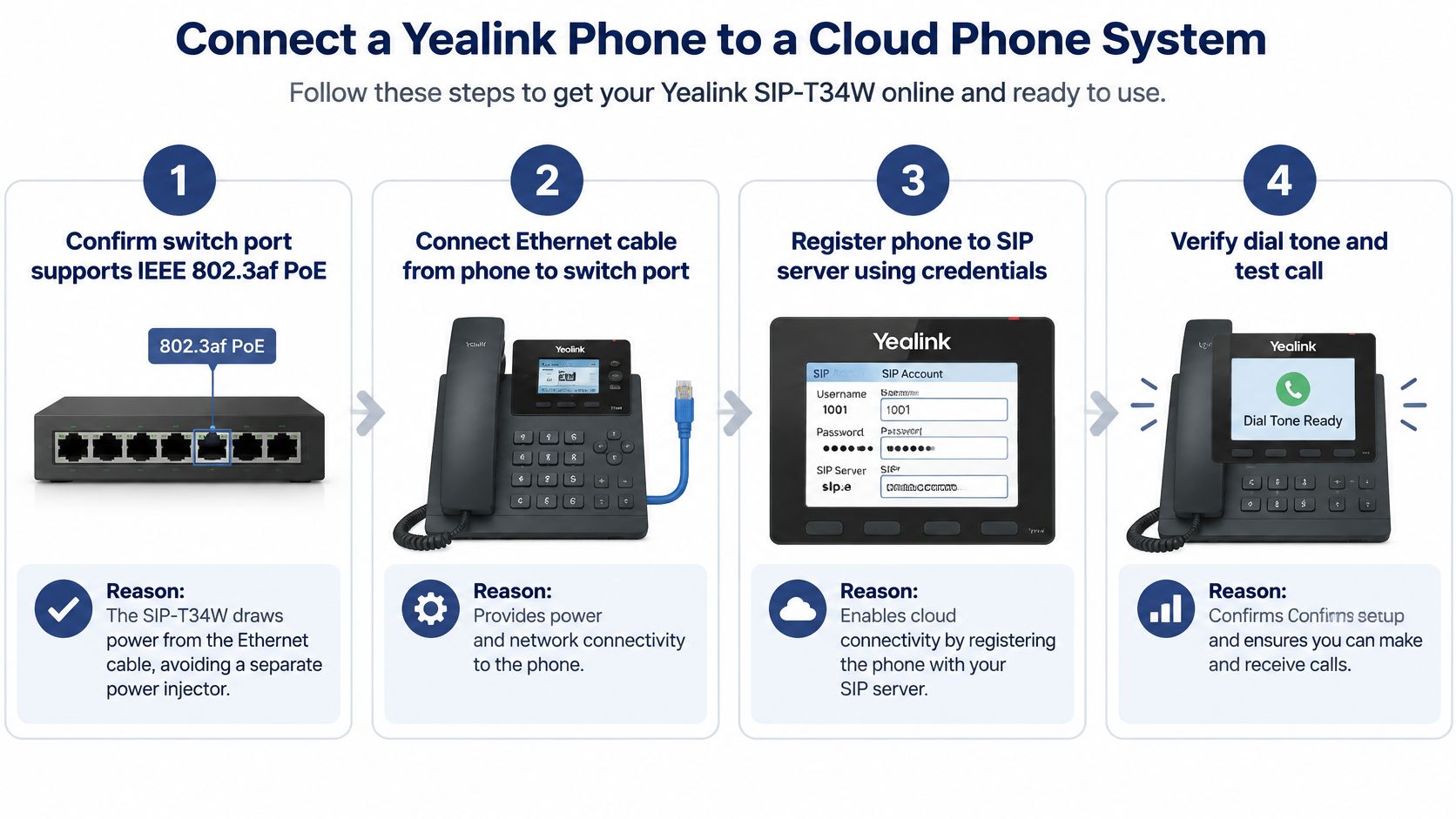
The Yealink SIP-T34W datasheet lists two Gigabit Ethernet ports, IEEE 802.3af Power over Ethernet, SIP over UDP or TCP, VLAN tagging, SRTP, TLS 1.3, 802.1X, and AES-256 configuration-file encryption. Those controls are what the steps below turn on.
- Confirm the switch port supports IEEE 802.3af PoE. The SIP-T34W can draw power from the Ethernet cable, so you skip a separate power injector and one more failure point under the desk.
- Plug the phone into that port, then plug the workstation into the phone's second Gigabit port. The desk stays wired without a second network drop.
- Create a voice VLAN and turn on LLDP, CDP, or DHCP VLAN discovery. The phone can then mark packets with IEEE 802.1p/Q priority and Layer 3 DSCP, so voice doesn't fight file transfers and video calls for the same lane.
- Turn on SRTP for the voice media and TLS 1.3 for transport. Calls and signaling stay encrypted. Add 802.1X if the switch already requires port-based access control, so a random device can't join the voice VLAN.
- Enter the SIP server, extension, and password, or let auto-provisioning fetch the file. The phone can decrypt that file with AES-256. If the words "SIP server" are still fuzzy, our guide to what a cloud phone system is walks through the account the phone is signing in to.
- Wait until the line shows as registered. A dial tone alone doesn't prove the account is on the platform.
- Place one internal call, one call to a mobile phone, and one call that transfers. Listen for echo and delay on each.
A short walk-through of the same idea is easier to follow on screen than from a checklist alone.
Success looks boring, which is what you want. The phone stays registered, both people hear each other clearly, and voice traffic sits on the priority VLAN. Cloud calling still dies when the office internet dies, so pair this setup with a tested business internet failover guide before you unplug the old system.
Audio Features and Codecs That Keep Calls Clear
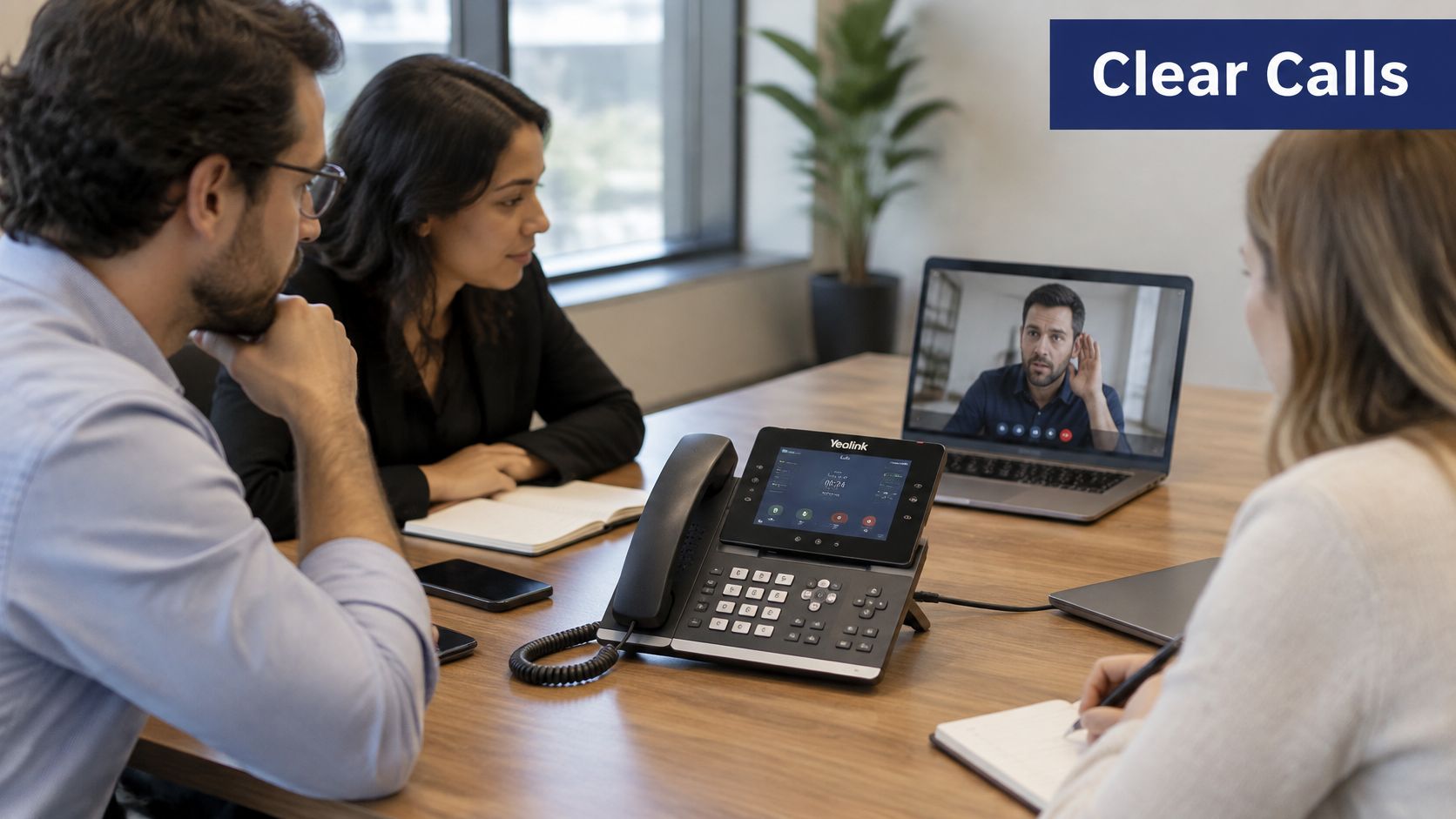
A speakerphone call in a meeting room goes bad in a familiar way. The person on the far end hears their own voice bounce back a half-second later, then everyone starts talking over each other. The fix starts with the codec, then with the processing the phone applies after the codec is chosen.
What the phone can negotiate
On the T5 series, Yealink's administrator documentation lists the Opus wideband codec alongside G.722 and legacy narrowband codecs such as G.711, G.729, G.726, G.723.1, and iLBC. The hosted platform can trade quality against bandwidth instead of forcing one codec on every call. The same documentation lists G.722.1c at 48 kbps, with 32 kHz sampling and 20 ms packetization, when both ends support it.
What each processor actually changes
The same admin guide names the voice processors and what they change on the call.
- Acoustic echo cancellation cuts the far-end echo you hear on speakerphone.
- Background noise suppression lifts speech above office noise.
- Automatic gain control keeps a quiet talker and a loud talker at a similar level.
- Voice activity detection and comfort noise stop a silent gap from sounding like a dropped line.
- The adaptive jitter buffer smooths uneven packet arrival, and it adds delay while it does that.
A meeting room should turn echo cancellation on first, because the speaker and the microphones share one table. A call center should lean on noise suppression and gain control, because adjacent agents talk at the same time and some callers whisper. A remote worker on a weak connection should prefer Opus or G.722 when the service allows it, and should keep the jitter buffer from climbing so high that the conversation feels late. A headset changes the acoustic problem again, which is why a headset for a Yealink phone is worth matching to the desk before you blame the codec.
Three settings deserve priority. Use Opus or G.722 where the service supports them. Leave QoS markings intact all the way to the phone. Don't set a high jitter-buffer target just to chase a perfect waveform, because the call will feel delayed even when every word arrives.
Firmware and Security Checks for Desk Phones
A low purchase price doesn't mean a low security burden. Once the handset is on your network, it stores credentials, accepts firmware, and stays in service for years. Old units left in a closet or a spare office are still endpoints.
In June 2025, Yealink's firmware statement described weaknesses in IP-phone firmware versions V86 and below. Attackers could reverse-engineer firmware to obtain ROM information, and a missing verification control in Version.bin could allow a forged upgrade package to execute after device login. Yealink stated that build V87 or later resolves the Version.bin execution issue and published affected-model details for the T3X and T4X families.
Checks before the phone stays online
Run these checks on every set, including the ones you planned to "just leave for now."
- Inventory model and build. Record the model and the firmware branch for each desk, including phones that have been deployed for years.
- Separate old and new authentication. Firmware version 73 and earlier supports only SHA-1, while version 80 and later supports SHA-256, so mixed fleets don't prove a server the same way.
- Don't disable certificate checks as a shortcut. Turning off trusted-certificate validation keeps HTTPS encryption, but the phone stops authenticating the server. Use that only as a last resort while you fix the certificate, then turn validation back on.
- Limit who can reach the phone. Put management on its own VLAN, restrict the web admin page, prefer signed firmware, and pilot updates on one desk group before the whole office. The SIP and IP ports a phone needs should be the only paths you leave open.
A phone that still boots is not a phone you can ignore. The build number is the fact that matters.
Answer one question before go-live. Which firmware branch is installed on each model, and who is allowed to approve the next update?
Accessibility Settings for Employees With Hearing or Vision Needs
An employee with hearing loss can sit at a large-screen phone and still miss a call if the handset or audio settings do not suit them. Accessibility depends on the exact device and how it is configured, not on a model's feature list.
Hearing-aid support varies by Yealink model, so check the exact model's datasheet before ordering. On supported handsets, hearing-aid compatibility (HAC) uses a telecoil: the employee holds the handset as usual while the coil picks up the call. Bluetooth audio is a separate option. A Bluetooth-capable phone may pair with Bluetooth hearing aids through its Bluetooth settings, but the hearing aid and a wireless headset may compete for the same connection. Test the intended setup before deployment. Use the US hearing loss statistics to understand the broader context, while asking each employee what works for them.
During a call, check microphone level and sidetone, the small amount of the speaker's own voice returned through the earpiece. Too much sidetone can make a person speak softly; too little can lead them to raise their voice.
Vision and the keys people actually use
For employees with vision needs, check tactile key layout, screen contrast and font scaling. Confirm how the employee will complete everyday tasks such as transferring a call, parking it or checking voicemail. Those tasks should be available through physical keys if small touch targets are difficult to use. Do not assume a screen reader can operate the phone; confirm the specific model and setup.
Test the complete setup with the person who will use it:
- Make a call with the hearing aid paired over Bluetooth, if that is the intended setup.
- Make a call using the HAC handset with the hearing aid in telecoil mode, if supported.
- Make a call with the headset planned for that desk.
- Complete a real task, such as transferring a call or checking voicemail, using physical keys.
A feature-rich phone alone does not guarantee an accessible setup. The right configuration is the one that lets the employee hear calls and complete routine tasks reliably.
Confirm Your Yealink Setup Before You Deploy
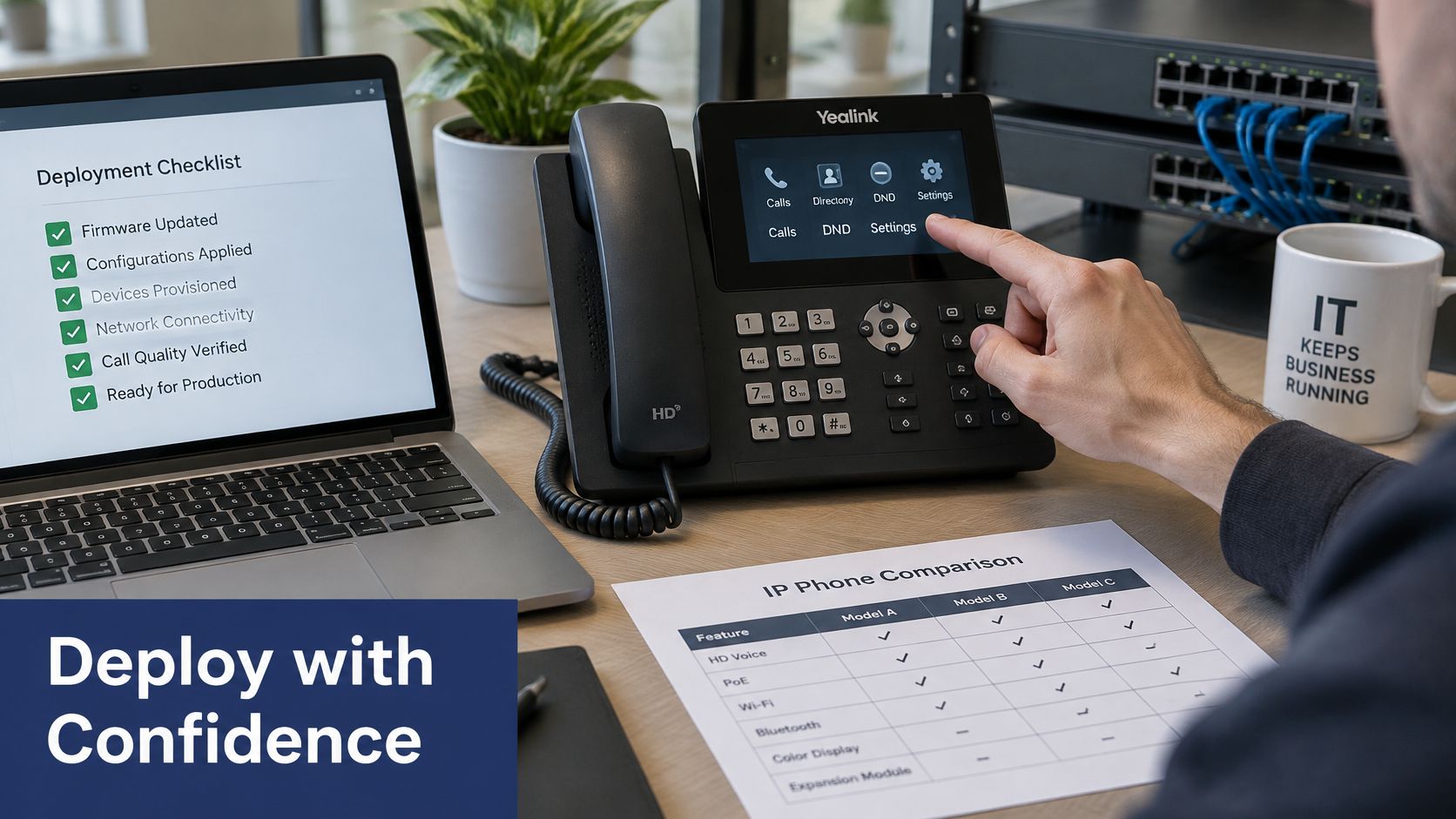
Sign-off is four checks, each tied to a decision you already made.
- The model family matches the office role in the comparison table, including pass-through Ethernet where a PC shares the desk.
- The switch port supplies PoE, and voice traffic is on the priority VLAN from the connection steps.
- Every affected T3X or T4X phone runs firmware V87 or later, with certificate checks left on.
- Each person's hearing or vision needs were tested with a hearing aid, an HAC handset, or a headset, using real keys for transfer and voicemail.
If you're choosing a cloud platform, compare those families and firmware branches with the provider's supported list before you order, and confirm which models that provider can provision. Our techs handle setup, configuration, and replacement of an existing VoIP system from start to finish, at no cost, and support is available 24/7 by phone or through the support center. Write down the model, firmware build, VLAN, and accessibility test result for every desk before the first live call, so the audit trail exists on day one.
SnapDial is a hosted cloud phone platform that registers Yealink desk phones to extensions, mobile apps, and call routing your office already expects from a phone system. If you want the sets provisioned and the old system replaced without your team owning every firmware and VLAN step alone, visit SnapDial and tell us which desks, models, and accessibility needs you have.