

A Tuesday morning is when a failing phone system stops being an IT annoyance and becomes a business problem. A sales representative drops a customer call because conference-speaker bleed makes every sentence hard to understand. A support agent switches between a softphone and a desk phone while updating a ticket. Then the office manager reports that the old cordless handset at reception has finally died.
Those aren't preferences. They're signals that the business needs to make a deliberate hardware decision. The modern VoIP phone market is already substantial, estimated at USD 60.53 billion in 2025, with a projection of USD 132.33 billion by 2034, according to Fortune Business Insights' VoIP phone market analysis. The mistake is assuming that the most expensive or feature-heavy device is automatically one of the best VoIP phones for every employee.
This guide starts with the desk, matches the phone form factor to the person using it, and applies a compatibility filter before comparing screens and buttons. Buying a phone that your cloud PBX can't provision cleanly is the most expensive mistake in this category. If your team is also weighing a virtual phone for business calls against physical handsets, use that decision to clarify which seats require dedicated hardware.
The Moment You Know Your Old Phones Are Holding You Back
The failed cordless handset is usually the visible problem. The deeper issue is that the phone system no longer matches how people work.
The sales representative needs clean audio in a shared room. The support agent needs a reliable endpoint that works with the ticket workflow instead of forcing a choice between a softphone and a desk phone. The receptionist needs rapid transfers, presence visibility, and a handset that can survive constant use. Replacing all three seats with the same device would be easy to order, but it would be poor IT advice.
VoIP has been commercially established for decades. A for-profit VoIP application launched in 1995, and VoIP calls were estimated to represent 25% of all voice calls by 2003, as described in VoIPstudio's history of VoIP phone service. Today's hardware reflects that history. HD voice, wireless connectivity, smartphone integration, and unified communications aren't experimental extras. They're responses to the way business calling has moved beyond a fixed analog line.
Start with the seat, not the catalog
A receptionist, warehouse worker, account manager, and executive have different call patterns. They need different combinations of line visibility, mobility, headset support, screen navigation, and physical durability.
The right question isn't, “Which phone has the most features?” Ask instead:
- Who uses the phone? A shared desk has different requirements from an executive office.
- How does that person handle calls? One-touch transfers and monitored lines matter more to a receptionist than to a user who makes occasional outbound calls.
- Where does the phone live? A wired desk, a warehouse floor, a clinic room, and a home office create different power and connectivity constraints.
- What must the cloud PBX manage? Registration, provisioning, firmware, queues, presence, and security all depend on platform fit.
A physical phone still makes sense when a user needs dependable hands-free calling, a shared endpoint, tactile controls, or immediate line visibility. A softphone or mobile app may be better for a fully mobile worker. Many small businesses need a mixed endpoint strategy, not a blanket rollout of desk phones.
Advisor's rule: If the phone can't register, receive its configuration, and remain stable on the business phone platform, its display and feature list are irrelevant.
Treat the rollout as an operational fix
Don't wait until every handset fails. Identify the seats creating the most disruption, test a representative phone on the intended platform, and then expand the deployment by role. That approach limits compatibility surprises and prevents the office manager from becoming the accidental phone administrator.
The best VoIP phones are the ones that remove friction from a specific desk. A simple wired model can be the right answer for a low-volume user, while an executive or queue agent may need expansion controls, headset integration, or a more capable display. The rest of this guide applies that logic to Yealink form factors and deployment decisions.
The Evaluation Criteria That Actually Matter
The phone belongs to the platform first and the desk second. A buyer's guide from IP Phone Warehouse's VoIP phone buying guide makes the same practical point: identify the VoIP system before comparing hardware. A handset can advertise every attractive feature and still be a poor purchase if the cloud PBX does not certify its firmware, support its SIP behavior, or provision its settings reliably.
Start with the platform's approved device list, firmware requirements, supported codecs, and provisioning method. Businesses using a hosted PBX should confirm support for the exact hardware revision, not just the product family. That compatibility check prevents a buyer from choosing a phone that looks right on paper but creates manual setup work or loses features after deployment.
Compatibility is the gate
The SIP stack must register consistently, accept the platform's configuration, and retain required functions after a reboot or firmware update. Confirm support for G.722 wideband audio and Opus when changing network conditions make codec flexibility useful. Test call transfer, hold, park, presence, voicemail access, queue login, and headset behavior on the actual service before approving a rollout.
Audio quality follows compatibility. In an open office, a capable microphone and effective noise suppression matter more than a decorative screen. Higher-end Yealink phones offer HD voice and Acoustic Shield noise suppression, which can help reduce distracting background sound. Room acoustics, microphone placement, and the caller's connection still affect the result. Some higher-end models also provide multiple SIP accounts, touch keys, a color display, and USB support for recording or a wireless headset. Buy those controls for a seat that will use them, not for a specification sheet.
| Criterion | Why It Matters | Weight | Quick Check |
|---|---|---|---|
| Platform compatibility | Prevents registration and feature failures | Gate | Confirm certification, firmware, and provisioning support |
| Audio and codecs | Determines how clearly people hear one another | High | Test G.722 and Opus where supported |
| Provisioning | Controls installation effort and consistency | High | Verify zero-touch or redirect-server support |
| Power and network | Affects reliability and cabling | High | Confirm PoE capacity, VLAN support, and AC fallback |
| Call controls | Speeds transfers, queues, and presence work | Medium to high | Test BLF keys, parking, transfer, and EHS headsets |
| Hybrid integration | Keeps desk phones aligned with apps | Medium | Test mobile, softphone, and presence behavior |
| Security | Protects signaling, media, and administration | High | Check TLS, SRTP, 802.1X, and signed firmware |
Power and administration decide the rollout
PoE is usually the cleanest option for a wired office because one Ethernet cable carries power and data. AC power makes more sense where the switch lacks capacity, the desk sits outside the normal cabling plan, or a wireless phone needs flexible placement. Choose according to the network closet, desk layout, and backup-power plan.
Provisioning determines whether the rollout stays manageable. A handset that requires repeated manual configuration will consume administrative time and introduce inconsistent settings. Confirm how the platform handles device identity, firmware updates, password changes, templates, and replacement hardware. Zero-touch deployment or redirect-server support can reduce the work involved in adding each phone.
Security belongs in the purchase decision. Look for TLS 1.2 or later, SRTP, 802.1X, signed firmware, disabled legacy services, and unique administrator credentials. Businesses comparing wider calling workflows can review Recepta.ai business phone solutions, but the same compatibility-first test applies to every provider.
Practical rule: Use feature count only as a tiebreaker. A certified phone that provisions cleanly and matches the desk's audio and power needs beats an impressive device that the platform supports only partially.
Matching Phone Form Factors to Real Desks
The phone should fit the job before it fits the catalog. A low-volume lobby station doesn't need executive controls, and a queue agent shouldn't be forced to use a minimal handset while handling constant transfers.
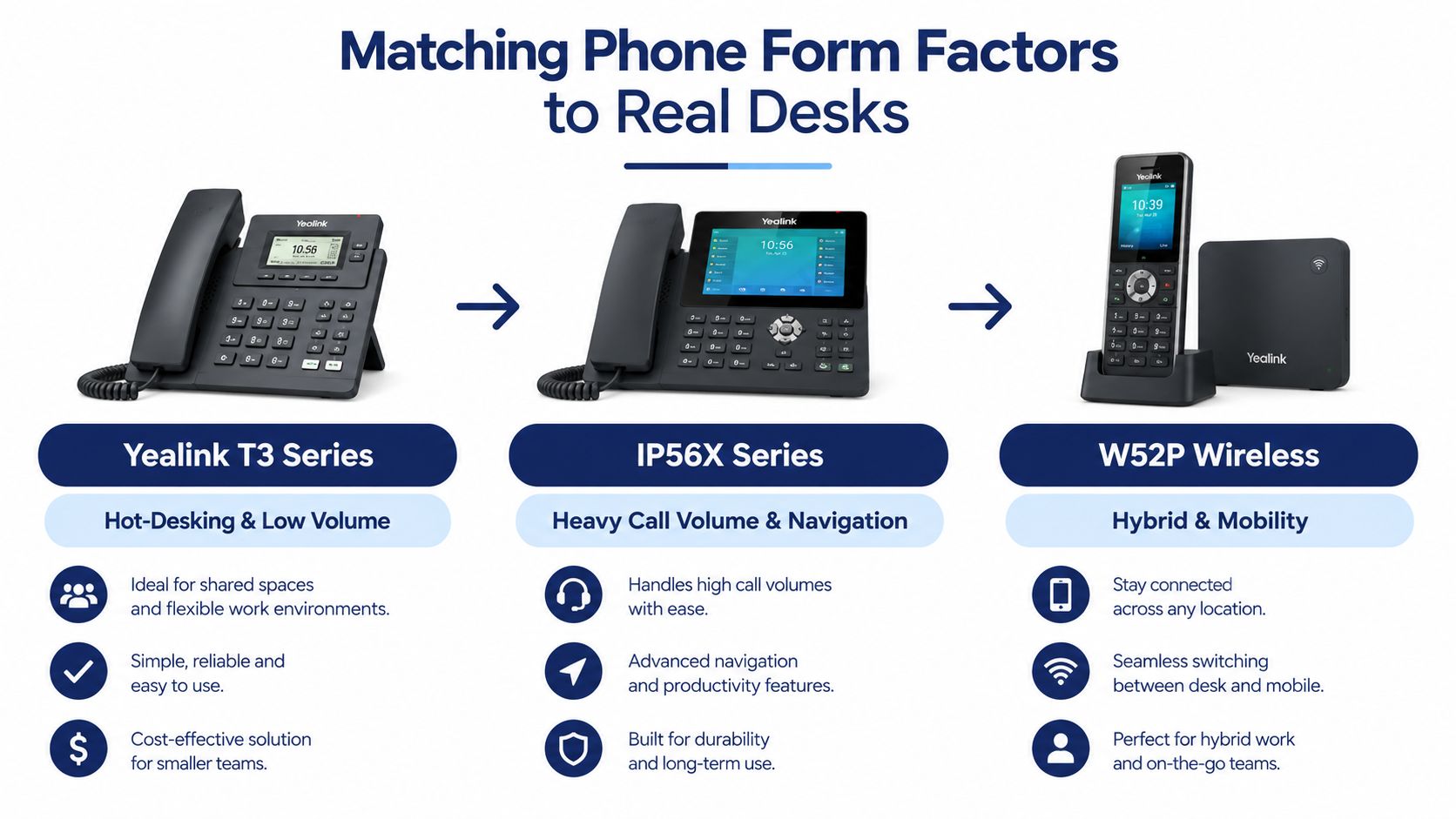
Entry-level desks need restraint
The Yealink T3 series suits a lobby, hot desk, or standard workstation where users make and receive calls without managing a large set of shared lines. It keeps the endpoint understandable and avoids paying for controls the employee won't touch.
The failure mode is predictable when a business puts an entry-level phone on a high-use seat. A receptionist may lack enough visible line and presence controls. A support agent may spend too much time navigating menus instead of handling the caller. Use the T3 family for practical, low-complexity seats, not as a universal answer.
Mid-range phones serve active knowledge workers
A T5-series color-screen phone is a better fit for an account manager, dispatcher, or team lead who spends much of the day on calls and needs clearer navigation. The screen and programmable keys make transfer, presence, and shared-line actions faster to reach.
These users don't necessarily need a touchscreen video device. They need a phone that responds quickly to frequent call handling without turning the desk into a small control room. The wrong choice here is often overbuying. A premium executive model adds cost and administrative surface area without improving the employee's daily workflow.
The IP56X series belongs on a more demanding desk, particularly where call volume and line navigation justify extra controls. Give that phone to a power user who relies on monitored extensions or rapid transfers. A simpler model can still make calls, but it may turn routine actions into repeated menu work.
Executives and receptionists need visibility
An executive phone with sidecar support, programmable keys, and Bluetooth or headset connectivity makes sense when one person monitors many colleagues or handles frequent transfers. A manager who regularly checks presence and routes calls benefits from one-touch access. A user who only makes occasional calls doesn't.
A video phone serves a different purpose. The Yealink T58V is reported to support three-way video conferencing, five-way mixed audio and video conferencing, and 720p video at 30 frames per second, according to OnSIP's independent T58V review. That capability can suit an executive or a remote-first hiring manager who conducts interviews from a dedicated workspace. The same review flags speakerphone echo in smaller rooms, so don't confuse video capability with a substitute for room design.
Use a Yealink W-series DECT system for warehouse staff, retail workers, clinic employees, and anyone who needs to move away from a fixed desk. The failure mode of a desk phone in those environments is obvious: employees miss calls because the endpoint is in the wrong place. A cordless deployment solves mobility, but it requires deliberate base-station placement, charging discipline, and coverage testing.
Choose the form factor by the work pattern. A phone that looks excellent on a product page can still be wrong for the seat, the room, or the network.
Yealink Models Worth Buying and Where Each One Fits
A Yealink rollout should follow the job at each desk, not the most impressive product page. Give each employee enough control for the work they perform, then verify firmware, platform certification, provisioning support, and network requirements before ordering. A capable phone still creates trouble if the service cannot provision it cleanly.
| Model | Form Factor | Best Seat | Display | Wi-Fi | PoE | Notable Strength |
|---|---|---|---|---|---|---|
| Yealink T34W | Entry-level desk phone | Lobby or shared hot desk | Color display | Available | Available | Practical calling with wireless flexibility |
| Yealink T46U | Mid-range desk phone | Account manager | Color display | Verify platform configuration | Available | Comfortable daily call handling |
| Yealink T48U | Touchscreen desk phone | Team lead or transfer-heavy user | Touch display | Verify platform configuration | Available | Fast access to programmable controls |
| Yealink T58W | Executive touchscreen phone | Executive or busy receptionist | Large color touchscreen | Available | Available | Rich navigation, headset and expansion flexibility |
| Yealink VP59 | Video collaboration phone | Hiring manager or remote interviewer | Video-capable display | Available | Available | Dedicated video calling from the desk |
| Yealink W76P | Cordless DECT bundle | Warehouse or roaming staff | Handset display | DECT rather than desk Wi-Fi | Base dependent | Mobility across non-desk work areas |
Start small with the T34W
The T34W is the right call for a lobby, shared workstation, or employee with straightforward calling needs. It gives a low-volume seat a dependable endpoint without adding controls that nobody will use. That makes it a better fit for general staff than an executive touchscreen phone.
PoE keeps installation simple in a wired office. If the phone will use Wi-Fi, confirm that the platform supports Wi-Fi provisioning for this model and test coverage at the intended desk. A wireless option does not remove the need for a stable access point or a clear deployment plan.
Give active callers the T46U or T48U
The T46U suits an account manager who spends much of the day speaking with customers. Its mid-range design provides a more comfortable daily calling experience than an entry-level model, especially for users who regularly review contacts, transfer calls, or work through several conversations. Pair it with a headset and codec profile supported by the phone platform.
The T48U belongs with a team lead, receptionist, dispatcher, or other user who monitors extensions and triggers programmable actions throughout the day. The larger touchscreen only justifies its cost when the user benefits from faster line visibility, monitored status, and one-touch controls. A bigger display alone is a poor reason to upgrade.
Headset selection should begin with the exact phone model and connection method. The Yealink phone headset compatibility guide helps identify connector and electronic hookswitch requirements before the purchasing team places an order. Confirm the configuration with the service provider as well.
Reserve premium and cordless devices for defined jobs
The T58W fits an executive, high-activity receptionist, or user who will use touchscreen navigation, wireless connectivity, USB accessories, or expansion controls. Higher-end Yealink devices can provide multiple SIP identities, numerous touch keys, a large color display, and USB recording or headset functions, as documented in the Yealink model review. Those capabilities have value at a busy seat. They add unnecessary cost and administrative work when installed across ordinary desks.
The VP59 is for a recurring video workflow, such as remote interviews or executive collaboration. Before standardizing on it, test camera position, echo, lighting, and the platform's video support. Video hardware belongs in a dedicated workspace where those conditions can be controlled.
The W76P is the clear choice for staff who cannot remain at a desk, including warehouse, clinic, and retail workers. It solves a mobility problem that a larger screen cannot address. Include the DECT base, charging process, handset allocation, and coverage testing in the deployment plan. Test the actual work area rather than assuming the signal will reach every aisle, room, or sales floor.
Planning Your Per-Seat Hardware Budget
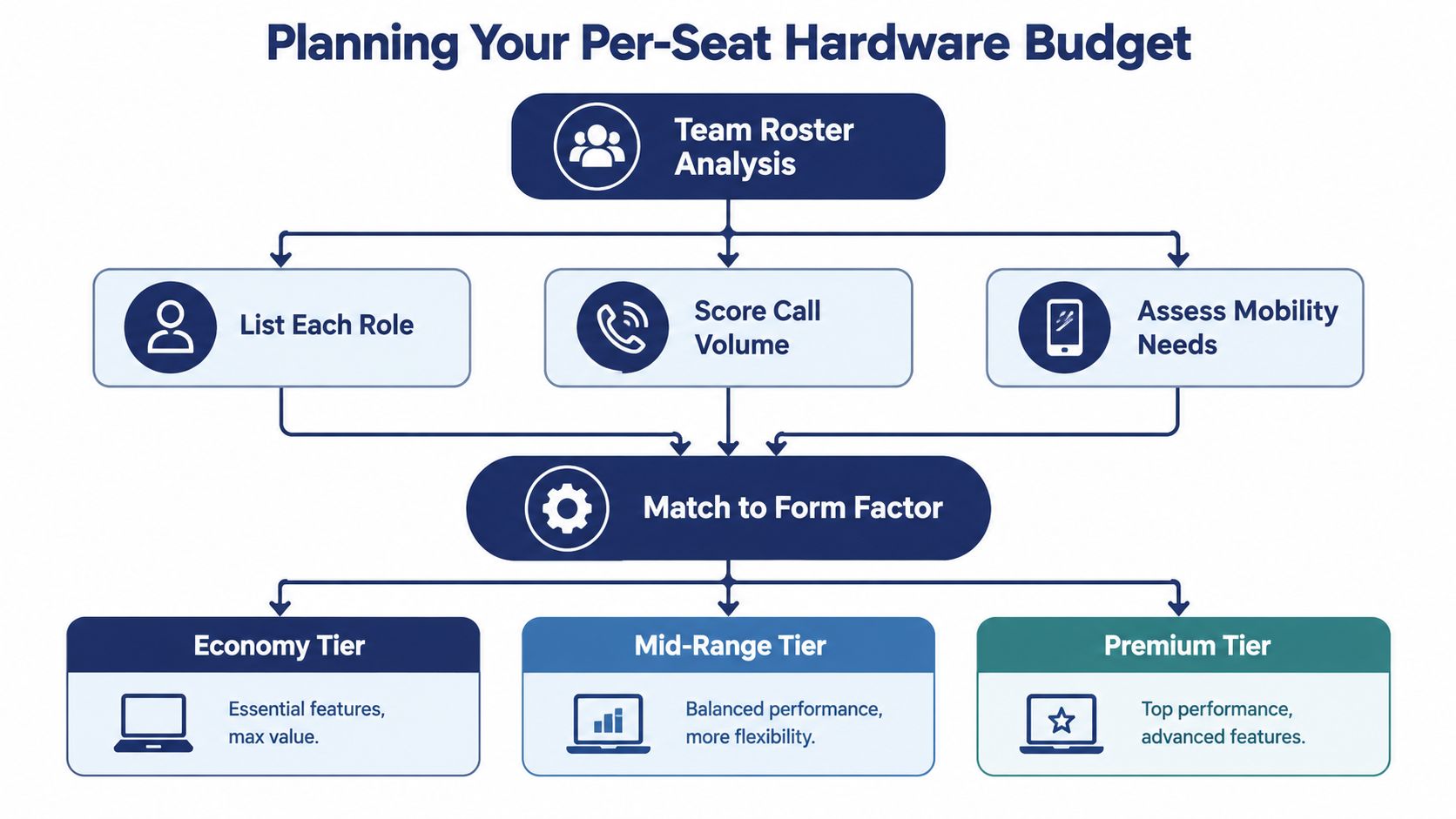
A desk phone budget should start with the seat, not the catalog. An executive touchscreen model on every desk wastes money, while a basic handset at a high-volume support seat creates avoidable delays. Match the phone to the work, then confirm that the chosen model can be provisioned cleanly by your VoIP platform.
The market context supports disciplined buying. One industry estimate values the broader VoIP market at USD 176.16 billion in 2025, with North America representing 45%, according to Fortune Business Insights. That scale gives buyers plenty of options, but it does not remove the need for role-based selection. Check platform compatibility before comparing screens, keys, or accessories. A phone that your provider cannot provision reliably is a poor purchase at any price.
Use a five-step seat exercise
- List every role. Separate reception, support, account management, executives, warehouse staff, and shared spaces. Department labels are too broad for hardware planning.
- Score call intensity. Mark whether each person handles occasional calls, regular customer conversations, or continuous queue and transfer work.
- Record mobility needs. Identify users who stay at wired desks, move between flexible locations, or spend the day away from a fixed endpoint.
- Identify video requirements. Assign video hardware only to a recurring, dedicated video workflow. Do not pay for a camera that sits unused.
- Assign a tier and tally it. Choose an economy, mid-range, premium, or cordless category, then verify that the platform supports the model and its intended features before ordering.
A 20-person team with customer support, account managers, an executive pair, and warehouse staff should receive a mixed deployment. Support seats may need mid-range phones with headset support and visible call controls. Account managers can use a capable color-screen model. Executives may justify premium devices. Warehouse staff need cordless coverage, while shared areas can use economy phones.
Upgrade controls before replacing the handset
Add expansion hardware when one user needs more monitored lines, not across the entire organization. If a receptionist has run out of programmable keys but is satisfied with the phone's audio, ergonomics, and provisioning behavior, add an EXP43 instead of replacing every desk phone.
Budget discipline: Spend more where the phone changes the user's workflow. Spend less where it only needs to ring, answer, transfer, and provide clear audio.
A single per-seat figure will not fit every business. Costs vary by model, accessories, expansion modules, power equipment, and replacement stock. Build the budget from the actual role mix, then reserve room for headsets, cordless batteries, spare units, and network work. Keep a small number of compatible spare phones so a failed device does not become a service interruption.
Provisioning and Securing Your New Phones
A clean deployment begins before the first handset reaches a desk. The network team should prepare the voice environment, the administrator should define the provisioning path, and the installer should verify registration and security on the actual device.
Prepare the network first
Create a dedicated voice VLAN where the network design supports it. Enable LLDP-MED so compatible phones can learn the voice-network policy, and confirm that QoS markings receive the treatment your switches and routers expect. Check PoE capacity before ordering a large fleet. A phone that can't draw stable power will look like a registration problem even when the PBX configuration is correct.
Keep the testing sequence narrow:
- Connect one test device. Use a representative model and the intended switch port.
- Confirm network placement. Verify that the phone reaches the provisioning service from the voice segment.
- Push the approved configuration. Use the provider's redirect or zero-touch process instead of manual entry wherever possible.
- Place controlled calls. Test inbound, outbound, transfer, hold, voicemail, queue behavior, and headset use.
- Check negotiated media. Confirm that the intended codec and secure media settings are active.
The platform's provisioning instructions may use DHCP option 66, a redirect service, or an RPS URL flow. Follow the provider's documented sequence and avoid copying credentials into individual phones by hand. For broader network planning, review SIP and IP port requirements before the rollout begins.
Lock down the endpoint
Change every default administrator password and use a unique credential for each device or management group. Disable unused services such as FTP and Telnet. Pin the fleet to a known-good firmware build, record the approved version, and schedule updates instead of allowing an untested release to reach every handset at once.
Enable SRTP on the PBX side when supported, and use 802.1X on the voice port where the switch and phone support it. TLS protects signaling, while SRTP protects media. Signed firmware helps prevent an unauthorized software image from becoming part of the phone fleet.
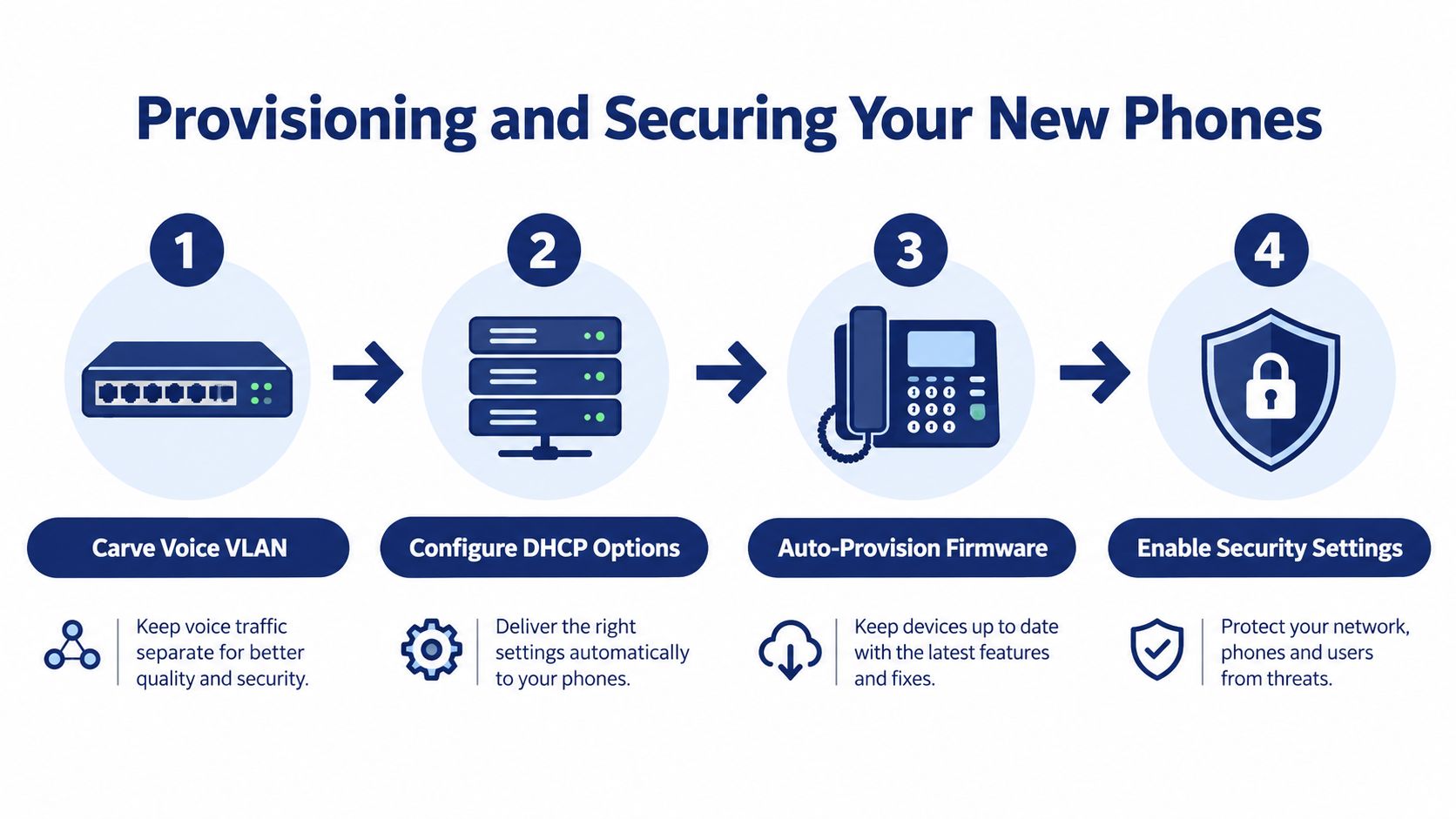
Don't declare the rollout complete when the phone displays a registered status. Test a real call from a real seat, listen for one-way audio, verify transfers, confirm the headset behavior, and check that a reboot retrieves the correct configuration. Document the result for each model before expanding the deployment.
Your VoIP Phone Buying Checklist
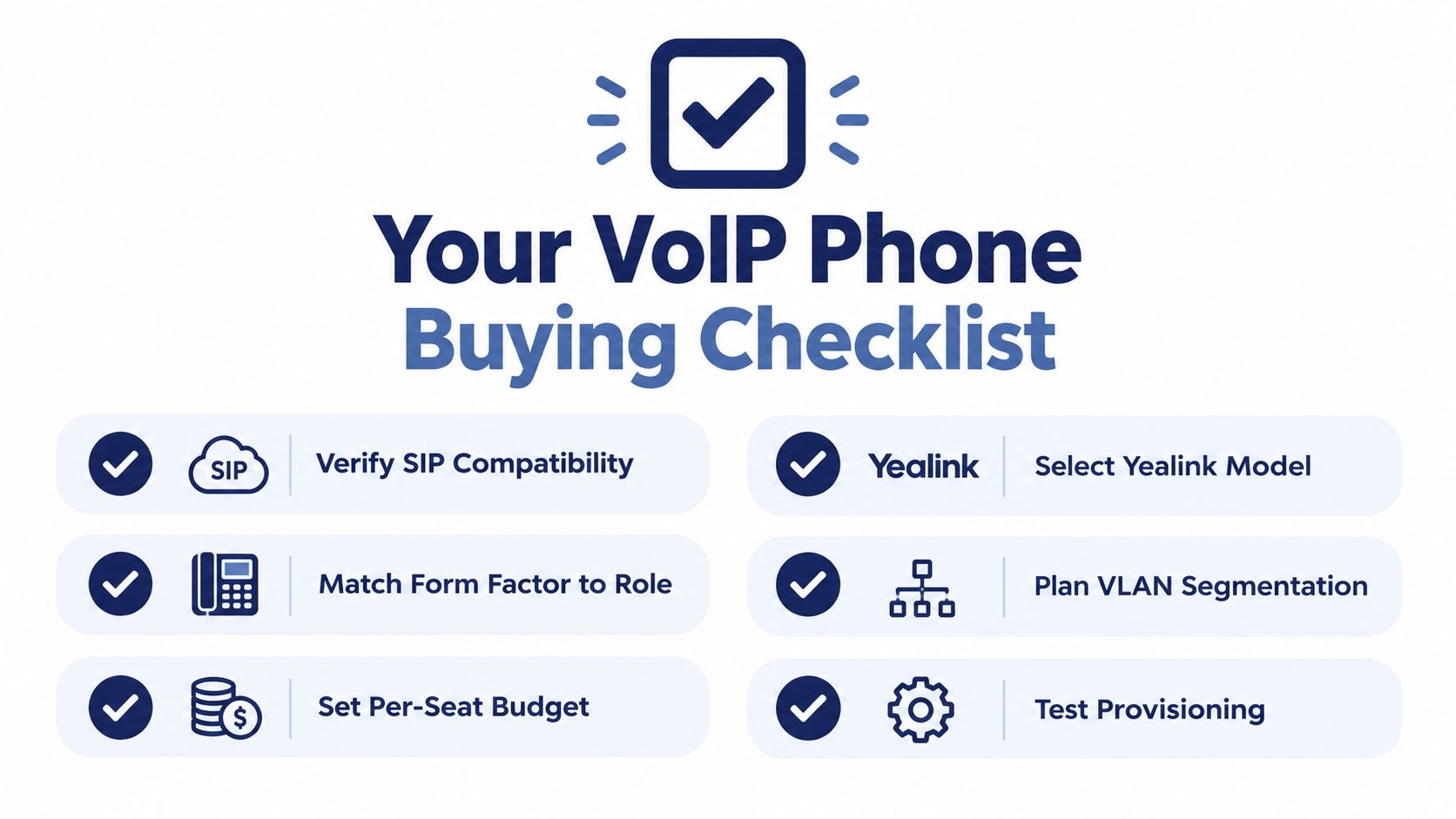
Use this punch list before you approve an order:
- Verify SIP compatibility. Confirm that the exact Yealink model, hardware revision, firmware, codecs, and calling features are supported by the cloud PBX.
- Match the form factor to the role. Assign T3-series devices to straightforward desks, T5-series models to active callers, premium touchscreen phones to executives or reception, video units to dedicated collaboration seats, and DECT devices to mobile staff.
- Set the per-seat budget. Separate handset cost from headsets, expansion modules, power equipment, charging hardware, and spares.
- Select the Yealink model. Choose the T34W, T46U, T48U, T58W, VP59, or W76P only after identifying the work pattern it must support.
- Plan VLAN segmentation. Prepare voice networking, LLDP-MED, QoS, PoE capacity, and the required provisioning path before installation day.
- Test provisioning. Register one phone, verify codecs and secure media, place controlled calls, test transfers and voicemail, then document the working configuration.
The simplest decision rule prevents the most common regret: don't buy premium hardware for a user who only makes and takes calls. Put the money into the seats that need visible presence, fast transfers, mobility, video, or advanced headset support. For every other desk, choose the simplest certified phone that provisions cleanly and sounds good.
SnapDial offers hosted VoIP, cloud PBX calling, conferencing, mobile apps, call routing, recording, transcription, and a curated range of Yealink IP phones with setup and support handled as part of the deployment. Visit SnapDial with your team roster and platform requirements, then ask for a phone plan that matches each seat instead of standardizing on one model.