
Your mobile number is on the website, in the signature of every quote you send, and in the phone of every driver and supplier you've worked with for years. It works fine until the day you're in a basement with one bar of signal, or your best technician hands in notice and takes three years of customer texts with her. That's usually the week a small business starts asking what an iOS phone app would change.
The honest answer is that it moves work calls off a personal device and onto a system the business controls. The handset stays in the employee's pocket. The number, the voicemail, the call history and the routing rules stay with the company. The platform underneath has had plenty of time to settle: Apple's App Store opened on July 10, 2008 with 500 third-party apps, and by 2018 customers in 155 countries were using it, as Apple's ten-year retrospective records.
What follows is the candid version, including the parts that cost you something. A permission prompt that gets refused, a screening rule that turns away a paying customer, and a recording policy you have to disclose are all real trade-offs, not footnotes.
iOS Phone App Features Compared With the Built-In Phone App
An iOS phone app is the calling layer on an iPhone that ties the handset to your business phone system, so an employee can take and make work calls from a mobile device. It runs as its own app, separate from the built-in Phone app, and it keeps the office number, the call log and the voicemail inside the company's system rather than on a personal SIM.
Where the built-in Phone app runs out of road
The built-in Phone app is excellent at what it was built for: one person, one number, carrier voicemail. It has no concept of a shared line, no administrative view of who answered what, and no routing that follows someone from the van to the office to the kitchen table. That isn't a defect. It's a consumer product doing a consumer job.
| Feature | Built-in iPhone Phone app | Hosted VoIP mobile app |
|---|---|---|
| Outbound caller ID | Personal or carrier number by default | Outgoing calls can show the office number |
| Voicemail access | Visual voicemail and transcription, carrier-dependent | Visual voicemail with transcription, reachable by email, app or web |
| Call routing | Forwarding to one device | Mobile Office routing to any location |
| Call recording | Not built in for business use | Included free, can be disabled on request |
| Auto attendant and IVR | Not available | Auto Attendant included |
| Multiple lines | One line per SIM or account | Unlimited lines with individual or shared numbers |
| Call center queues | Not available | Smart queues, queue callback and wait-time announcements |
| Admin management | Device settings only | Web portal for routing, voicemail, call logs and recordings |
| Conferencing | Carrier- and app-dependent, so confirm the limits yourself | Included in the hosted platform, limits not stated |
Read the table with your own week in mind rather than the whole feature list. Start with the three rows your team touches every day: outbound caller ID, routing and voicemail. Caller ID decides whether a returned call reaches a person or an unmonitored cell, and routing decides whether the phone rings at all when someone is on the road.
The hosted side solves those three first. The SnapDial app lets staff answer office calls from anywhere and place outgoing calls from a cell phone that make it look as though they're at the office. Visual voicemail arrives in real time through email, the mobile app or online access, transcribed into text, so a missed call becomes something you can read between appointments. Unlimited Lines sends incoming calls to employee lines, gives people individual numbers, or puts every outbound call on the same number. Queues and recording matter to a smaller set of teams, and firms that live on the record should look at how internet-based phone service for law firms handles recording and retention before adding it.
How to Set Up an iOS Phone App for Your Team
Setup fails for boring reasons, and almost all of them are visible in the first ten minutes. Work the steps in this order so you don't end up debugging a call that never rang.
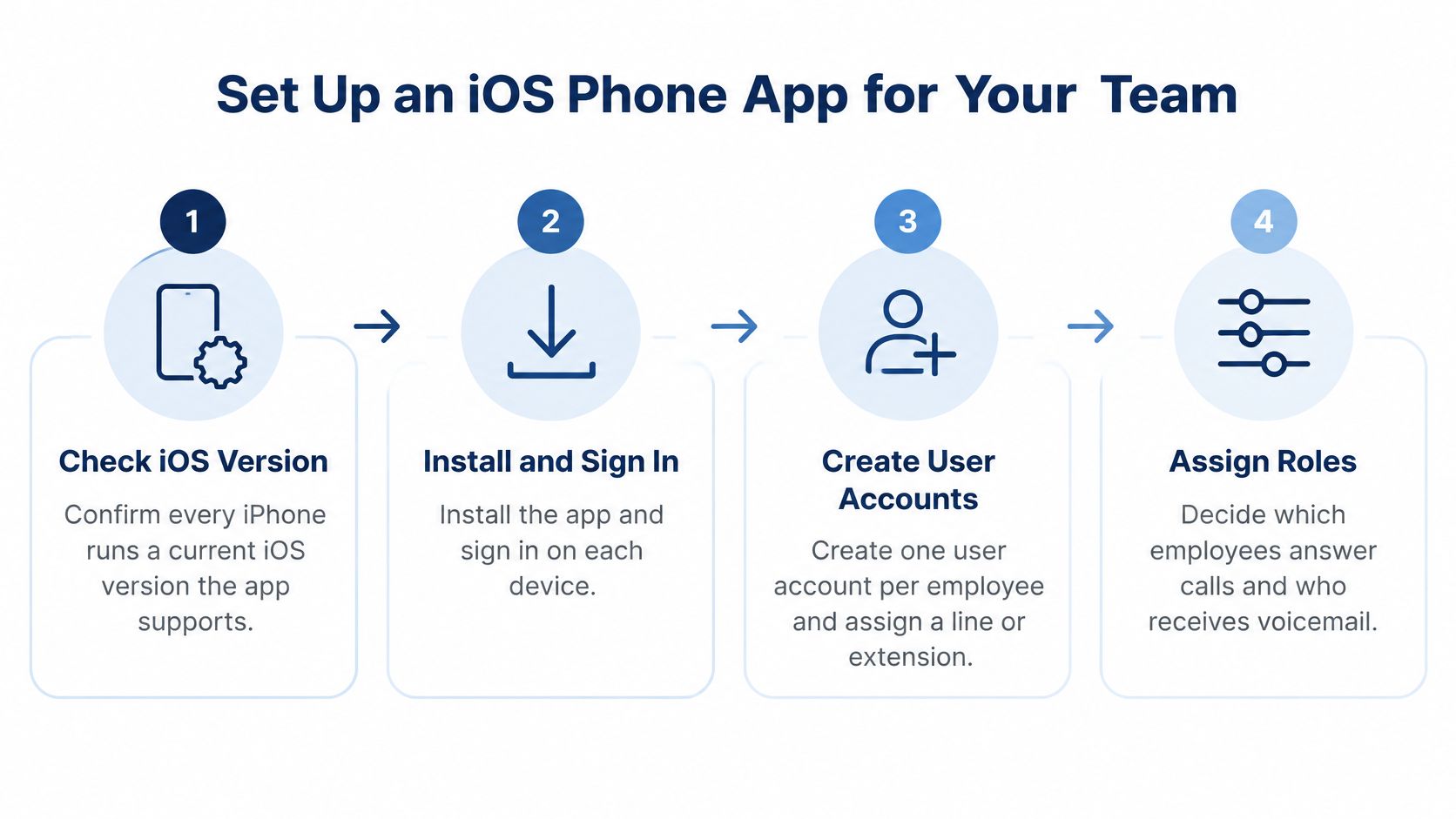
The seven steps in the order that avoids rework
- Confirm the iOS version on every iPhone. The app has to match the operating system it runs on, and a handset that hasn't been updated in two years will behave badly in ways that look like network faults. The common slip is testing on the newest phone in the office and rolling out to the oldest.
- Install the app and sign in on each device. Do this on office Wi-Fi, not on a cellular connection in a parking lot, so you notice immediately if something is blocked.
- Create one user account per employee and assign a line or extension. Decide up front whether each person gets an individual number or the whole team shares one outbound number. The slip here is a single "front desk" login that everyone uses, which destroys any record of who called whom.
- Grant microphone and notification permissions before the first call. A denied microphone produces a call that connects with silence at one end, and denied notifications mean the phone doesn't ring on the lock screen. Apple's guidance on controlling what you share with apps recommends asking at the moment the feature is needed and handling refusal gracefully, so build the explanation into onboarding instead of leaving people to tap "Don't Allow" in a hurry.
- Allow local-network access only if a desk phone must be discovered. Since iOS 14, an app that interacts with devices on the local network needs explicit permission, which affects finding and configuring desk phones. If your calls route through the cloud, skip the request entirely and you remove a whole category of support tickets.
- Set the outbound caller ID to the office number. This is the single setting customers notice, because it's the number they call back.
- Place test calls from an outside number. Confirm the call rings the phone, lands in voicemail when unanswered, and that the transcript appears.
A finished setup looks unremarkable: a test call answered from the lock screen, a voicemail transcribed into readable text, and an outbound call that shows the office number on the receiving phone. If you'd rather not run any of this yourself, our technicians handle setup, configuration and replacement of an existing phone system from start to finish at no cost to you, and support is reachable at (888) 881-7495 or help@snap-dial.com.
How Calls Reach a Locked iPhone
Think of a business phone app as a doorbell wired to a relay. The app can't sit awake all day waiting for a call, because that would drain the battery by lunchtime. Instead, the provider's server sends a signal the moment a real call arrives, and iOS wakes the app to deal with it.
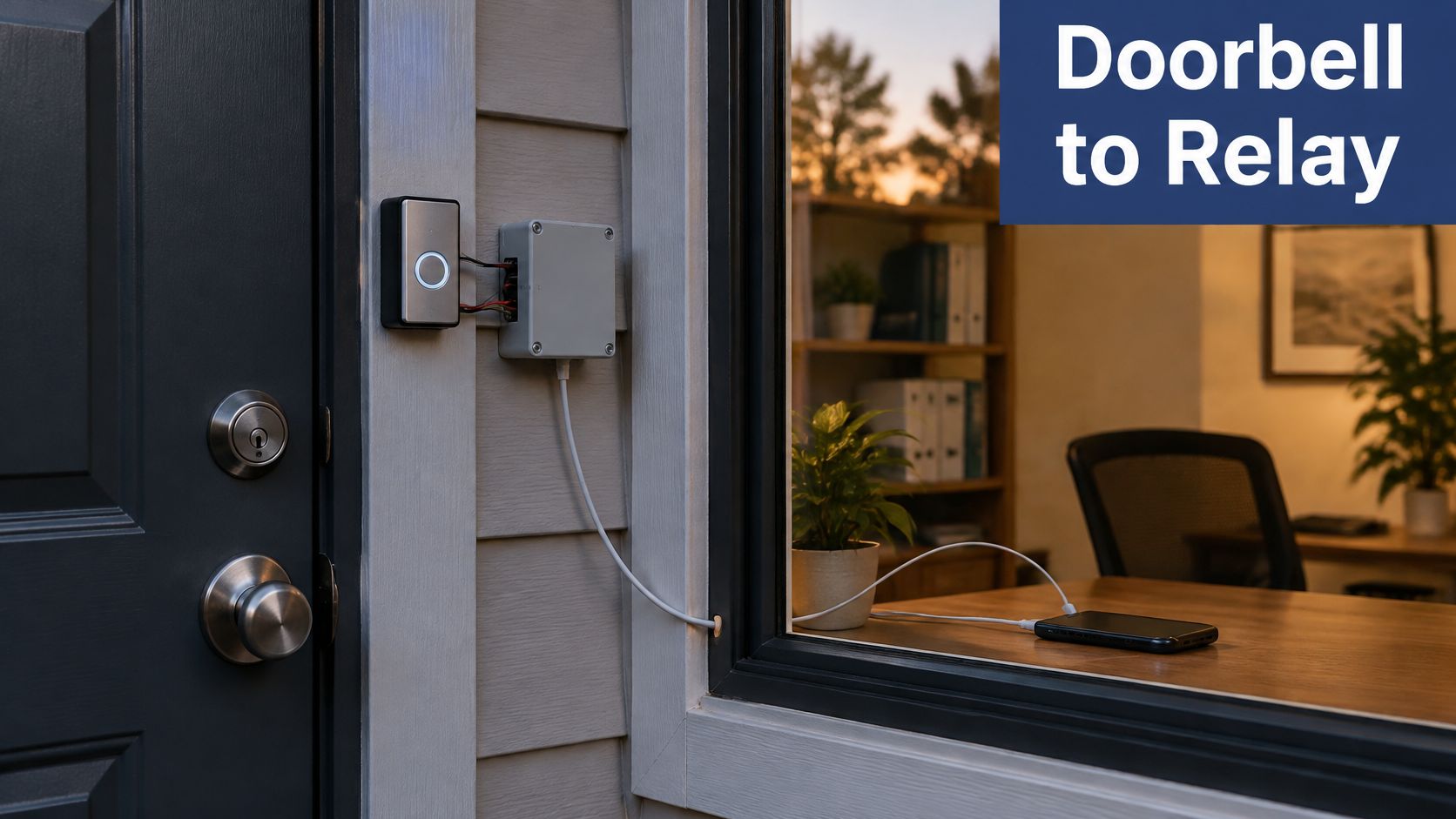
That signal is a VoIP push delivered through Apple PushKit, which can wake or launch an app that isn't running, giving it a chance to establish call state and notify the user. What happens next is where providers separate. For apps built with the iOS 13 SDK or later, Apple requires each VoIP push to be reported to CallKit, the framework that supplies the native incoming-call screen and coordinates with system features such as Do Not Disturb, per Apple's CallKit documentation.
What happens when the app doesn't answer the push in time
The failure chain is unforgiving. Apple states that VoIP pushes must be used only to initiate live VoIP calls, and that failing to report them promptly to CallKit can cause the system to terminate the app. After repeated failures, iOS stops launching it for VoIP notifications altogether. From the user's side, nothing looks broken: the phone is on, the app is installed, and calls stop arriving.
Ask before you sign: does the app use PushKit and CallKit, and what happens to a call that lands while the phone is locked and in Low Power Mode?
A well-built provider maintains a server-side map of each device registration, sends a narrowly scoped push only when an actual inbound call exists, opens the CallKit transaction immediately, and then connects media and signaling. That sequence is why a properly built app rings a locked iPhone reliably without polling in the background all day.
Call Screening and the Callers You Might Miss
A new customer calls from a mobile number you have never saved. On iOS 26, screening can answer before you do, ask for a name and a reason, turn that reply into text, and only then decide whether the phone should ring. It can also send unknown callers straight to voicemail. That filter helps until the caller is a delivery driver on a masked line, a clinic calling back from a rotating number, or a patient whose number is not in your contacts.
"I do not have to give out my personal number for making and receiving calls.", Jansen A., SnapDial website reviews
Apple's outline of its screening and anti-scam features describes how screening answers and transcribes unknown callers. Treat that as a continuity problem, not a phone setting. The handset that greets your customer may not be yours. A screened call that never reaches a person is a missed order, a delayed callback, or a patient who hangs up.
Screening works like a receptionist who only lets through people who can state their business. You stop the junk calls. You also stop the visitor who does not know what to say. Permissions sit on each employee's phone, so one strict setting can silence a line the rest of the team still expects to answer.
A test plan you can run this week
- Call your business from three unsaved numbers on different carriers. Log which ones reach a person and which hit voicemail.
- Keep an urgent path open. A second published number, or a routing rule that sends known account numbers to a human, protects the calls you cannot afford to screen.
- Tell customers what to say. Put one line in confirmations and invoices: when prompted, give your name and reason and you will be connected.
- Unknown is not the same as unwanted. Screening is a filter, not a verdict.
Re-run the three-number test after any iOS update or phone change. The setting that worked last quarter lives on the device, not in your phone system.
Support Team Workflows, Routing and Voicemail Ownership
Take a three-person support team. The main number should ring the person on shift first, then a backup colleague, then a shared queue that offers a callback when everyone is busy. Nothing about that pattern is exotic, and it's the difference between a customer waiting on hold and a customer who gets a call back in twenty minutes.
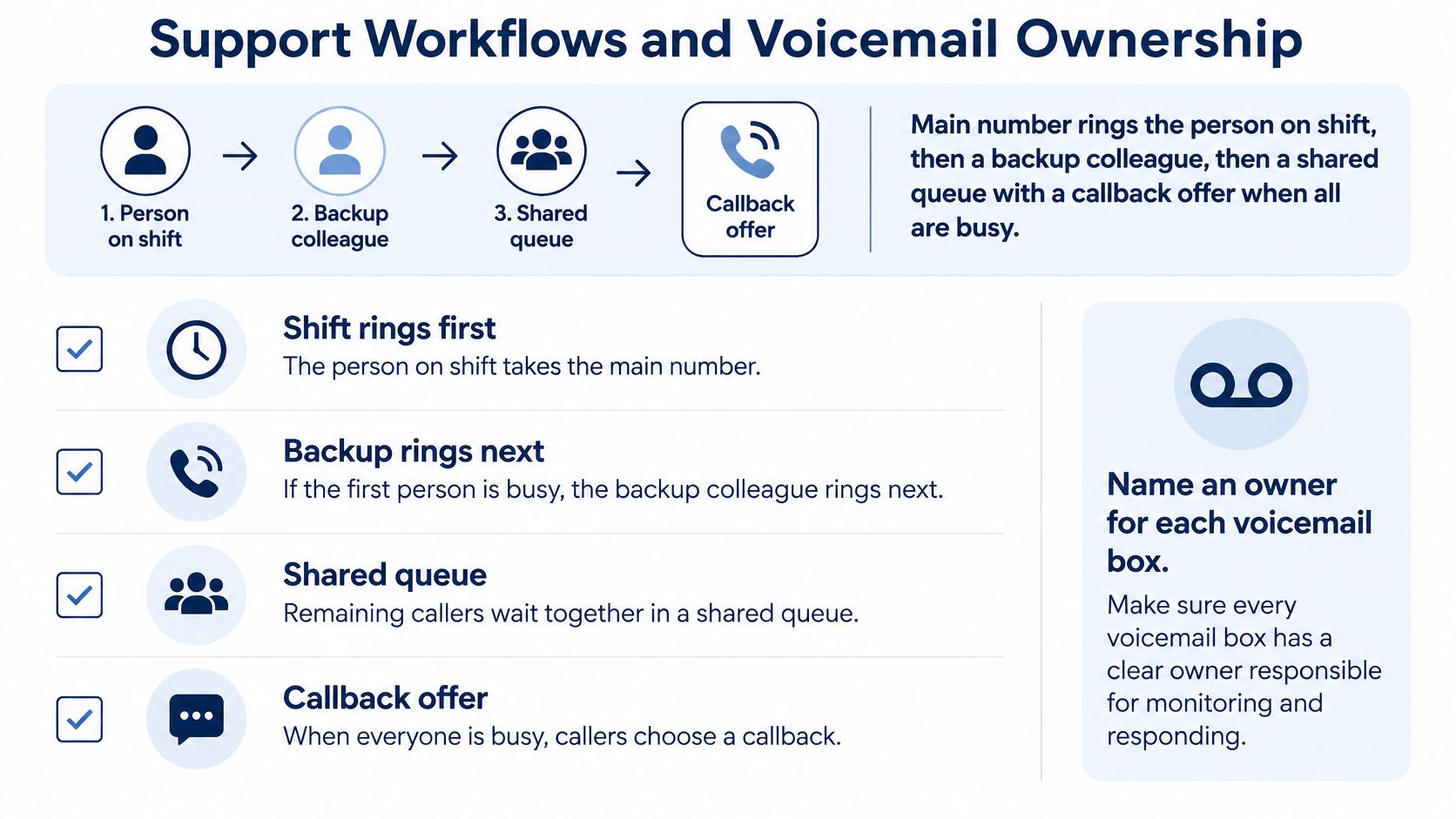
Our Mobile Office feature sends incoming calls to any location, so the person on shift stays reachable whether they're at a desk, in a car, or working from home. That single behaviour is the reason to put the phone system in the cloud rather than on a desk phone in the corner.
Routing that follows the shift
For a team handling volume, the queue is where customers are won or lost. Our call center features include smart queue management, unlimited IVRs, real-time queue stats, reporting tools, wait-time announcements and queue callback. The callback offer is the one to switch on first. Callers would rather keep their place in line than listen to hold music, and your abandon rate falls without adding staff. If you want the mechanics of who rings first and in what order, this explanation of how call routing works walks through the sequence.
Who owns the voicemail box and who owns the number
Governance is the part nobody plans. Name one owner per voicemail box each day, decide which roles can open transcripts and recordings, and set the recording policy before go-live rather than after the first dispute. Recording is included free and can be disabled on request for companies where it isn't a fit, so the decision is yours to make deliberately.
Practical rule: if a teammate can't say who checked the shared voicemail yesterday, you have an ownership problem, not a phone problem.
The web portal is where those rules get enforced. Businesses manage voicemails, call logs, call recordings and routing changes from anywhere, which means a change of shift doesn't require someone in the office.
- Owner per box: one named person per voicemail queue, per day.
- Routing order: shift first, backup second, shared queue with callback third.
- Access limits: recordings and transcripts visible to named roles only.
- Departure rule: the number, voicemail and history belong to the company line, so a leaving employee's number can be reassigned without losing the record.
- Review cadence: read queue stats weekly for the first month, then monthly.
Teams that lean on remote help, including medical virtual assistants, need that company-owned line even more, because a shared extension is what lets a rotating assistant answer as your business rather than as a stranger's mobile.
Fixing Missed Calls, Silence and Missing Voicemails
A missed business call can start with a setting, a registration problem or a routing rule. Check each layer in order: permissions, device registration, routing, then caller ID and screening settings. Changing routing will not help if the app cannot use the microphone or receive notifications.
Fix what takes a minute before you escalate
Some fixes take a tap; others depend on a device registering again or a routing change taking effect. Match the symptom to the likely cause before promising a caller that service will be restored immediately.
| Symptom | Likely cause | Fix |
|---|---|---|
| Calls ring late or not at all on a locked phone | Notifications or background activity blocked, or device registration lost | Enable notifications and background refresh, then re-register the device |
| Silent calls on the first attempt | Microphone permission denied | Re-enable microphone access in Settings and place a test call |
| Desk phone not found during setup | Local-network permission denied | Allow local network access, or switch to cloud signaling |
| Unknown callers go straight to voicemail | Call screening or a Focus mode silencing unknown callers | Adjust screening settings and add known numbers to Contacts |
| Outbound calls show a personal number | Outbound caller ID not set to the office number | Set the office number as outbound caller ID in the portal |
| Voicemail arrives without a transcript | Transcription not enabled for the user or voicemail too short | Check the user's visual voicemail settings and retest |
| Recording missing for a call | Recording disabled for the company | Confirm the company recording setting with the provider |
A permission change is usually a quick check: restore microphone access, review Focus settings, or correct the outbound caller ID in the portal. Registration and routing can take longer because the device or change must update. If a transcript is missing, check the user's visual voicemail setup before treating it as a wider service problem.
For a team, the practical distinction is whether the issue affects one person or the shared call path. If only one iPhone is silent, check that device first. If calls fail across the team, check routing and the company recording setting with the provider. This helps keep a local permission problem from being mistaken for a business-wide outage.
If the table doesn't solve it, that's what support is for. Our line is answered 24/7 at (888) 881-7495, so call with the device and the symptom in hand. For device-side checks, see this guide to troubleshoot missed iPhone calls.
Security, Privacy and Compliance Checks
Permissions and data access belong in the rollout plan, not the aftermath. Apple rejected more than 1.9 million app submissions during 2024 for issues including privacy violations and fraudulent activity, according to its 2024 App Store Transparency Report, which is a reminder that review catches a lot but doesn't replace your own checks.
- Review what's already granted. Open App Privacy Report on each managed iPhone and look at permissions and network activity. Anything the app doesn't need for calling should come off.
- Request the minimum. Microphone and notifications, plus local-network access only where a desk phone has to be found, each explained in plain language at the moment it's asked for.
- Limit who reads what. Voicemail transcripts and call recordings should be visible to named roles, not every member of staff.
- Set the recording policy and a caller disclosure before go-live. Rules differ by region and by business type, so confirm requirements with counsel where your calls cross jurisdictions.
- Define retention. Decide how long recordings, transcripts and call logs are kept, and write down how they're exported or deleted.
- Offboard deliberately. Remove the departing employee's sign-in and reassign the line, so business records stay with the business.
Ask where call data is stored, how sign-in is protected, and whether access is logged. On the transport side, the choices that matter are the ones made by your provider, which is why secure communication deserves a direct question during evaluation rather than an assumption after purchase.
Confirm Readiness Before the Full Rollout
The decision rule is short. A solo owner with simple needs is fine on the built-in Phone app. A team that needs shared numbers, routing across locations, voicemail transcription, recording controls or queues needs a hosted iOS phone app, and the cost of waiting shows up as missed calls rather than as a line item.
Run a two-person pilot for one week before anyone else gets an app. It surfaces the problems while the blast radius is small.
- Call from outside numbers, including one unsaved mobile number and one with a masked caller ID, and log whether each reaches a person.
- Check caller ID and transcripts. Outbound calls should show the office number, and every pilot user should receive readable voicemail transcripts.
- Confirm the recording policy and customer disclosure are set, and that recording can be changed on request.
- Name the voicemail owner and a backup for each shift.
- Compare the monthly per-line cost against the number of lines you expect to add, using the provider's written quote. Our pricing is all-inclusive, so the quote is the whole number.
Next action: write the pilot results on one page, including the calls that were screened out, and set the rollout date with the team.
When you're ready to move work calls off personal phones, SnapDial gives your team a cloud phone system with a mobile app that answers office calls from anywhere and places outbound calls from the office number. Setup and configuration are handled end to end at no cost, with 24/7 support from our Texas center if a call misbehaves. Visit SnapDial to see how the lines, routing and voicemail would fit your team.