
You've got the cartons on the floor, the phones are live, and the first complaints are already coming in. One person can't answer from the headset, another says the audio is dead, and a third keeps reaching for the handset because the remote button doesn't do anything. In most offices, that mess isn't random, it's a compatibility problem between the telephone, the headset, and the way call control is wired into the desk phone.
That's why telephones with headsets need a setup-first mindset, not a shopping-first one. The right way to think about it is simple, start with the connector and call-control path, then check the phone model, then look at comfort and audio. Once you do that, the rest of the decision gets much easier.
When a Headset and Phone Just Don't Get Along
The failure usually shows up on a busy morning. IT rolls out headsets to a row of desks, people plug them in, and half the team can hear calls but can't answer them remotely. A few users get no audio at all, while others can hear the caller but the caller hears silence or distortion.
That kind of problem usually isn't caused by “bad headsets.” It comes from a mismatch in connector type, amplifier support, or remote-answer signaling. In other words, the headset may be fine, but the phone and the accessory don't speak the same language.
The real fault line is usually hidden
Many desk-phone buyers stop after checking whether there's a headset port. That's only the first question. The important follow-up is whether the phone expects an RJ-9/4P4C headset port, needs an external amplifier, or needs an EHS path for answer and end control.
Practical rule: If the headset can't control the phone, the user experience breaks even when the audio is technically working.
Historical headset design also helps explain why this matters. Telephone headsets started as hands-free tools for switchboard operators in the late 19th century, after the telephone's invention in 1876. Early headset hardware was heavy and practical, not comfortable, which is a reminder that the modern buying problem is still about function first, comfort second, and aesthetics last, as documented in headset history.
A good procurement conversation starts with the exact phone model, the exact headset port, and the exact call-control method. If those three pieces don't line up, the support queue fills up fast.
The Four Connector Standards Every Buyer Should Know
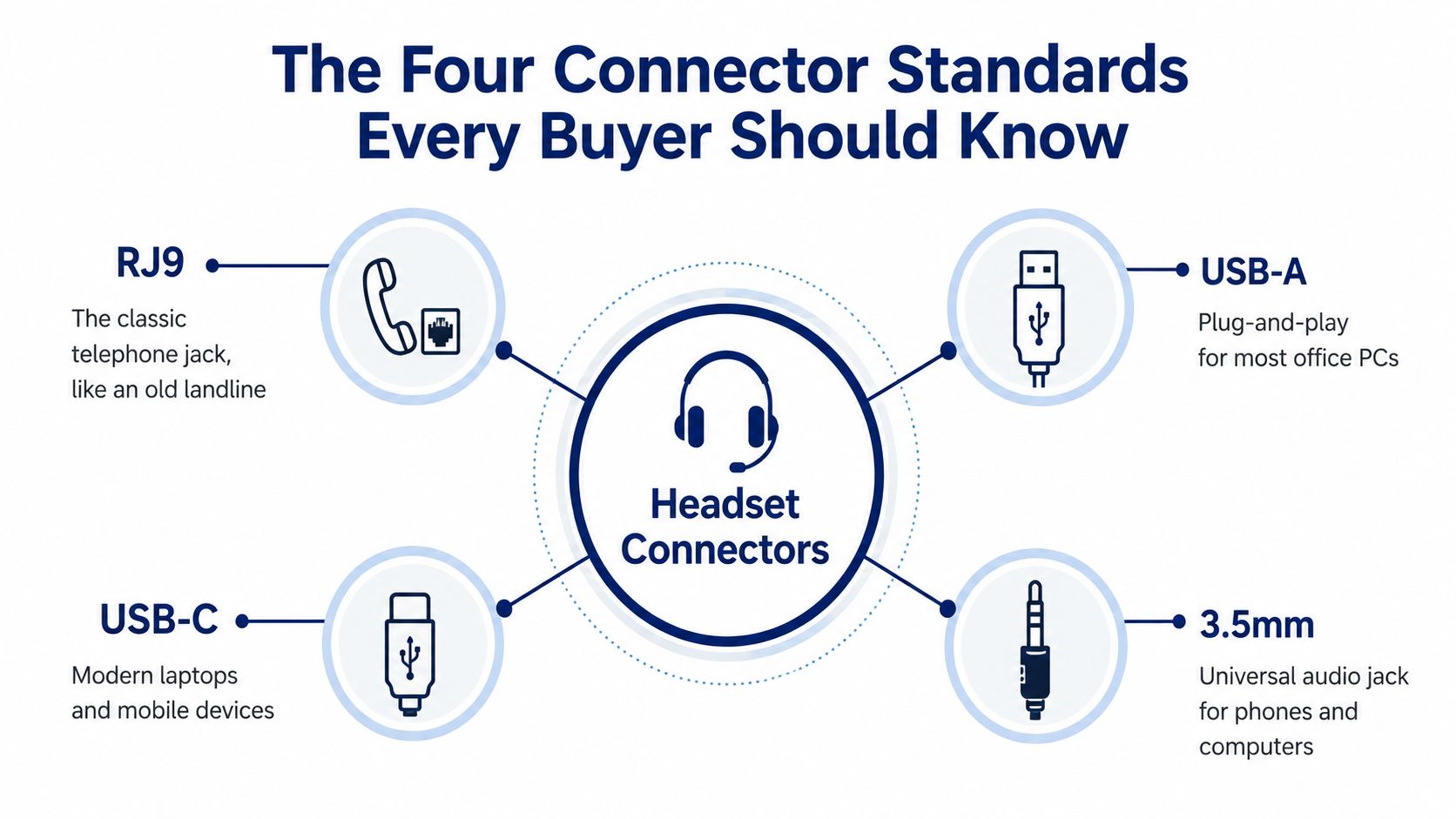
A headset connector is just the path between the device and the conversation, but each path behaves differently. If you treat every plug like it's the same, you'll buy something that looks right and then spend an afternoon proving it isn't.
RJ9, the desk-phone native
RJ9, often called 4P4C, is the classic telephone headset connector. Think of it as the desk phone's native language, simple, wired, and common on analog office phones and many business handsets. It's usually the cleanest fit for a fixed desk where the user stays put all day.
The trade-off is mobility. RJ9 is built for the desk, not for roaming around the office, and it usually depends on the phone's own headset circuitry doing the right thing.
USB, the computer-native option
USB belongs to the PC side of the house. If the call flows through a softphone on a computer, USB headsets are often the most straightforward option because they're built for plug-and-play behavior. They're a natural fit for workers whose desk phone and computer are part of the same workflow.
The downside is that USB doesn't automatically solve desk-phone call control. A headset can be perfectly fine for the laptop and still do nothing useful when a physical phone rings.
DECT, the cordless-office answer
DECT is the cordless-phone grown up. A DECT headset connects to a base station, and that base station links to the phone so the user can move away from the desk without losing the call path. The technical specs for one business headset family show operating distance of about 120 meters in Europe or up to 350 feet in the U.S., with regional bands in 1.88–1.90 GHz for the EU and 1.92–1.93 GHz for the U.S., according to Sangoma's H10/H20 specs.
The trade-off is planning. DECT gives freedom, but it also introduces base placement, regional radio bands, and another device to power and maintain.
Bluetooth, the flexible crossover
Bluetooth is the consumer-friendly bridge between devices. It's useful when one headset has to move between a desk phone, a laptop, and a mobile device, especially in hybrid work. It's also the category people ask about when they want one headset for everything.
The trade-off is that Bluetooth convenience can hide pairing and call-control complexity. If you want a headset to follow you across devices, you still need to verify that each device path supports the features you care about. A practical starting point is SnapDial's Bluetooth adapter for telephone, which is aimed at connecting a business desk phone to a Bluetooth headset.
How VoIP and Yealink Phones Decide What Works
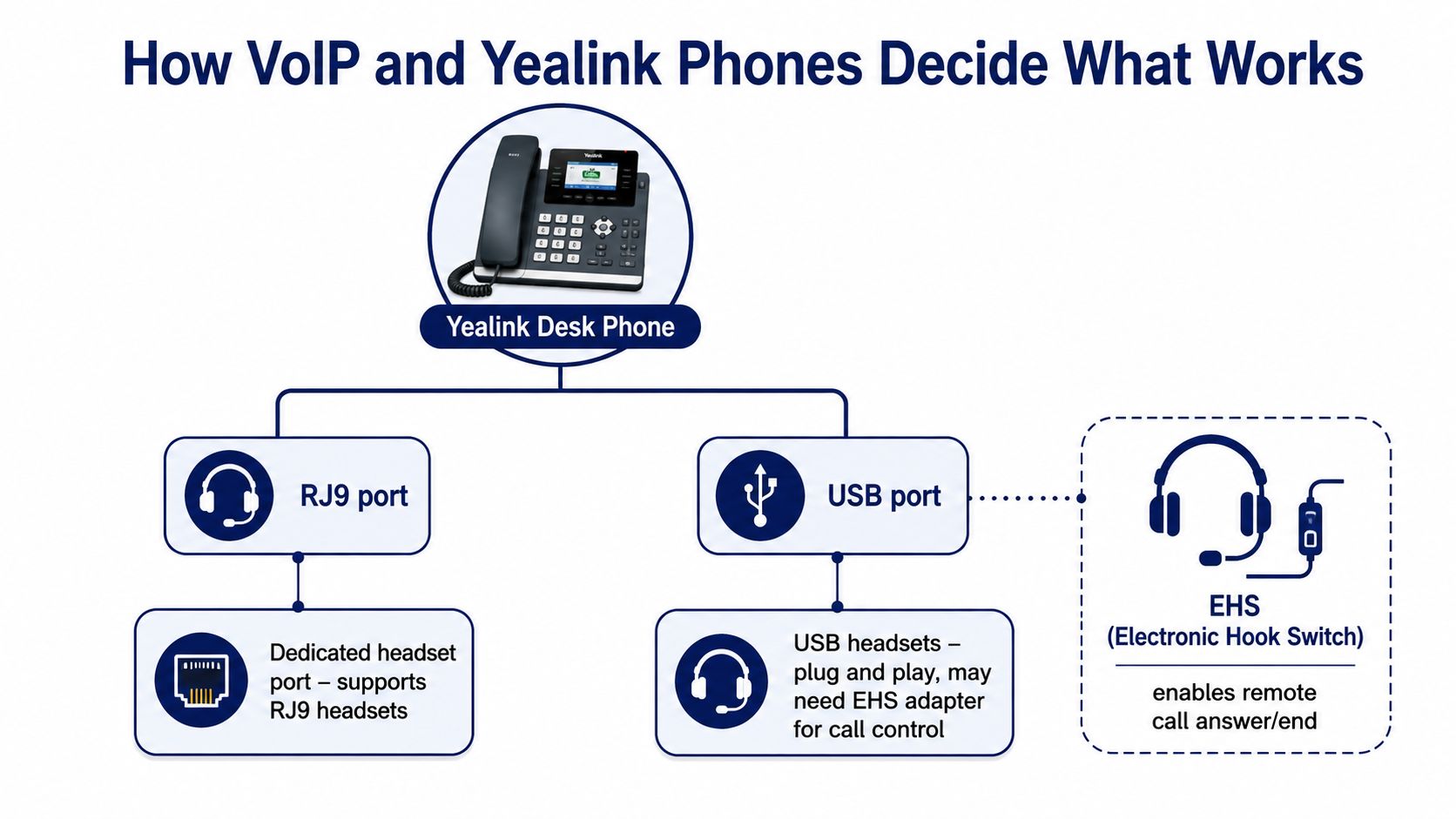
A VoIP phone can look ready for a headset and still miss a key piece of the setup. The connector may fit, but call control can still fail if the phone model, the headset, and the provisioning path are not aligned.
With a Yealink desk phone, the first thing to check is the available interface. Some models offer a dedicated headset port, some include USB, and some provide both. A headset can plug in cleanly and still need a separate path for remote answer and end, which is what EHS, Electronic Hook Switch, handles. For model-specific guidance, start with its headset support page for Yealink phones, then use SnapDial's Yealink manual configuration guide if the phone needs manual setup.
Match the phone's control method, not just the jack
A desk phone and a headset can share the same plug type and still behave differently. Some phones manage call control inside the phone itself, while others need a cable or adapter that translates headset input into hook-switch behavior. That difference matters because the physical connection only solves audio path, not the command that answers or ends a call.
If remote answer matters, treat EHS as part of the purchase, not as an add-on you can sort out later.
Cloud PBX provisioning adds another layer. The phone profile, extension settings, and device template all influence whether the headset acts like a working extension of the phone or just an audio device. SnapDial supplies a curated range of Yealink IP phones, from entry models to executive touch and video devices, and handles setup end to end at no cost, which reduces the guesswork when the desk phone, headset, and provisioning profile all need to line up.
For a practical look at how call control can be extended beyond the desk, the embedded video below is helpful.
What the Spec Sheet Means for Call Quality
A headset spec sheet can look like a block of technical jargon, but the useful lines usually tell you how well someone will be heard in a busy office. For telephony, the goal is clear speech, not full-range audio.
The microphone tells you how much voice gets through
A technical headset sheet for a noise-canceling boom microphone lists response behavior of -7 dB per octave below 1 kHz, mic sensitivity of -41 dB ± 3 dB, and a capture range of 100 to 10,000 Hz. Those figures show that the mic is tuned for speech rather than music, and that it is designed to suppress low-frequency rumble, per the headset datasheet.
That matters in real offices. A stronger low-frequency roll-off helps cut HVAC hum, keyboard clatter, and desk vibration before they reach the caller. The person wearing the headset hears a cleaner voice path, and the customer hears less background noise.
The speaker side shapes comfort on long shifts
The receive side in the same datasheet uses a 150 Ω ± 15% speaker with 150 to 6.8 kHz response and 98 dB ± 3 dB sensitivity at 1 kHz. That is the speech band, not hi-fi audio, and that is the point. Higher receive sensitivity can make the audio feel louder and clearer without forcing the amplifier to work as hard, which helps long-shift users and shared workstations, as noted in the same technical sheet.
A simple way to read these numbers is straightforward, the mic rejects noise, the speaker emphasizes speech. If a headset review spends more time on bass than voice clarity, it is probably describing the wrong product for desk-phone work.
Configuring Headsets in a Cloud PBX Like SnapDial
The cleanest setup starts in the PBX portal, not at the desk. Assign the extension, confirm the desk phone or softphone device profile, and verify which device should ring first when a call comes in. That keeps users from accidentally answering on the wrong endpoint when they're juggling a phone, a laptop, and a mobile app.
Cloud PBX buyers often benefit from understanding how the platform differs from a classic on-premises system, so a neutral comparison like compare cloud telephony and PBX can help frame the trade-offs before deployment.
Provision first, then test the call path
For a SnapDial-style rollout, the practical sequence is straightforward. Assign the user, attach the Yealink phone or softphone app, and confirm that voicemail, call routing, and recording behavior line up with the user's role. Then test a live call, because headset problems show up fastest when the user tries to answer, mute, and transfer in one motion.
If the office is using a desk phone, check whether the headset route is wired through RJ9, USB, or an EHS accessory. If the user is on a wireless headset and can hear calls but can't answer remotely, the EHS piece is usually the first place to look. If a DECT user loses the call path while walking away from the desk, the base placement and range are usually the issue.
Troubleshooting shortcut: one-way audio usually points to the path between the phone and the headset, not the phone number itself.
Matching Headset Types to Real Office Scenarios
A 12-person SMB that's moving off a legacy PBX usually needs a different answer than a support queue. In a small office, a few Yealink desk phones and a couple of wireless headsets are often enough, especially for the front desk or managers who leave their desks often. Wired RJ9 models tend to make sense for stationary roles, while a wireless option fits the person who keeps getting pulled into reception, shipping, or conference rooms.
A 30-seat support team has a different problem. People are on calls all day, so the important features are comfort, a stable mic path, and consistent answer behavior. In that environment, noise-canceling boom mics and headset controls matter more than flashy extras, because the agents need to stay productive without fighting the hardware.
For a hybrid team, the decision shifts again. Some workers live in a laptop softphone during the day and pick up calls on a mobile app when they leave the house, so the headset needs to follow the user instead of anchoring them to one desk. That's where Bluetooth or USB-C often becomes more appealing, especially when the same user needs to move between the office and home without changing habits.
If you want a consumer-side reference point for mobile calling, DigiDevice's guide to call quality earbuds is useful for understanding how people evaluate portable call gear. It's a reminder that office buyers and individual users often care about the same thing, clear voice and low friction, even if the deployment model is different.
A Buying Framework That Puts Compatibility First
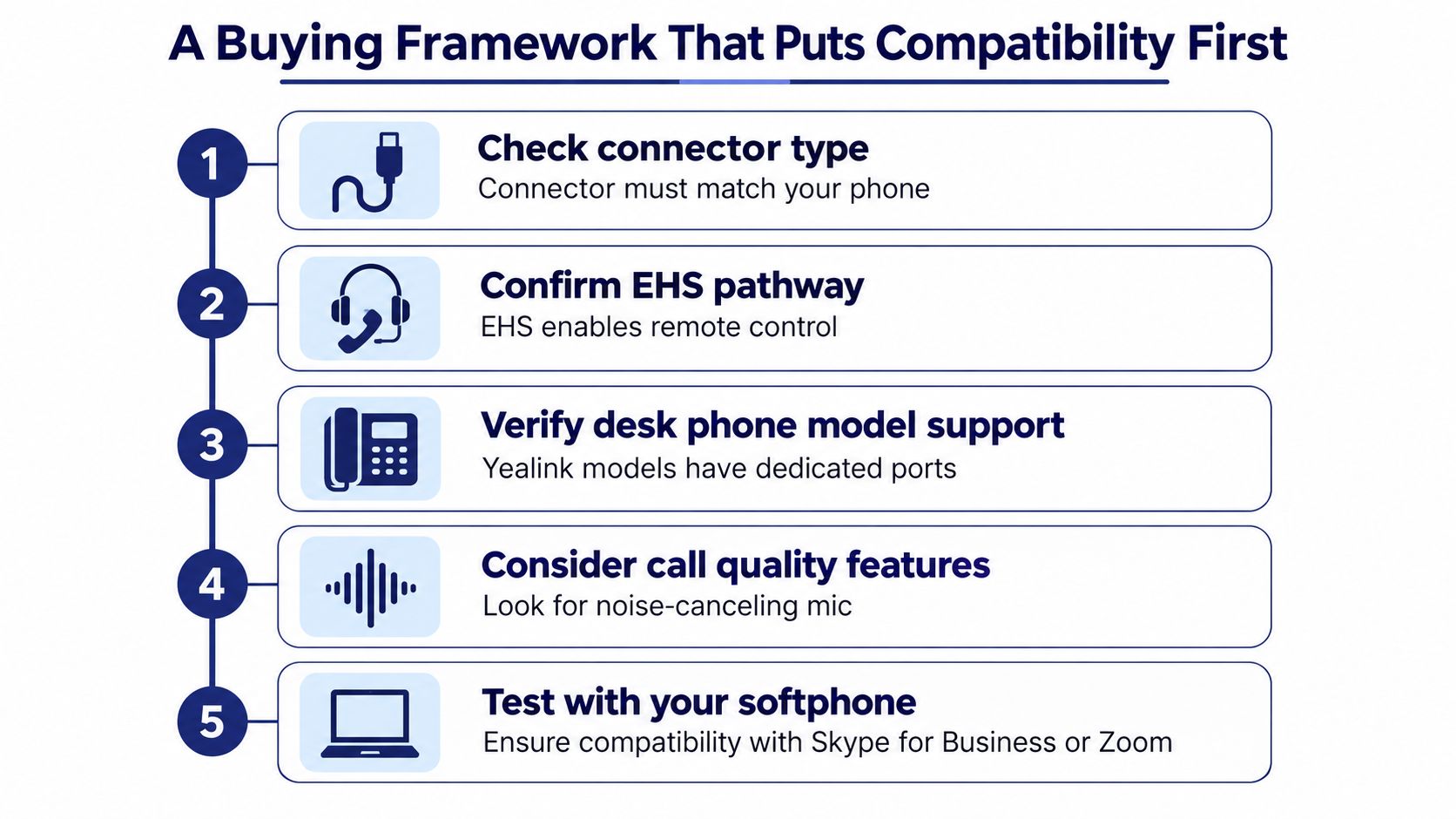
Buyers usually start with sound quality and end up debugging compatibility. That order is backward. The right sequence is connector first, EHS second, desk phone support third, comfort fourth, and brand or price last.
Use this order in procurement
- Check the connector type. The plug must match the phone, or the rest doesn't matter.
- Confirm the EHS path. If remote answer matters, the headset needs the right call-control support.
- Verify the desk phone model. Yealink phones often have specific port and accessory expectations.
- Assess comfort and accessibility. Hands-free use and easier voice amplification can matter more than feature lists for users with hearing or dexterity limitations, as noted in accessibility guidance.
- Test with the actual softphone or PBX profile. A headset that works in a demo may still fail in the live user profile.
That order keeps you from buying a headset that looks right but fails the job. It also gives IT a clean checklist to use when a manager asks why one model costs more than another.
Bringing It All Together for a Clean Deployment
A clean headset rollout starts with one question: will this headset work with this desk phone model and your cloud PBX setup? The answer usually depends on the connector, the EHS path, and the phone's accessory support, not on the sound test you hear in a quiet conference room. If those pieces do not line up, users end up with a setup that looks correct on paper and breaks in daily use.
Start with the hardware path, then move to the user experience. A headset that fits the port still may not support remote answer, busy lamp behavior, or the call control features your team expects. In practice, that is the difference between a phone that behaves like a complete system and one that forces people to reach for the handset every time the line rings.
For teams standardizing on desk phones and cloud PBX, the safest rollout is a matched phone-and-headset plan with provisioning checked against the live user profile. A curated Yealink lineup and white-glove setup support can reduce the guesswork here, because the phone, headset, amplifier if needed, and call-control settings all have to cooperate from the start. SnapDial's setup process is built around that kind of deployment, where compatibility matters as much as comfort.
If you are planning a headset rollout and want the desk phones, provisioning, and call control to line up the first time, visit SnapDial and review the phone and headset options with your deployment plan in hand. It is the most direct way to turn a fragile setup into one your users can trust every day.